Introduction
The GuestWisely WordPress Plugin allows you to seamlessly display real-time data from your GuestWisely account on your WordPress website. This includes availability calendars, property details, and more—automatically synchronized.
With this integration, you manage all reservations and property information in a single place—your GuestWisely account—knowing that any updates are instantly reflected on your website without additional effort.
By completing this tutorial, you will:
Install and activate the GuestWisely Plugin on your WordPress website.
Connect your site to your GuestWisely account.
Display default booking content and prepare your site for guest interaction.
Note: The GuestWisely plugin integrates with your GuestWisely PMS to display property content on your website using short codes.
Installation the GuestWisely Plugin
Prerequisites in your GuestWisely account
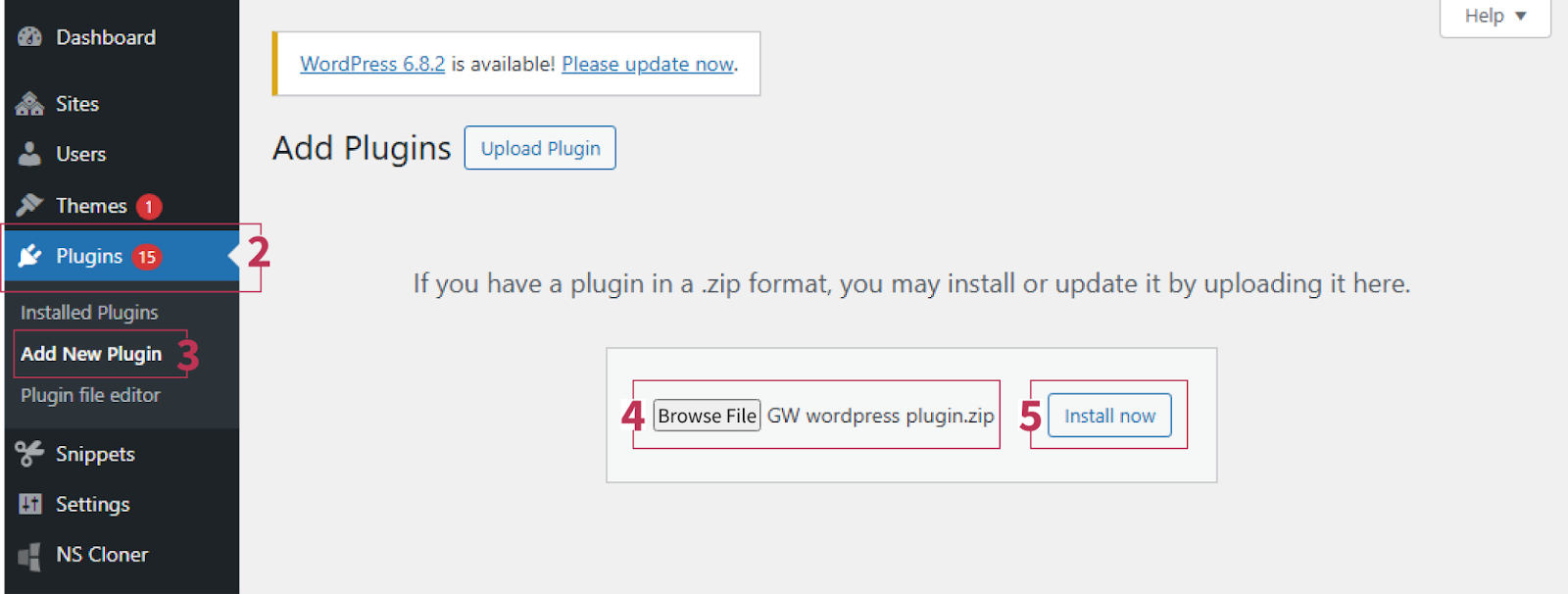
- Download the GuestWisely WordPress plugin.
- In WordPress Admin → Plugins
- Click “Add New”
- Upload the .zip file
- Click Install Now → Activate.
Configuration of GuestWisely Plugin
Connect Your Website to GuestWisely
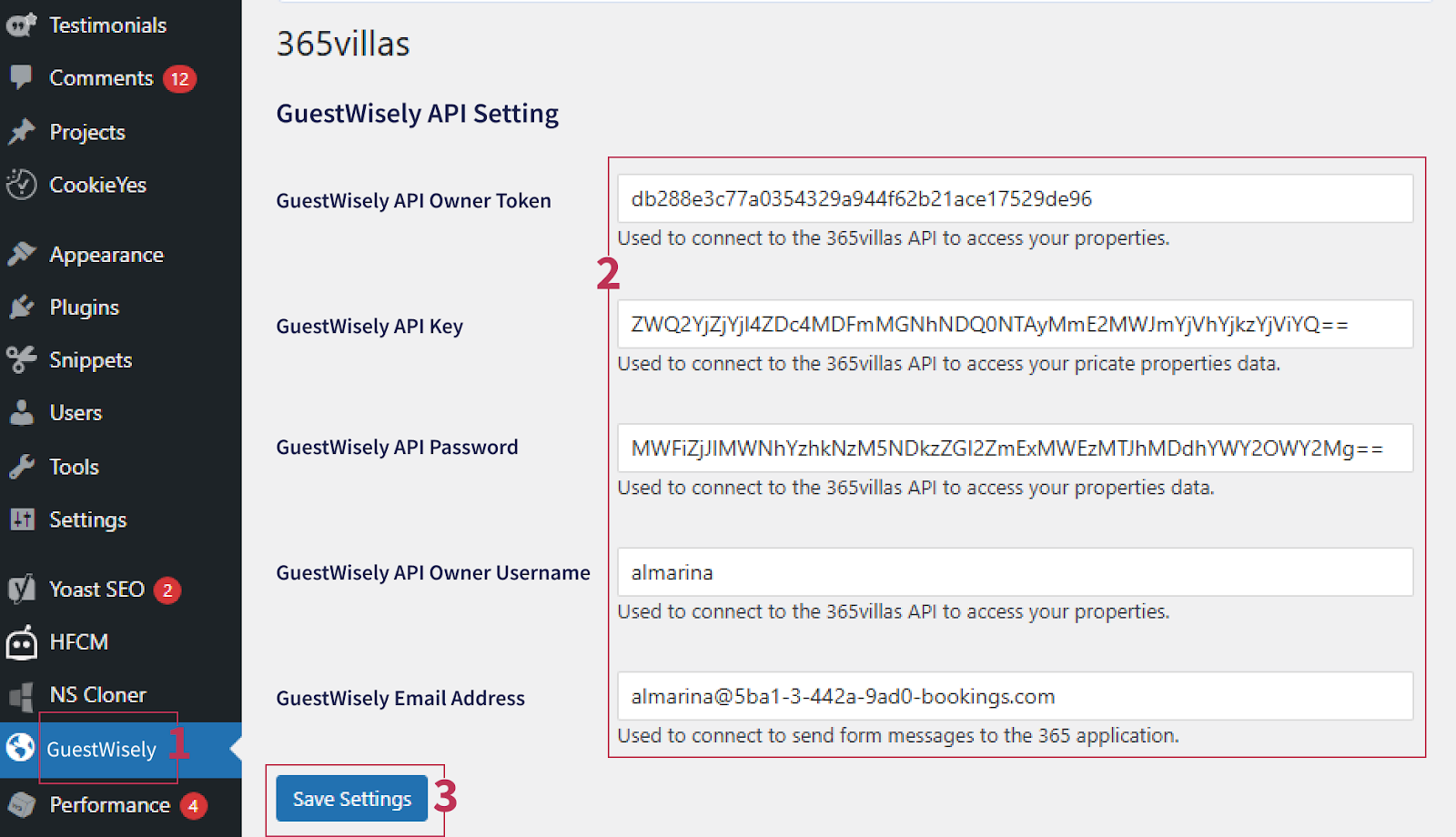
Navigate to WordPress → GuestWisely→ Settings.
Enter your API Key (found in your GuestWisely Dashboard → API & Integrations → Website API Access)
Click Save & Connect.
Properties Search, List & Featured Properties Settings
Use this section to configure how properties and search results are displayed on your website.
Properties Search Settings
Search Results Page: Choose which page will display your search results from the dropdown list of pages on your website.
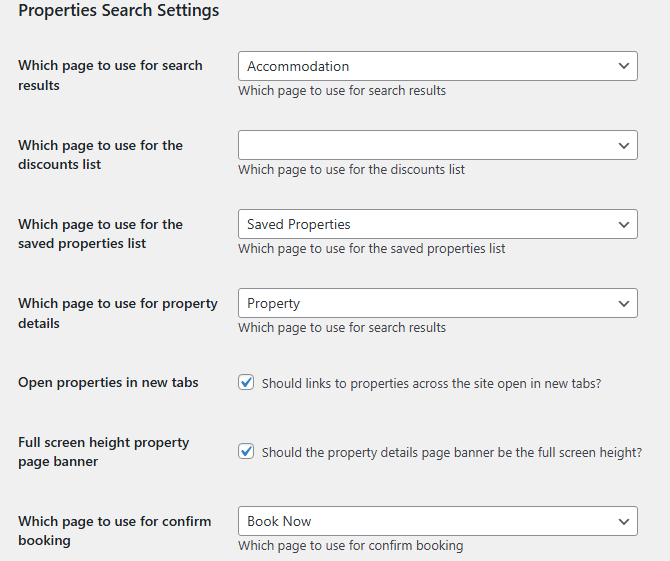
Property Details Page: Choose the default page for individual property details. This page dynamically loads the selected property’s information, so you only need one property page template.
Open in New Tabs (Optional)
Properties List Settings
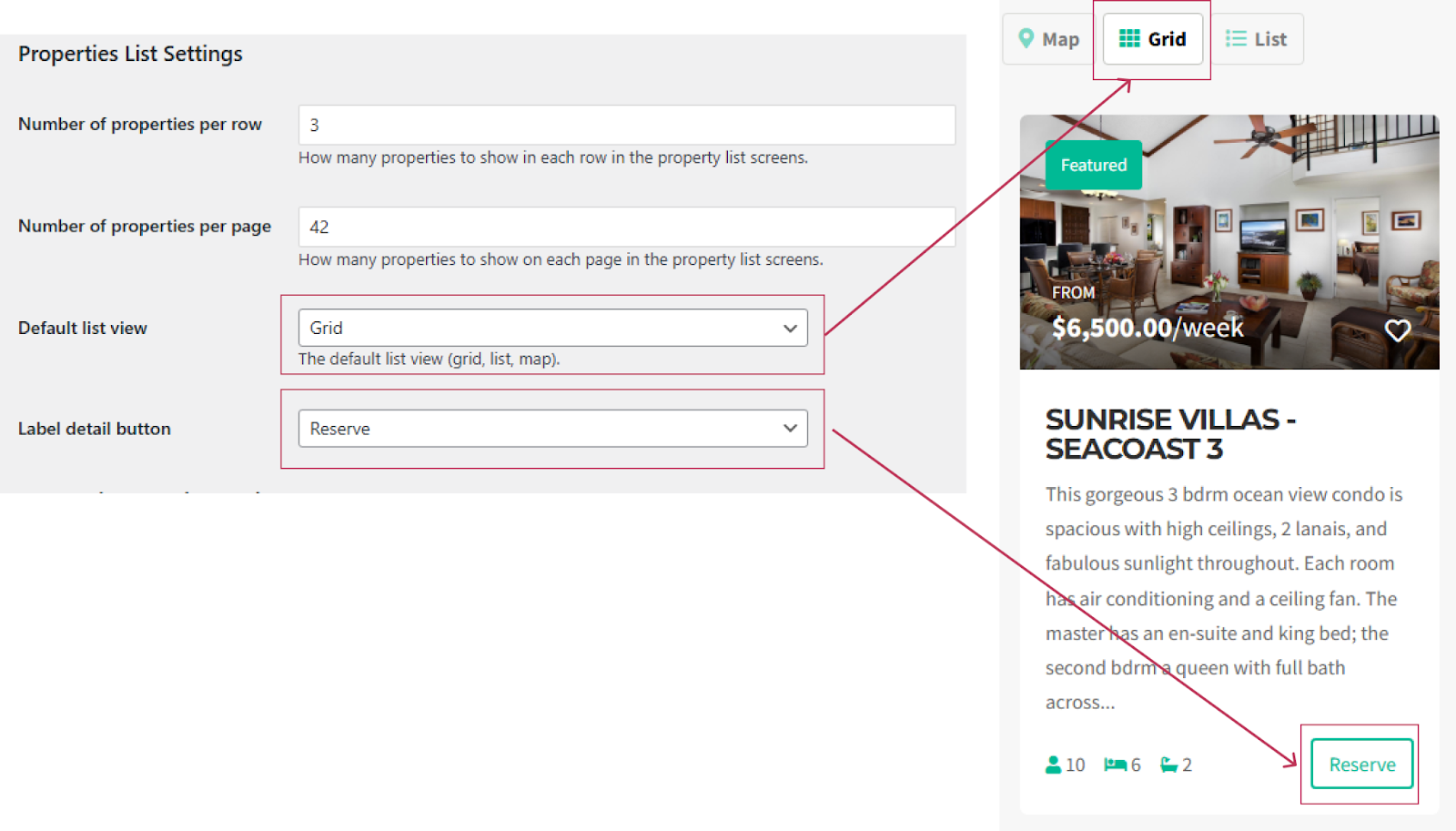
Number of Properties per Row: Decide how many properties should appear in each row of the property list or search results (we recommend 3 or 4 for best layout).
Number of Properties per Page: Set how many properties are shown on each page before pagination occurs.
Configure the Display Options:
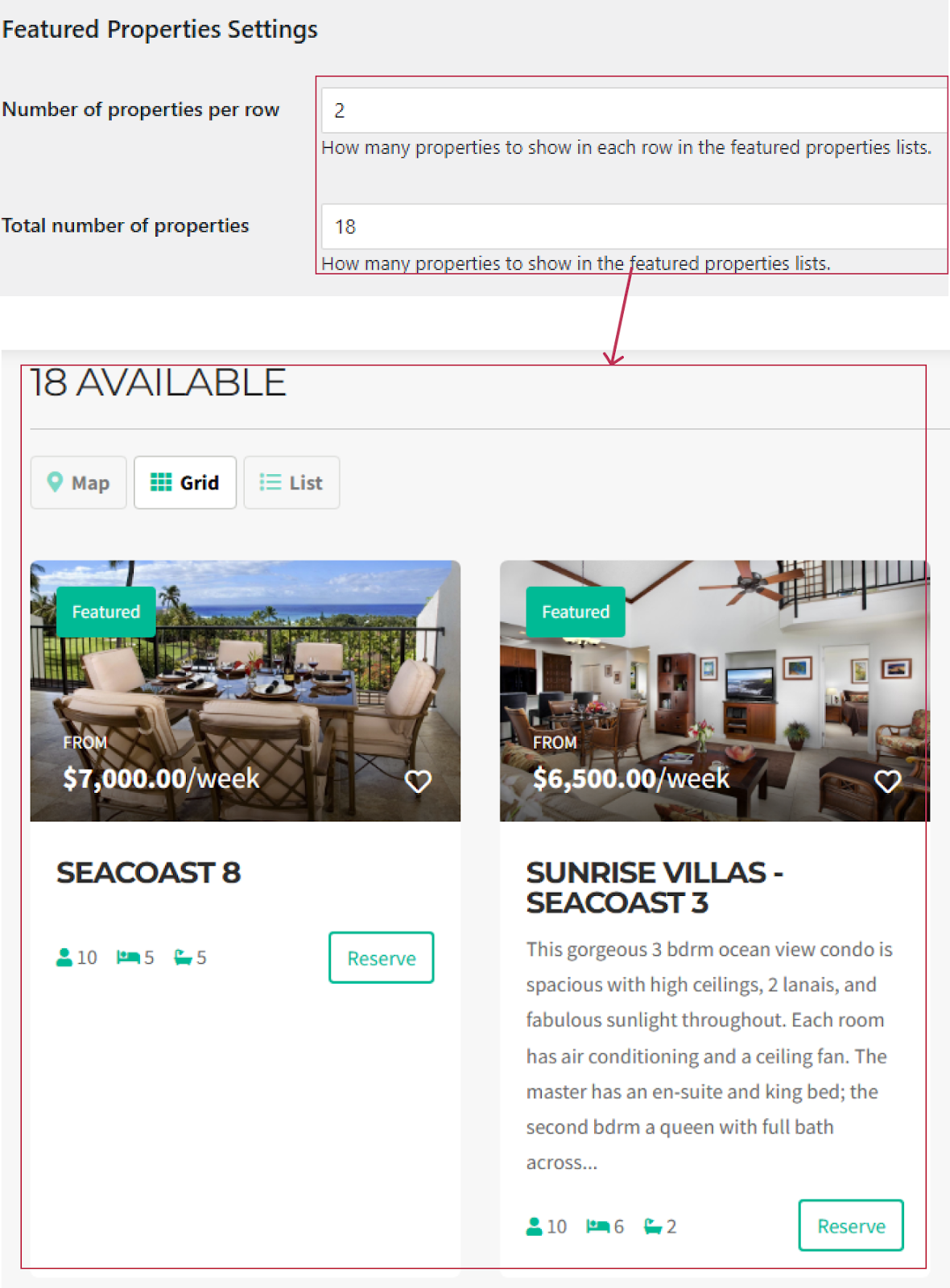
Featured Properties Settings
If you want to highlight featured properties (e.g. on your homepage), configure these settings:
Number of Properties per Row – How many featured properties to show per row.
Total Number of Featured Properties – How many featured properties to display in total.
Note: Only properties marked as Featured in your GuestWisely dashboard will appear in this section.
Other Settings
In the Other Settings section, you can configure important website and performance options.
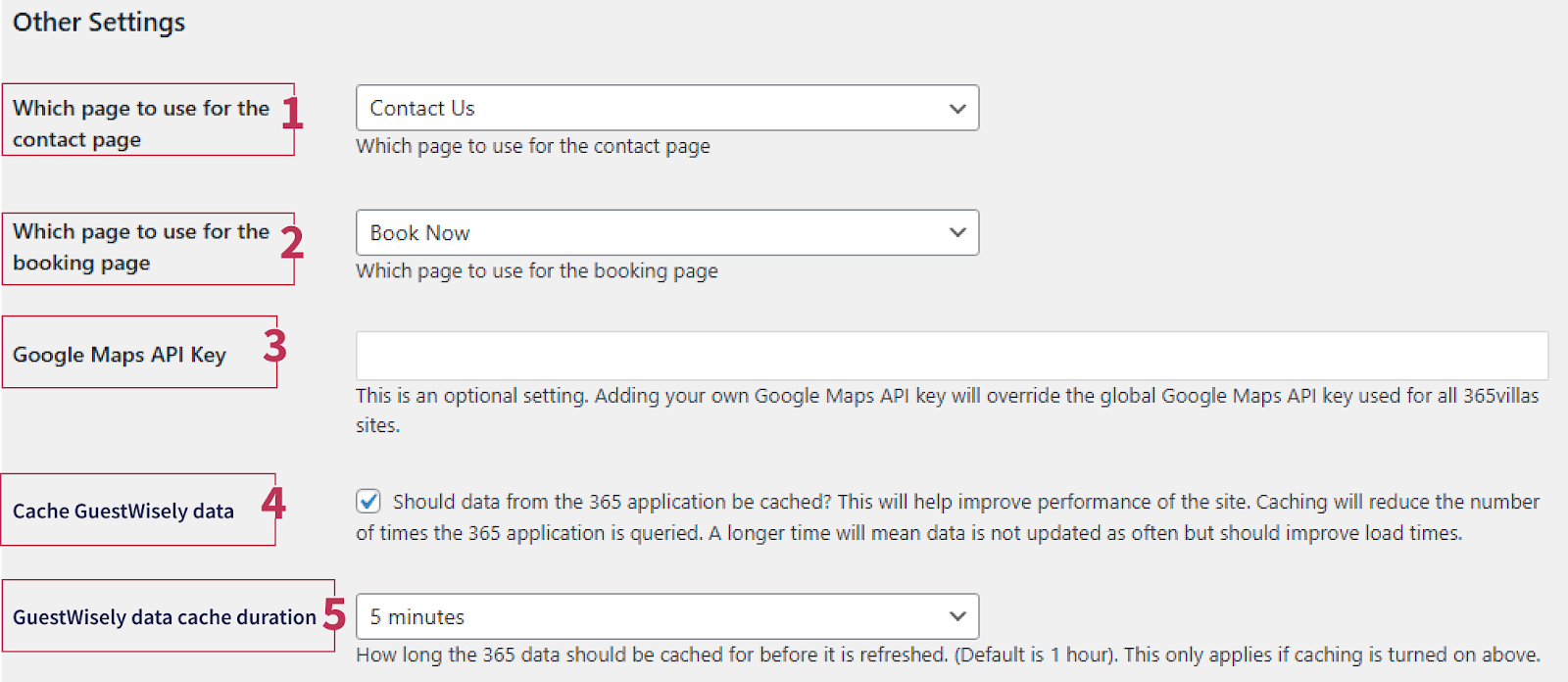
1 & 2. Select which page will be used as your Contact Us page and which page will handle bookings. For example, you might set them to “Contact Us” and “Book Now”.
3. Google Maps API key (optional):Rather than using the default GuestWisely Google Maps API, you can set up your own. You can read more details about how to do that here.
4. Cache GuestWisely Data:
When enabled, the site loads data from the stored cache instead of querying GuestWisely each time.
When it’s disabled, the site always fetches the latest data, which can slow down page loading. For the best performance, we recommend installing a caching plugin like W3 Total Cache and enabling “Page Cache” and “Object Cache”
Please note that when you install W3 Total Cache, please turn off Cache GuestWisely Data.
5. GuestWisely Data Cache Duration
Which determines how long the cached data stays before refreshing. The default is 1 hour. Keep in mind that some changes, like color updates, may not appear until the cache expires or is cleared manually.
Color elements controlled
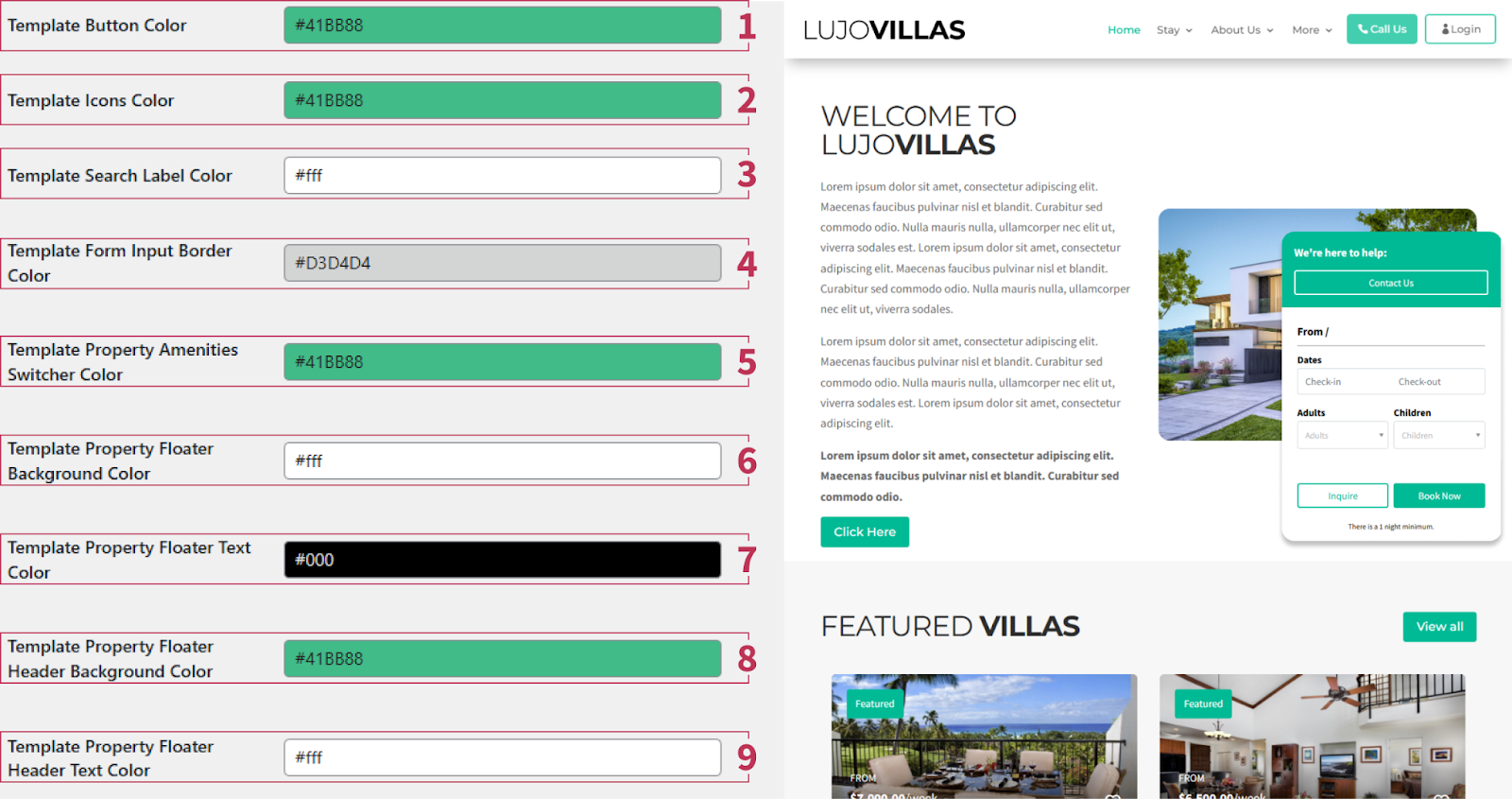
Most colors on your website follow your WordPress theme. However, the following elements are controlled directly in the GuestWisely plugin settings, allowing you to fine tune the appearance of your property pages and booking widgets:
Template Button Color: Controls the color of all buttons on property search, results, and property detail pages.
Template Icons Color: Sets the color of icons that represent property features and amenities.
Template Search Label Color: Defines the text color on the search button.
Template Form Input Border Color: Controls the border color around search form fields and checkboxes.
Template Property Amenities Switcher Color: Changes the active tab color in the property amenities section (background of the whole section is managed via DIVI).
Template Property Floater Background Color: Sets the background color of the floating booking widget on property pages.
Template Property Floater Text Color: Controls the font color inside the floating booking widget.
Template Property Floater Header Background Color:Defines the background color of the floating widget header.
Template Property Floater Header Text Color: Sets the font color of the floating widget header.
Calendar Styling
From within your Guestwisely account, select the Booking engine. From this section, we use the following:
Colour scheme: This is used to colour your calendars.
Calendars and online booking: We use the Camelot suite calendar
Search engine: Scroll to the bottom and we use the information in the ‘customise your search criteria”
Integration of your website from GuestWisely PMS
The GuestWisely plugin integrates with your GuestWisely PMS to display property content on your website using short codes. This allows you to automatically showcase properties, search tools, and booking options without creating individual pages for each property.
With short codes, you can add the following content directly to your WordPress pages:
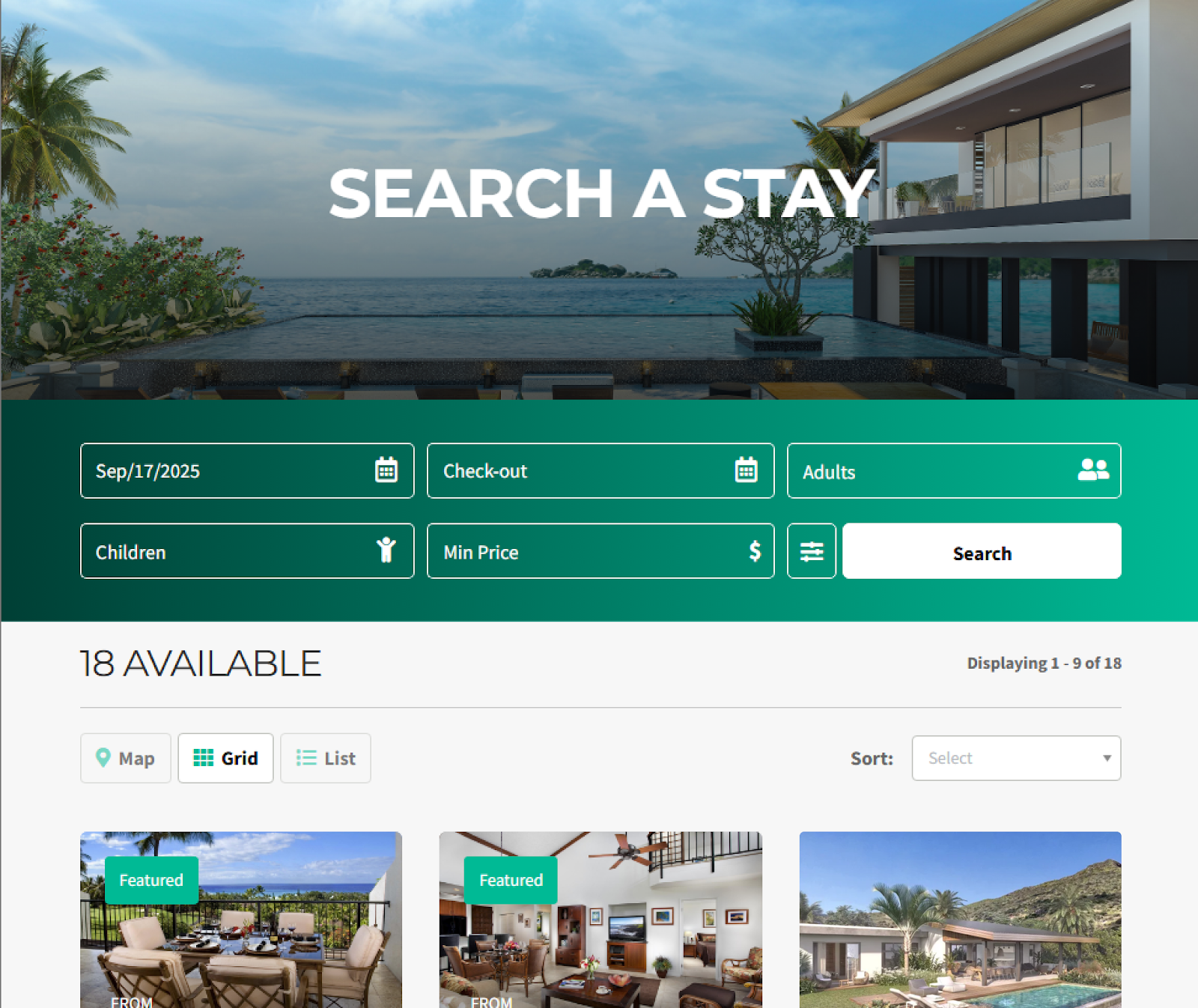
- Search Engine: Two different styles of search forms are available to let visitors find properties based on their criteria.
- Featured Properties: Highlight selected properties on your Home page. You can control the number of properties per row and rows per page to display only the properties you want to promote.
- All Properties Listing: Display your entire property portfolio on a Properties or Accommodation page. Visitors can browse all listings and use the search engine to filter results. Example Page: Luxury Bay Accommodation.
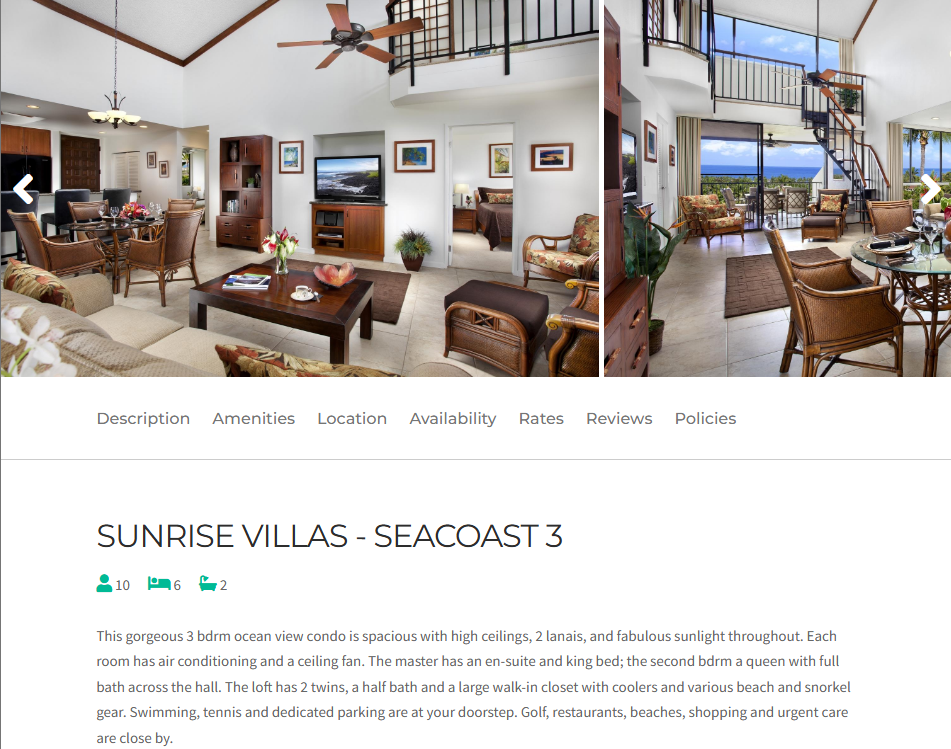
- Property Details Page: This page acts as a template for all properties. Using short codes, the correct property information loads dynamically when a visitor clicks a property from search results. There’s no need to create separate pages for each property.
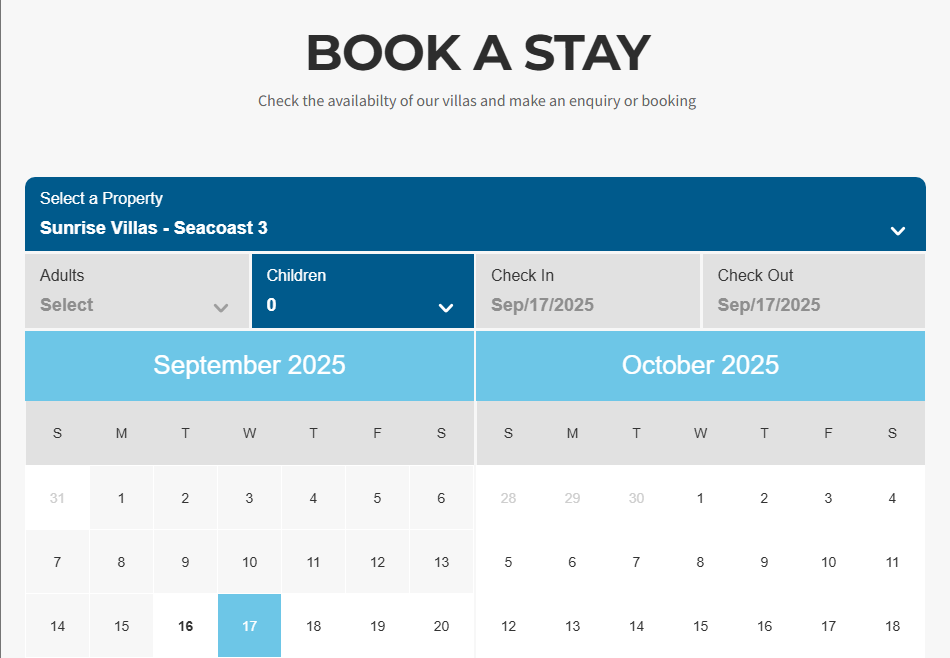
- Booking Engine : Add a Book Now page with an all-properties calendar for direct reservations.
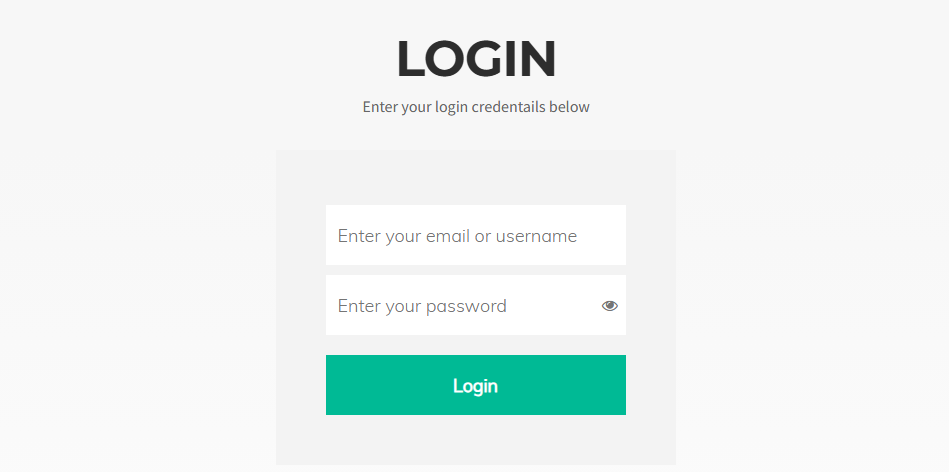
- GuestWisely Login – Allow property owners, housekeepers, and maintenance staff to access calendars, tasks, and data directly from your website.
Recommended Default Pages
To display this content effectively, we recommend setting up the following WordPress pages and inserting the corresponding short codes. The full list of short codes can be found in this article.
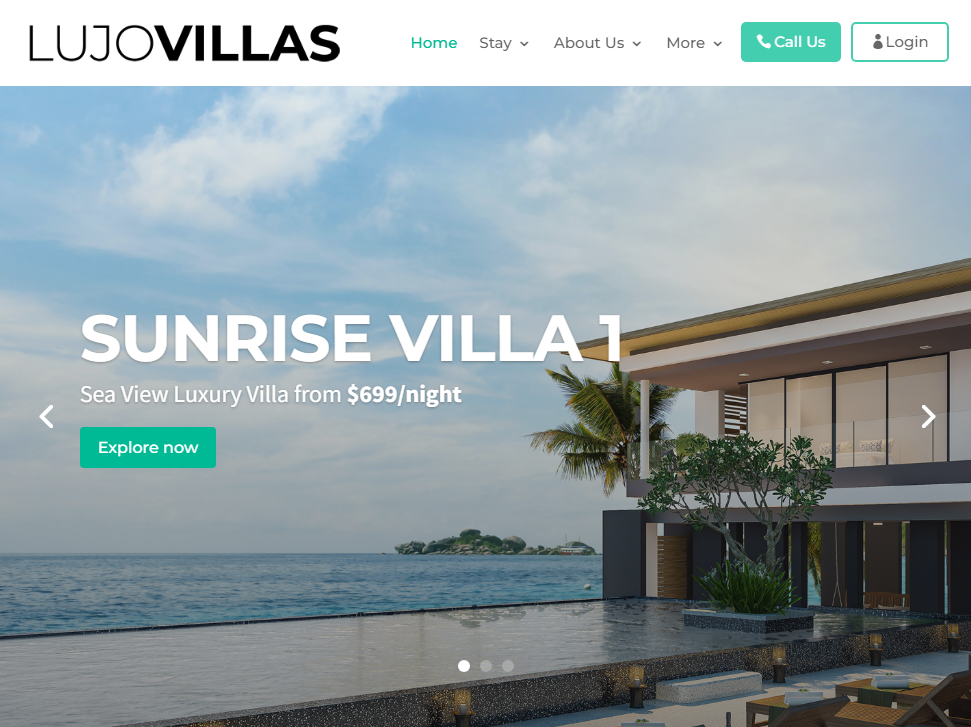
Home Page: Add the Search Engine and Featured Properties.
Search Results Page: Usually named Search Results Page, this page displays the results from your search form.
Property Details Page: Acts as a single template for all properties. Add short codes for each feature you want to display (photos, description, amenities, reviews, etc.).
Book Now Page: This page must be set up (and optionally added to your menu) for the booking widget on your property page to pass to for confirming bookings/quotes.
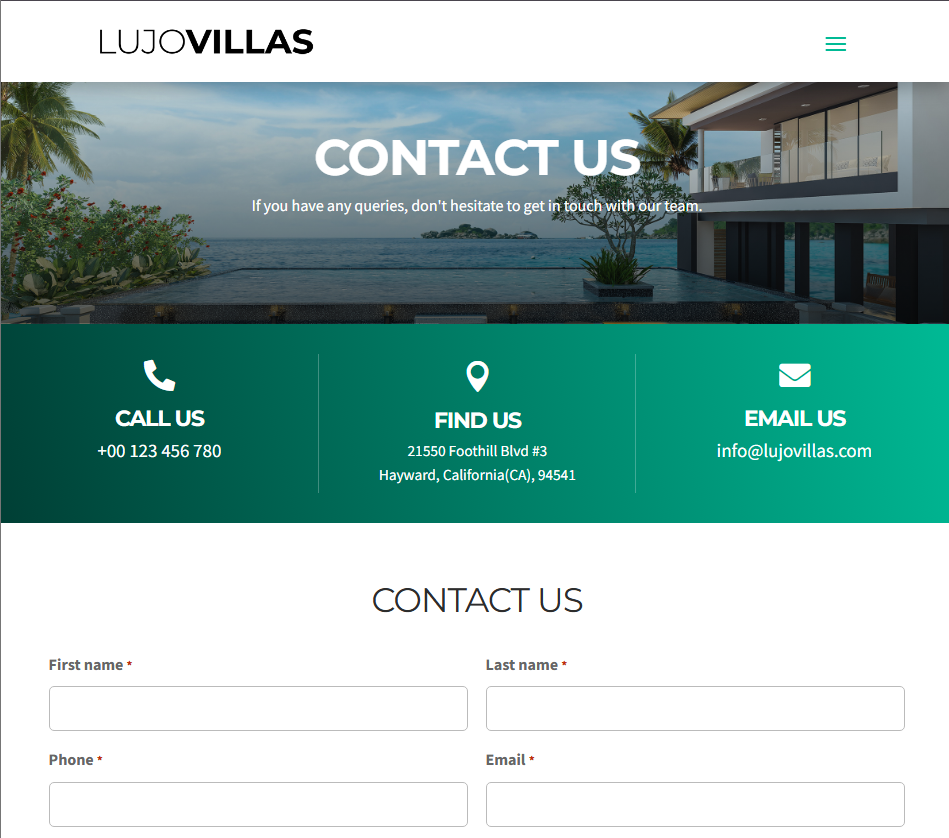
Contact Us Page: Linked automatically in your website settings for inquiries.
Owner Login Page: Optional, but useful for owners and team members to access their GuestWisely account without leaving your website.
Was this article helpful?
That’s Great!
Thank you for your feedback
Sorry! We couldn't be helpful
Thank you for your feedback
Feedback sent
We appreciate your effort and will try to fix the article