Introduction
If you have multiple websites, you may often wonder which one your guests are booking from. The Multiple Websites feature in GuestWisely makes it easy to track exactly that. Each website is configured as a separate Brand, and you can assign specific properties to that Brand. By creating a Lead Source, setting up a Brand, and attaching the Lead Source to it, every booking is automatically tagged with the website it originated from. This not only gives you clarity on where your bookings come from, but also provides better insights for managing your marketing strategy and property performance.
Stand-alone website
To set up a brand for a stand-alone webpage with a booking engine for selected properties, follow these steps:
Step 1: Create a Lead Source
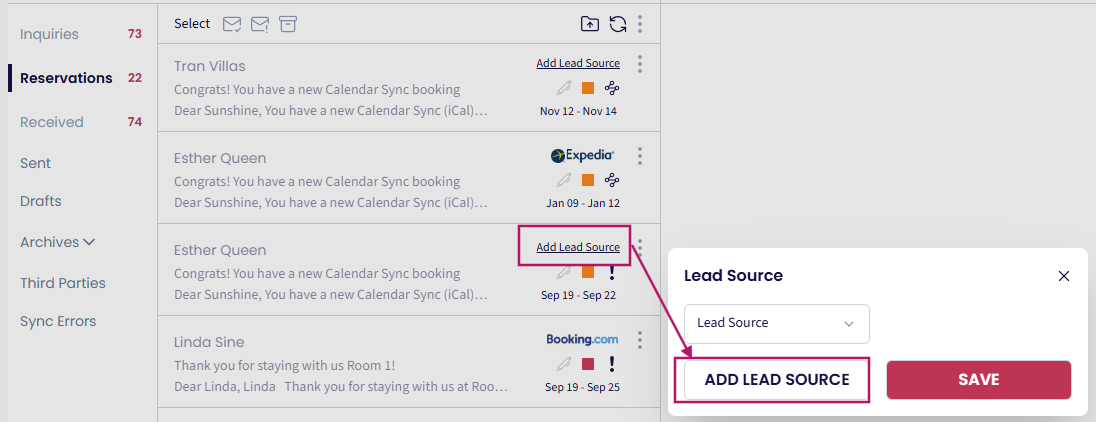
From Reservation Manager:
Click Add Lead Source
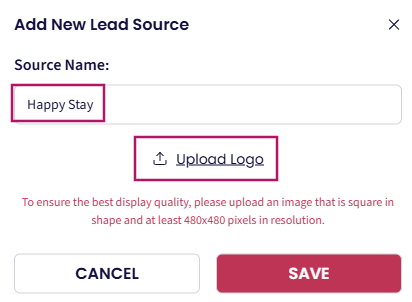
Enter Source Name
Upload Logo (optional)
Click Save
Step 2: Add a New Brand
Go to the Website > Integrated Website > Multiple Websites
Create a new brand for your website:
Enter brand name > Click “Save New Brand”
Assign the selected properties to this brand.
Select a Default Email (taken from the Owner Login profile). Shortcodes [YOUR_NAME] used in your emails to guests will then pull from the Owner Login profile. If you prefer [YOUR_NAME] to reference Your Profile, skip setting the Default Email.
Source: Choose a custom Lead Source.
Icon: Upload a brand icon if required

Step 3: Set Up the Search Engine
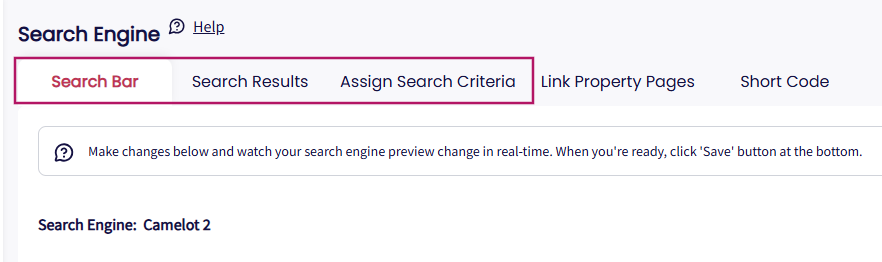
1. Configure the following components in the Search Engine:
Search Bar
Search Results
Assign Search Criteria
These settings apply globally to all Brands and define how the search engine behaves across your websites.
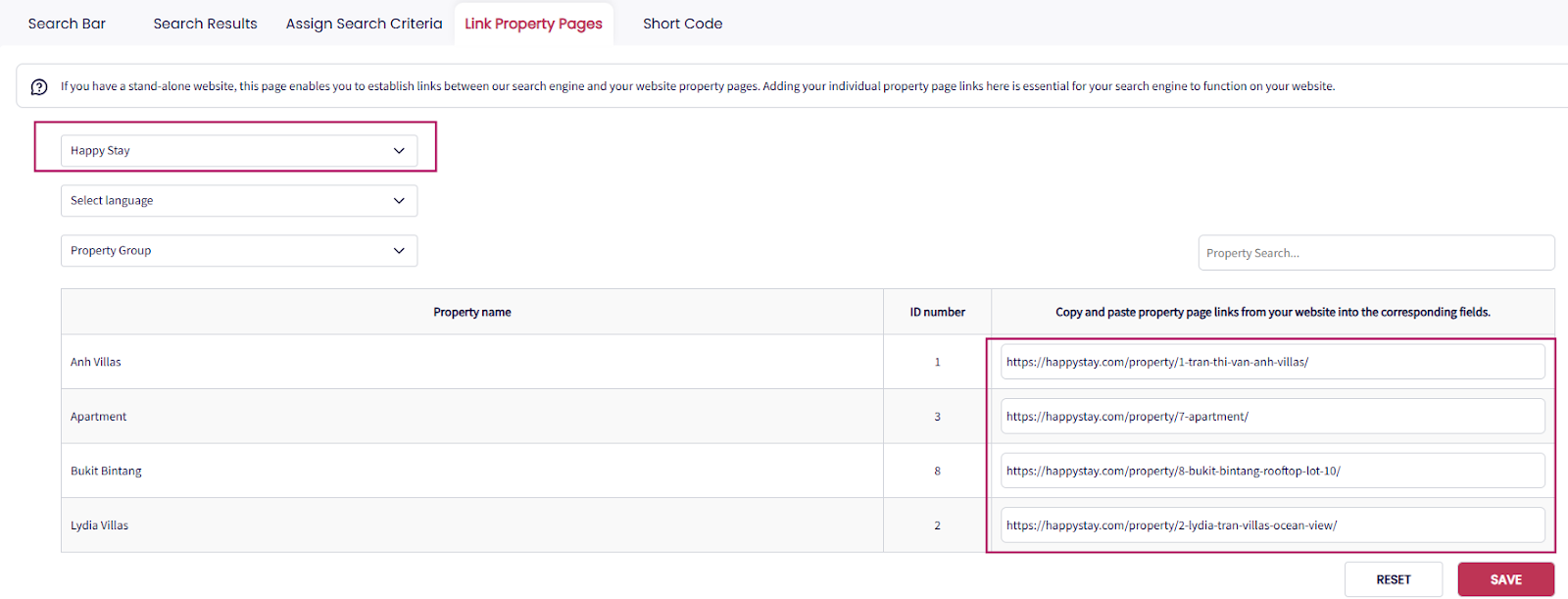
2. Link Property Pages
Select the Brand.
Copy and paste the property page links for the selected properties from your website.
This ensures the search function redirects guests to the correct property detail pages.
3. Generate the Brand-specific Search Code
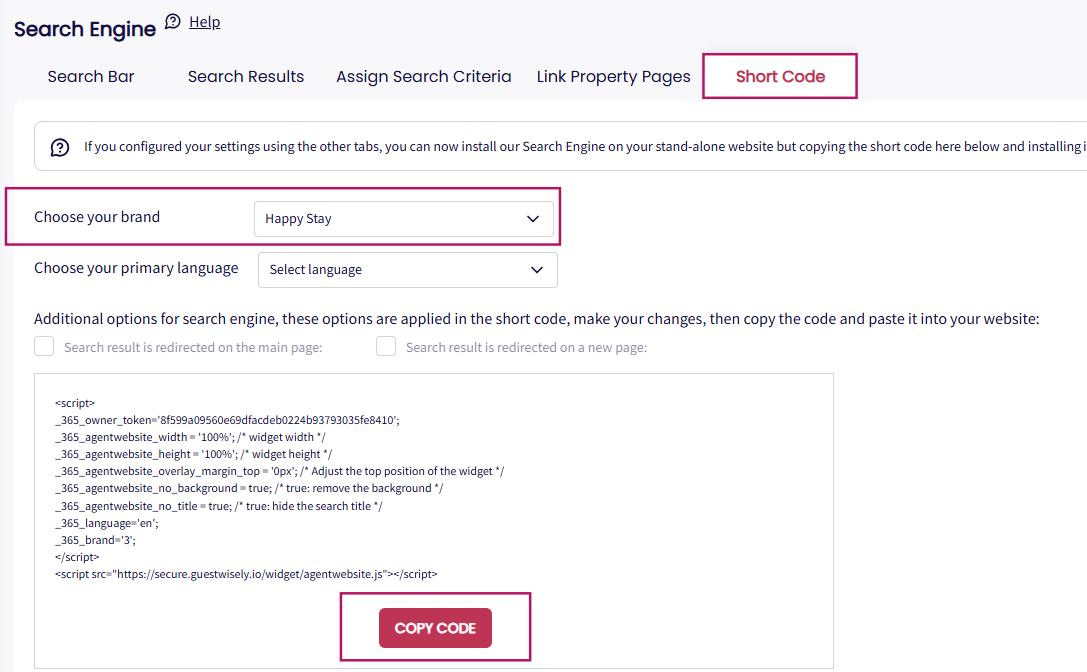
Once completed, go to the Short Code tab:
Select the Brand.
Copy the search engine code and embed it into your standalone site (your developer can assist with this part).
This generates a search limited to the properties assigned to that specific Brand.
Step 4: Add the Booking Engine to Each Property Page
Navigate to the Booking Suites under the Booking Engine section.
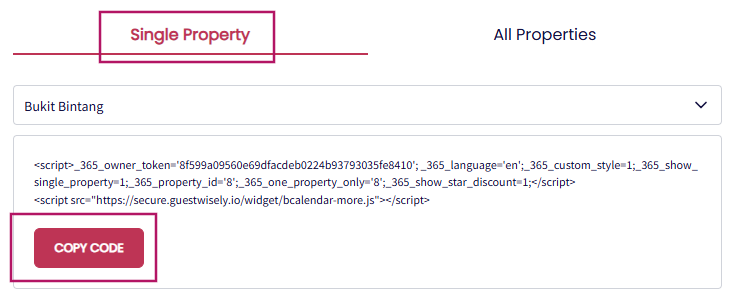
For each property, copy the code for the individual booking engine and insert it into the respective property detail page on the standalone website (your developer can assist with this part). This allows guests to make bookings directly.
Auto Assign Lead Source
If you would like bookings made on a stand-alone website to flow into GuestWisely via the Booking Engine and be automatically assigned to the Lead Source you created, ask your developer to add the following parameter to the widget script:
_365_brand= Brand ID
This parameter tells the system which Brand (website) the booking is coming from.
Example:
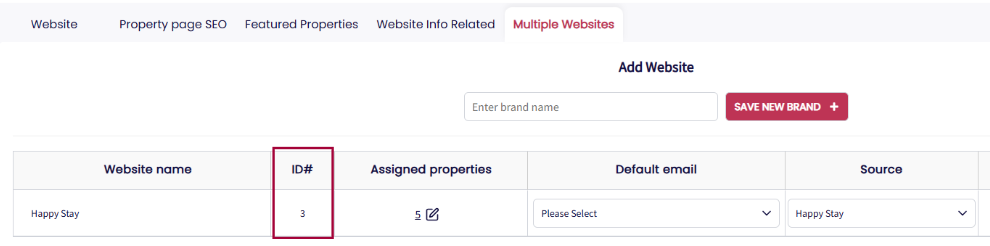
If the Brand ID is 3 (from the Multiple Websites section), add _365_brand=3

GuestWisely Integrated Website
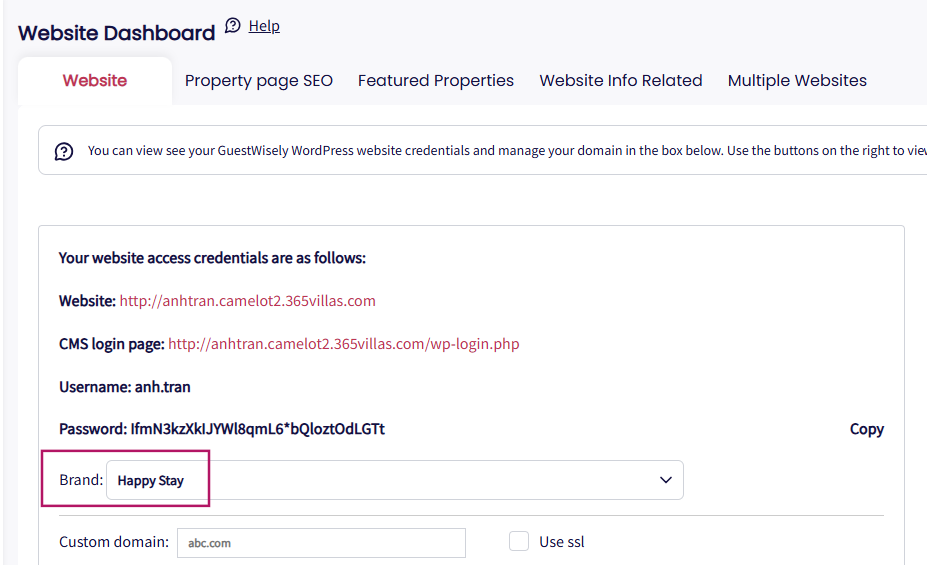
If you have a GuestWisely-integrated website for selected properties, after adding a brand in Step 2, simply navigate to the Website tab and select the brand. No additional steps are required. The system will automatically recognize the brand when a guest makes a booking.
Was this article helpful?
That’s Great!
Thank you for your feedback
Sorry! We couldn't be helpful
Thank you for your feedback
Feedback sent
We appreciate your effort and will try to fix the article