To display content from your GuestWisely account on your website through GuestWisely, you first need to set up a few default WordPress pages and insert the appropriate short codes.
Applying Short Codes
Short codes let you display specific content from your GuestWisely account, such as property details, availability, or booking forms. After your pages are designed using Divi or another page builder), simply insert the required short codes.
Available shot codes include:
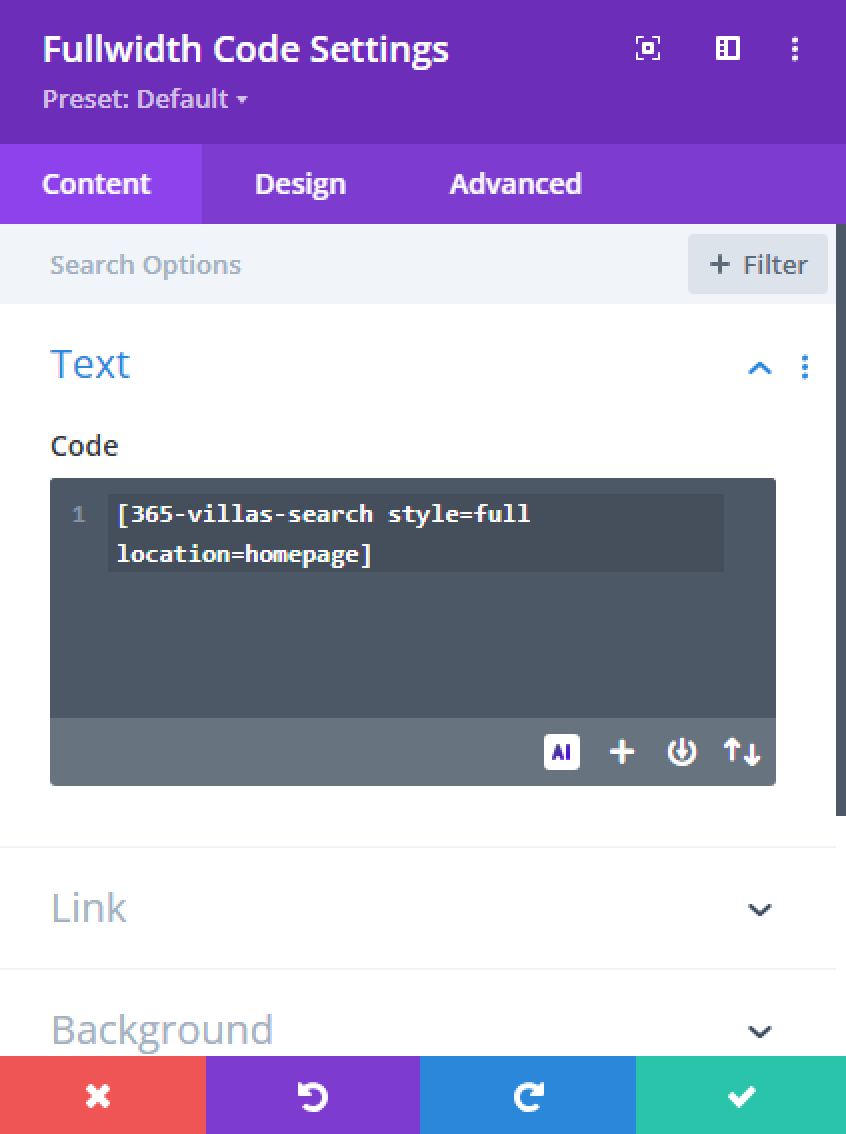
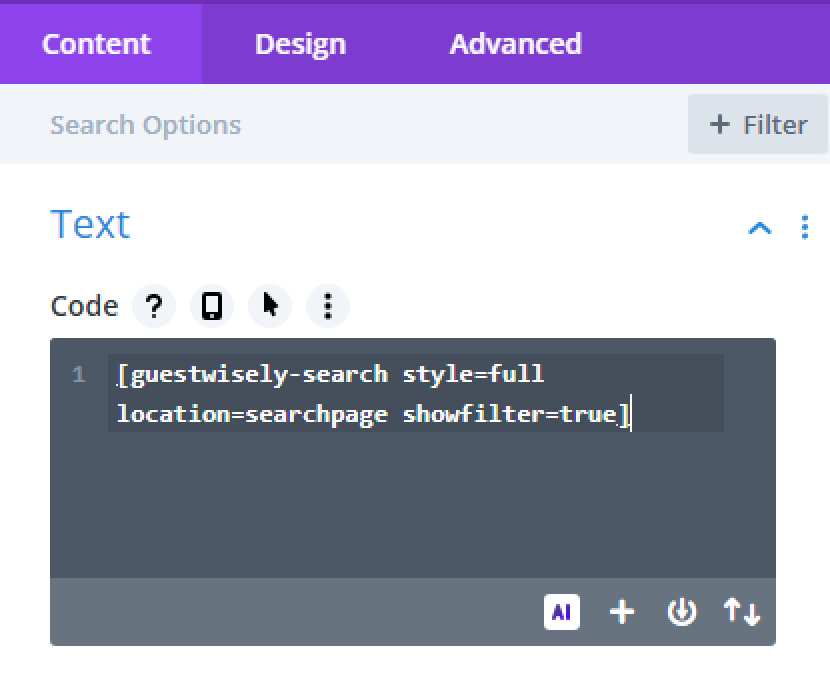
Search Bar: Embed one of two search form styles.
Featured Properties: Display selected properties, ideal for your homepage.
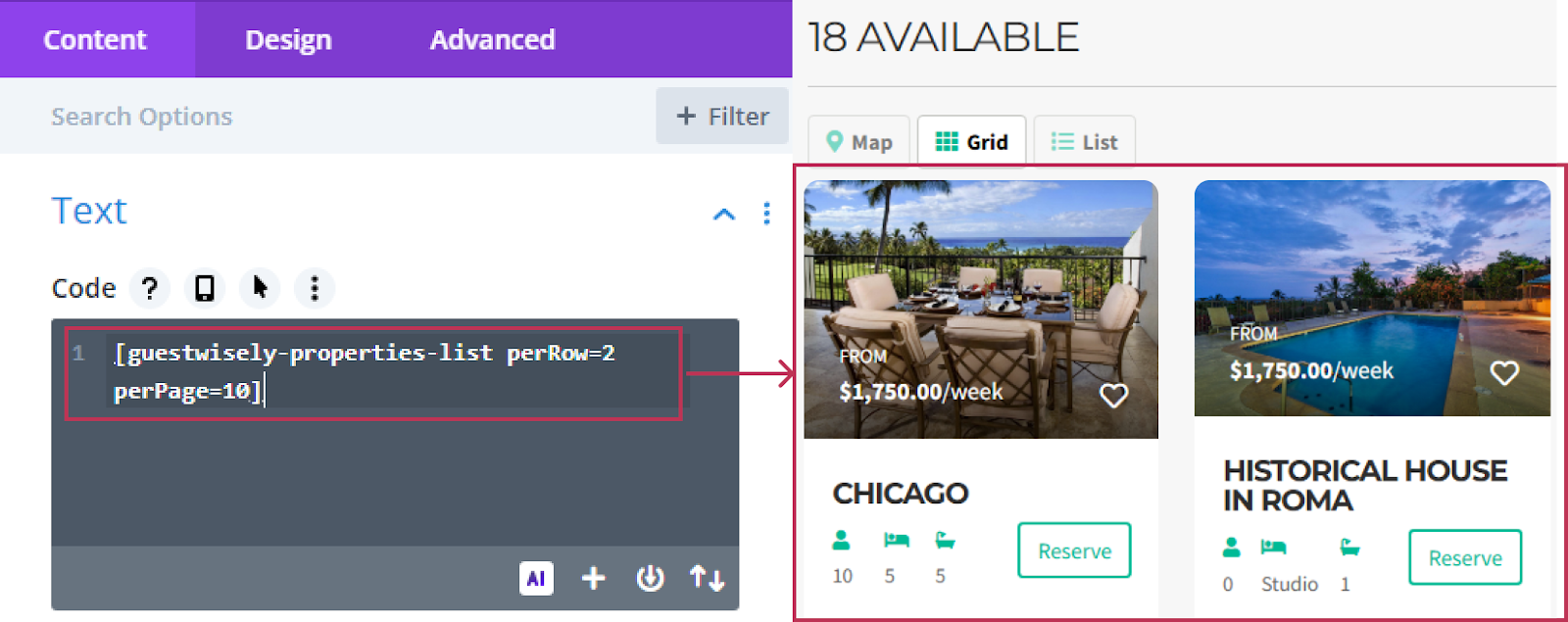
Properties: Show a paginated list of all properties with control over properties per row and per page.
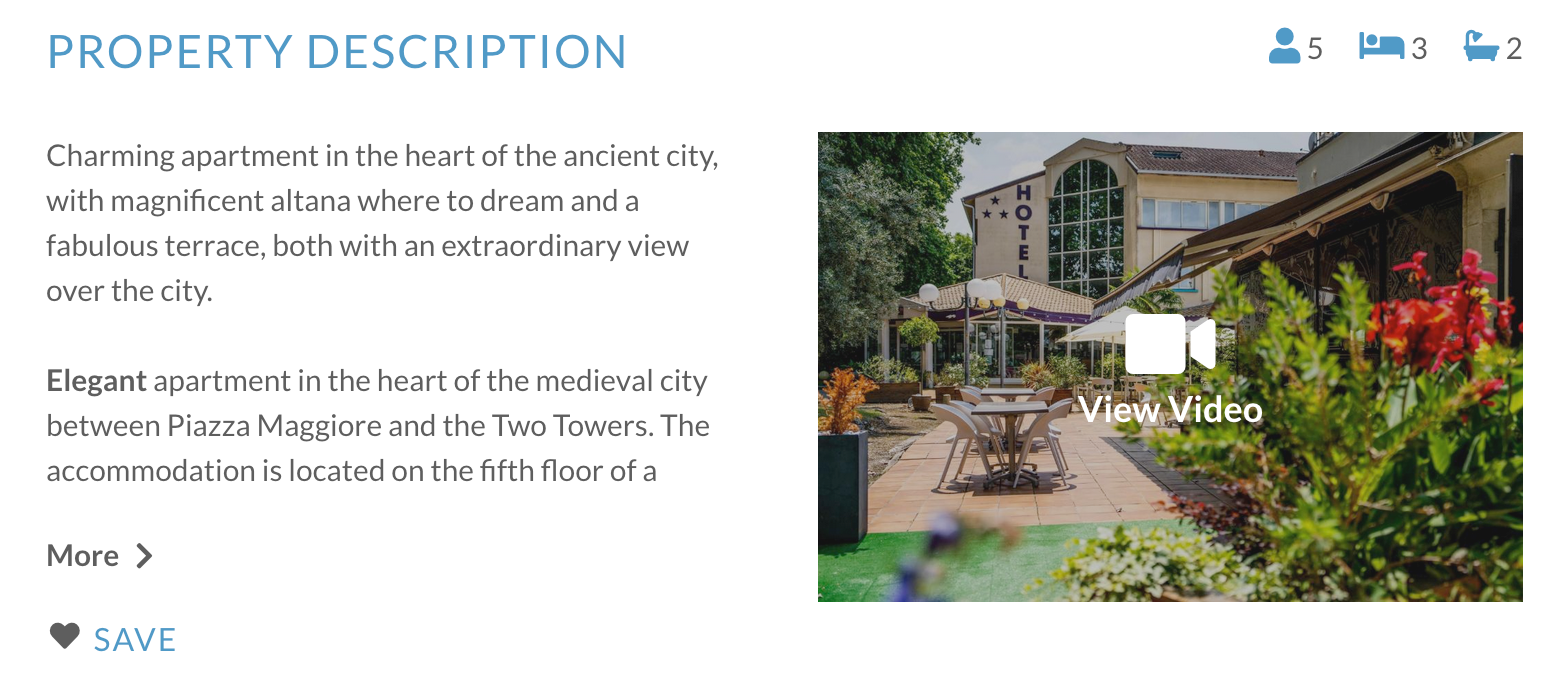
Property: Display specific property features (description, amenities, gallery, etc.).
Booking: Embed the booking engine to allow direct reservations.
Guestwisely Login: Provide a login form for clients, owners, or team members to manage bookings.
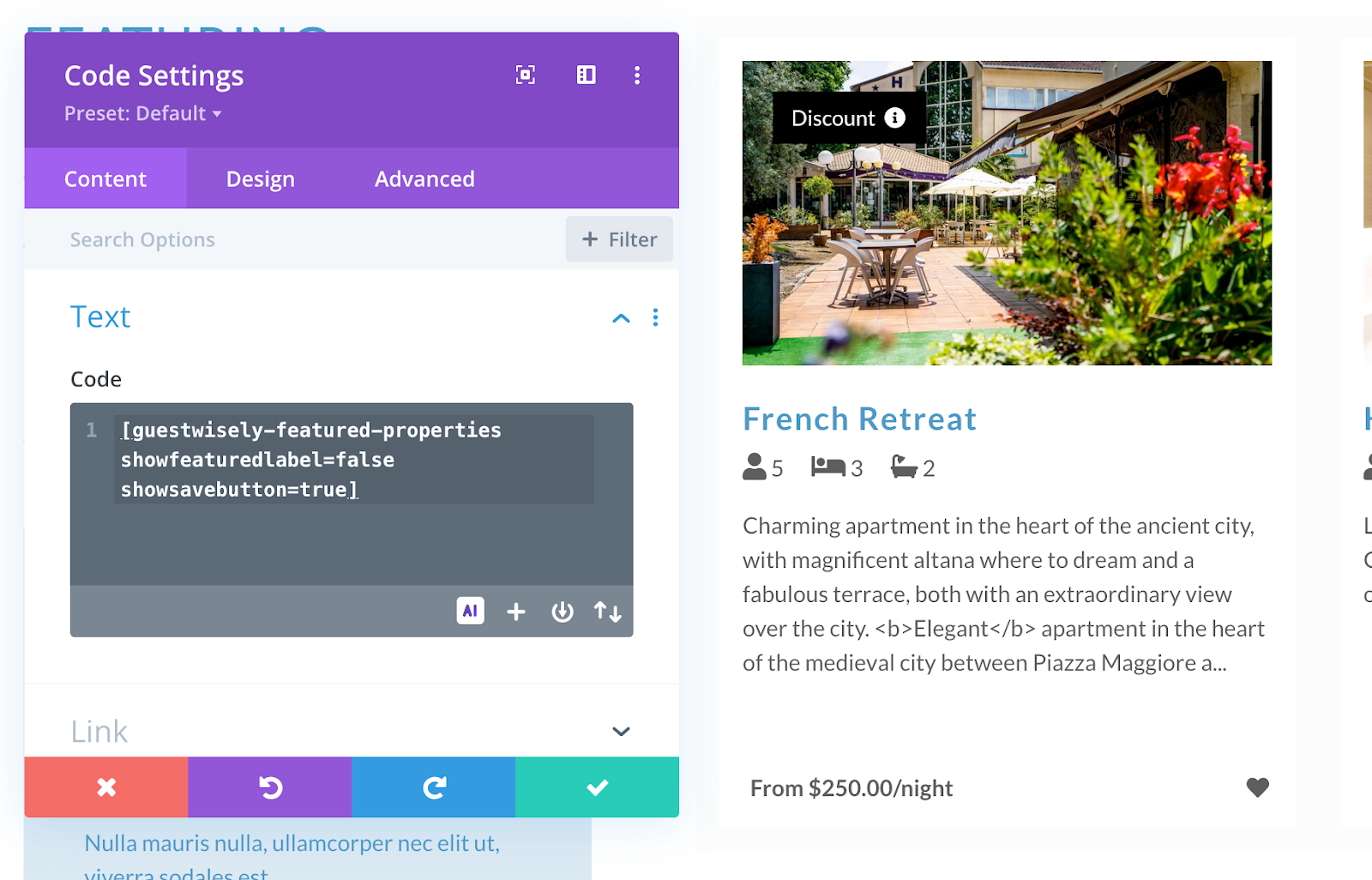
The Featured Properties short code allows you to display a row or grid of properties that you have marked as featured in your GuestWisely account. This is typically placed on your homepage to highlight selected properties and attract more bookings.
Basic short code: [guestwisely-featured-properties]
Key Parameters:
Key parameter
Values
Default
Notes
perrow
number
3
Cards per row
limit
number
3
Max items shown
propertypageid
null
null
Target page ID for property detail/list (optional)
propertiesdiscountspageid
null
null
Target page ID for discounts list (optional)
showsavebutton
true, false
FALSE
Show “Save” on cards
showfeaturedlabel
true, false
TRUE
Show “Featured” label
If a value is a number, you must input a specific number (e.g., searchpageid=123).
If Value = null, the parameter is optional
Example Short codes:
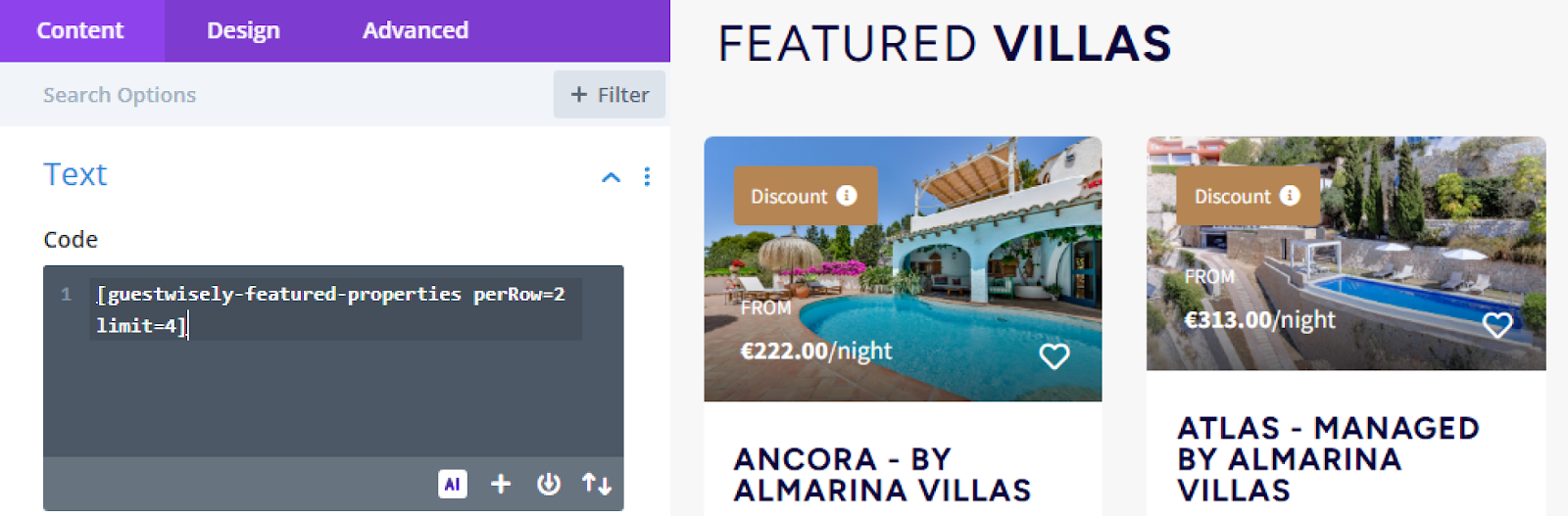
1. Display 2 properties per row, showing 4 properties total:
The Property listings display is largely configured in the top level plugin settings. These can be overwritten using some of the parameters below, if you wish to duplicate the short code in more than one area, for different purposes.
Basic short code: guestwisely-properties-list
Key Parameters:
Key parameters
Values
Default
Notes
perrow
number
3
Cards per row (primarily used in grid view)
perpage
number
10
Items per page
propertypageid
null
null
Target page ID for property details
propertiessearchpageid
null
null
Target results page ID (if not using current page)
propertiesdiscountspageid
null
null
Target page ID for discounts list
usecurrentpageforsearch
true, false
FALSE
Route search results to current page
discountsonly
true, false
FALSE
Show only discounted properties
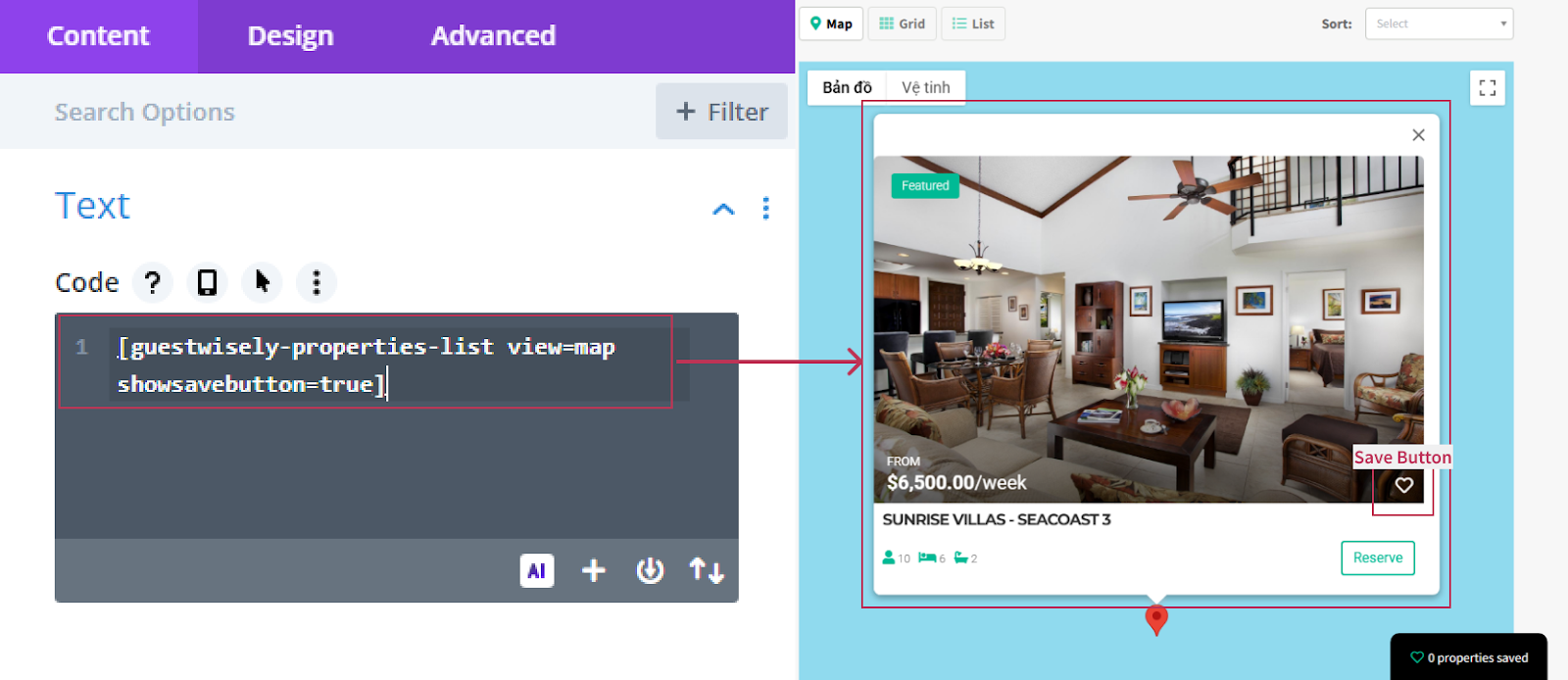
showsavebutton
true, false
FALSE
Show “Save” on cards
showdiscountlabel
true, false
TRUE
Show “Discount” label
showfeaturedlabel
true, false
TRUE
Show “Featured” label
view
list, grid, map
list
Choose layout view
mapstyle
Default, full
default
Half or full page map view
defaultquery
null
null
Preload filters (e.g., dates, location); leave blank to skip
Tips:
Grid tuning: perrow only affects grid; it has no effect on list or map.
Routing: Prefer usecurrentpageforsearch=true or set propertiessearchpageid—avoid mixing both unless you need a fallback.
Discounts-only: You can still keep tabs on, or hide them for a focused layout.
Map view: Ensure your map settings/API are configured in the theme/plugin when using view=map.
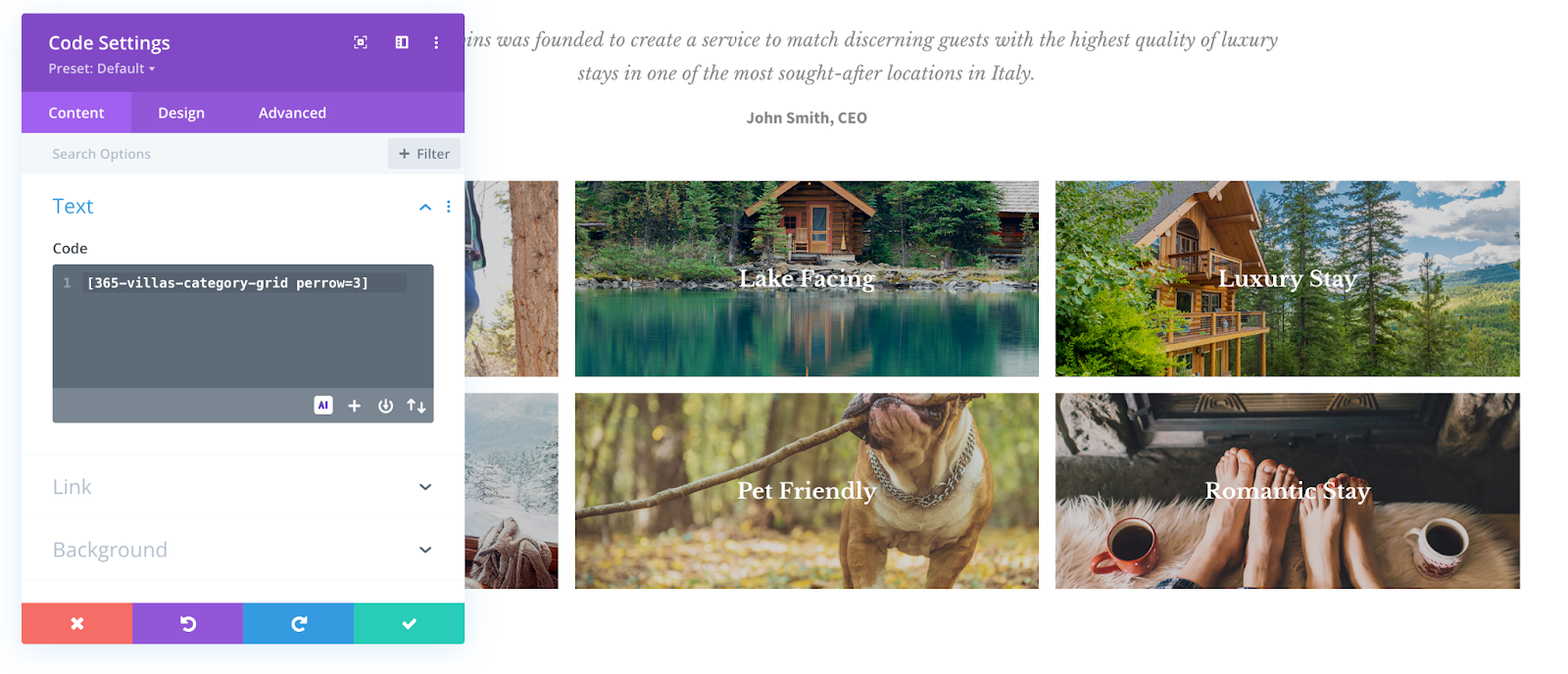
Display your property categories as a visual grid — all photos configured within your Guestwisely account. This layout provides an intuitive way for users to browse your property categories.
You can customize how many categories appear per row using the perrow parameter.
Note: Be sure to choose a grid layout that fits the exact number of categories you have in your account, as the grid will only display full rows.
Basic short code: [guestwisely-category-grid]
Key Parameters:
Key parameter
Value
Default
Notes
perrow
number
4
Category tiles per row
searchpageid
null
null
Target results page ID (optional)
Use-case Recipes (copy → paste)
Use case
Short code
Default grid (4 per row)
[guestwisely-category-grid]
Compact grid (3 per row)
[guestwisely-category-grid perrow=3]
Wide grid (5 per row)
[guestwisely-category-grid perrow=5]
Example Short code
[guestwisely-category-grid perrow=3]
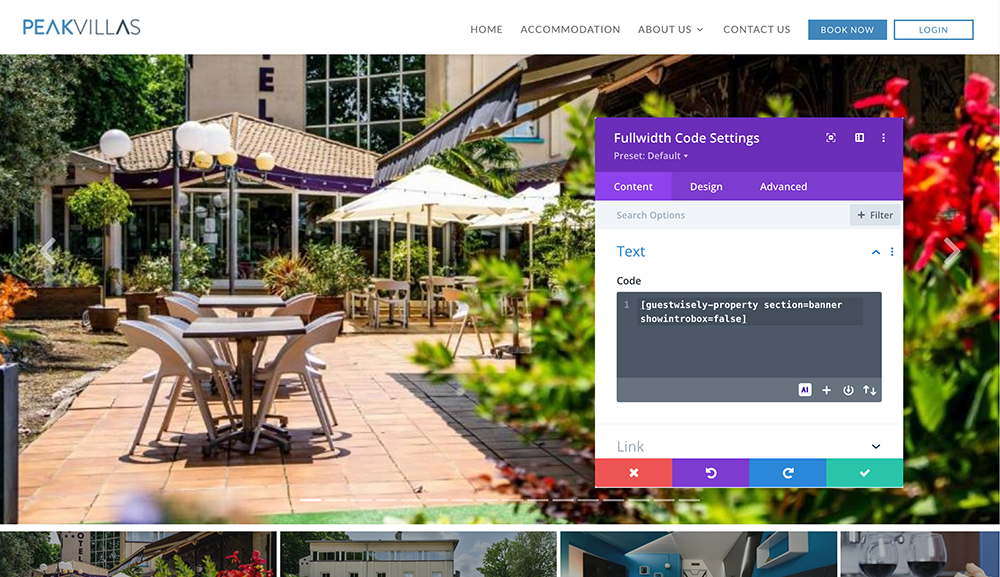
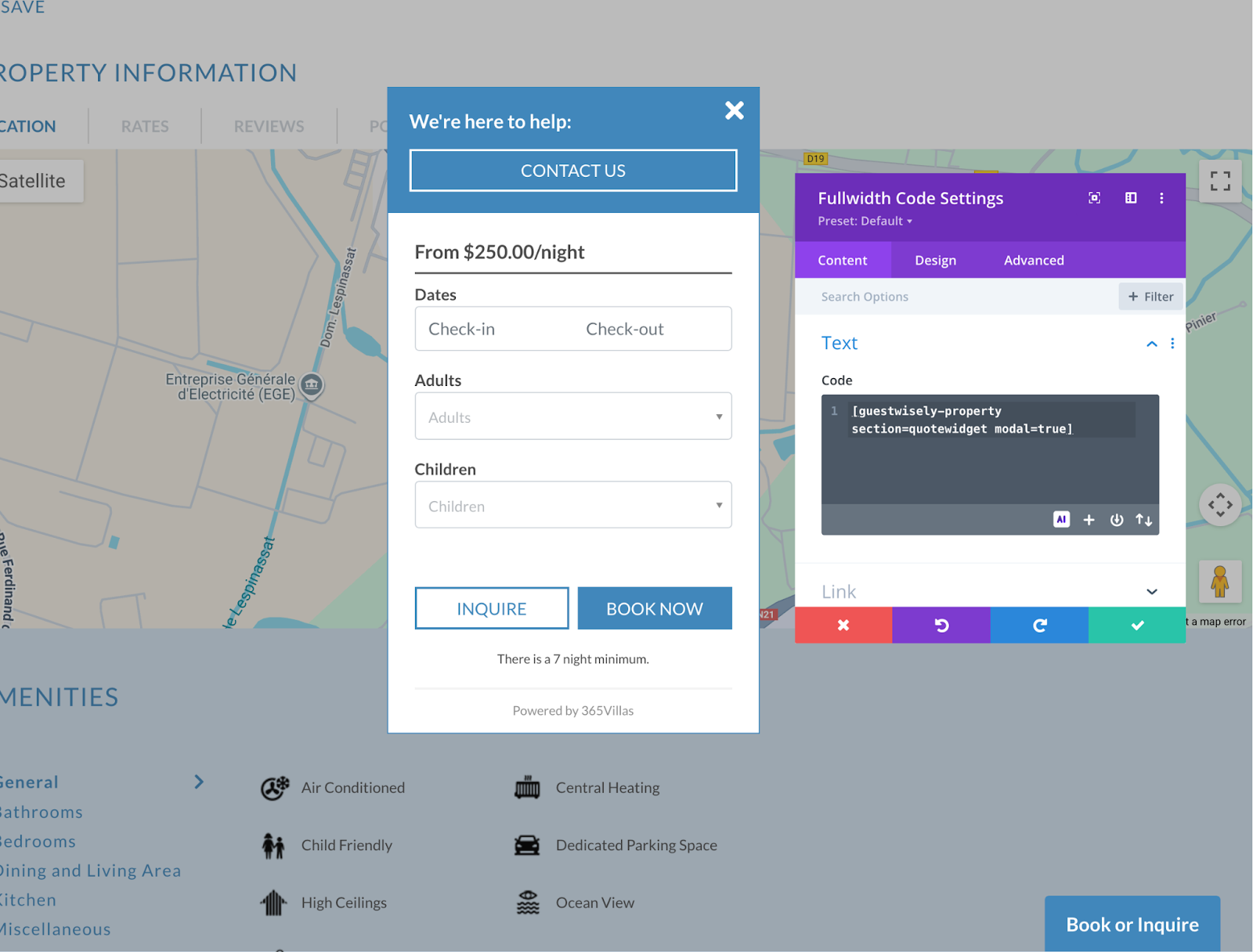
Property Page To build the various elements of your ‘property’ page default page you need to add each specific feature that you want to include as a short code in the location that you want to include it. The building blocks for each section are as follows: [guestwisely-property section=SECTION_NAME].
So, for example, if you want to include any of the elements below you would need to include the short code: [guestwisely-property section=SECTION_NAME]
Replacing the section=SECTION_NAME with the value for the ‘section’ attribute that you want to include.
Please note: the short codes may not render their modules in a visual builder, depending on the theme you are using.
Property Gallery Slider
Key Parameters:
Short code
Section
Parameter
Value
Default
Notes
guestwisely-property
Banner
showintrobox
true,false
TRUE
Shows property description on first slide
lightboxonly
true,false
FALSE
Disables photo slider and opens lightbox instead.
Imagescroller
Adds thumbnail slider - will only function when used in addition to banner section
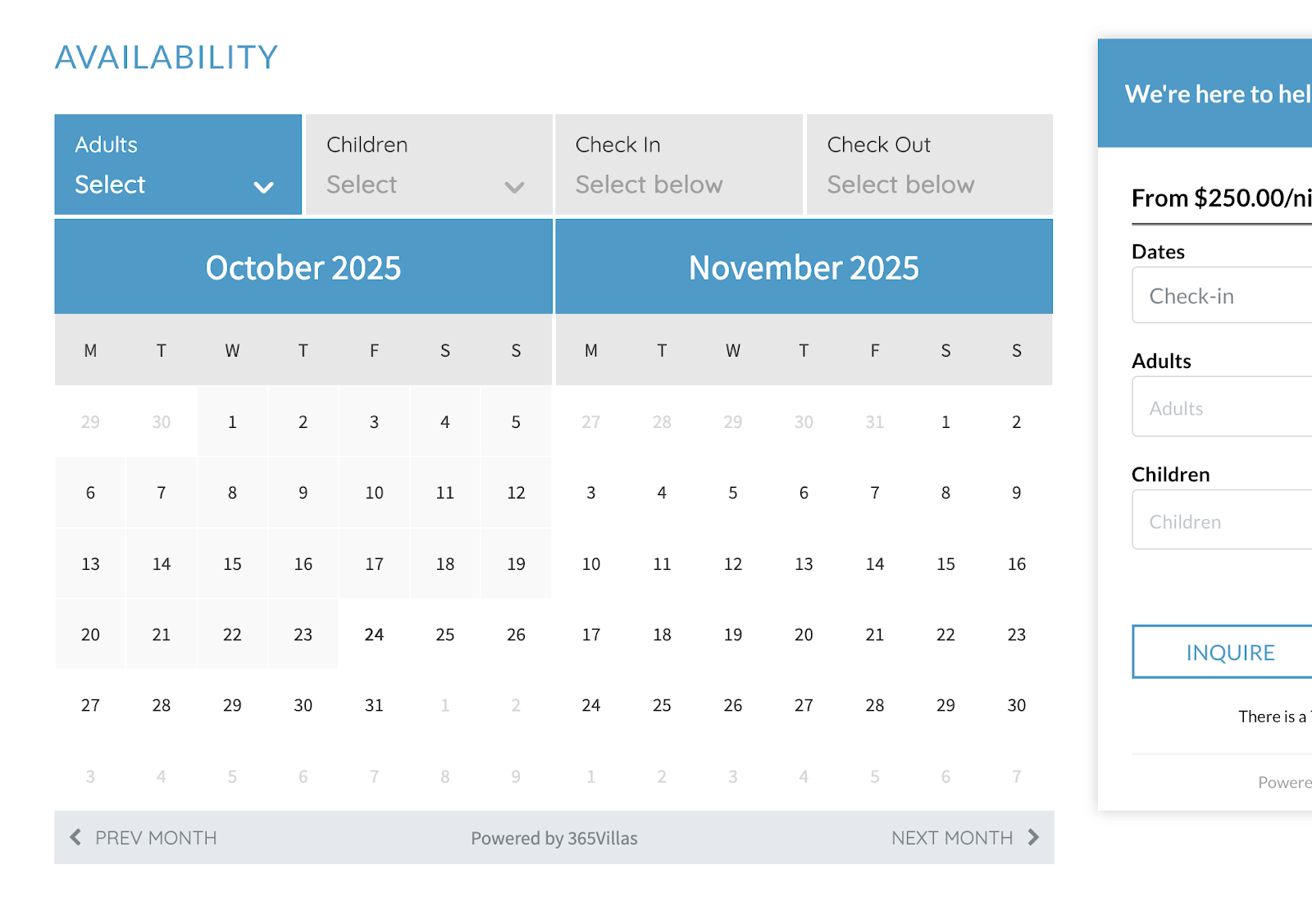
To enable you to embed a booking engine. Which works real time with your availability within your GuestWisely account. To be placed on a hidden booking page as the final step in the booking process from search bar > floating/inline/modal booking widget > booking engine.
Key Parameters
Short code
Parameter
Value
Default
Notes
guestwisely-booking
style
1,2
null
style=1 – NextGen Riviera Suite
style=2 – NextGen Camelot Suite
singleproperty
True, false
FALSE
Disable property switcher or for use on single property pages
displaymonths
number
null
Months visible in the date picker
(3 per row max)
showdiscounts
true,false
FALSE
Discount dates highlighted
Use-case Recipes (copy → paste)
Use case
Short code
Basic booking widget
[guestwisely-booking]
Single property page
[guestwisely-booking singleproperty=true]
Show discounts
[guestwisely-booking showdiscounts=true]
Two months visible
[guestwisely-booking displaymonths=2]
Login Form
The ability to embed a login form for property owners and team members, to enable owners to login to access their dashboard and review their calendar and owner statement.
Basic Short code: [guestwisely-login]
Language Switcher
Key Parameters : [guestwisely-language-switcher]
Discounts Page
Full Short code: [guestwisely-properties-list usecurrentpageforsearch=true discountsonly=true view=grid]
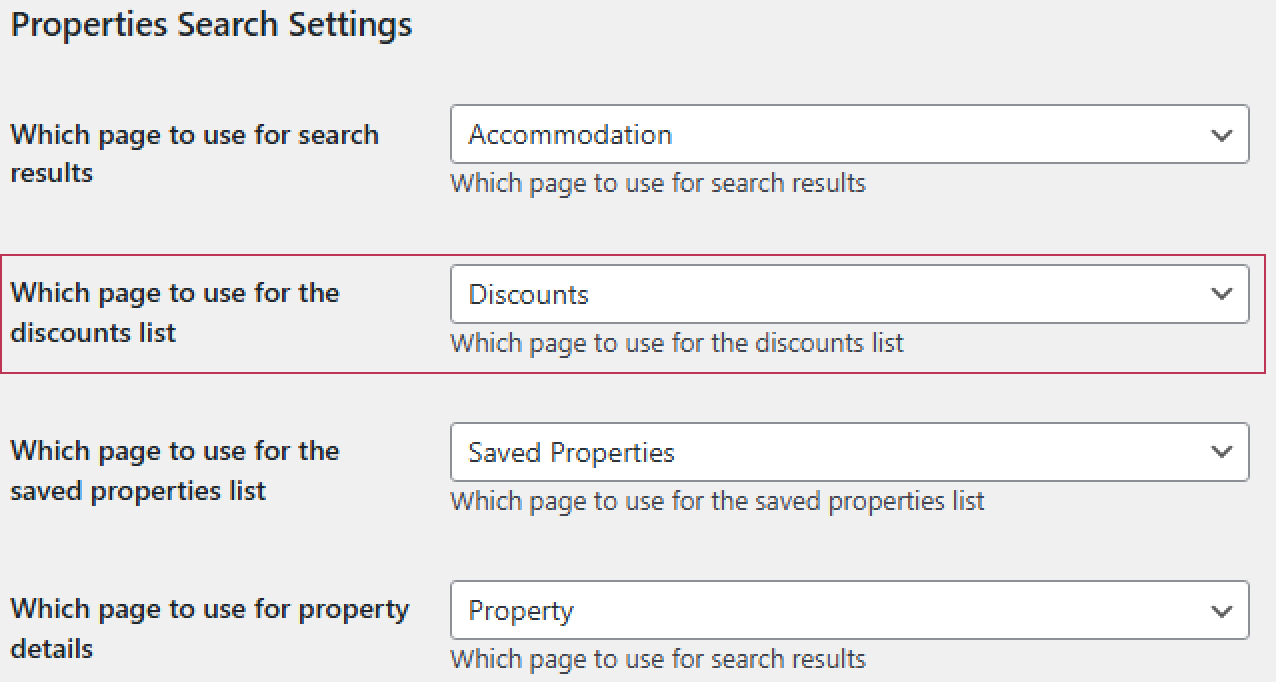
This is a variation of the property listing short code and must be used in full to display your discounted properties only. Instead of property descriptions, it displays the offer and information that the display price has already been adjusted in listings. Don’t forget to assign your discount page in GuestWisely plugin settings.
Tip: Create a duplicate of your search results page then update the page banner and replace the listings short code with the above. Assign this page in the GuestWisely Plugin Settings below:
Saved Property Counter/Link
This will show the shared property count containing the link to access the saved results.
Tip: Use this short code in one of your global website templates eg. the header/topbar or a floating tab attached to the side of the browser – so this can be accessed at all times.
Basic Short code: [guestwisely-saved-properties]
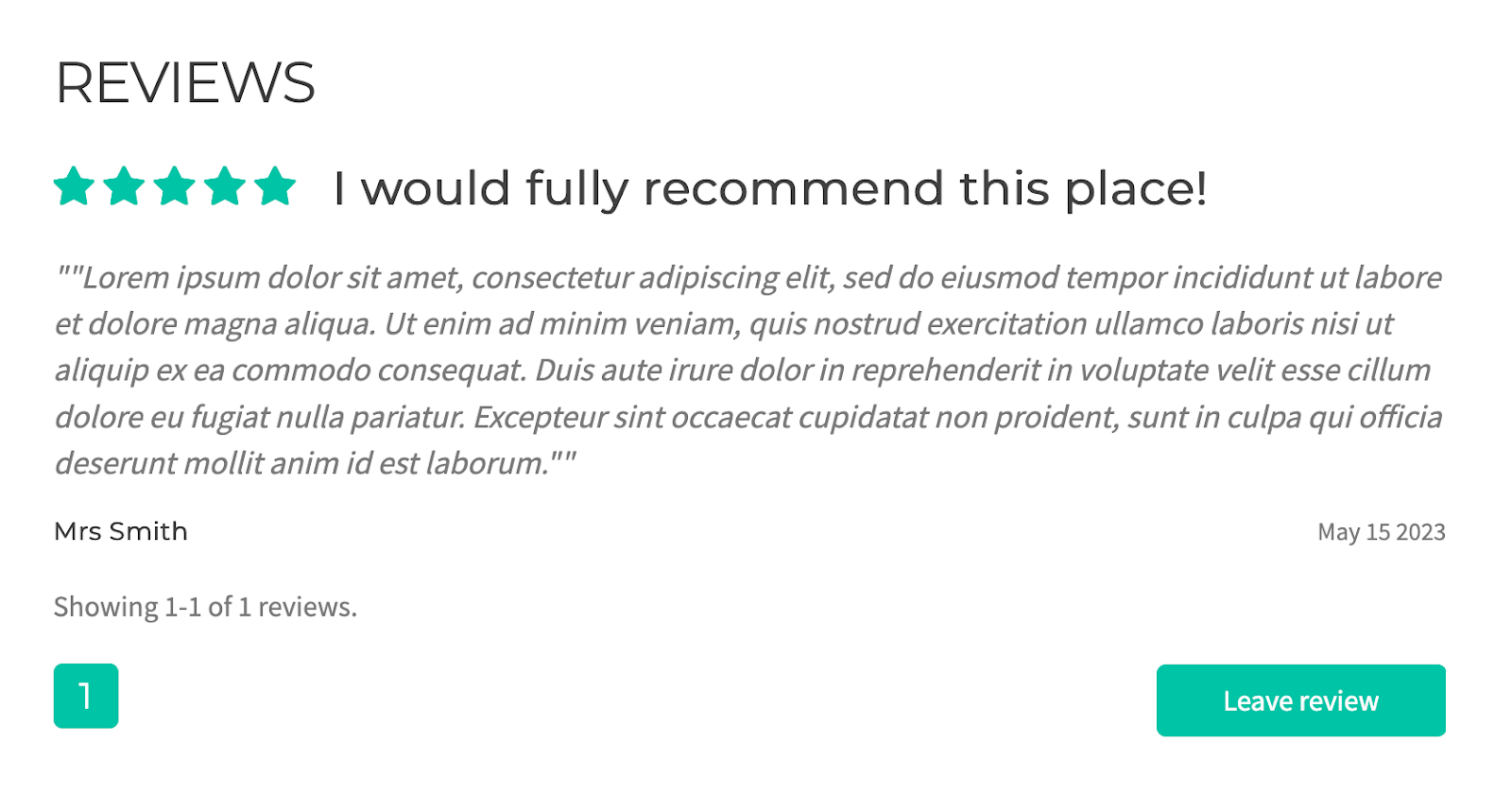
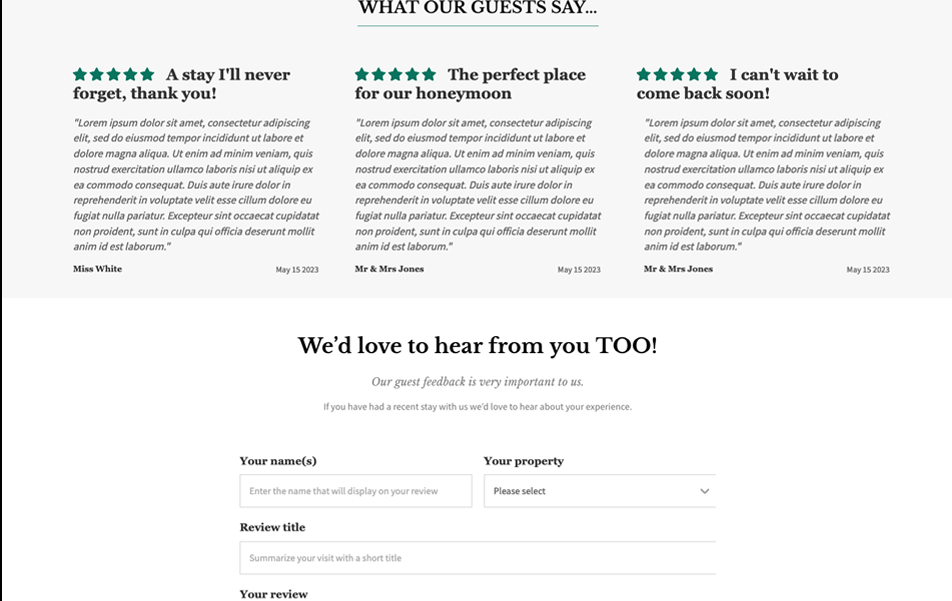
Review Page Grid & Submission Form
Basic Short code: [guestwisely-reviews]
Key Parameters
Short code
Parameter
Value
Default
Notes
guestwisely-reviews
display
Grid, form
grid
Grid: Displays a grid of your reviews, formatted in Guestwisely account