Introduction
To add multi-language functionality to your website, we recommend using WPML (WordPress Multi-Lingual Plugin). WPML allows you to easily create and manage multilingual websites, offering powerful features suitable for corporate sites while remaining simple enough for blogs. It is fully compatible with the Divi Theme, quick to set up, and user-friendly.
Installing and configuring WPML
The first time you use WPML, you need to manually download it and install. Then, register to receive automated updates to future versions.
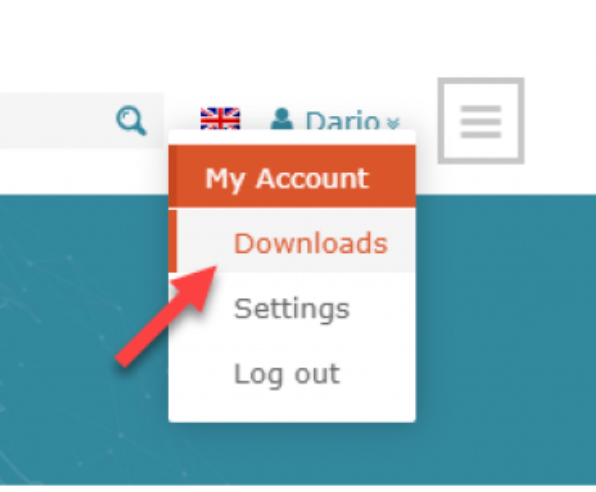
1. Log in to your WPML.org account.
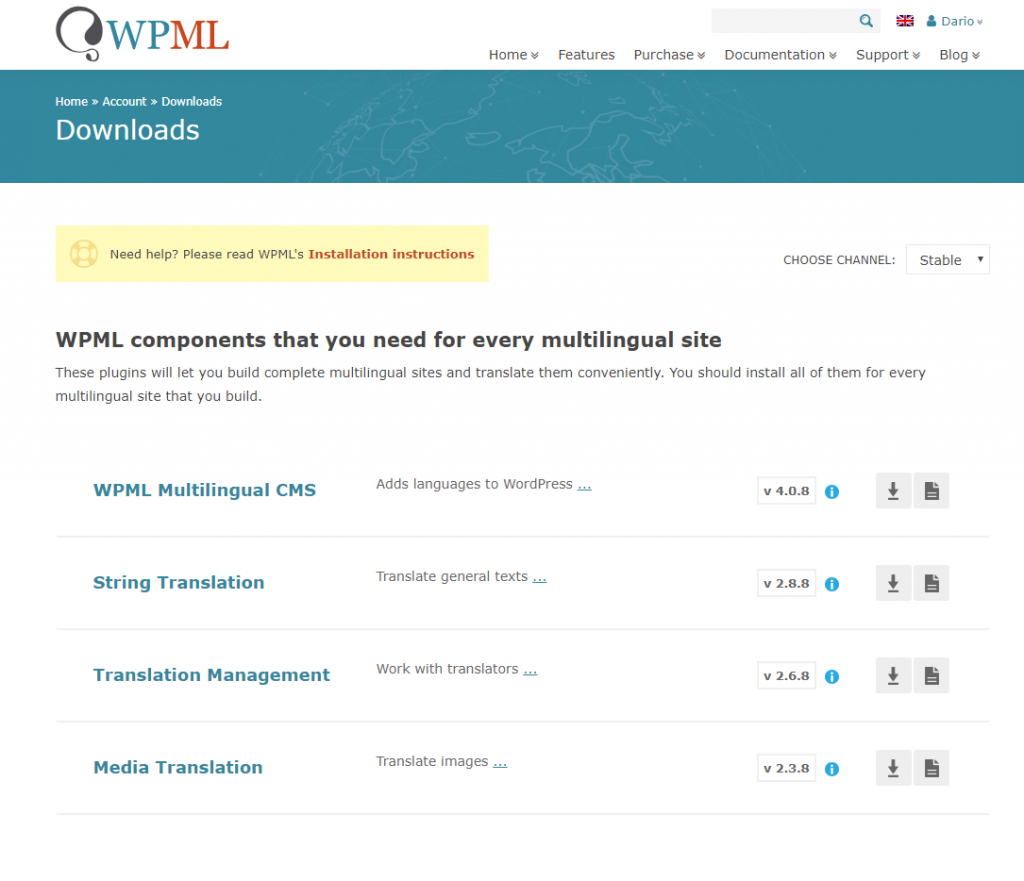
2. Go to the Downloads section.
3. Download the main WPML components: WPML core plugin, String Translation, Translation Management, and Media Translation. You will receive a ZIP file for each one of WPML’s components.
4. Log into your site and in the WordPress admin, go to the Plugins page and click Add New. On the Add Plugins page click Upload Plugin, select the ZIP files that you downloaded and click Install Now.
Once installed click Activate.
Getting started guide
When you first activate WPML, a setup wizard will guide you through the essential steps to prepare your site for multilingual content.
Follow the wizard to:
Choose your site's language.
Add and customize your language switcher.
Once completed, your site will be ready for translation.
Site Languages
The Languages section allows you to turn your WordPress site into a multilingual website.
Go to WPML → Languages.
Select the language of your existing content.
Add any more languages.
If your desired language isn’t listed, click Edit languages to create it.
Recommended Setup:
Use Different languages in directories, for example:
yoursite.com/es/ for Spanish
yoursite.com/de/ for German
Adding a Language Switcher
A language switcher allows visitors to select their preferred language. If you are already using the GuestWisely WP Plugin, you don't need to activate it, as this functionality is already included.
WPML Standard Options:
Dropdown language list
Footer language list
Menu language switcher
However, WPML may not generate correct URLs for property pages by default.
Advanced: Build Your Own Language Switcher
You can still use the built in WPML language switcher instead of the custom GuestWisely language switcher however it will not have the correct URL for the property pages.
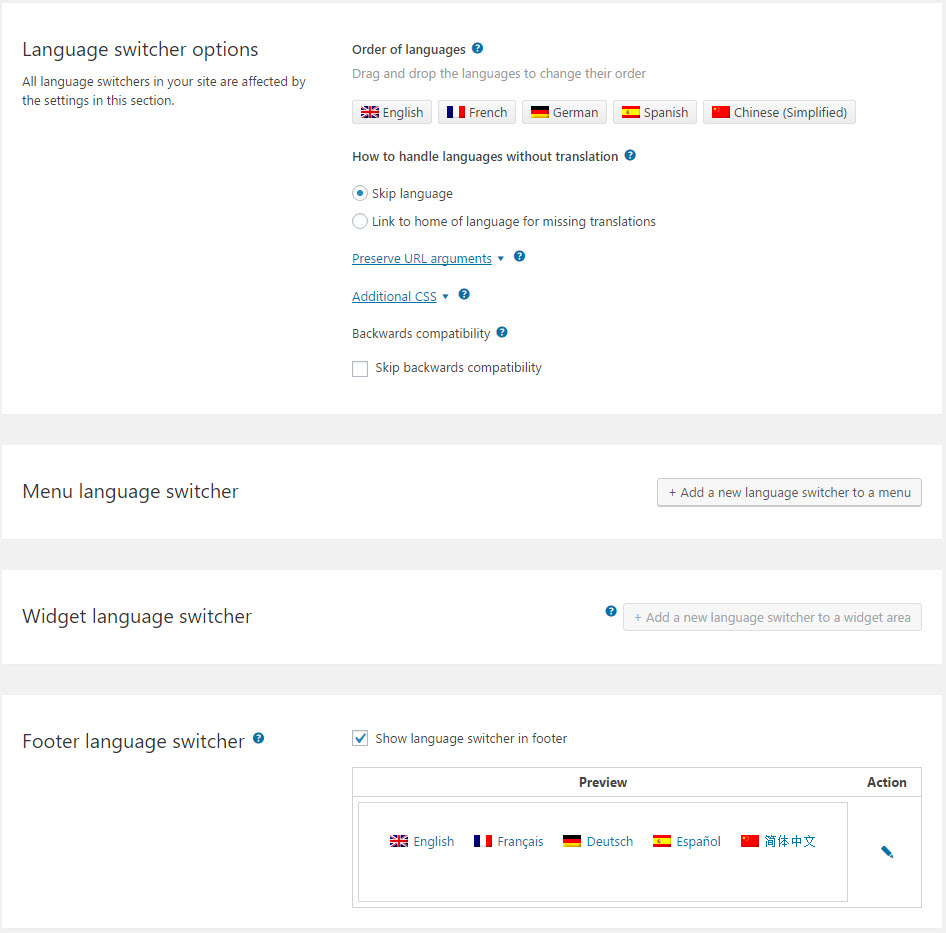
We would recommend adding the language switcher to your existing main (primary) menu.
We advise adding the language switcher to your Main (Primary) Menu for easy access. To start, click “Add a new language switcher to a menu”
In the pop-up window, choose the navigation menu where you want it to appear — we suggest the Main Menu so it’s visible on every page.
You can also customize the look and style of the language switcher to match your website’s design.
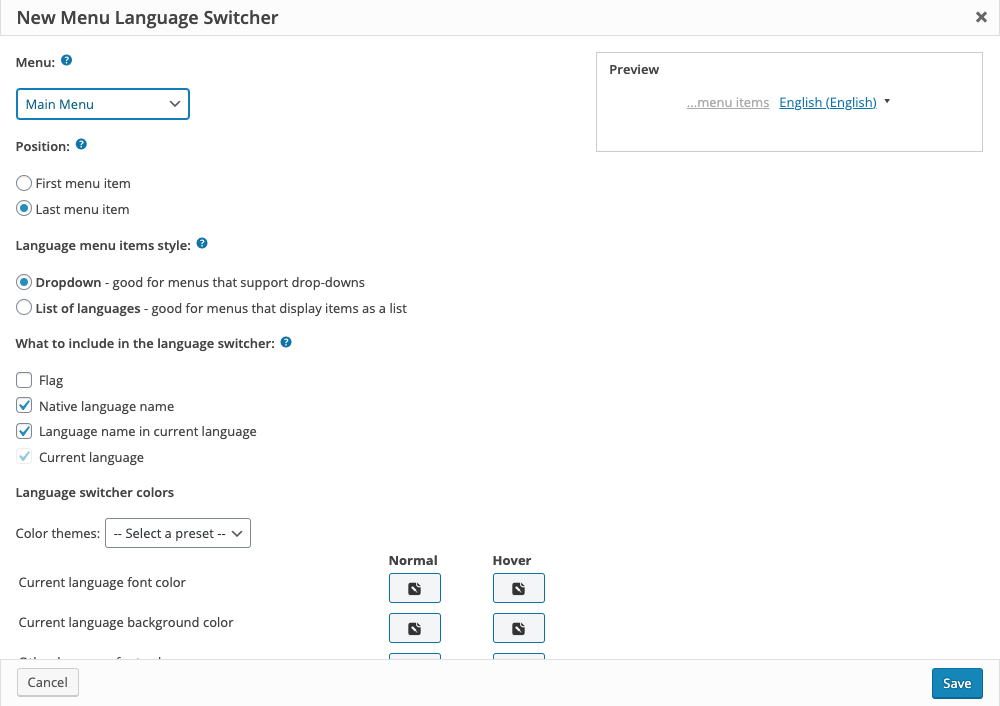
Once finished click Save. This will add your language switcher to your chosen menu.
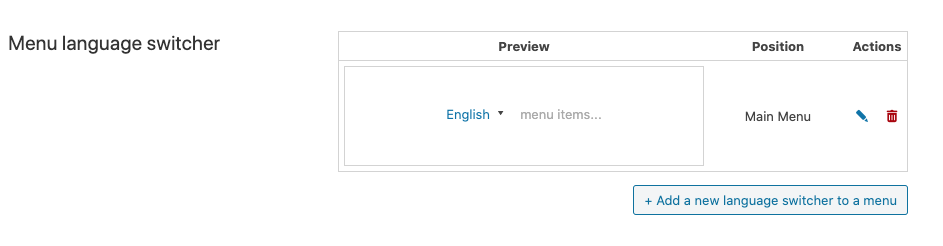
You also have options to select to style your language switcher to your requirements.
How to translate pages and posts
Translating page content with WPML is a simple process. Navigate to the Pages or Posts section and click the plus and pencil icons, next to content you can translate. You will see these icons in the list of pages and in the “Language” box when editing content.
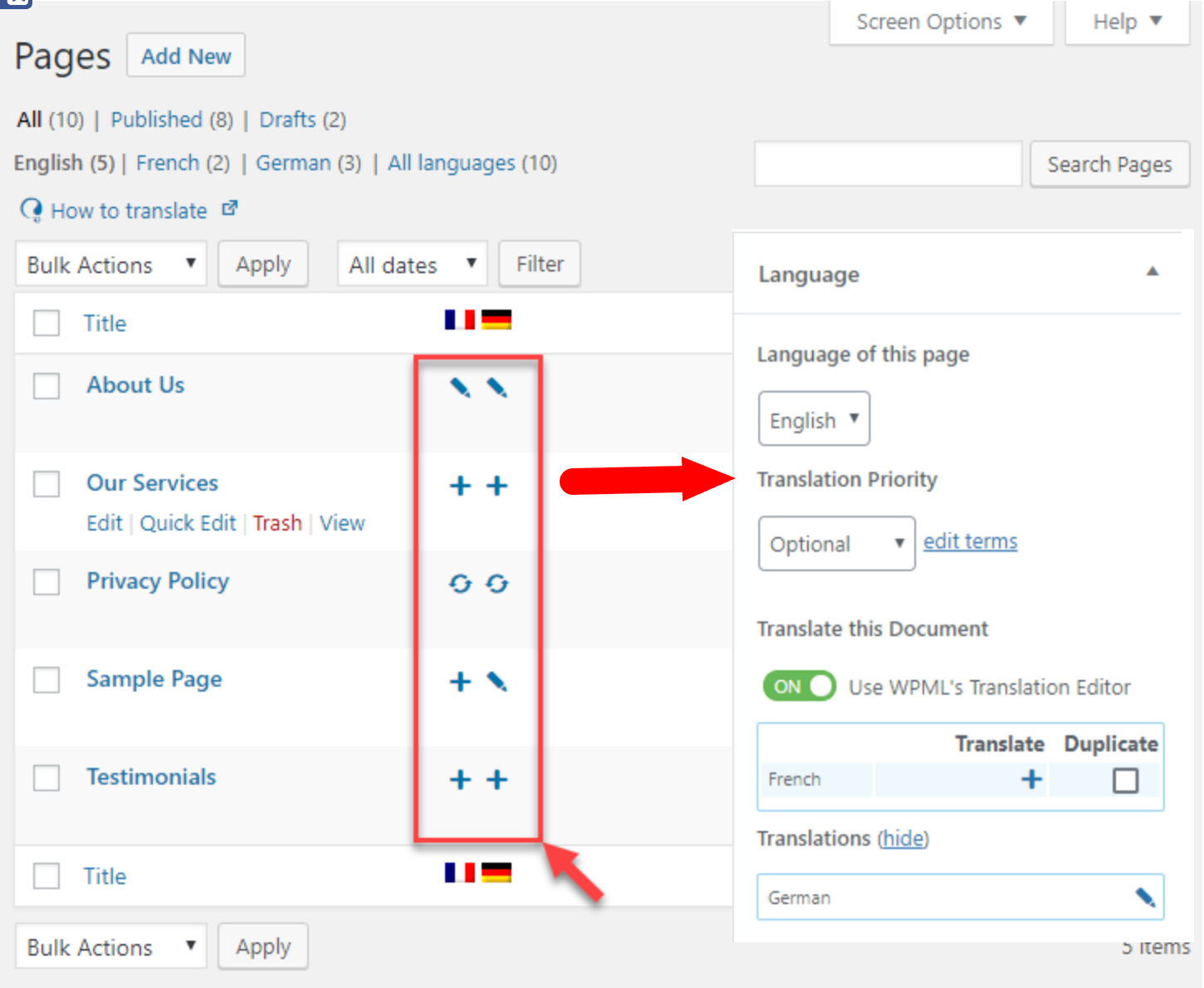
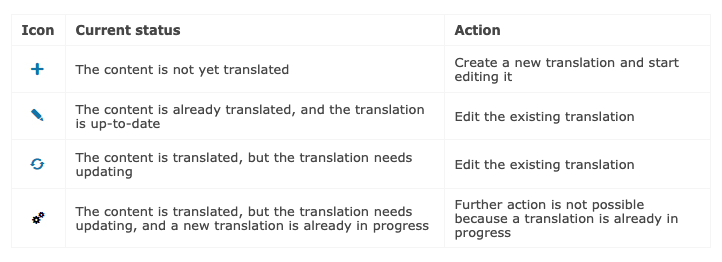
Icon status explaination:
Once you have clicked either plus or pencil icon next to the language you wish to add a translation for, you will see a screen similar to the one below.
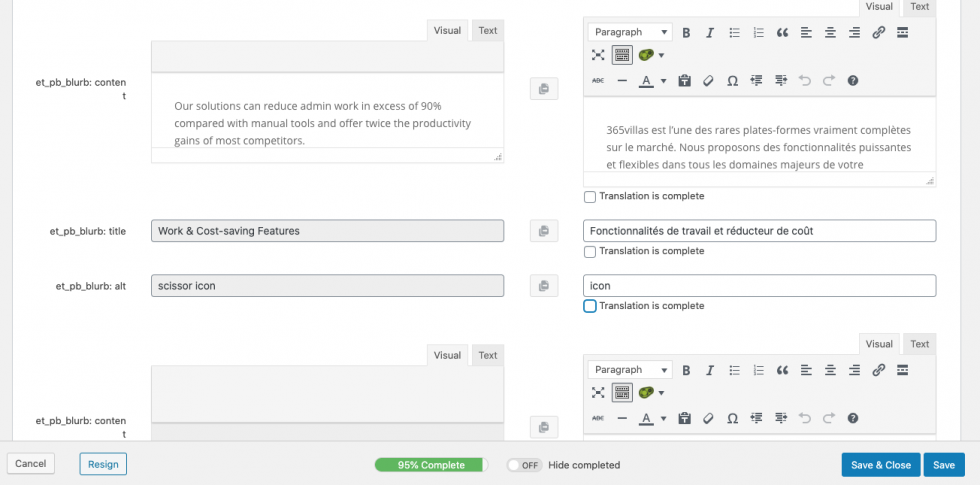
All the fields on the left contain your original content in the default language, while on the right will be your translations. You will need to either manually translate the content yourself or use something like Google Translate.
Once you have filled all of the fields and the progress bar is at 100% complete, you can then click Save & Close. Your translated page will be ready to view on the front end.
If you have incomplete translations you will not be able to see your translated page on the front of your website.
Note: If you would prefer not to write your own translations you can get more information here on how to send your content away for translation by a professional.
Translating Menus
WPML lets you translate WordPress menus and create different menus per language. You can translate menus manually, or have WPML synchronize menu content.
See the instructions in the following video, or read the details underneath.
Option 1 – Translating Menus Manually
Go to Appearance → Menus

To translate this menu, click on the + icons next to the other languages.

Now, you’re creating a new menu, which will be linked as the translation of this menu.
You can now add pages and categories to the translated menu as you would the default language menu.
Option 2 – Automatic Menus Sync by WPML
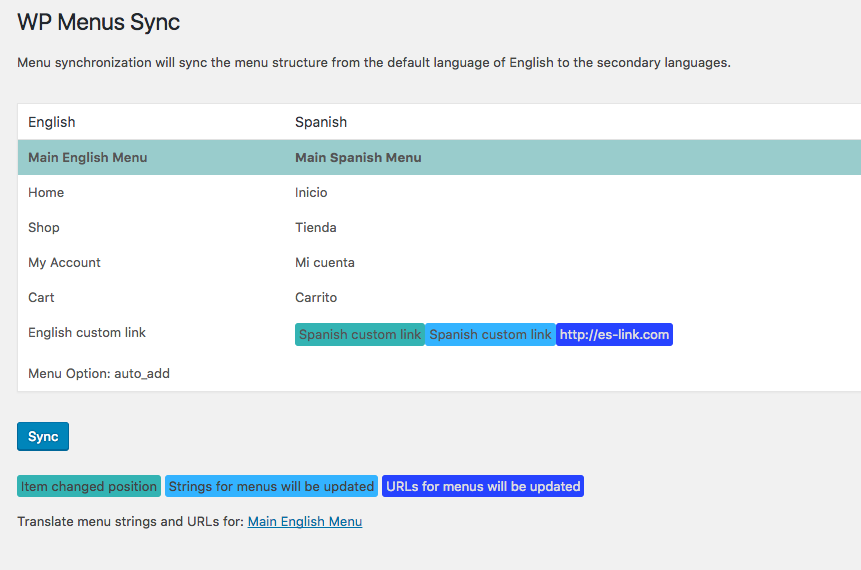
The menu sync tool aims to keep your menus in different languages synchronized. It does this by adding, removing, and updating items from the translated menus to match the default language menu.
To use WPML’s menu sync, go to WPML → WP Menus Sync.
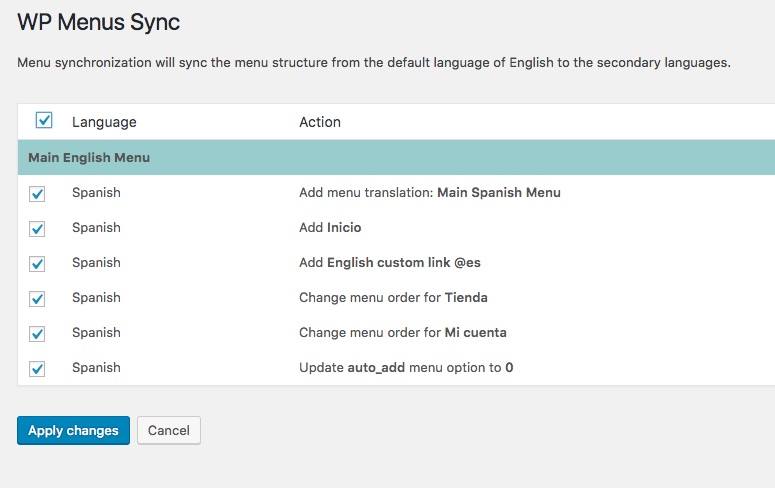
WPML will show you the changes it plans to make.
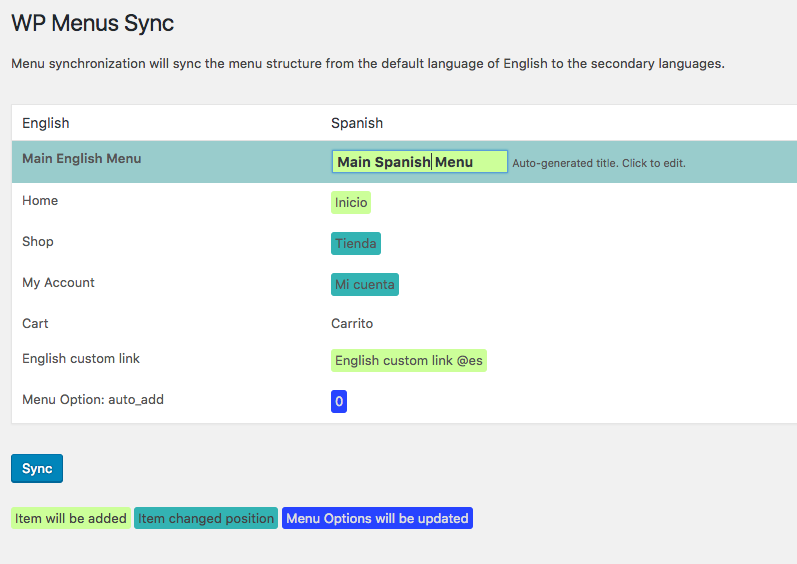
You’ll see which entries will be added or removed from the translated menus. Click on the Sync button to perform the selected operations.
Anything you add manually to the translated menus will be preserved throughout WPML sync operation.
Translate Custom Links
If you do not have the WPML String Translation add-on, you can manually edit custom links and their labels in the translated menus.
If you have the WPML String Translation add-on active, you can take use it to translate your menu items by following these steps:
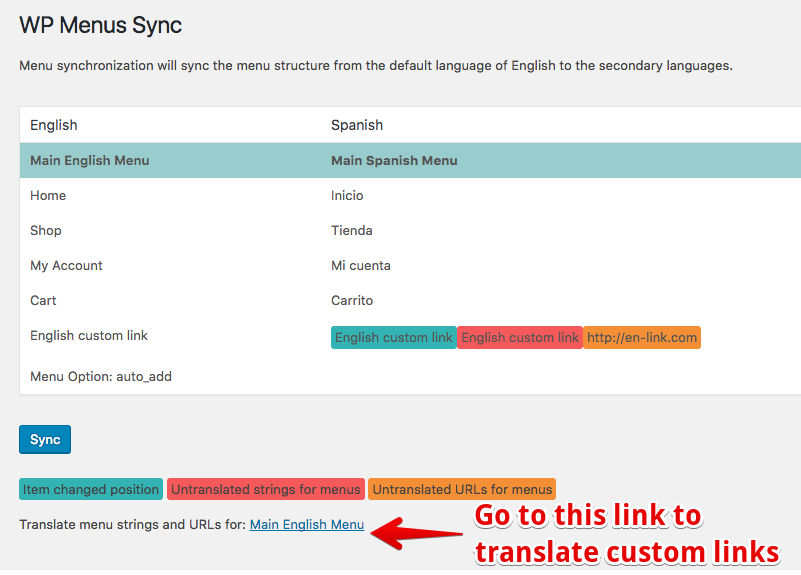
After syncing menus, go to the WPML → WP Menus Sync page again.
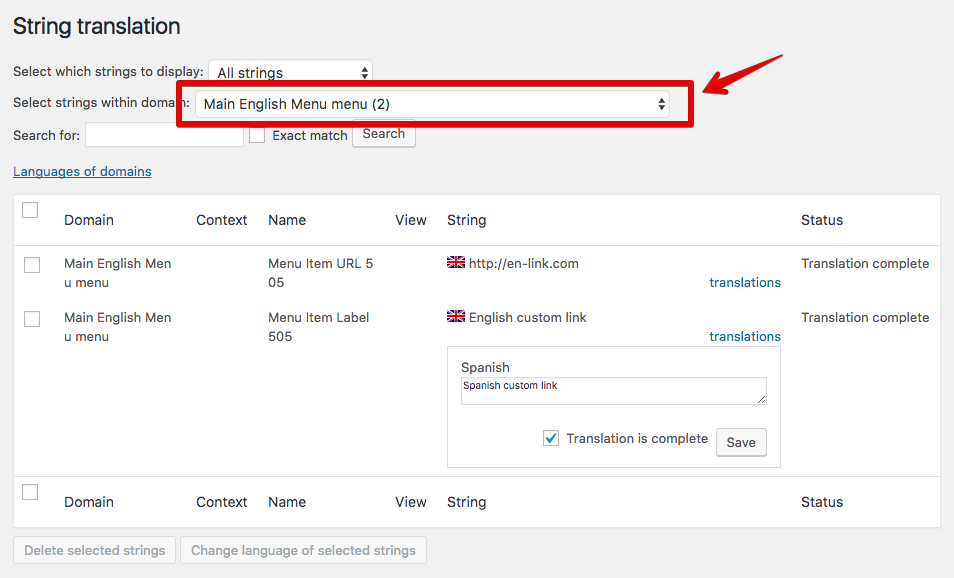
Find the link at the bottom to translate these custom menu links and labels on the WPML → String Translation page.
Go to the WPML → WP Menus Sync page and run Sync one more time to update translated menu links and labels.
1. After syncing your menu, find the link at the bottom of the page to translate in String Translation
2. Select the correct domain from the search dropdown
3. Run the menu sync again to rename the link items using the translated strings
Was this article helpful?
That’s Great!
Thank you for your feedback
Sorry! We couldn't be helpful
Thank you for your feedback
Feedback sent
We appreciate your effort and will try to fix the article