Introduction
Your theme includes a newsletter signup on news and offer pages. This can be linked to your 3rd party email marketing software such as Mailchimp, ActiveCampaign, Hubspot, Sendinblue and many more so you can build your lists with minimum effort. Before we connect the account, we need you to retrieve an API key from the settings of your email marketing provider.
The default form is set up with Mailchimp which you can find this API in Profile > Extras > API Keys > Create New Key (Button). Take a copy of the API code for later.
In your WordPress Dashboard, go to Bloom.
Under Active Options, locate the default forms:
Below (news) Post Option – shown at the end of every news post.
Inline Signup – shown on the homepage and the top‑level news page.
For each form, click the settings (gear) icon to open its configuration.
Make your changes, Save, then repeat for the other form save
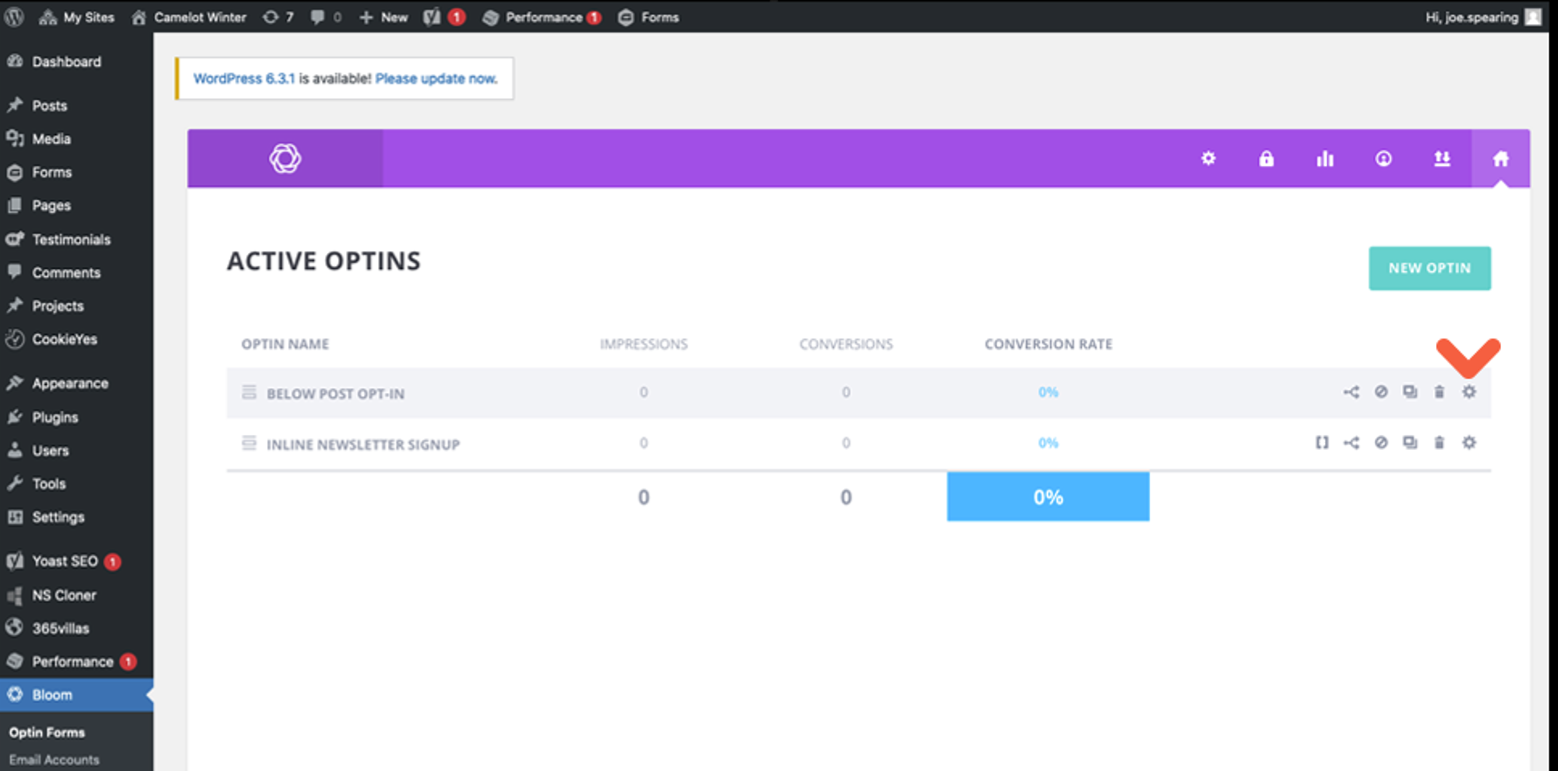
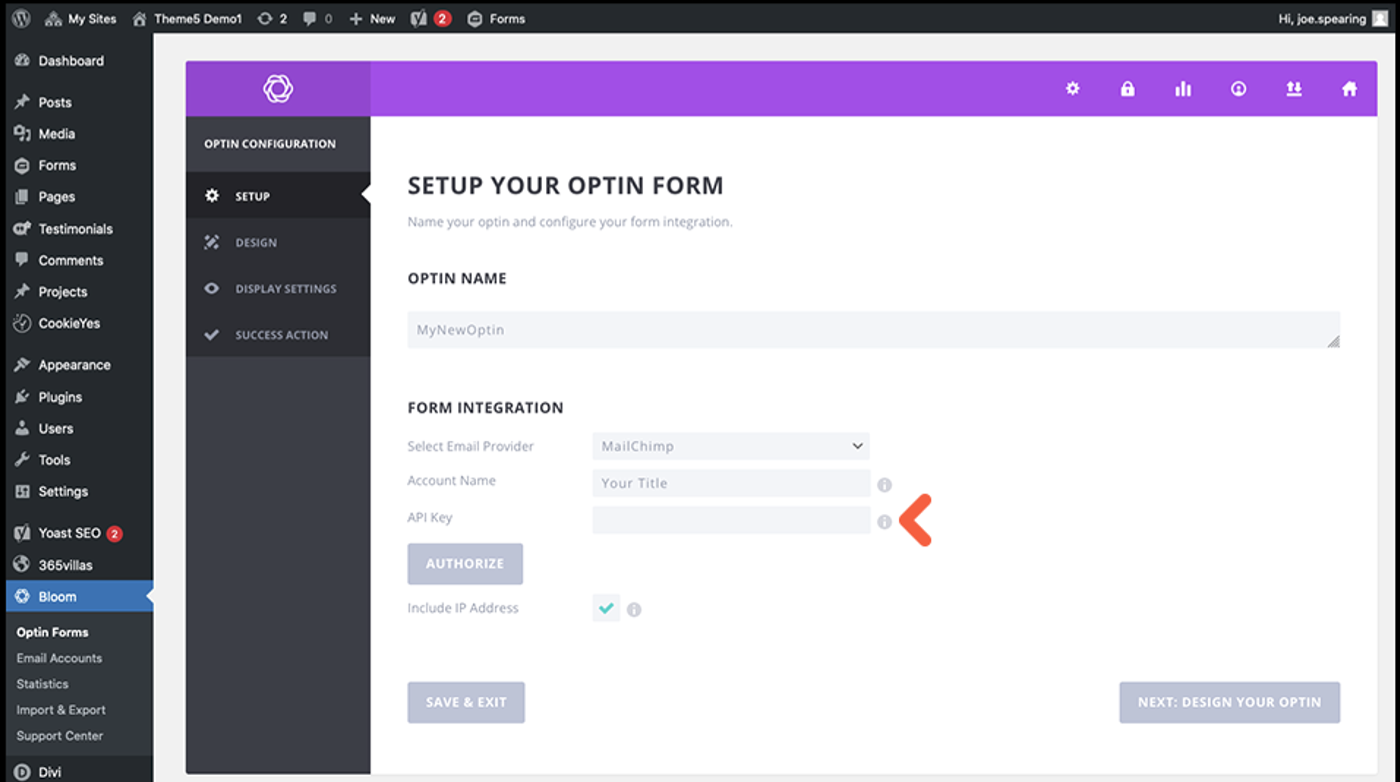
Select Email Provider from the dropdown list, in this case it’s Mailchimp but you can use the same process with another provider you wish. In Select Account select Add Account in the dropdown. Click the Add Account button that now appears. Here you will be asked to title your mailing list account and add the API key that you retrieved from the settings of your 3rd party account. Click Authorize.
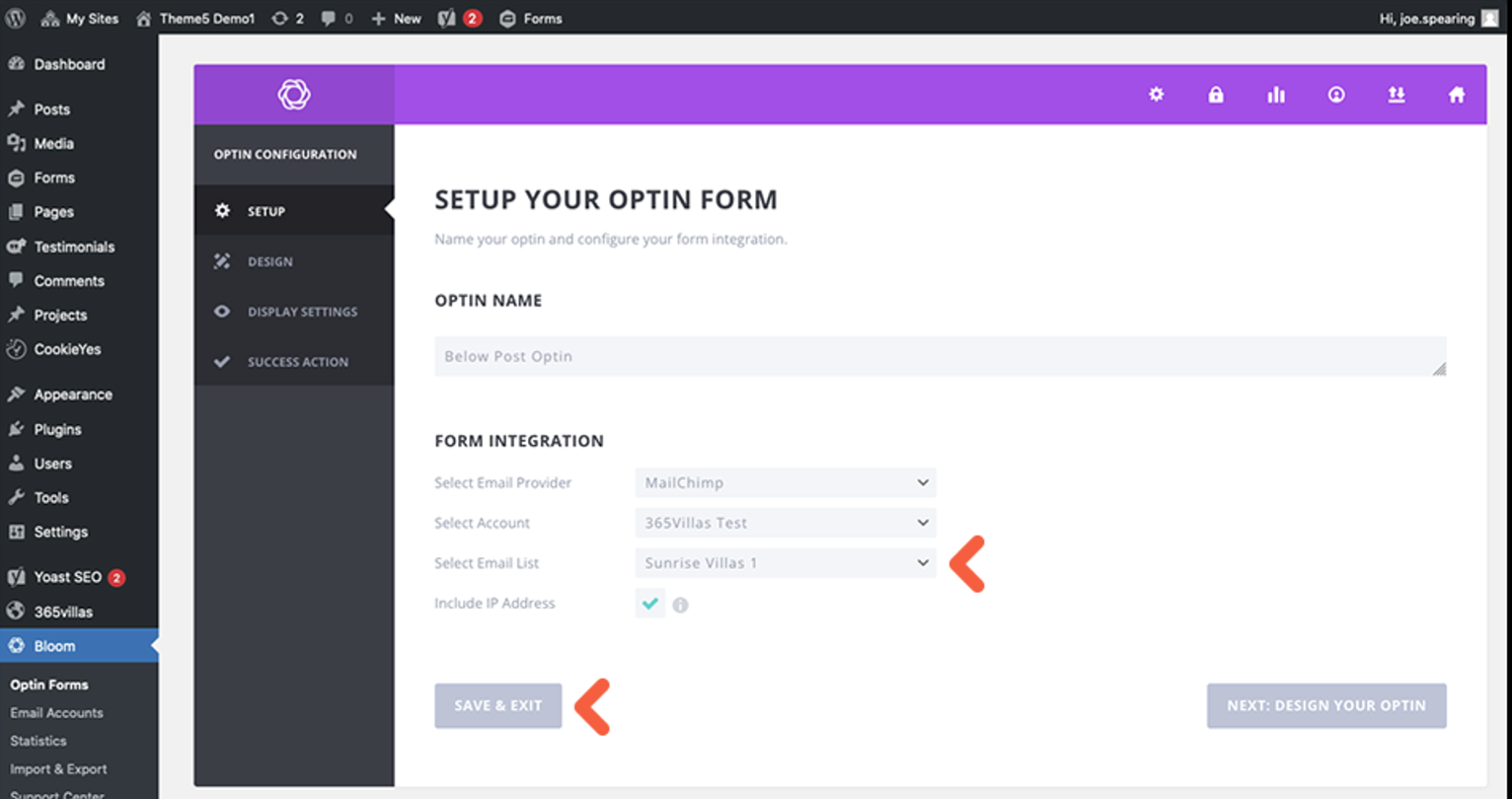
You will then be asked which list(audience in Mailchimp’s case) you would like the signups to be added to. You may just have the one setup or multiple if you have a paid subscription.
Was this article helpful?
That’s Great!
Thank you for your feedback
Sorry! We couldn't be helpful
Thank you for your feedback
Feedback sent
We appreciate your effort and will try to fix the article