Introduction
The Google Analytics for WordPress plugin enables you to track your site using the latest Google Analytics tracking code and allows you to view key Google Analytics stats in your WordPress install.
In addition to a set of general Google Analytics stats, in-depth Page reports and in-depth Post reports allow further segmentation of your analytics data, providing performance details for each post or page from your website.
The Google Analytics tracking code is fully customisable through options and hooks, allowing advanced data collection like custom dimensions and events.
Google Analytics
GOOGLE ANALYTICS REAL-TIME STATS
Google Analytics reports, in real-time, in your dashboard screen:
Real-time number of visitors
Real-time acquisition channels
Real-time traffic sources details
GOOGLE ANALYTICS REPORTS
The Google Analytics reports you need, on your dashboard, in your All Posts and All Pages screens, and on site’s frontend:
Sessions, organic searches, page views, bounce rate analytics stats
Locations, pages, referrers, keywords, 404 error analytics stats
Traffic channels, social networks, traffic mediums, search engine analytics stats
Device categories, browsers, operating systems, screen resolutions, mobile brands, analytics stats
In addition, you can control who can view specific Google Analytics reports by setting permissions based on user roles.
GOOGLE ANALYTICS TRACKING
Installs the latest Google Analytics tracking code and allows full code customisation:
Universal Google Analytics (analytics.js) tracking code
Global Site Tag (gtag.js) tracking code
Enhanced link attribution
Remarketing, demographics and interests tracking
Page Speed sampling rate control
User sampling rate control
Cross domain tracking
Exclude user roles from tracking
Accelerated Mobile Pages (AMP) support for Google Analytics
Ecommerce support for Google Analytics
User privacy oriented features:
IP address anonymisation
option to follow Do Not Track (DNT) sent by browsers
support for user tracking opt-out
Google Analytics Dashboard for WP enables you to easily track events like:
Downloads
Emails
Outbound links
Affiliate links
Fragment identifiers
Telephone
Page Scrolling Depth
Custom event categories, actions and labels using annotated HTML elements
With Google Analytics Dashboard for WP you can use custom dimensions to track:
Authors
Publication year
Publication month
Categories
Tags
User engagement
Actions and filters are available for further Google Analytics tracking code customisation.
GOOGLE TAG MANAGER TRACKING
As an alternative to Google Analytics tracking code, you can use Google Tag Manager for tracking:
Google Tag Manager code
Data Layer variables: authors, publication year, publication month, categories, tags, user type
Exclude user roles from tracking
Accelerated Mobile Pages (AMP) support for Google Tag Manager.
To learn more about using Google Tag Manager to Track Website Data here.
AdSense
If you have an authorized account on Google AdSense, you can link it to Google Analytics and view its tracking information among reports of Google Analytics WD plugin.
Open your Google Analytics account, choose the account you want to link with AdSense and navigate to Admin tab. You will see AdSense Linking option under Product Linking settings. Open AdSense Linking and click on New AdSense Link button.
Google Ads
Firstly make sure you have a Google Ads account. Open your Google Analytics account, choose the website you are tracking and go to Admin. Click on Adwords Linking from Product Linking settings.
After toolbox opens, make sure all the necessary Ads accounts are marked as checked and click Continue. Provide Link group title and click Link Accounts after enabling necessary link groups for Ads Tracking.
Facebook pixel
In this article, we’ll cover how to create & install a Facebook pixel on your Riviera website. To learn more about the Facebook pixel, take a look at this article by Facebook: benefits of installing a Facebook pixel.
Create a Facebook pixel
Go to your Pixels tab in Events Manager.
Click Create a pixel.
To finish creating your pixel, click Create in the box that appears.
Add the Facebook pixel to your website
Once you’ve created your pixel, you’re ready to put the Facebook pixel code on your website.
First copy the Pixel Code in Facebook:
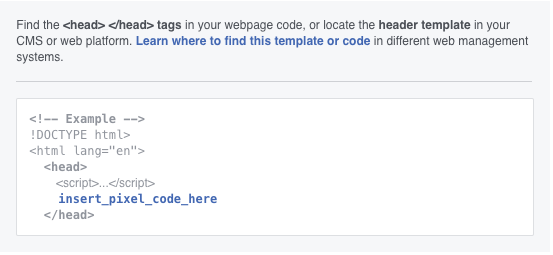
Go to the Pixels tab in Events Manager.
Click Set up pixel.
Click Manually install pixel code yourself.
Copy the code.
Add the code to your website
Click Divi in the side navigation of your website’s content management system
Select Divi Theme Options
Select Integration
Copy the entire code and paste it into the ‘Add code to the < head > of your blog’ dark grey box in the integration tab.
Click the ‘save changes’ green button at the footer of the page tab
After you add the pixel base code to your website, you can set up events to measure the actions you care about, such as making a purchase.
Was this article helpful?
That’s Great!
Thank you for your feedback
Sorry! We couldn't be helpful
Thank you for your feedback
Feedback sent
We appreciate your effort and will try to fix the article