Introduction
Congratulations and thank you for choosing our Sierra Lite Website theme. We hope that it proves to be a valuable marketing tool for your business.
To help you get the most from your new website, we’ve put together a series of articles that explain how to manage all aspects of your website.
Your website integrates closely with the GuestWisely application. Anything relating to your property (bookings and property details) is managed from within the GuestWisely application. Changes you make to your property along with associated bookings are automatically updated on your website.
Pointing Your Domain to Your New Website
When you’re ready to go live, you’ll need to connect your domain name to your new site.
This is a quick process, usually handled by your domain host provider.
Step 1: Contact your domain host and send them this request:
Dear [Domain Host],
Please update the A-Record for our domain XYZ.com to point to the GuestWisely server: 5.161.21.67.
Step 2:
If you’re migrating from an existing website, let us know your planned timing in advance. This allows us to coordinate with your provider and help avoid any downtime.
Managed from GuestWisely
These items are controlled in your Guestwisely account and sync automatically to your website:
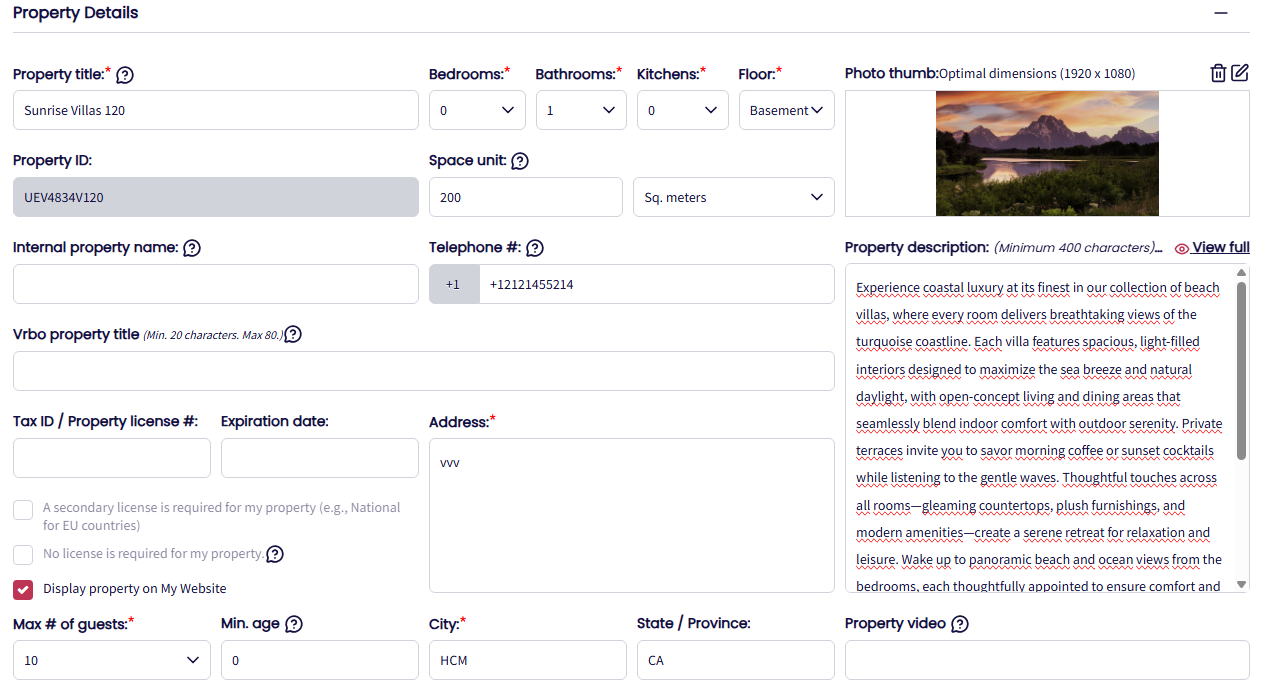
Property Profile: Name, main photo, description, local area info, YouTube video link, max guests, bedrooms, bathrooms, Google Maps location.
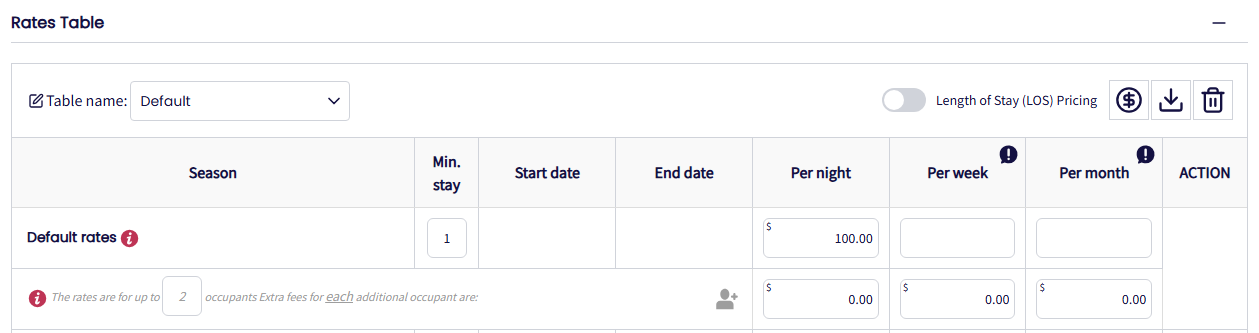
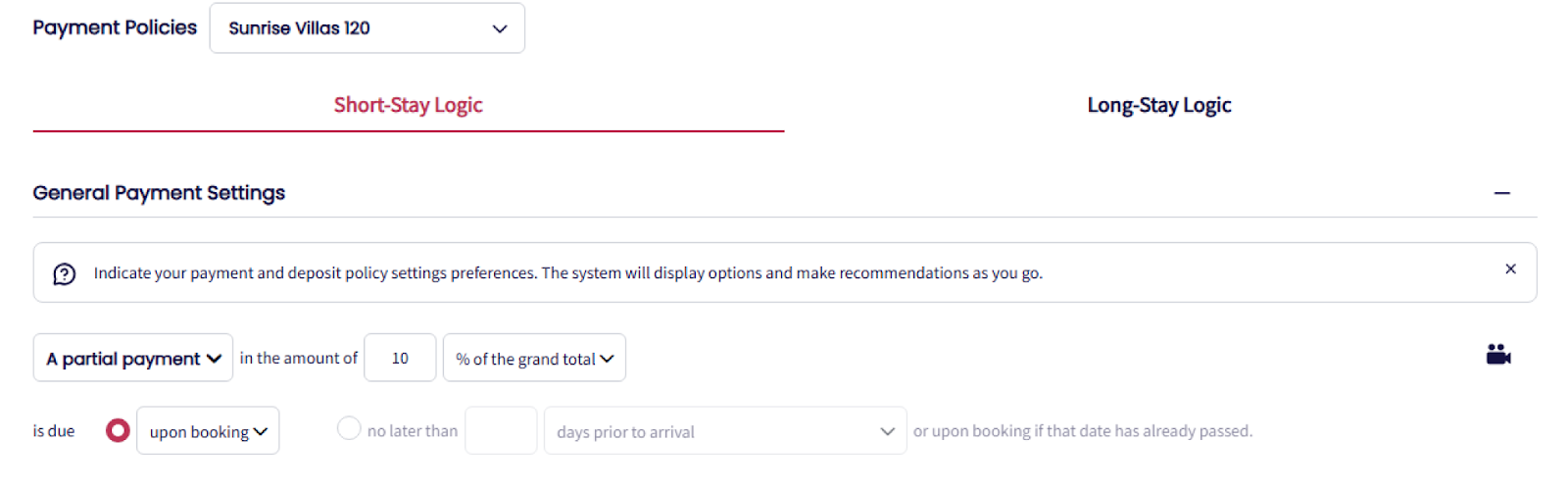
Rates & Policies: Pricing, payment policies, payment methods, house rules.
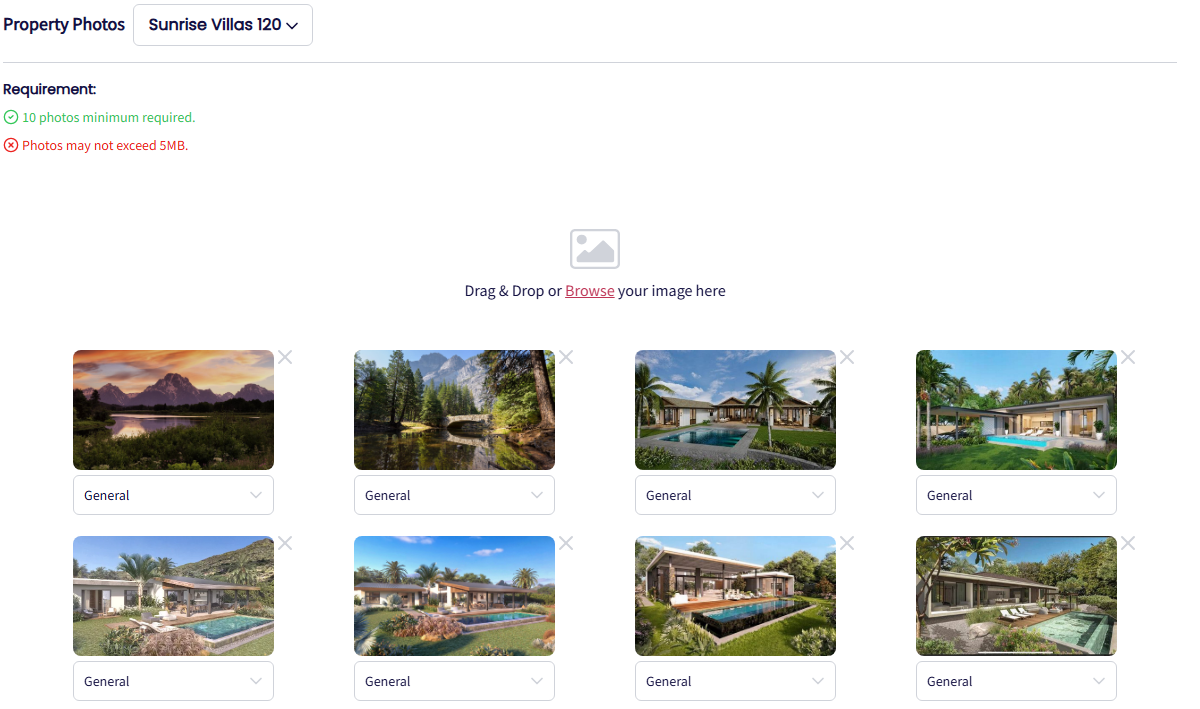
Photos: Gallery images (recommended size: 1920×1080 px, 72dpi).
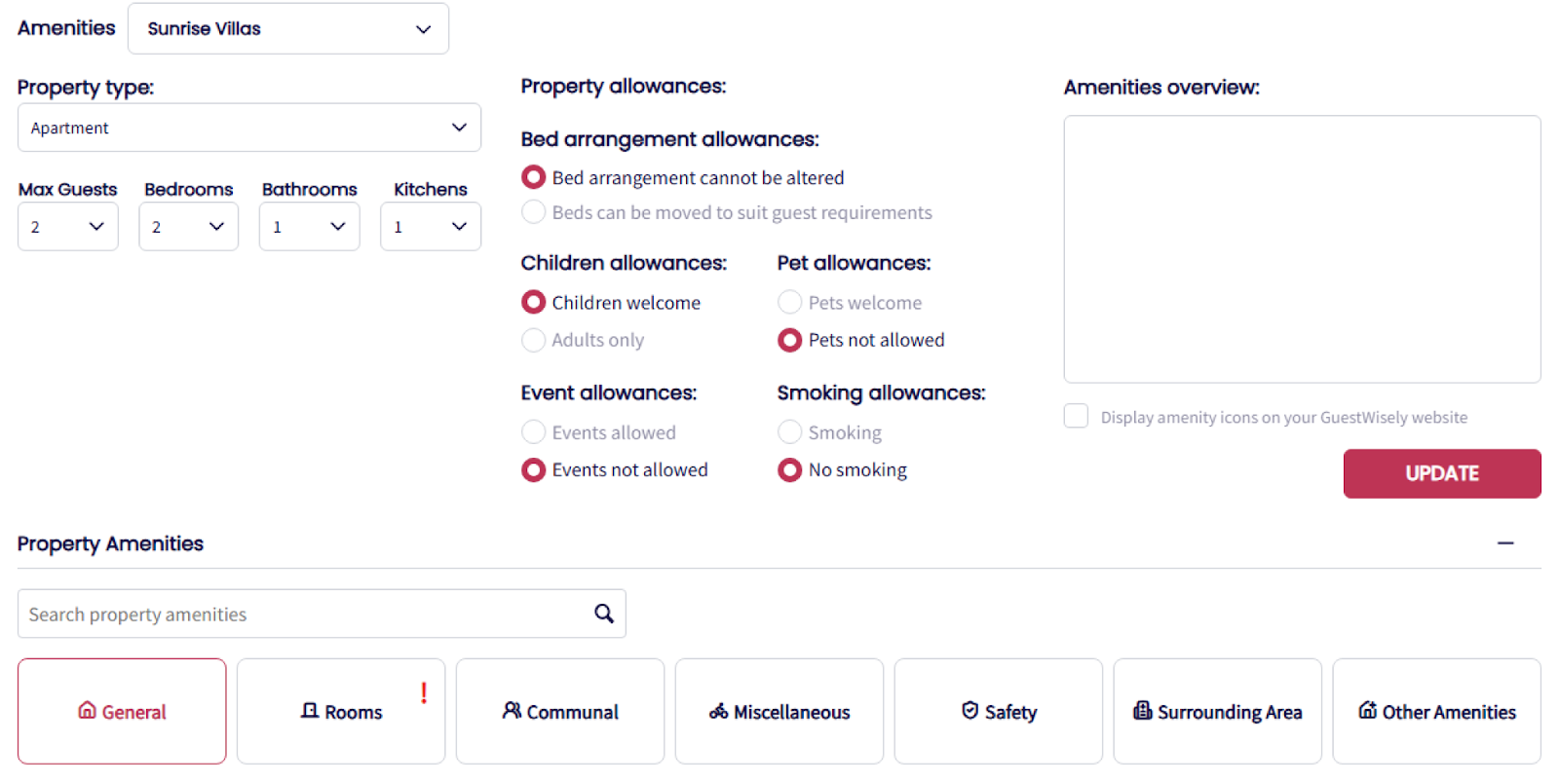
Amenities: All amenity categories show in Guestwisely (leave room-specific amenities blank to display the full list).
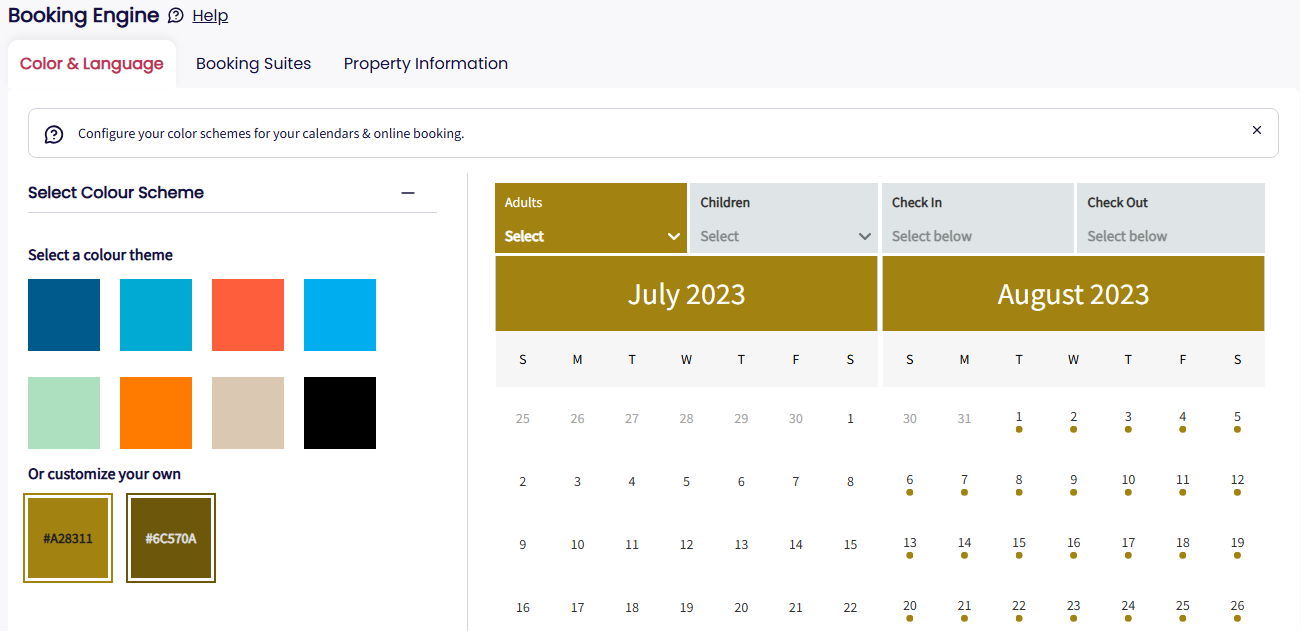
5. Booking Engine: Calendar colors, Camelot calendar, search criteria.
Colour scheme: This is used to colour your calendars.
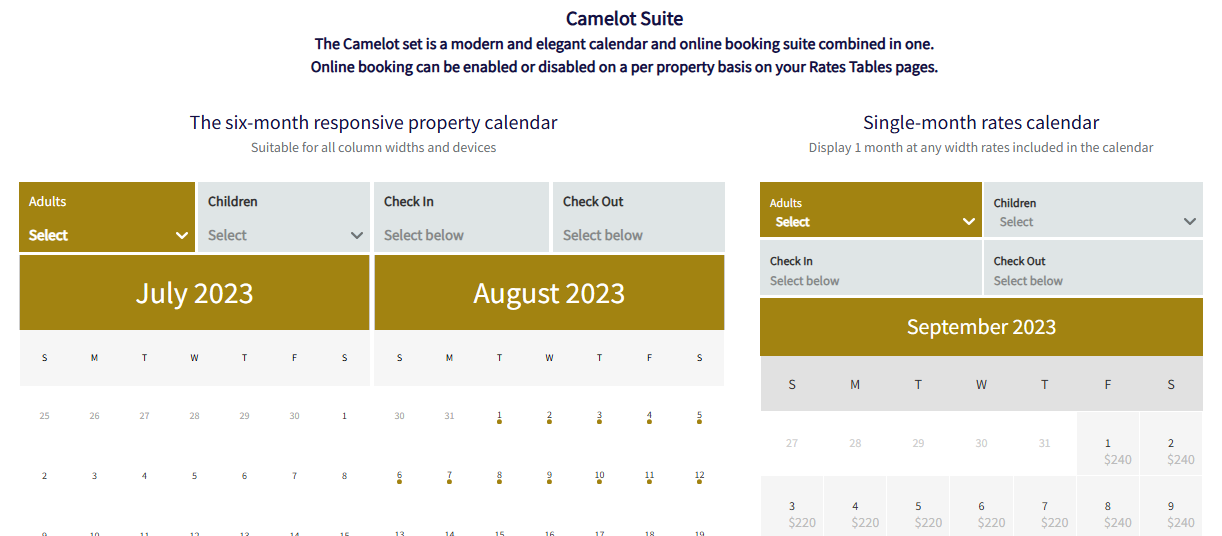
Calendars and online booking: Camelot 2.0 uses the improved Camelot suite calendar
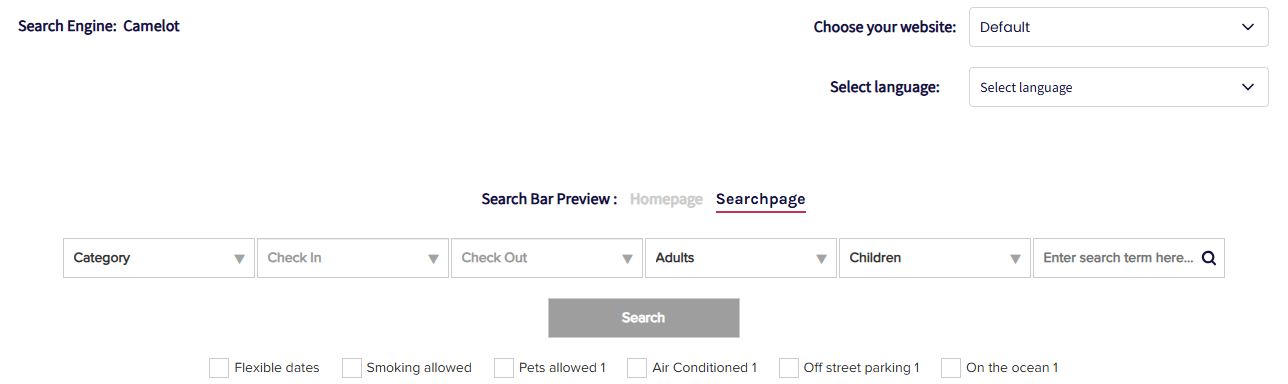
Search engine: Scroll to the bottom and we use the information in the ‘customise your search criteria’
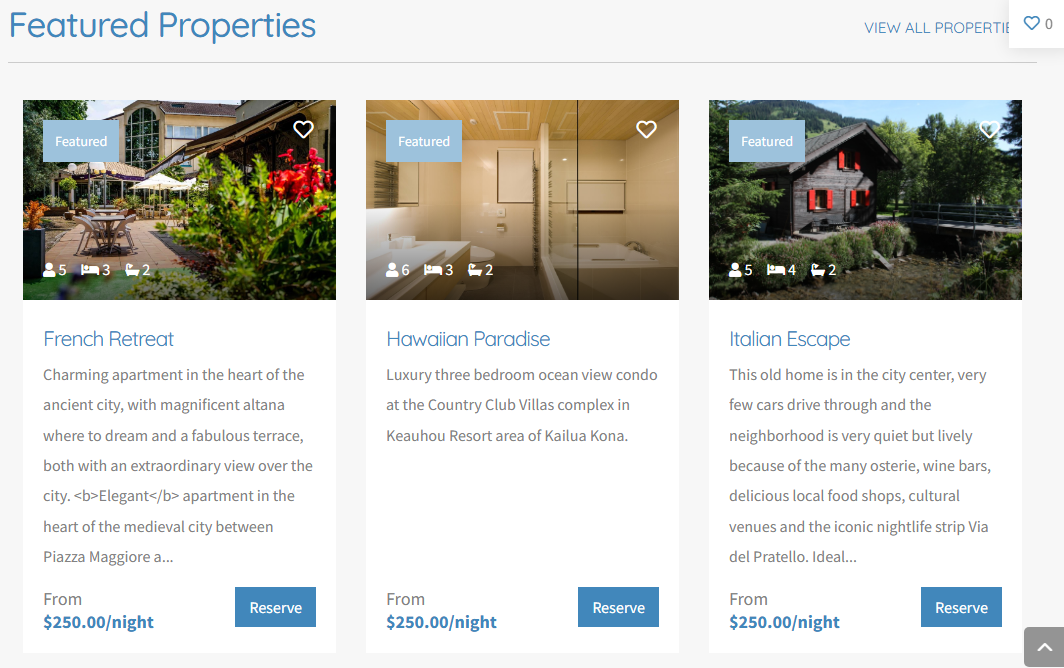
6. Featured Properties: Select listings to show on the homepage.
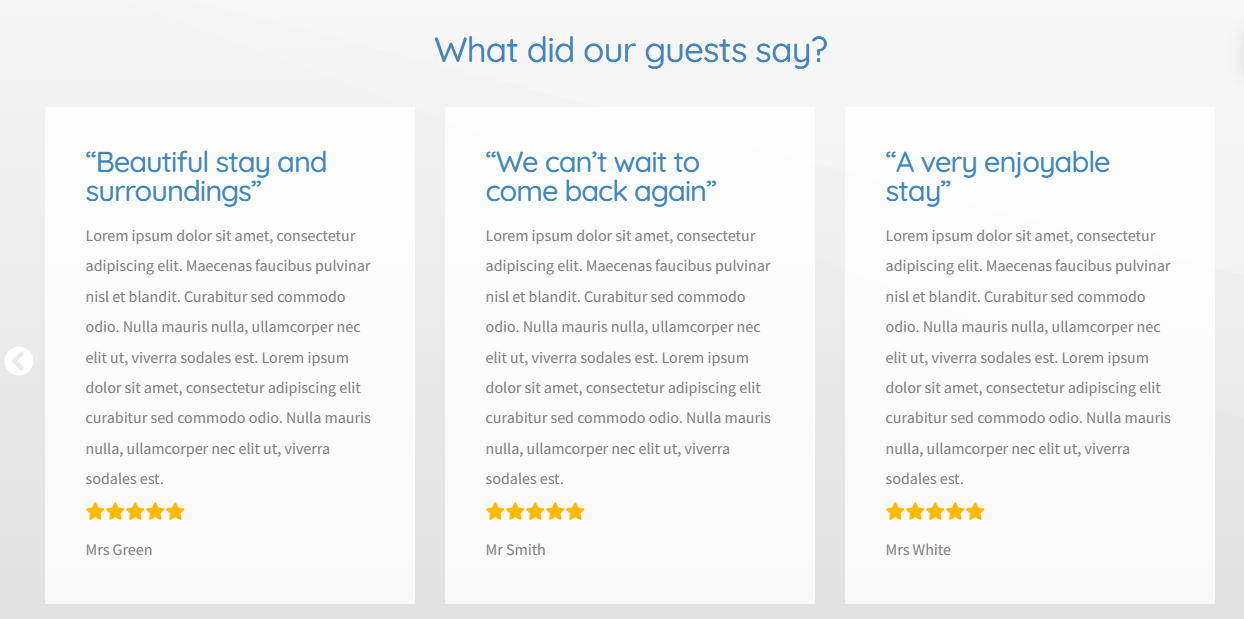
7. Customer Reviews: Recommended maximum: 10 for property page.
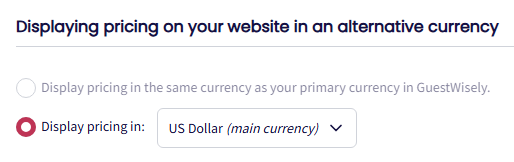
8. Currency Settings: Set your preferred currency.
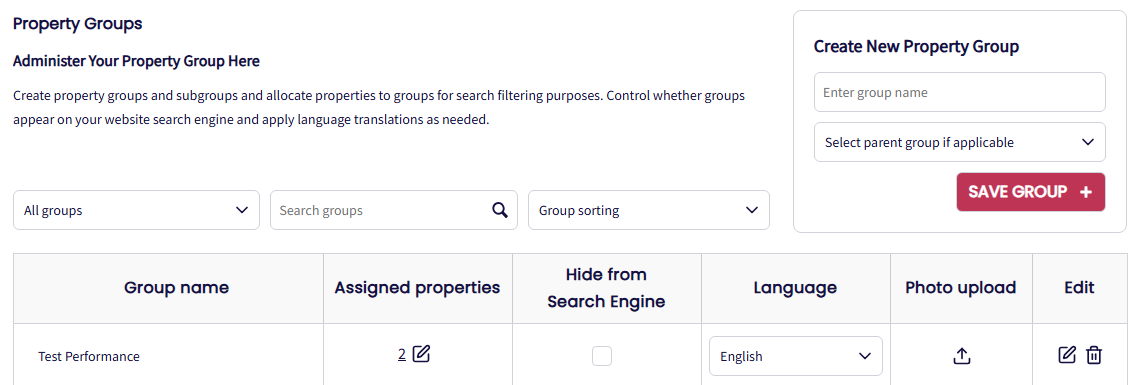
9. Property Groups: In Portfolio Manager, you can create property groups to organize your listings (group properties, alternative properties). These groups will appear as search categories on your website’s search widgets.
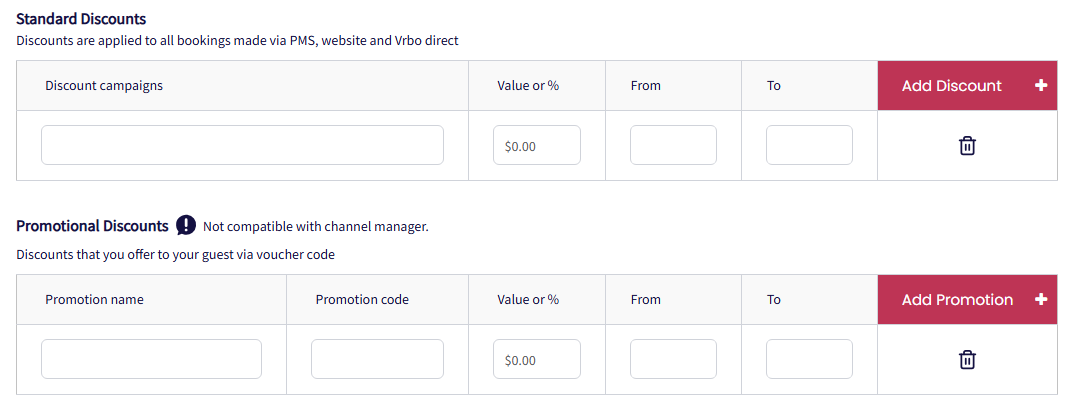
10.Discounts & Promos: Set automatic discounts or promo codes.
Managed from CMS (WordPress + Divi)
Everything else is managed in your WordPress CMS with the Divi theme builder:
Personalize colours, fonts and styles to brand your website
Add, edit and delete individual pages within your website
Update the main navigation, drop downs, side navigation and footer navigation links
Add, edit and delete the text content across your website
Add, edit, delete the images across your website
Add, edit delete social media links
Customise or add contact forms
Configure maps for your own/other locations
Publish or schedule News and Offer posts.
Manage the meta data for your website (including page title, H1 to H5 titles, page descriptions and image alt tags) used by search engines to help rank the pages across your website.
Was this article helpful?
That’s Great!
Thank you for your feedback
Sorry! We couldn't be helpful
Thank you for your feedback
Feedback sent
We appreciate your effort and will try to fix the article