WordPress Customizer
We are going to make a start with the top-level WordPress website styles. Go to Appearance Menu > Customize. This will open the settings screen below, the following tabs need to be visited.

General Settings
Site Identify
Site Title (business name)
Tagline (business description) for your website.
Uploading your favicon under Site Icon – the icon that sits inside browser tabs. Favicons should be square and at least 512 × 512 pixels.
Click ‘Select Site Icon’ and as you did for the logo, drag your favicon into your media library and select. Crop if needed.

Layout Settings
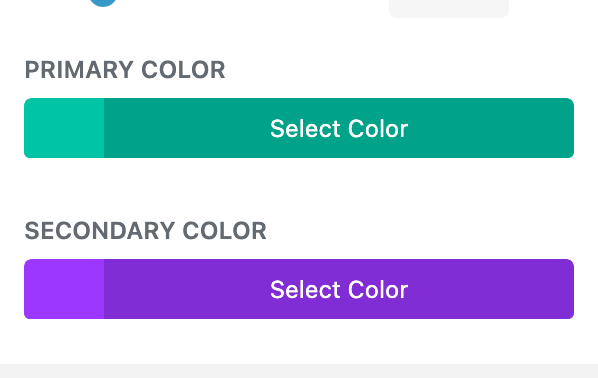
Click on the Riviera gree swatch in Theme Accent Color and it will bring up your default colour palette you have selected earlier. Choose the main highlighting colour from your brand which the theme will use as the default colour for various modules on your pages.
Typography
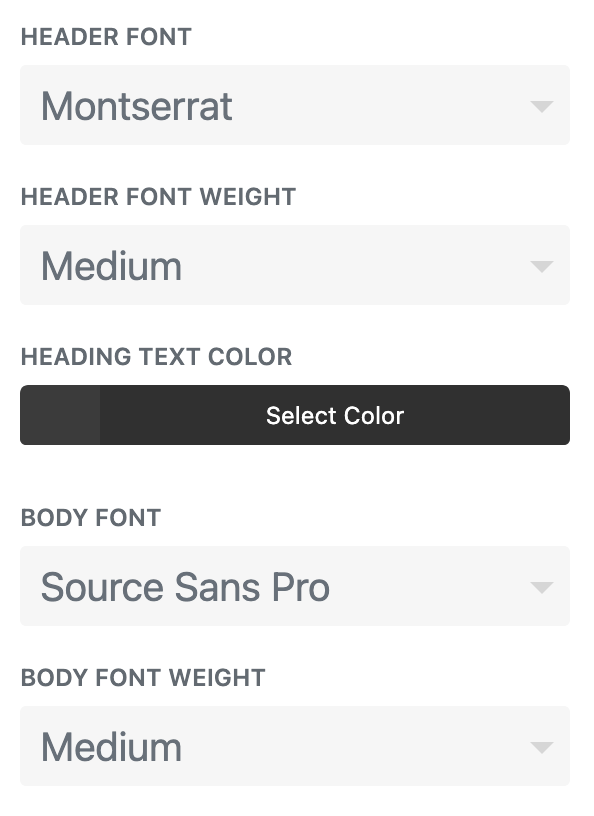
There are extensive settings here for your typography but we have done most of the work with Camelot 2.0. Select your Header Font and Body Font from the long Google Fonts dropdown list. For a better view or search of these fonts visit Google Fonts.
You may want to change your Header Text Color or Body Text Color if you feel it is more suitable for your brand. The Body Link Color is for text you have added hyperlinks to.
Buttons
Go back to the start of the menu and visit Buttons > Button Style. Enter your main highlight color for the Background Color and Border Color (if preferred). Select the font that will appear in your buttons.
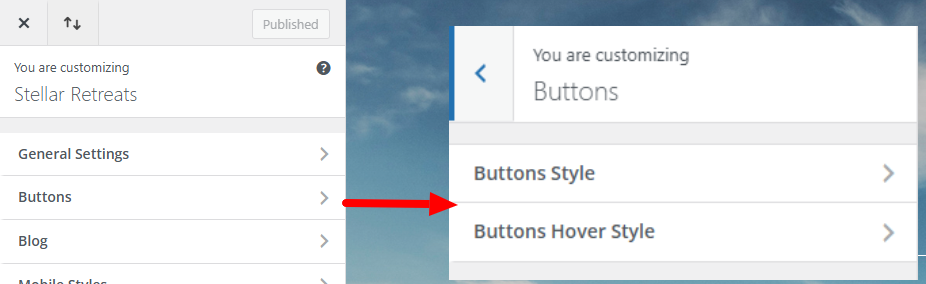
Then to the second part of button settings, Buttons Hover Style. If you wish for there to be a different hover state, change where applicable. Riviera default button is coloured to bordered on mouse-over.
Tips: To keep brand consistency, use either the heading or paragraph font you selected in Typography settings above.
Additional CSS
This area contains CCS code for the styling of custom elements used throughout Riviera. This will rarely need to be edited but in the small number of cases you will, you will find the relevant code under its labelling.
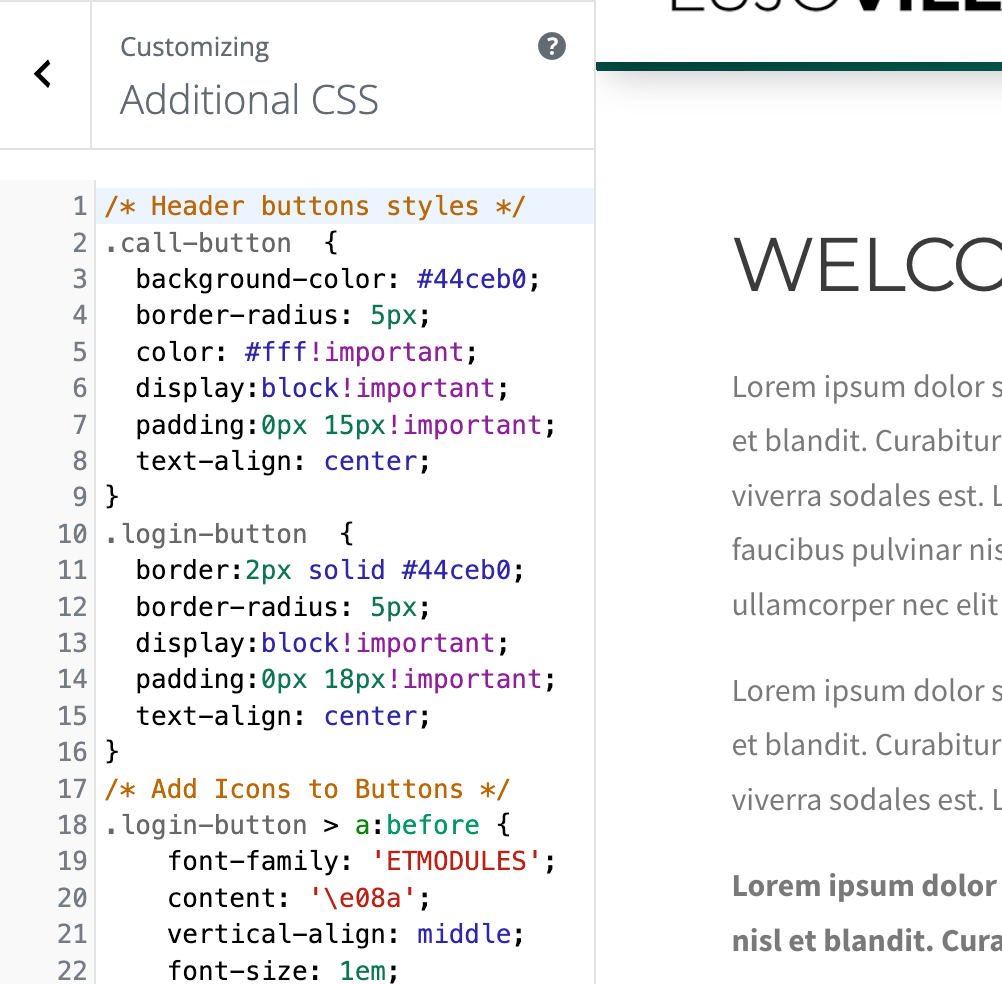
The styling for the Call and Login buttons in your main header are the first example of this, which sits at the very top of the code, under /* Header buttons styles */
Locate the following two lines near the top of the code:
Background-color: #44ceb0;
Border:2px solid #44ceb0;
Change the hex values to your main highlight colour – don’t remove the ‘#’ before it or the semi-colon after it.
Change colour of button icon + text
The icon and text need to be coloured independently. For the text, edit the following code snippet:
.call-button a {
color:#fff!important;
}
Updating Menu Structures
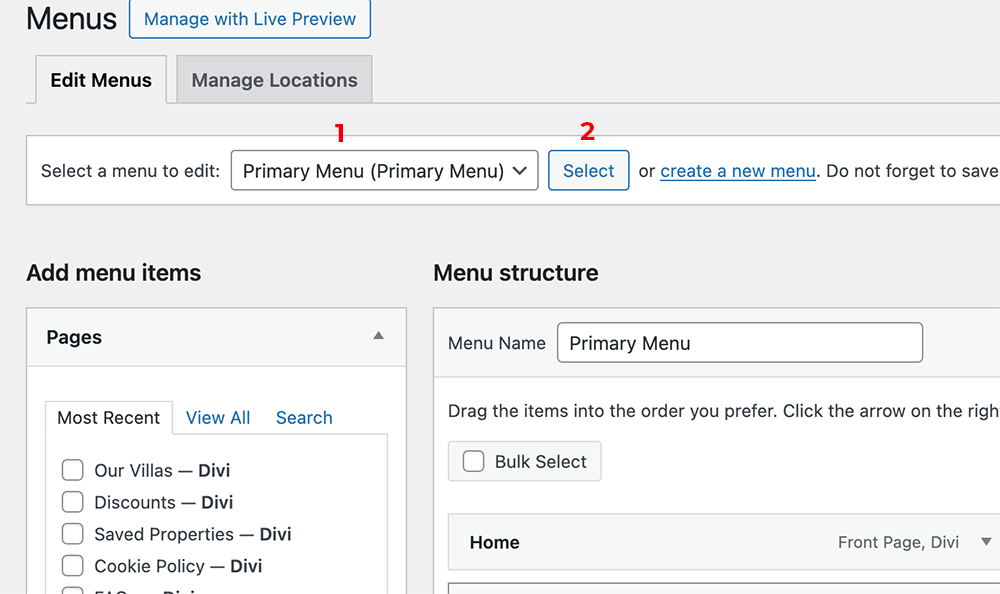
There are 4 locations for menus in Riviera. The Primary Main Header, Property Page Menu, Footer Column Menus and Local Areas Menu (side menu).
The Primary Main Header
There is little to do here unless you wish to add new or remove pages.
Add New Pages
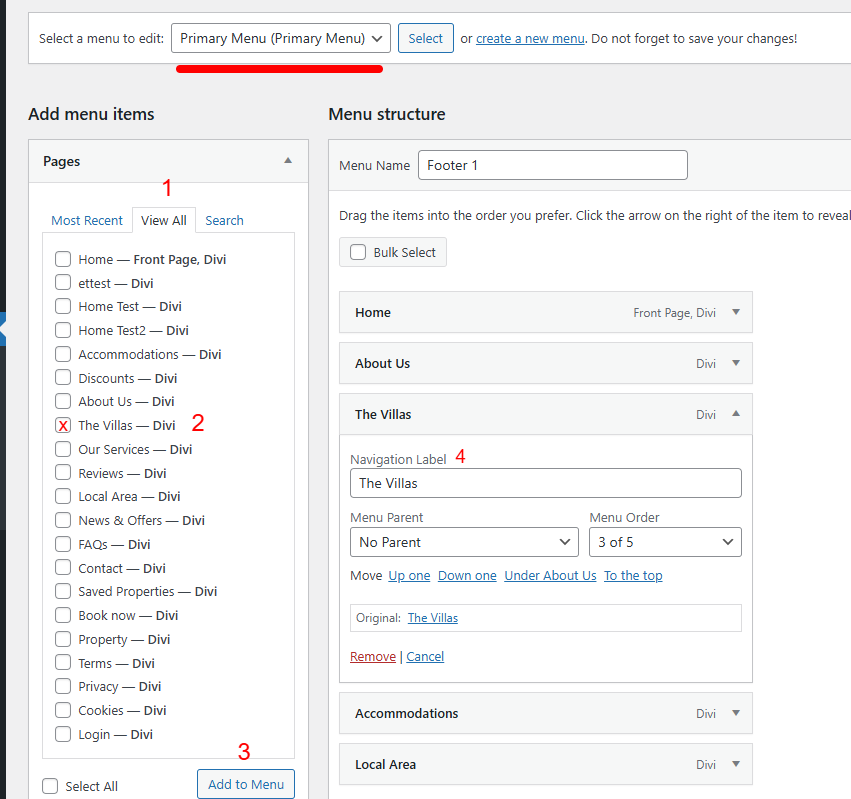
Go to the View All tab to see the full page list.
Check the boxes for the pages you want to add.
Click Add to Menu. The new pages will appear at the bottom of the menu structure.
Edit the Navigation Label in the text field
Drag and drop your pages into the desired position. To create a sub-page, drag the page slightly to the right under another page (indented).
Note: This does not change the page URL (permalink). To change the URL, edit the page settings directly.
Remove Pages from Menu
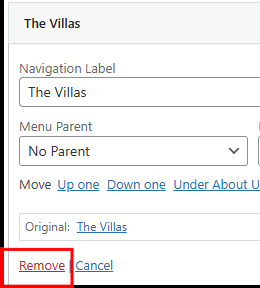
Click the page in the menu.
Select Remove to delete it from the menu.
Footer Menu 1 & 2 and About Menu
The footer menu is essentially split into 3 different menus, one for each footer column 2-4. Select each from the top dropdown and if you wish to add, swap, remove or re-arrange them, use the same method as above for the Main Menu.
Property Menu (Property Focus Page)
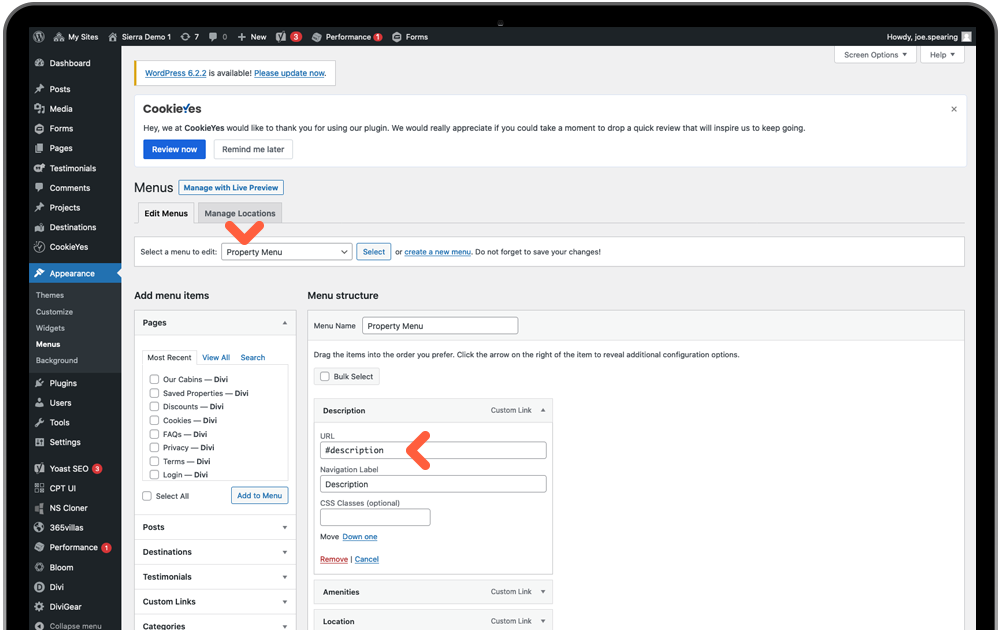
This menu works as an anchor menu for the information sections on individual property pages. We have inserted anchor links to help the user scroll to desired sections. No changes needed here unless you wish to remove any.
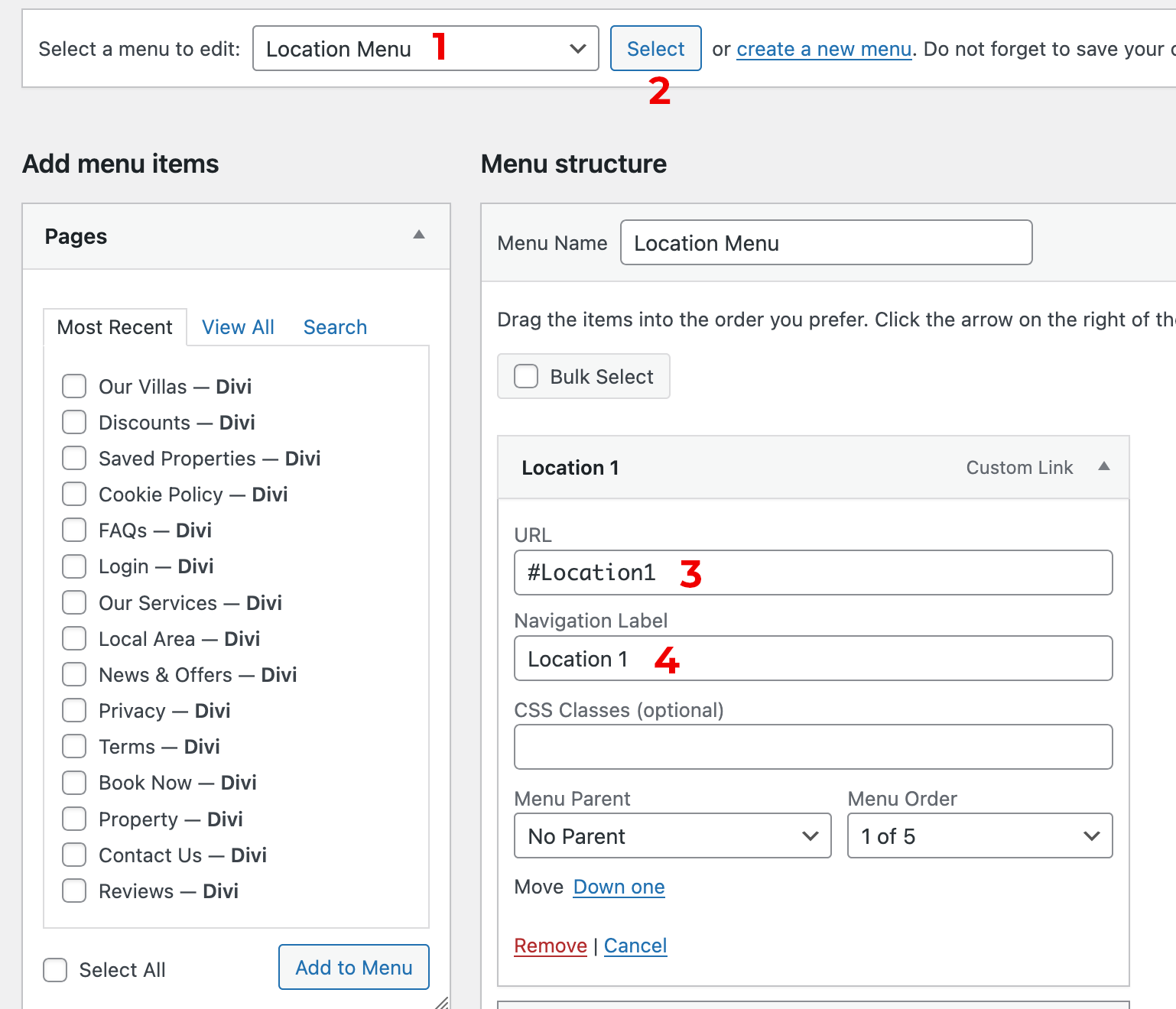
Location Menu (Local Areas)
This menu also works as an anchor menu for the different locations on your local area page. Placeholder titles and anchor links have been inserted to edit/duplicate as desired. The same anchor link ID (in the URL field) must be inserted to the relevant section settings on your local area page, in the ID field under advanced settings in the Divi Builder.
Was this article helpful?
That’s Great!
Thank you for your feedback
Sorry! We couldn't be helpful
Thank you for your feedback
Feedback sent
We appreciate your effort and will try to fix the article