Introduction
To start your theme customization, we will take you through steps in the process in the most logical order.
We are going to make a start with the top-level WordPress website styles, which will feed in to the Divi and it’s visual builder. Head to the Appearance Menu from your WP Dashboard and there are two areas to visit for configuration.
Customize
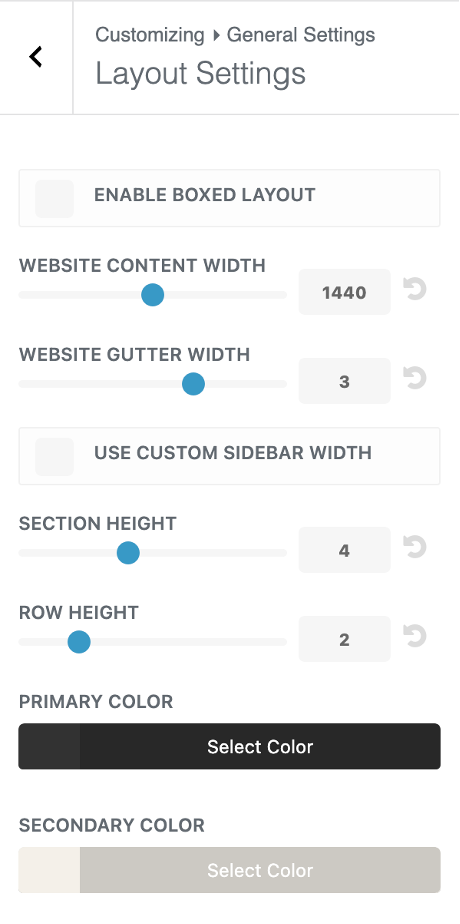
We are going to make a start with the top-level WordPress website styles. Go to Appearance Menu > Customize. This will open the settings screen below, the following tabs need to be visited.
General Settings
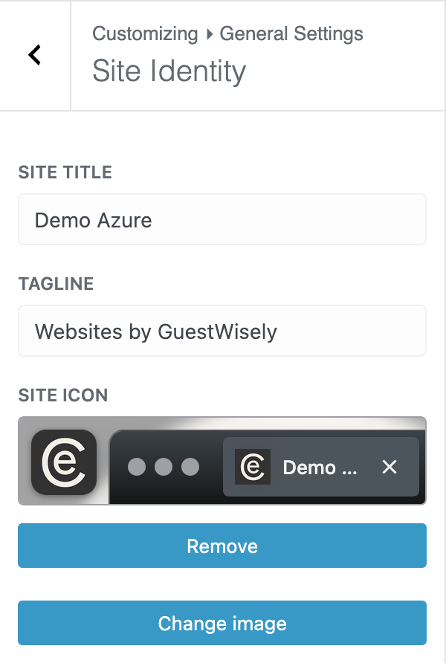
Site Identify
1. Site Title - business name.
2. Tagline business description or strapline for your business.
3. Uploading your favicon under Site Icon – the icon that sits inside browser tabs. Favicons should be square and at least 512 × 512 pixels.
4. Click ‘Change image’ and select your file from the media library(or upload it there first). Crop if needed when prompted.
Buttons
Click back to the start of the Customizer menu and visit Buttons > Button Style. Control a range of design options for your default button including background color, borders, corner edges and font family and size. These styles can be overwritten later in the visual builder if you want to use alterative styled buttons too.
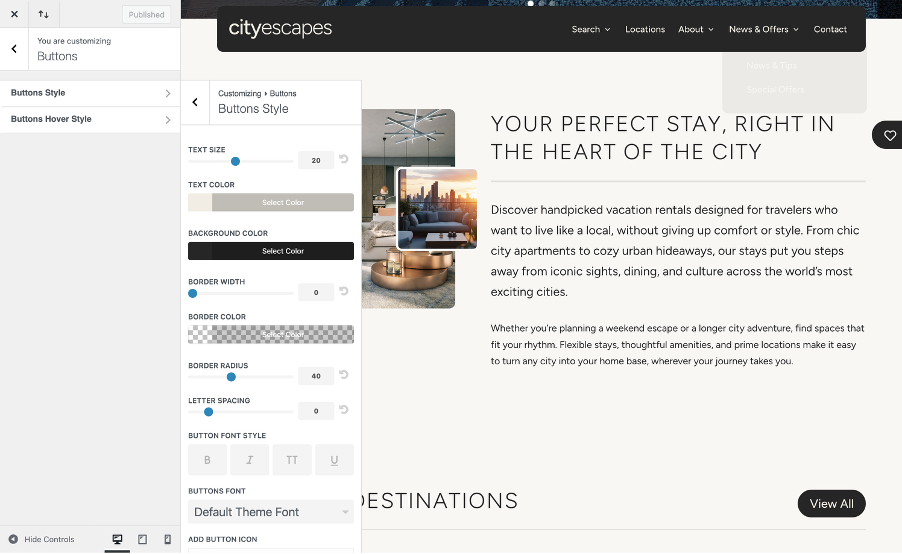
Then to the second part of button settings, Buttons Hover Style. If you wish for there to be a different hover state, change where applicable. Aurora default button has coloured background plus a white border so it is suitable to sit on all colour sections, erasing the need to create a secondary light version button.
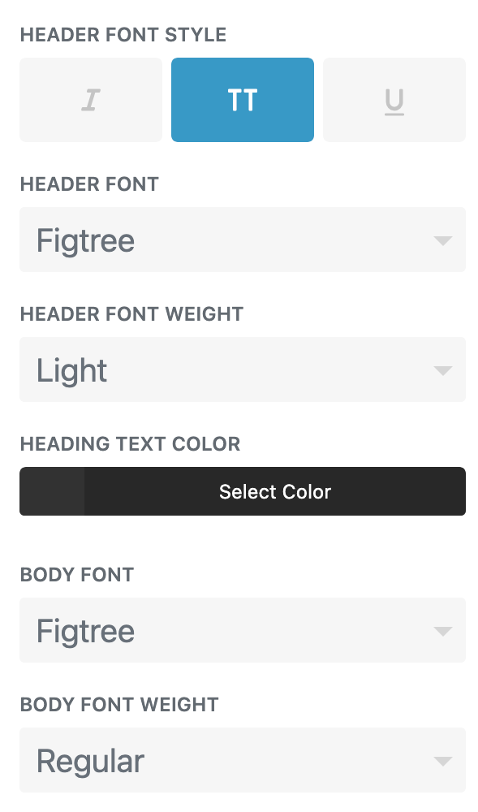
Tips: To keep brand consistency, use either the heading or paragraph font you selected in Typography settings above. The default selection is paragraph font.
These are the only steps needing to be covered in the WP Customizer. Menus can be configured here also but the interface is a little difficult to use so we would instead recommend visiting Appearance > Menus from the WordPress dashboard (see next article).
Updating Menu Structures
In Appearance > Menus you will see from the top menu selector, there are 3 locations for menus in Azure. The Primary Main Header and the two Footer Column Menus.
The Primary Main Header
Add new, remove, reorder or rename pages(renaming will only change the front end view and not the page link, which should be updated in the page settings).
Add New Pages
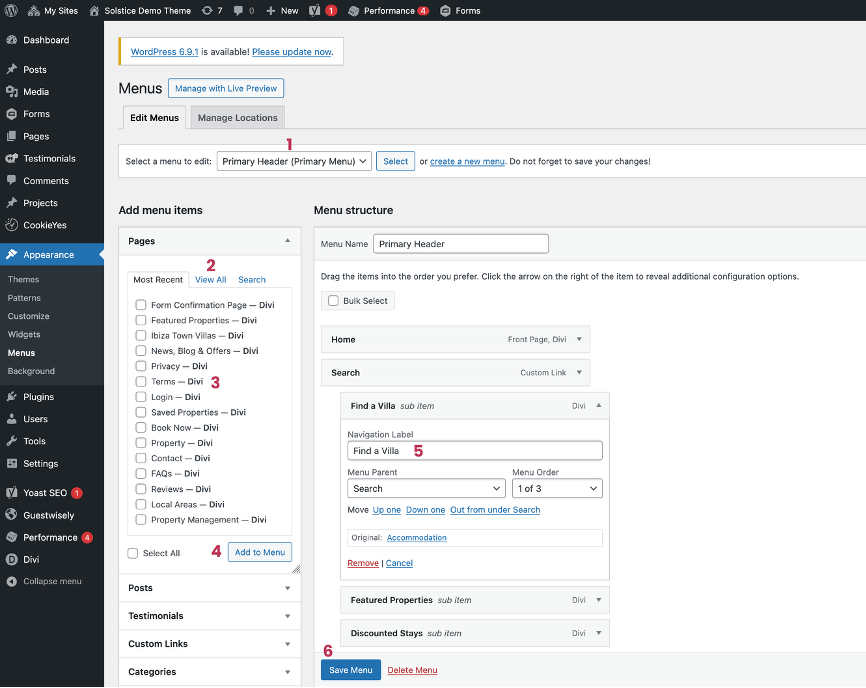
Select ‘Primary Header’ from the dropdown and then select button.
Switch to ‘View All’ tab so you can see your full page list available.
Use the checkboxes to select one or multiple pages to add
Click Add to Menu. The new pages will appear at the bottom of the menu structure and you can then drag them in to position on your menu.
Edit the Navigation Label (if required) in the text field
Remember to Save or all changes will be lost.
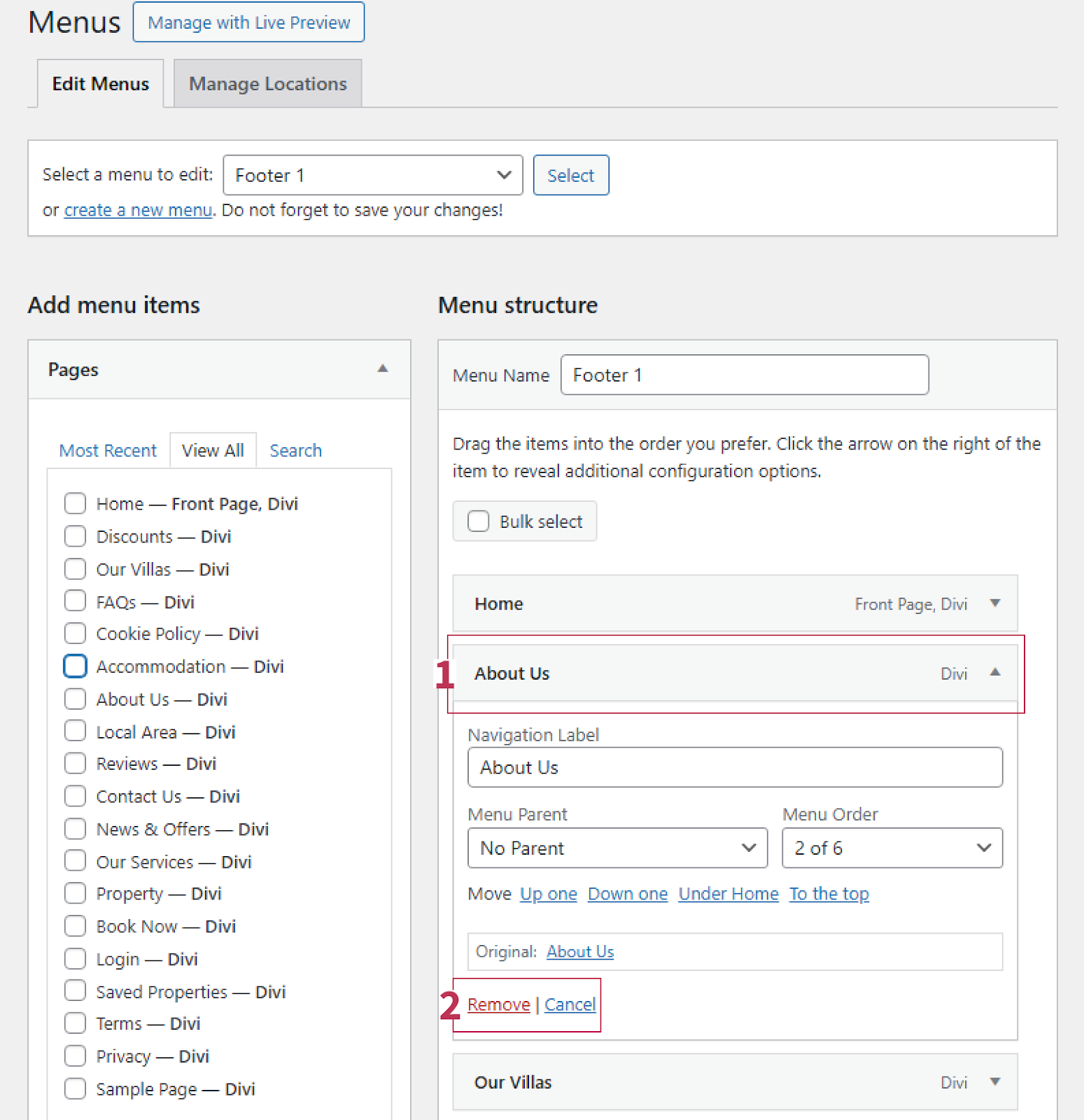
Remove Pages from Menu
Click the page in the menu.
Select Remove to delete it from the menu.
Footer Menu 1 & 2
The footer menu is essentially split into 2 different menus, one for each footer column 3-4. Select each from the top dropdown and if you wish to add, swap, remove or re-arrange them, use the same method as above for the Main Menu.
Was this article helpful?
That’s Great!
Thank you for your feedback
Sorry! We couldn't be helpful
Thank you for your feedback
Feedback sent
We appreciate your effort and will try to fix the article