Introduction
In addition to Airbnb, Booking.com, Agoda, Google Travel and Vrbo, GuestWisely supports integration with "Other Channels" through our Channel Manager. This connection is provided through Rentals United/Quick Connect Channel Manager technology, that gives you the potential to distribute your listings across nearly 50 booking platforms - though, in practice, most Property Managers typically connect to 2 to 5.
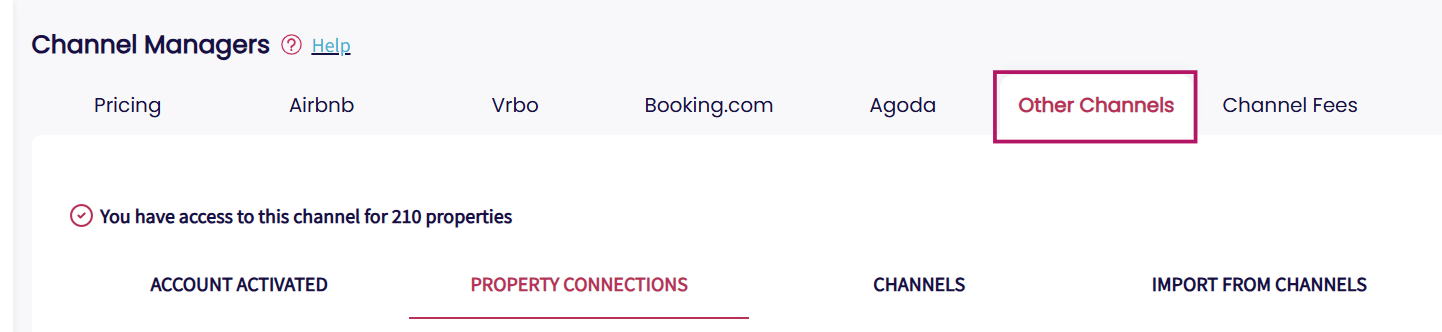
By integrating with Other Channels, you can broaden your reach beyond the major platforms. Our team will assist in setting up the sync based on the specific capabilities of the channel you choose.
Note: Each external channel offers different levels of integration. Some support full synchronization - including availability, rates, and content - while others may only handle calendar and reservation data. Our team will help configure your setup according to the requirements of your selected channel.
You can view and manage all connected channels by navigating to Channel Manager > Other Channels in GuestWisely.
Other Channels Onboarding Process
Before starting
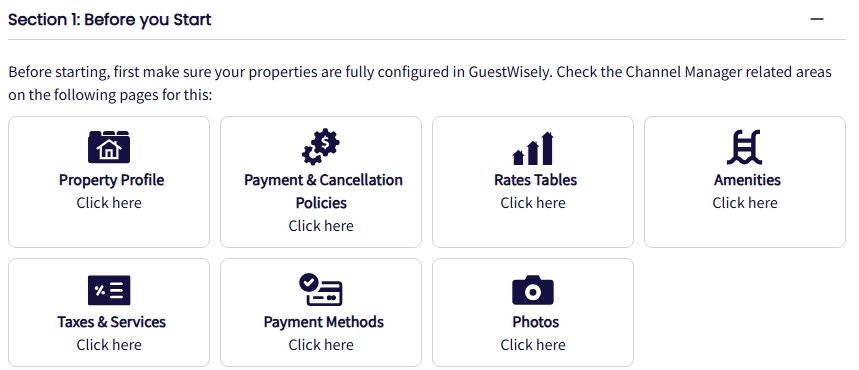
Before initiating the connection, please ensure the following:
All property details (name, address, description, images, amenities, pricing, etc.) must be fully and accurately filled in on the GuestWisely platform. You can check this under the Property Status dashboard.
This ensures smooth data sync and prevents listing issues once connected to external channels.
Start integration
Once you're ready, submit your confirmation to proceed with the onboarding.
After confirmation, our Connectivity Team will reach out to you and assist you through the initial connection setup with your chosen channel. They will guide you step-by-step to ensure your listings are connected and published correctly.
Connect Your Property with our Channel Manager
Push your property to Channel Manager
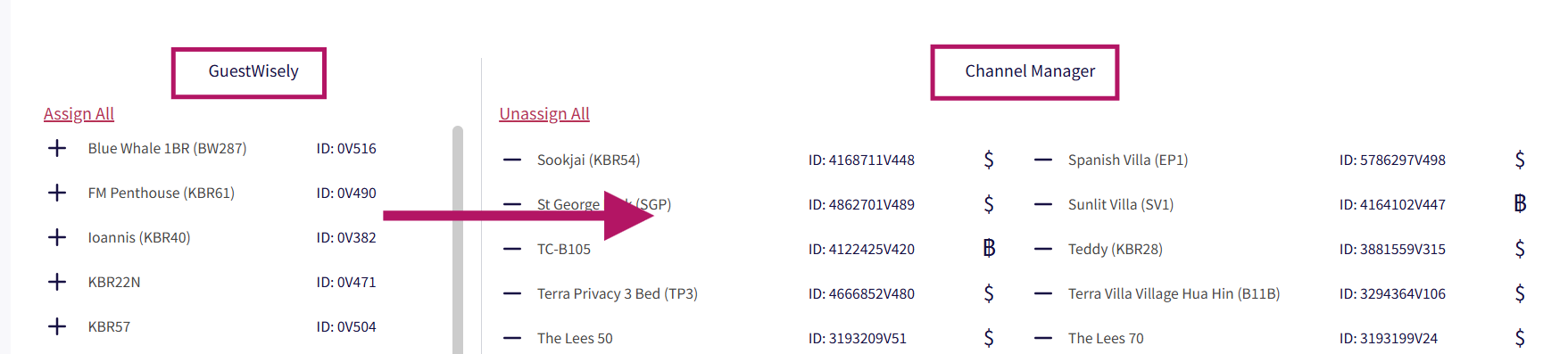
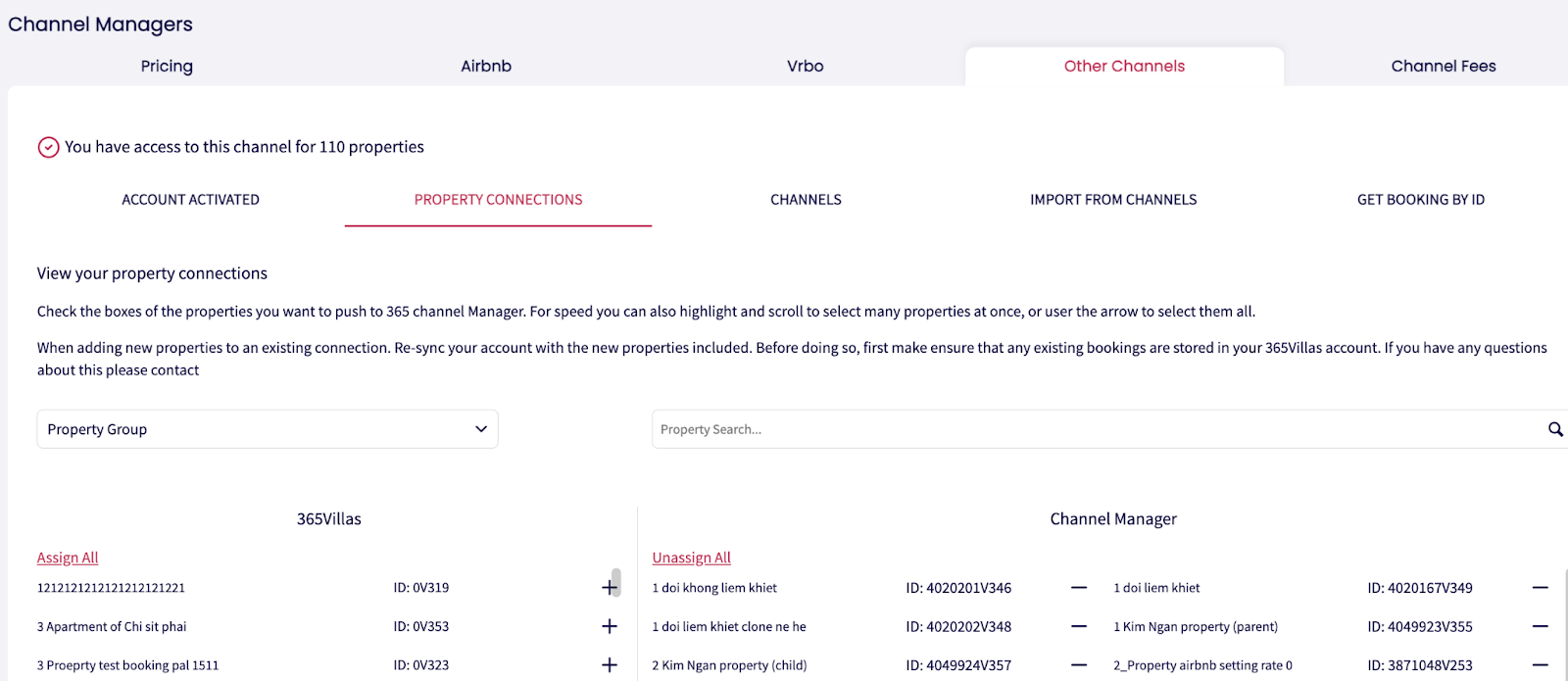
Go to Property Connections and move the property from the left column (GuestWisely) to the right column (Channel Manager) to connect it with our Channel Manager.
⚠️ Important: After first pushing your property to our Channel Manager, check the Channel Manager currency setting before connecting any OTA. See the next section for details.
Channel Manager Currency Management
When you connect a property, the Channel Manager automatically assigns a currency to its Channel Manager Rate Table based on the pinpoint location under GuestWisely Property Profile. Properties in the same location use the same currency.
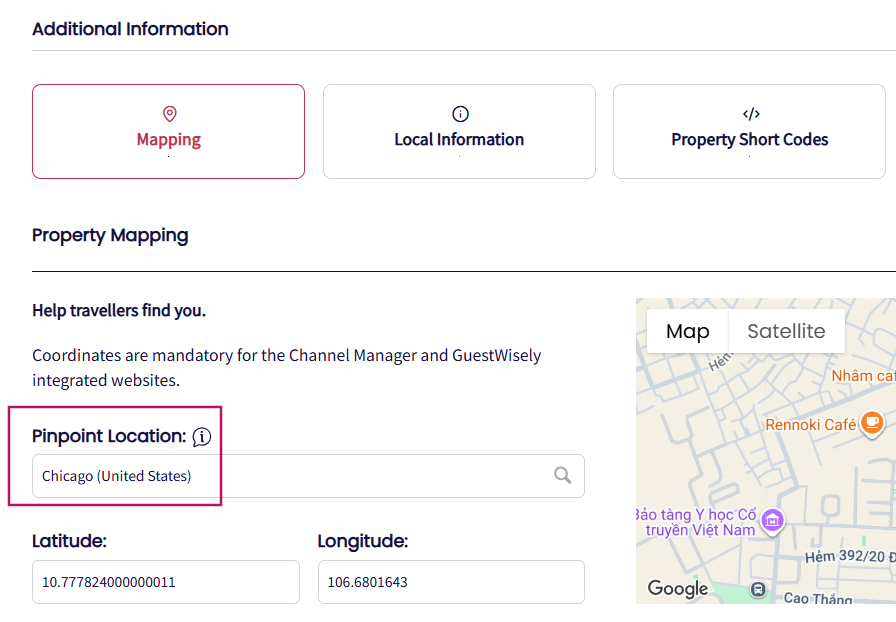
The currency symbol next to the property under Property Connections shows the currency in our Channel Manager Rate Table. If it differs from the currency in the GuestWisely Rate Table, a conversion rate is required.

If the currency symbol is red, the currency selected for the conversion rate in GuestWisely does not match the Channel Manager currency. You must take action before connecting the property to any OTA.
You have two options:
Option 1: Select the correct currency for the conversion rate
Click the currency symbol to select the currency for the conversion rate that matches the Channel Manager currency.
In the example below, select USD from the dropdown and set up the expected conversion rate.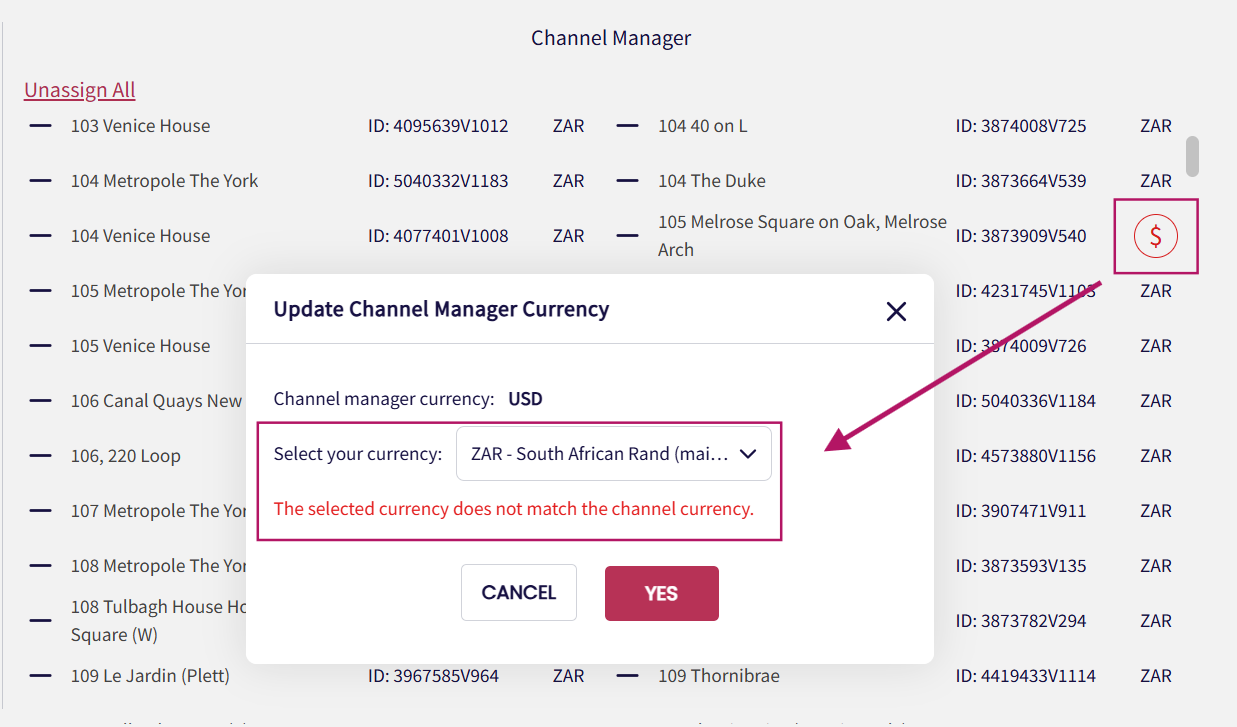
Our Channel Manager receives the rate amount, but not the currency. Therefore, when the GuestWisely and Channel Manager currencies are different, the conversion rate ensures that the correct amount is sent to the Channel Manager.
Example:
GuestWisely Rate Table: ZAR
Channel Manager Rate Table: USD
GuestWisely rate: 10,000 ZAR (=612 USD)
Without a conversion rate, 10,000 is sent to the Channel Manager, which treats it as 10,000 USD.
With a conversion rate, GuestWisely converts 10,000 to 612 before sending it to the Channel Manager.
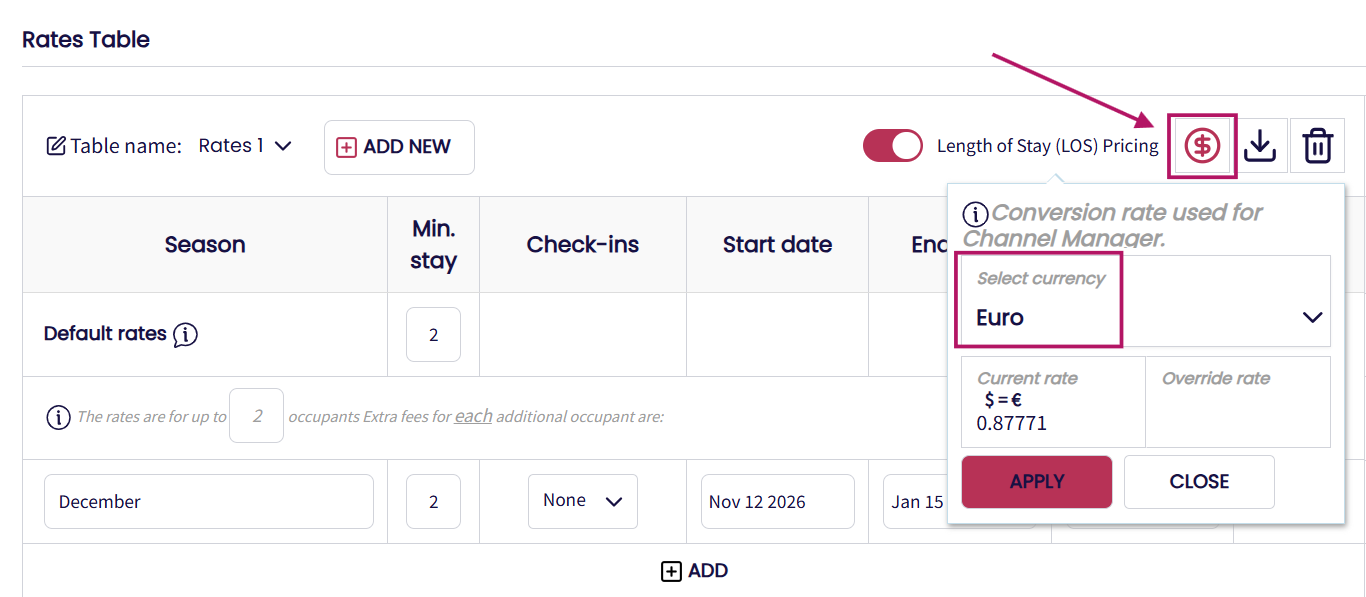
Alternatives, the conversion rate can be set in the Rates Table.
Option 2: Request a currency change
To change the Channel Manager currency for a location, all properties in that location must:
Not be connected to any channels.
Not have any reservations, including past, pending, active, cancelled or future reservations.
If these requirements are met, contact us with the property location and requested currency.
⚠️ Important: Do not connect your property to any OTA from our Channel Manager until you have confirmed that the Channel Manager currency and conversion rate are set correctly.
Sync Error and Property Status
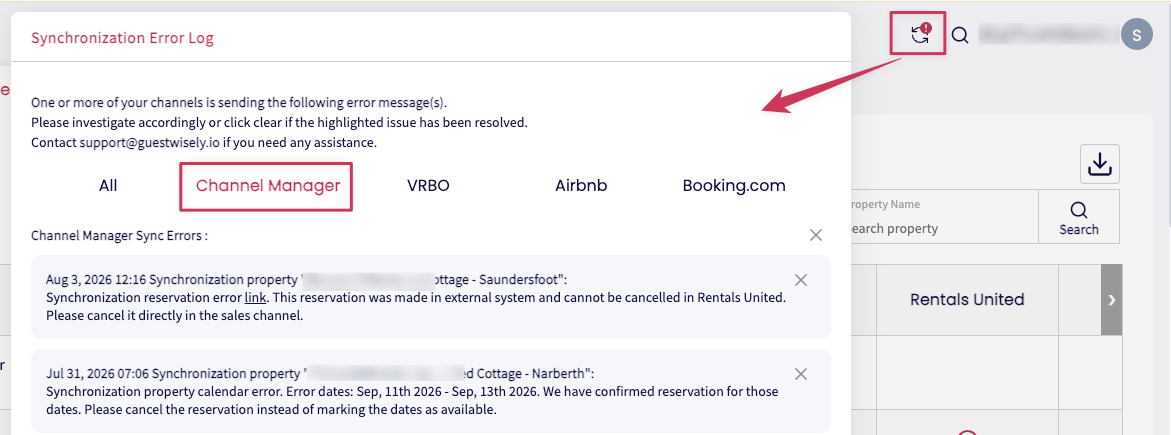
If you are unable to connect the property to our Channel Manager, there may be a sync issue. Please check Sync Error Notification to view the error details.
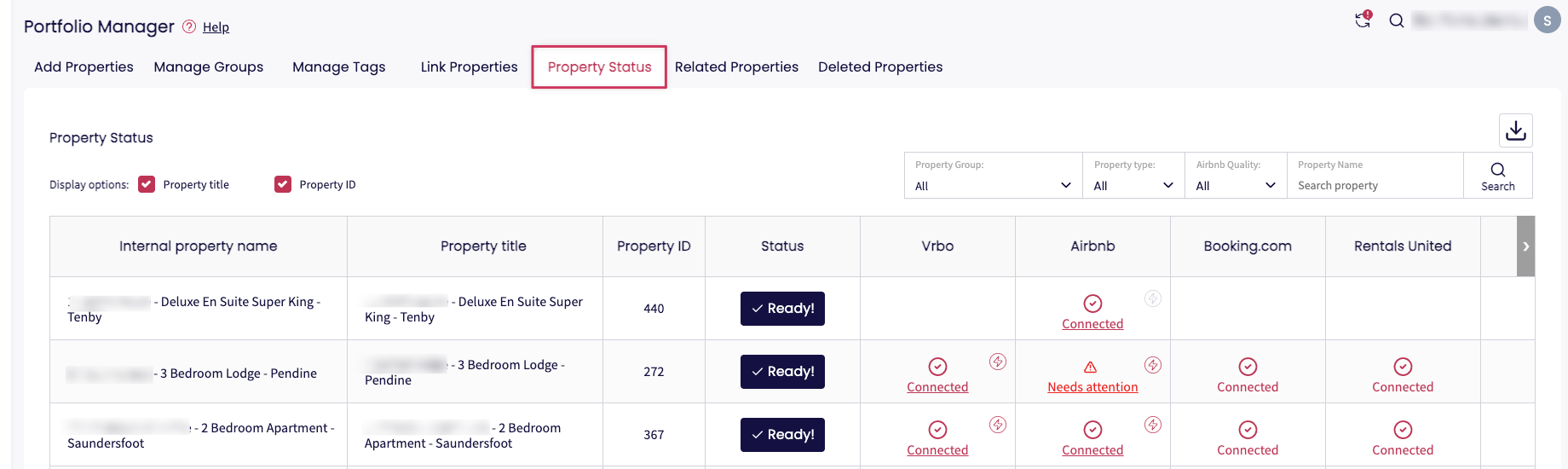
Additionally, you can verify the connection status in the Property Status section.
View Your Connected and Available Channels
You will see a list of platforms currently connected to your account listed under “Your sales channels”.
An additional list of channels you are not connected to will be listed under “Connect to more sales channels”.

Check Channel Connection Status
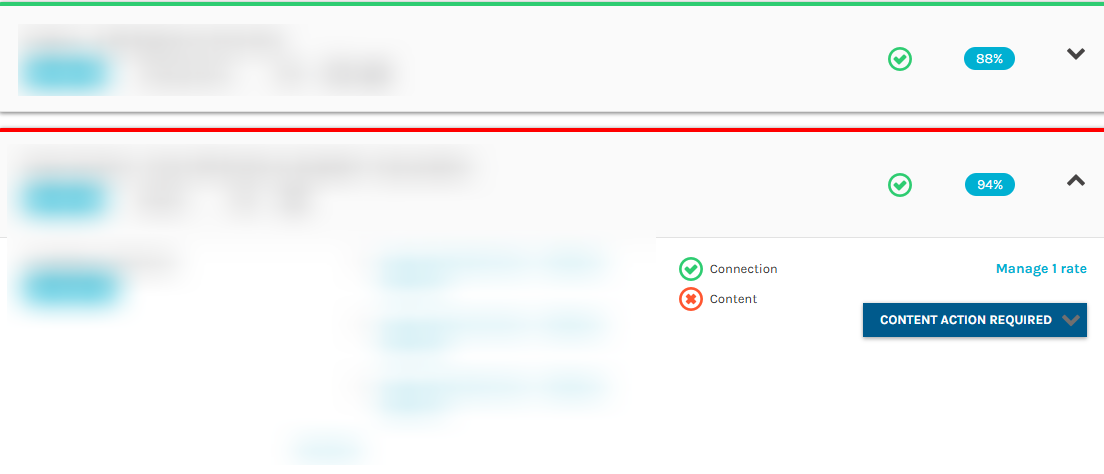
Stay on top of your integration by monitoring the connection status for each channel. These indicators help you quickly identify whether your properties are live or if action is needed:
Green: Properties are fully synced and live.
Red: Connection requires action to complete or restore.
Click the channel name to view detailed alerts and property-specific issues.
Confirming Your Listings Are Live
Once your connection shows a green status, it's important to verify that your listings are actually visible and bookable on the channel. Here's how to confirm:
For channels with an extranet: Log into the channel’s extranet and check that your listings appear and are available for booking.
For channels without an extranet:
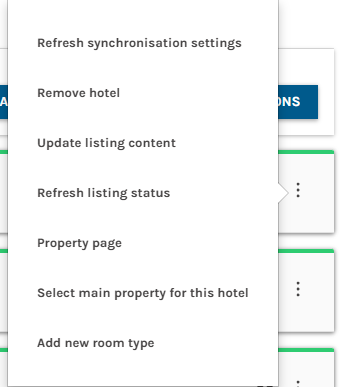
Go to Channel Manager tab > Channel tab
Click the three-dot menu next to the listing and select “Property Page”
If the link loads, your listing is live. If not, follow up with the channel manager to complete onboarding.
Resolving Errors
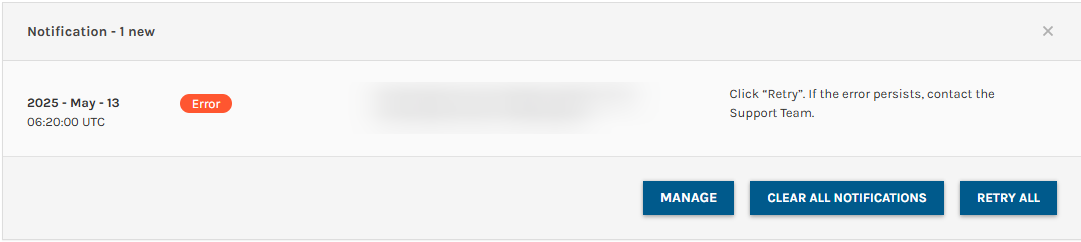
A red status means something’s blocking your listing from syncing properly. Here’s how to quickly identify and fix the issue:
Under Other Channels > Channels > Select the connected channel > Property Settings, use the “Action Required” filter to view where you need to make corrections.
Click on any flagged content to review required fixes. Update the necessary fields or details.
Click “Retry All” to reconnect the listing after resolving the issue.
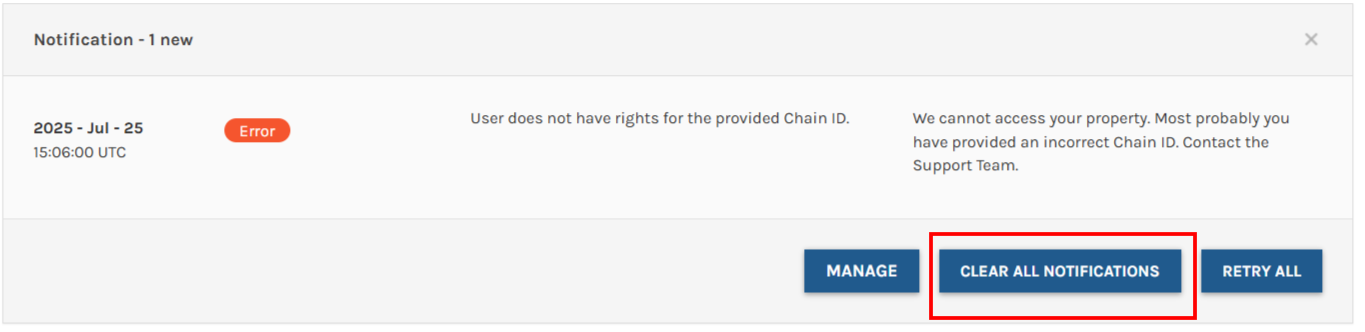
Notifications Note: Stay informed by regularly reviewing your notifications. Here’s how to manage them effectively:
Informational messages don’t affect your listings but should still be reviewed.
Click “Clear All Notifications” to dismiss messages you’ve addressed.
If you encounter an error you don’t understand, contact GuestWisely support for assistance.
Connecting a New Sales Channel
If a platform isn’t yet listed under Your Sales Channels, it means it hasn’t been connected. Follow these steps to add it:
Click the logo of the channel.
Follow the guided setup wizard, including the “How it Works” overview.
Once finished, the channel will appear in your list with a status indicator showing its connection state.

How to disconnect Guestwisely from channels
To fully disconnect a property from GuestWisely’s channel integration, follow these two steps:
1. Deactivate Channel Connection
Go into the Channel dashboard to disconnect it from GuestWisely.
Deactivate the connection between GuestWisely and the OTA (e.g., Booking.com, Agoda, Google Travel...) by selecting the appropriate option, depending on the channel.

2. Unlink Property Connection
Go to Property Connections.
Move the property from the right box (Channel Manager) to the left box (GuestWisely).
Click Save to confirm changes.
Note: Both steps are required to ensure complete disconnection between the property and the OTA channel.
Channel Booking Update
Any updates such as date changes, property changes or cancellations must be processed from the original booking source (Sales Channels). Once the channel updates the reservation, GuestWisely will sync and update accordingly.
Updating the booking directly in GuestWisely is not recommended because:
Changes made in GuestWisely will not sync back to the sales channel dashboard.
Whenever the sales channel triggers a sync, the channel data may overwrite the updates made in GuestWisely.
Other Channels is a key component of the Channel Manager. Learn more about the Channel Manager here.
Was this article helpful?
That’s Great!
Thank you for your feedback
Sorry! We couldn't be helpful
Thank you for your feedback
Feedback sent
We appreciate your effort and will try to fix the article