Introduction
News and Offers posts are split into two areas in WordPress menu. News/blogs/tips are managed through the default Posts Menu towards the top of the left menu in the content management system. A little further down the menu is Offers for your special deals with discount codes. Both use the same process for adding new posts.
When you create a news post, you must assign it to either a news, tips/advice or new category you may create.
Add News Post
To add a new post, click the ‘Add new’ button in the posts section.
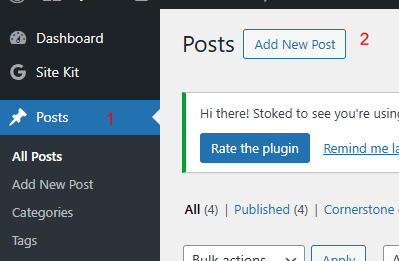
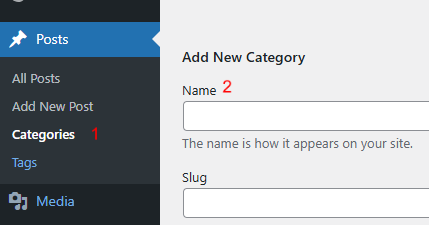
Adding Categories
Before you start entering posts, you may consider creating further categories than the default 3 that have been set up. Simply add a new category name and then the Add button – the slug (which forms part of the URL is generated automatically from your entered name.
Title Post / Gutenberg Editor
WordPress now uses a post builder called Gutenberg. Add post/offer title into the large text field and then you can start typing directly into the paragraph field below it. This will bring up a small toolbar where you can edit style, alignment and add hyperlinks.
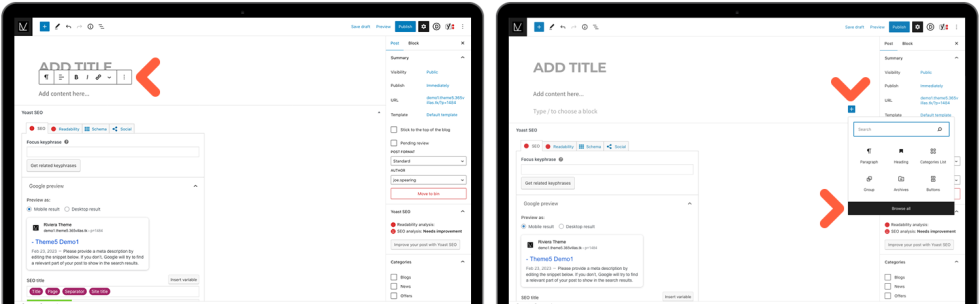
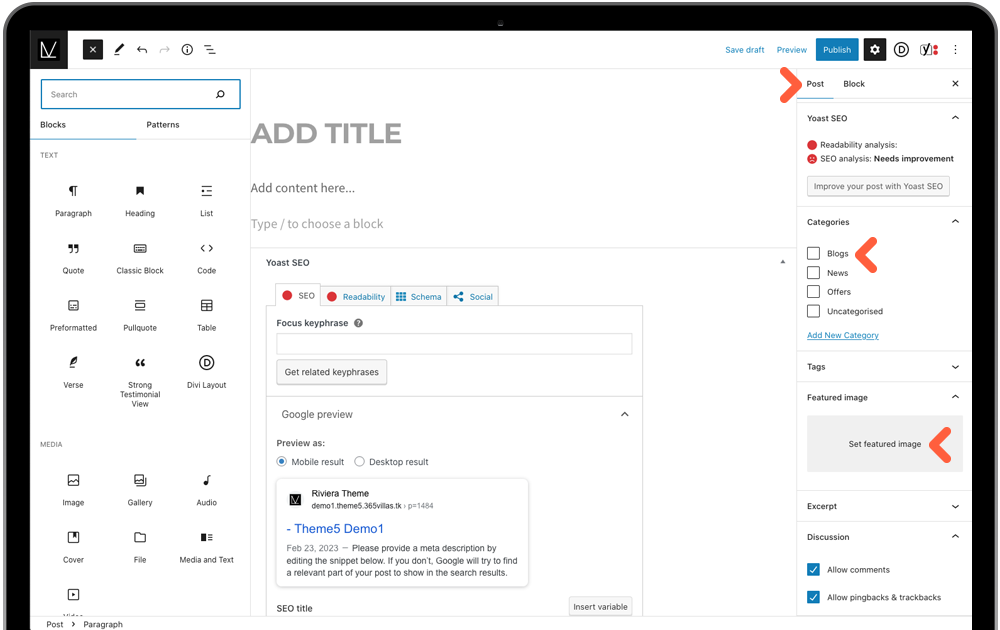
When you press enter after your first paragraph, the next ‘block’ options will appear, displaying a blue plus icon. Click this for more block options available for adding to your post content. This presents you with an initial handful of extras but you can ‘Browse all’ to bring up a full menu attached to the left of the screen. This includes many options, the most popular would be Headings (H1 displaying the largest), Images, Galleries and even Videos.
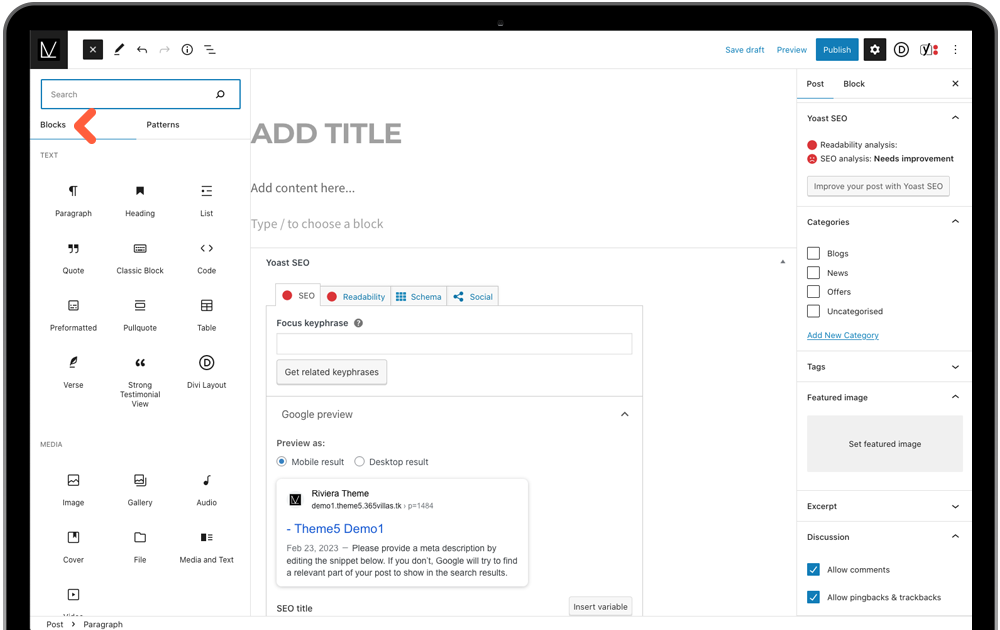
Assign Category / Featured Image
When you are happy with the content of the post, you then need to select Post from the top right tabs – this will allow you to scroll down and assign the category via checkbox (multiple can be selected) and select the Featured Image, which is the main image that displays in the list view AND inside the page header of the individual post page. For that reason, the featured image should be no less than 1200px wide to avoid low resolution display.
Publish
You can Preview the post on the front-end of the website or you can Publish. Click the top Publish button to post immediately, or to schedule for a future date, in the same Post tab, under Summary, you can click the text link next to Publish and select the date and time from the calendar. The top page button will change to Schedule which you can click to confirm
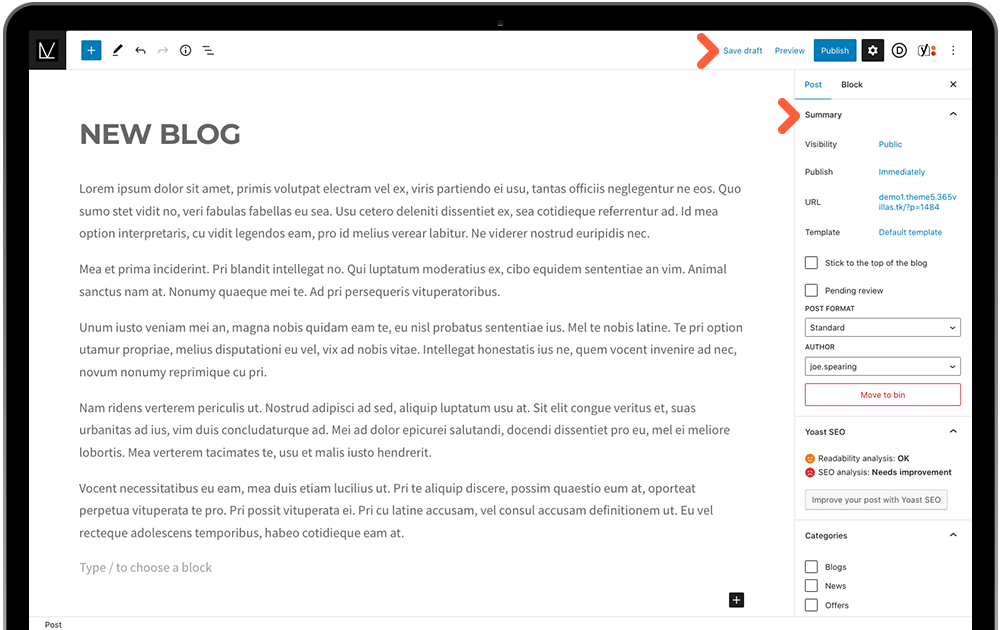
The post URL will be automatically generated from your post title but you have the option to amend this by clicking the URL link.
Add Offer Post
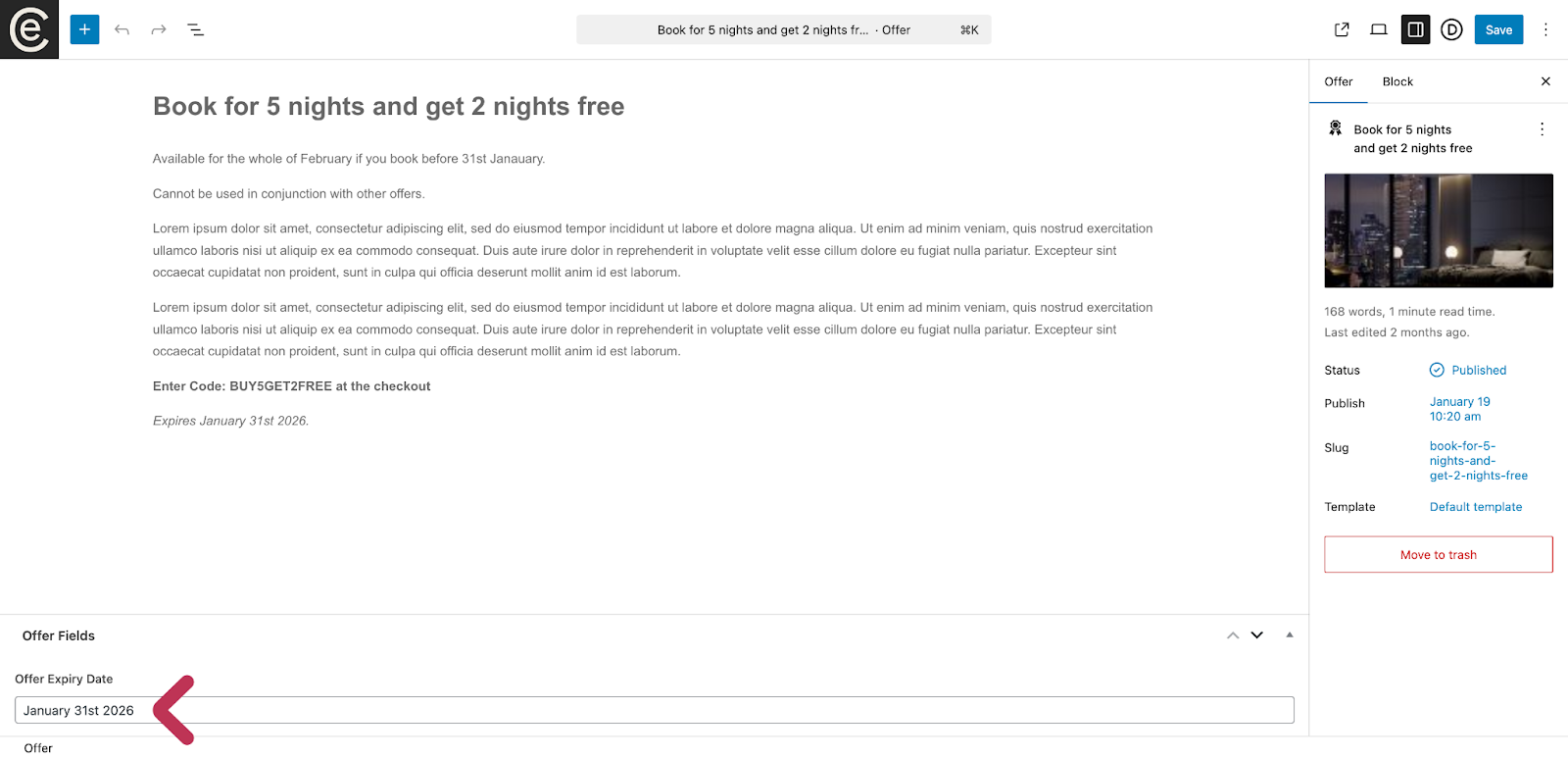
The process is the same as News, without the need to assign a category. The only extra setting here is remembering to add an offer expiry date which will display on the grid item on the offer page.
Was this article helpful?
That’s Great!
Thank you for your feedback
Sorry! We couldn't be helpful
Thank you for your feedback
Feedback sent
We appreciate your effort and will try to fix the article