Introduction
Before editing any of your page content in the Divi Visual Builder, there is an important first step to make, which is an extension of the settings that were configured in the WP Customizer earlier.
The Divi 5 Visual Builder introduces Design Variables, a powerful feature that enables you to reuse values, including numbers, strings, images, fonts, links, and colors, across your entire site. Paired with the top level WordPress settings in Appearance > Customizer, you can update the styles of your whole website in a few clicks.
Click the Design Variable icon in the left side menu and you will see a list of dropdowns with Numbers, Colors and Fonts prefilled with the theme.
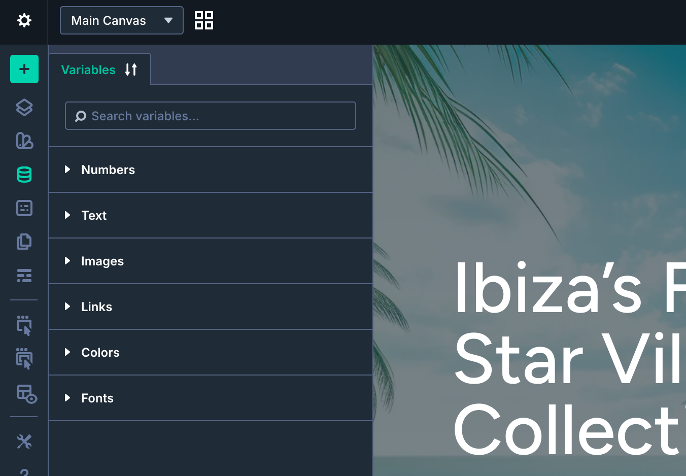
Design Variables
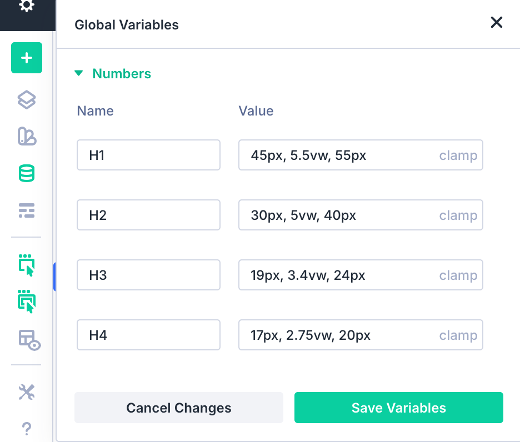
Numbers
These have been pre-set for all heading sizes H1-H5 and paragraph text so that they display at optimal sizes on all devices. The clamp unit uses three values of minimum, preferred and maximum value so that they are adjusted automatically if they are unable to fit a particular layout/device view.
If you are happy with all the default heading sizes then no action is need here.
Colors
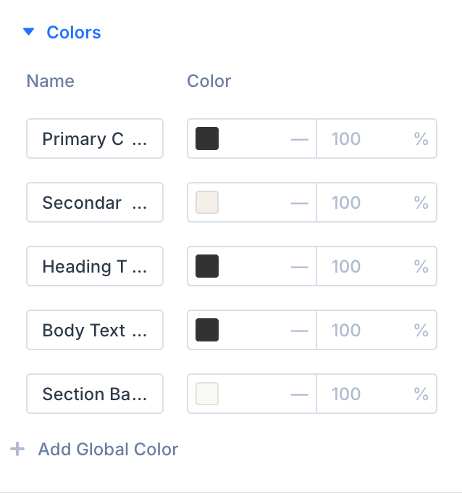
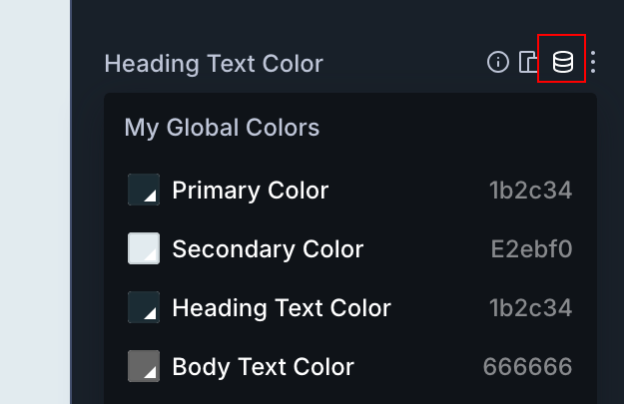
The primary/secondary heading and body text colours are pulled from what is configured in the Customizer – but these can be amended here or new ones can be added to the list. Updating these as a primary step when you first use the visual builder will update the whole website color palette (excluding the GuestWisely plugin modules) where they have been paired on sections and modules. Once updated, remember to Save.
Note: The final color in the list below is paired with the background color of all your website pages so updating here will instantly reflect everything, if you prefer a different option (or white to keep it clean) to be more suitable for your brand.
Fonts
Containing the heading and paragraph fonts selected in the Customizer. Change or add extra fonts you would like to link and use throughout the website.
Simply edit the value (string) to update sitewide. You must click Save to commit changes. Closing or cancelling the modal discards any unsaved edits.
Assigning Variables to Fields
When selecting a heading module for example, if you scroll down to the font size field in the right settings panel > Design, you will see a design variable is in place within a tab – this is how you will know any field or section is currently using a design variable.
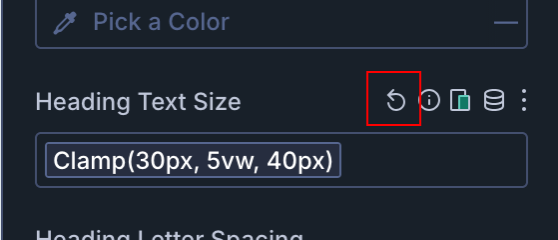
Simply update the value in Global Variables (left menu) for sitewide updates – or if you prefer to use a custom style for a single field, you can remove the variable via the arrow icon and enter a manual value there instead.
If you have created new modules that you would like to assign to your global styles, fields that support design variables will display the Design variables icon on hover. Clicking it shows a drop-down of available variables.
For a more extensive guide on the Divi 5 Design Variables, see the official support guide centre here.
Was this article helpful?
That’s Great!
Thank you for your feedback
Sorry! We couldn't be helpful
Thank you for your feedback
Feedback sent
We appreciate your effort and will try to fix the article