Governments-particularly in Europe-are enforcing stricter rules around invoicing. One of the key requirements is ensuring there are no gaps between invoice numbers. Every invoice must follow a clear and sequential pattern, even when bookings are canceled or adjusted.
This article walks you through how to set up progressive invoice numbering and manage receipt tracking for guest invoices. The system is designed to help property managers stay compliant, organized, and ensure that every transaction- booking, payment, or refund- is properly documented and traceable.
Why progressive numbering matters
Many tax authorities require that invoices:
Are issued sequentially, with no missing numbers.
Reflect all financial activity-including bookings, cancellations, and refunds.
Include credit notes where applicable.
Example:
If you make 12 confirmed bookings in a year, you should have 12 invoices.
If one booking is canceled and rebooked, you should have 13 invoices: 12 for each booking and 1 additional invoice with a credit note for the cancellation.
Setting up progressive numbering for Guest Invoices
This functionality applies only to guest invoices, not owner invoices.
Steps to configure:
Open your Guest Invoice template settings by going to Business Management > Invoices & Receipts > Guest Invoices.
Click on the invoice number field.
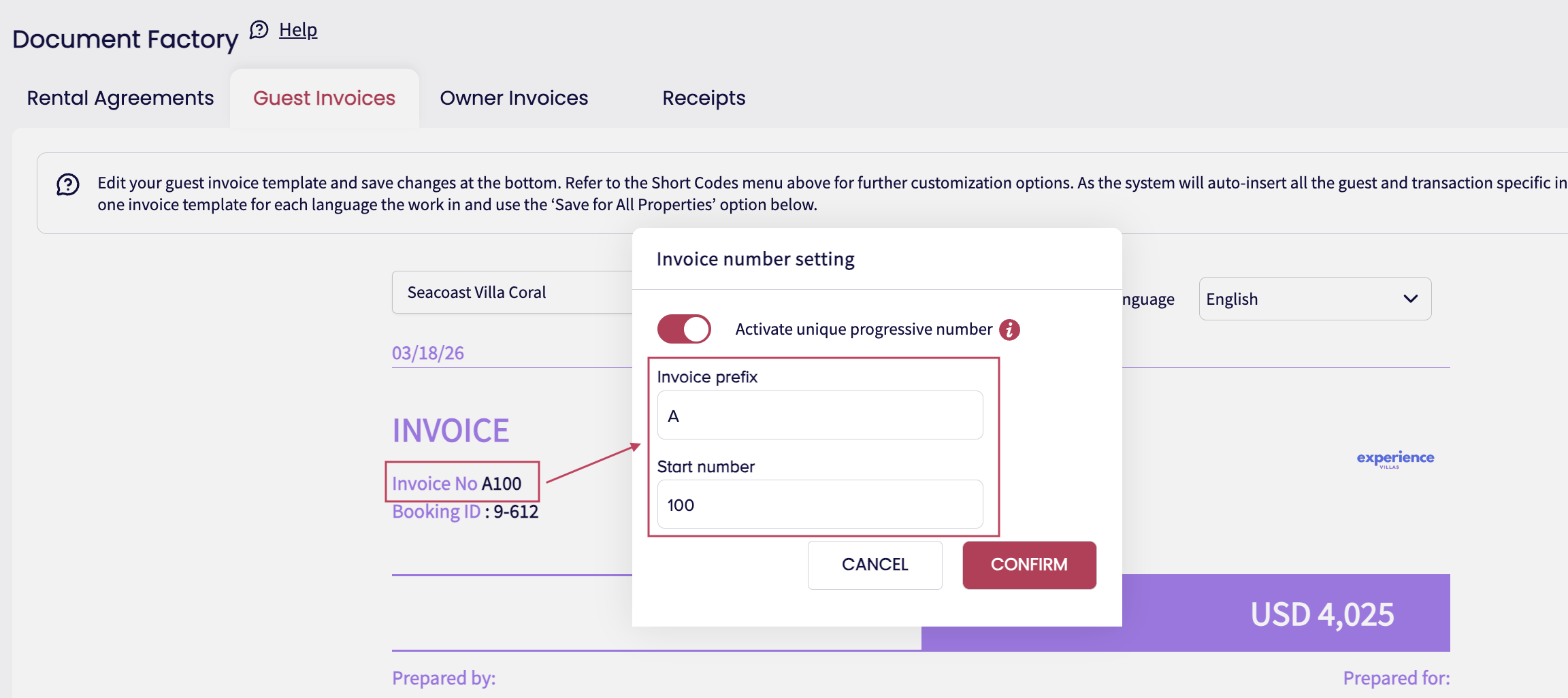
Customize the following:
Prefix (e.g., RE-, SE-) to distinguish between business lines if you own multiple.
Start number (e.g., 1, 100) to define the first invoice in your sequence.
Confirm your changes.
Important: Need to backdate or reset numbering for past or future invoices?
Reach out to support@guestwisely.io for assistance with manual adjustments.
How the numbering logic works
When progressive numbering is enabled:
Only confirmed bookings generate invoices.
Invoices follow a strict sequence: Invoice #1 → Invoice #2 → Invoice #3 → …
Without this feature, invoices may also be created for quotes and tentative bookings, potentially leading to gaps in your invoice history.
Payment Receipts and numbering structure
A single booking may include multiple transactions, such as:
Deposit payment
Balance payment
Additional charges
Refunds for cancellations
Each payment generates a receipt that is directly linked to its corresponding invoice.
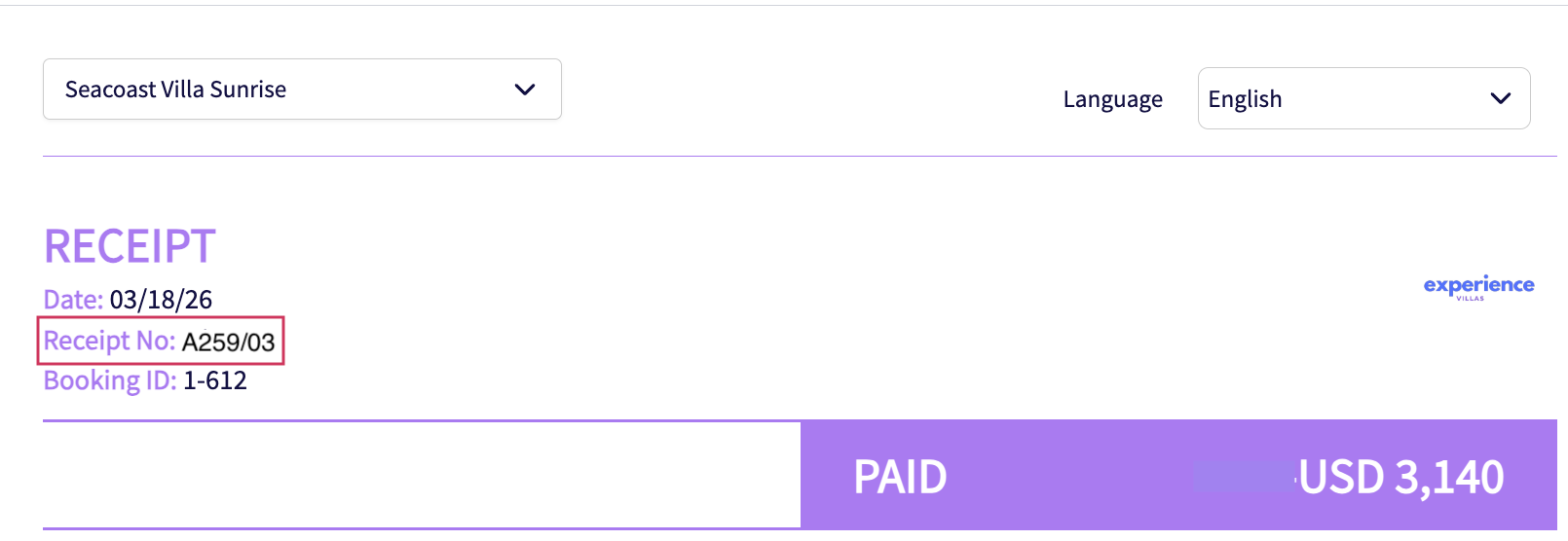
For example, if the invoice number is 259, receipts would appear as:
First payment: 259/01
Second payment: 259/02
Refund: 259/03 (automatically marked as a Credit Notice
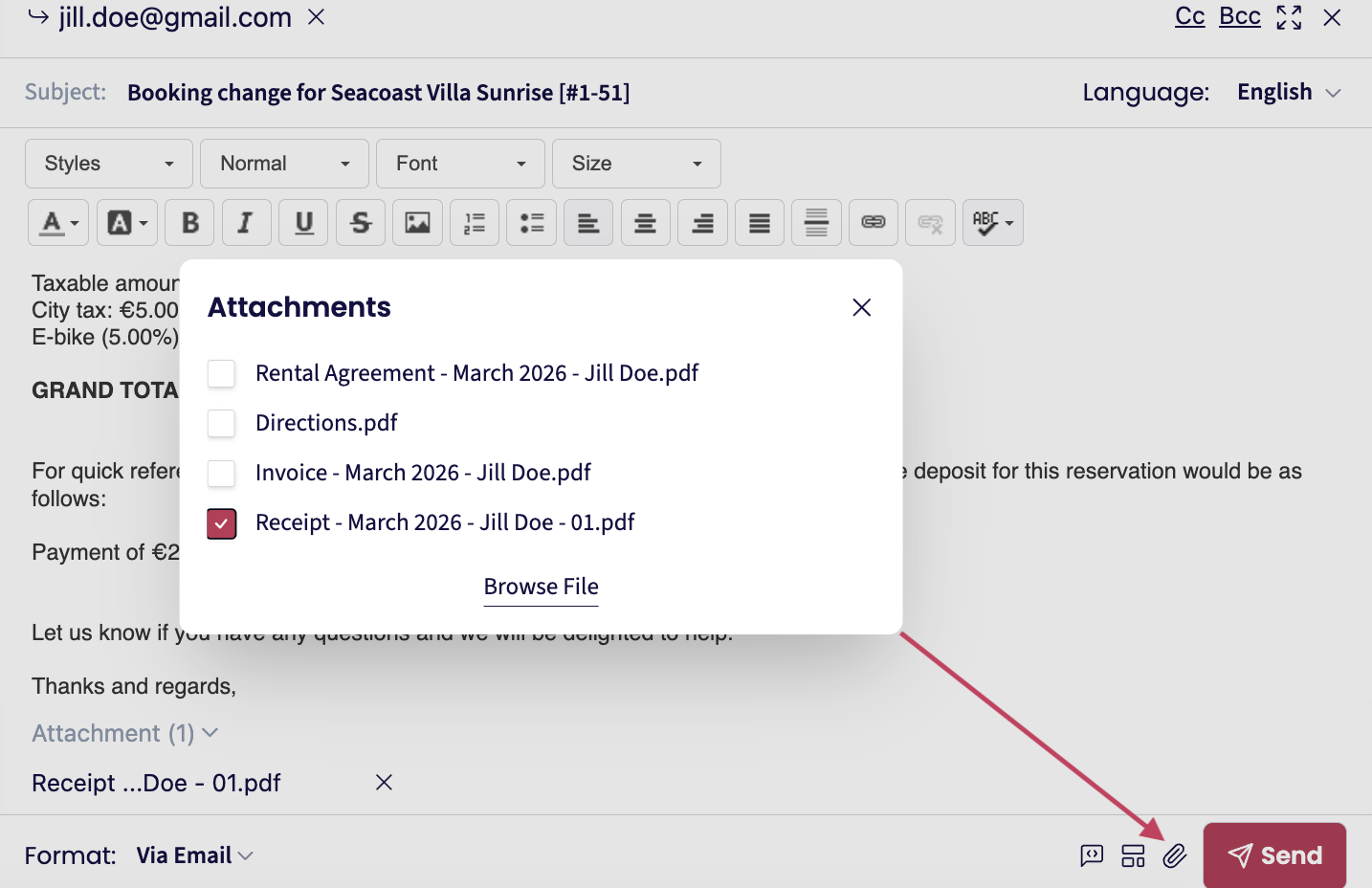
These documents are also accessible not just through the Reconciliation Report- but every time you send a communication to the guest. You’ll find them attached at the bottom of the email, in the Attachments section.
This structure ensures that every payment or refund is traceable, and complies with financial reporting standards.
Handling Refunds and Credit Notes
When a refund is issued:
The receipt is automatically labeled as a Credit Notice
The receipt title and text automatically update
The refunded amount appears as a negative value
The system ensures each adjustment is reflected clearly and sequentially.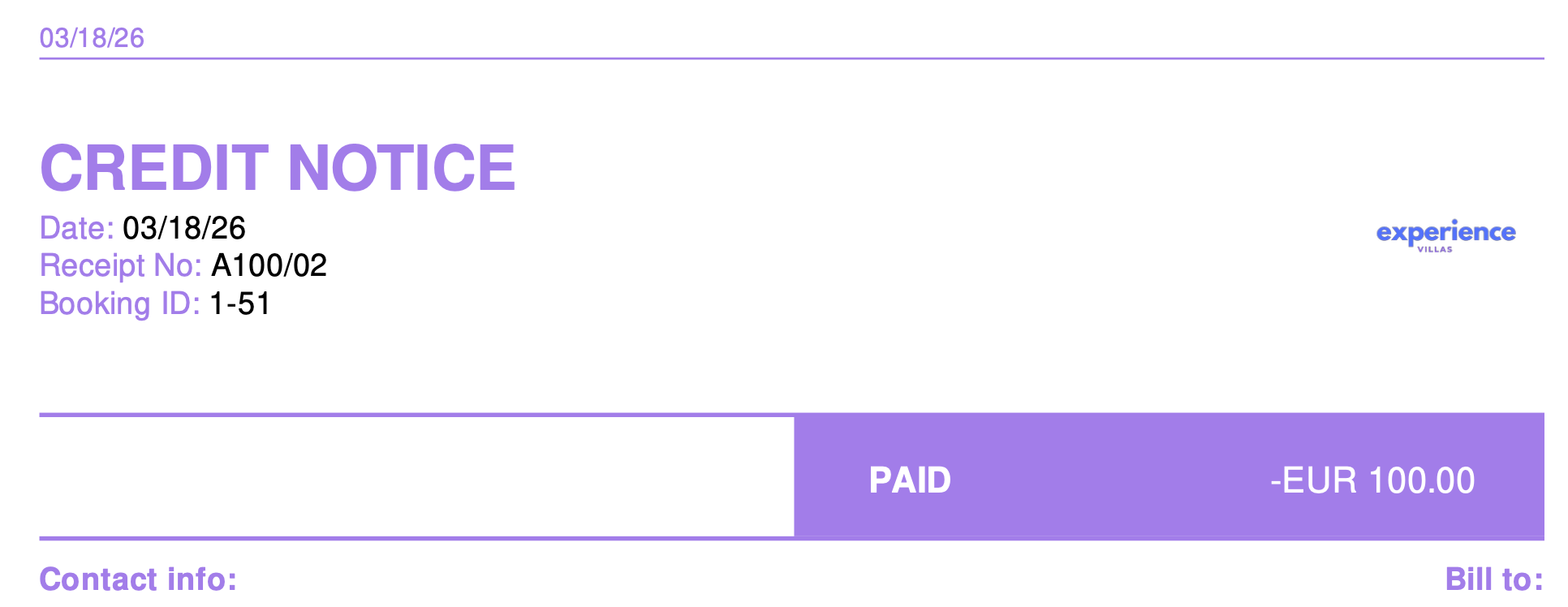
Recommended Receipt template (for existing users)
If you previously used a custom Receipt format, we suggest updating your templates to align with the new logic. Please go to Business Management > Invoices & Receipts > Receipts and use the below recommended content:
We are happy to confirm the following transaction amount has been processed:
[LATEST_PAYMENT]
Following this transaction, the total amount received to date for this reservation is:
[FUNDS_RECEIVED]
For your reference, here are the booking details:
[RESERVATION_DETAILS]
This ensures receipts are consistent and clear for guests, and compliant for your business.
Reconciliation Report
As we understand that many users need a broader overview - a way to monitor and verify all financial transactions across their properties- we have introduced a new feature in the Payment Manager called the Reconciliation Report.
What you can do with the Reconciliation Report:
View all payments received across all properties, either for today or for a custom date range.
See payments listed in chronological order, including the associated invoice numbers.
Filter results by date, property, or other criteria to narrow your view.
Download receipts directly from the report under “Invoice number and Receipt/credit note number” columns, for easier documentation and sharing.
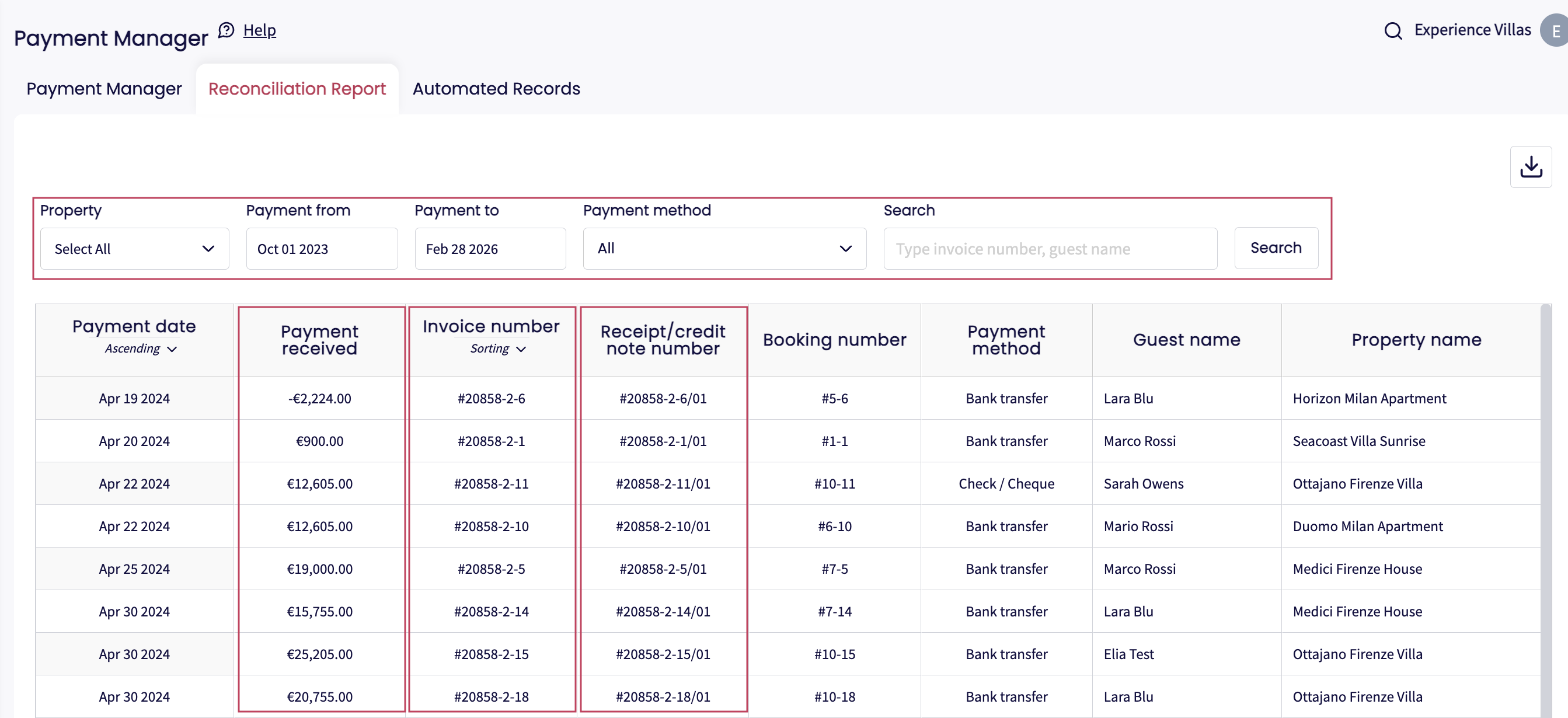
This feature is designed to make monthly reconciliation much easier. At the end of each month, you can compare the data in GuestWisely with your bank account to ensure every incoming and outgoing payment matches.
Note: This feature is for internal compliance purposes. It does not automatically push invoice data to tax authorities (e.g., in Italy). If government integration is needed, this can be discussed with our support team (support@guestwisely.io), but it's not enabled by default.
Was this article helpful?
That’s Great!
Thank you for your feedback
Sorry! We couldn't be helpful
Thank you for your feedback
Feedback sent
We appreciate your effort and will try to fix the article