This article will take you briefly through the main WordPress left-side navigation:
Posts: Create News, Blogs and Offers posts (or your own custom post category) to keep your customers engaged at the same time as creating new content for your website which is good for SEO benefits.
Media: The central library for all your media files, including photos, videos or file downloads. Upload your files via the upload button or drag them directly from your desktop.
Forms: Manage existing form fields, confirmation and notification messages, and sender/reply to email addresses.
Pages:The central library for all your media files, including photos, videos or file downloads. Upload your files via the upload button or drag them directly from your desktop.
Locations: Create pages for specific locations including local area info and featured properties in the area.
Offers: Create special discounts to display on the website that would be applied by a discount code create in GuestWisely
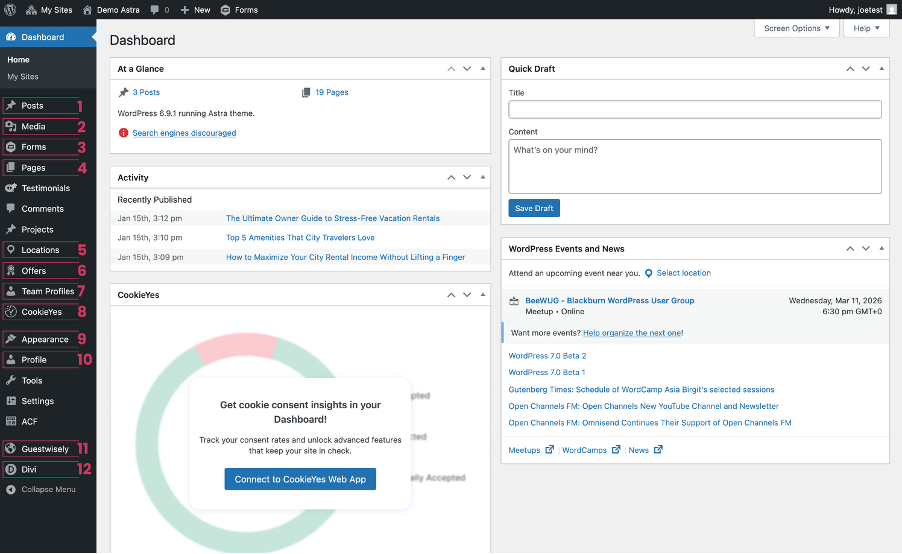
Team Profiles: Introduce your team members by creating a profile for each here.
GDPR Cookie Consent: Configuration of GDPR settings has been set up to meet the EU legislation so this area should only need visiting if you wish to change the color schemes of the cookie optin popup.
Appearance: This has several sub-menus included. The three you will covering will be:
Customize
These are a set of top-level WordPress style and display settings that will feed through the Divi Page Builder. It will be an important start to the process of customization.
Menus
The location of each menu situated on the website including main header, footer, local area and property page menus. Add any new pages you have created or re-arrange the order as preferred via drag-and-drop.
Widgets
You will use widgets to customise sidebars that feature on news/offers posts and archive, category and search results pages. We have set these up as recommended.
Profile: The set up of your WordPress account profile which includes password reset.
Guestwisely: The settings for our plugin that connects your Guestwisely account and properties via our API. Here you will manage the colors and format of your property listings and property page information that pulls through from our API.
Divi: The home of the WordPress Theme Builder has two sub-setting pages you will be covering:
Theme Options
The central extensive settings for the Divi – you will need this to set your main site logo and select up your default color palette for use in the builder.
Theme Builder
The Theme Builder uses the same page builder used to construct page content. This is a template library featuring the header, footer and other page templates in the theme. You will have access to make style updates where needed.
That covers every menu you will be using as you customize your site and maintain it moving forward. Now let's start, as we visit the logical order of steps, start with the Site Divi Settings.
Was this article helpful?
That’s Great!
Thank you for your feedback
Sorry! We couldn't be helpful
Thank you for your feedback
Feedback sent
We appreciate your effort and will try to fix the article