Introduction
This comprehensive walkthrough will guide you through the smooth Airbnb Direct Integration process with GuestWisely. You’ll learn how to connect your Airbnb account, sync property listings, manage bookings, and import reservations using our direct API, which acts as a vital communication bridge between GuestWisely and Airbnb. Whether you're linking existing listings, adding new properties, or customizing booking settings, this tutorial provides everything you need to manage it all efficiently within the GuestWisely platform.
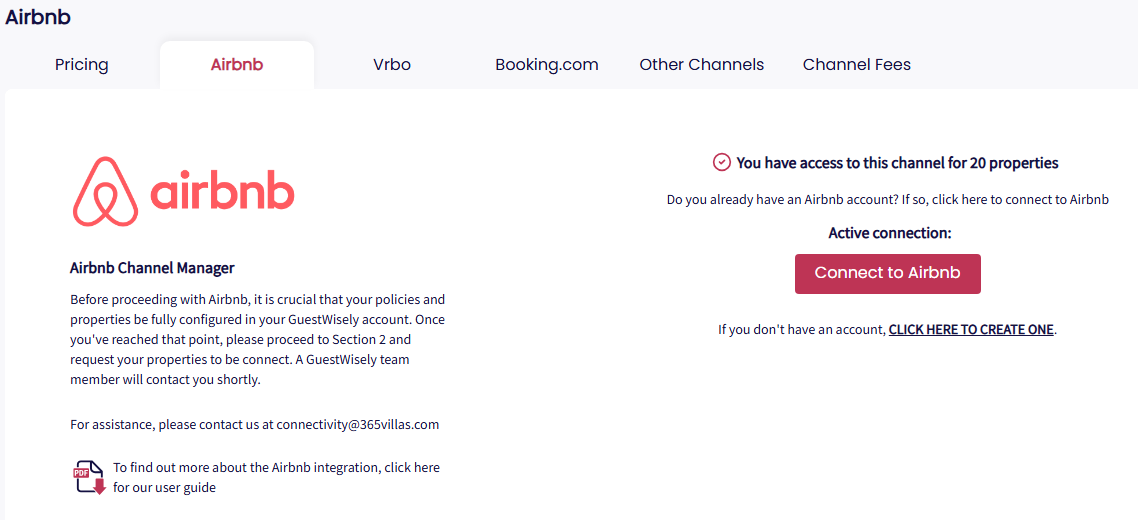
Airbnb account setup in Guestwisely
You will see a prompt similar to the following:

If you already have an Airbnb account
Click on “Connect to Airbnb”.
The system will redirect you to your Airbnb account. Make sure to log into the Airbnb account you want to connect with GuestWisely.
You can add multiple host accounts. However, co-host accounts are not eligible.
If you don’t have an Airbnb account
Click on “Create Airbnb account”.
You’ll be guided through a quick sign-up process. Just fill in your basic information, and your Airbnb account will be ready in minutes. Once created, it will be automatically connected to your GuestWisely account for seamless integration.
After creating the account, you'll need to review and complete any additional requirements that Airbnb may request to finalize your account setup, such as profile information, payout method, among others.
Once you are successfully connected, the system will display:
An icon showing the status of the Airbnb chat connection.
An icon that acts as a disconnection button, allowing you to disconnect the account from Airbnb if needed.
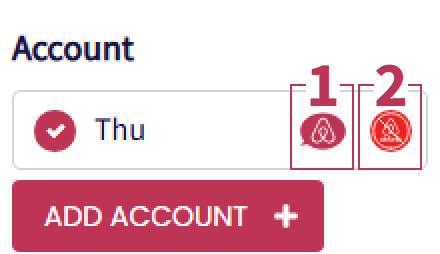
At this stage, access has been granted, which means GuestWisely can now interact with your Airbnb listings.
However, please note that no data (such as calendar, rates, or content) has been synced to Airbnb yet. Your properties are not live or actively syncing with Airbnb until you complete the property connection steps.
Importing Properties from Airbnb into GuestWisely
If you prefer not to create properties directly in GuestWisely, you can import them from Airbnb. However, not all information may transfer over. It is important to review and update the details as necessary to ensure accuracy.
Steps to import properties from Airbnb:
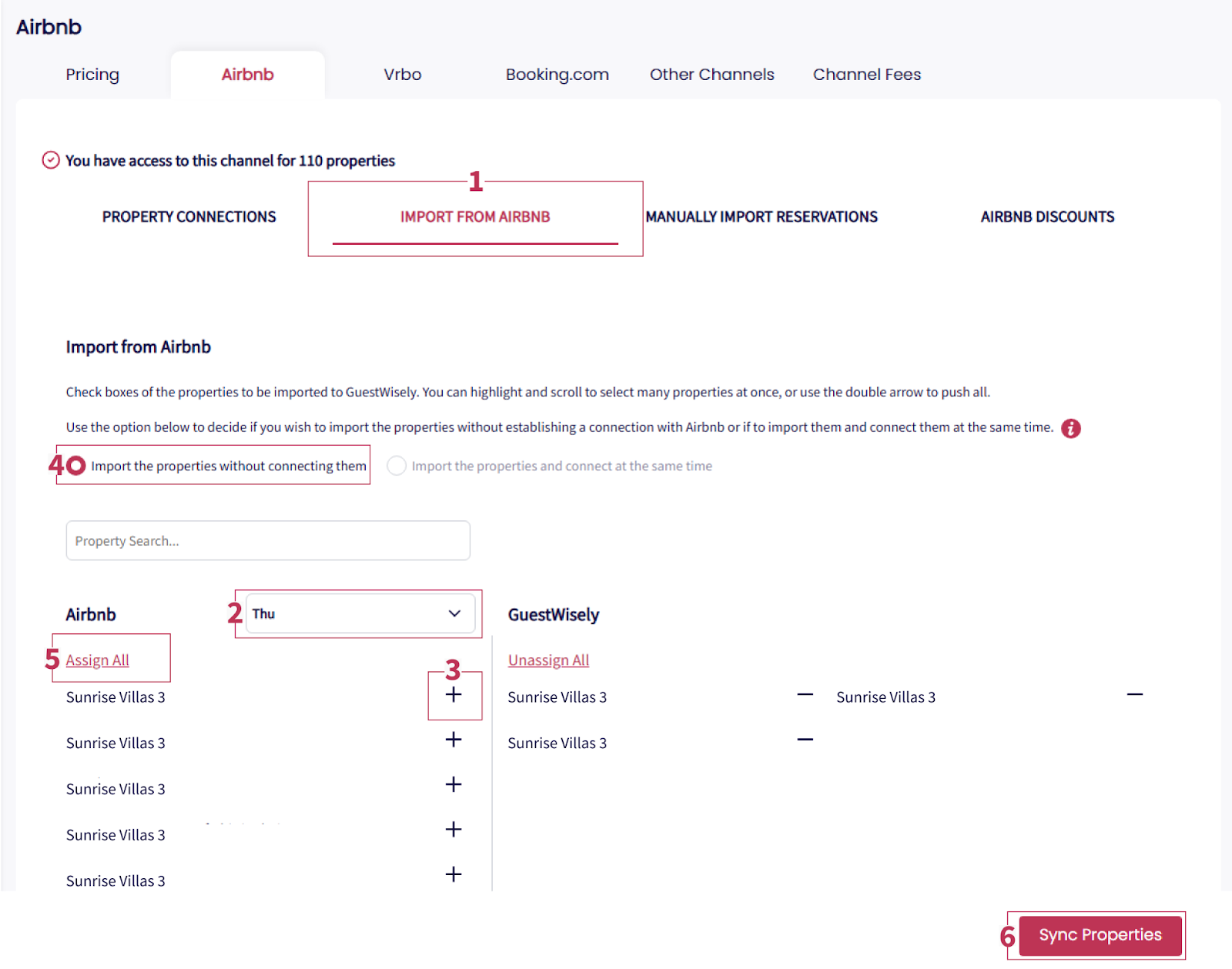
Navigate to the Channel Manager > Airbnb > Import from Airbnb tab within GuestWisely and select if you wish to import the properties without establishing a connection with Airbnb or if to import them and connect them at the same time.
Select the relevant Airbnb account.
Clickicon to select properties from the options displayed on the right-hand side.
We recommend selecting the option “import the properties without connecting them” then reviewing the content to ensure accuracy.
Use the “Assign All” to shift all your properties into the designated area within GuestWisely for further actions.
Click the “Sync Properties” button to begin the synchronization process.
Important Note:
This process usually takes a few minutes, though it can vary depending on the total number of properties being imported.
For example, if you are importing fewer than 20 properties, please wait at least 15 minutes before editing anything under Property Settings. This ensures all information is correctly and fully imported into GuestWisely.
Note: We recommend importing smaller batches at a time. This gives the system time to process and sync each group properly before continuing with the next. It also allows you to verify that everything is updating as expected before proceeding. This approach has proven to be the most reliable and is typically done in coordination with our team.
Review the Portfolio Settings page in GuestWisely to identify and update any potentially missing information to complete the integration process effectively.
Once the process is complete, your properties will be available within GuestWisely for mapping, syncing, and full management.
If your imported properties do not appear, verify your available property licenses in the Account Details section of your GuestWisely account. You can add licenses in the Account Administration area if needed.
Disconnecting your Airbnb account
You can disconnect your Airbnb account anytime via the Channel Manager (Airbnb). However, reconnecting requires restarting the connection process, reauthorizing access, and remapping listings from scratch. Disconnect only if necessary.
Airbnb Property Connection
After connecting your Airbnb account to the GuestWisely Channel Manager, you can either map an existing Airbnb listing or push a new listing from GuestWisely to Airbnb.
Ensure properties are ready with updated pricing and availability for at least one year and a current GuestWisely calendar to avoid overbooking.
Mapping an Existing Property
“Mapping” is the process of linking a property that already exists in both your GuestWisely account and your Airbnb host account. Use this when you already have active listings on Airbnb and want GuestWisely to sync and manage those existing listings. Here is how to do it:
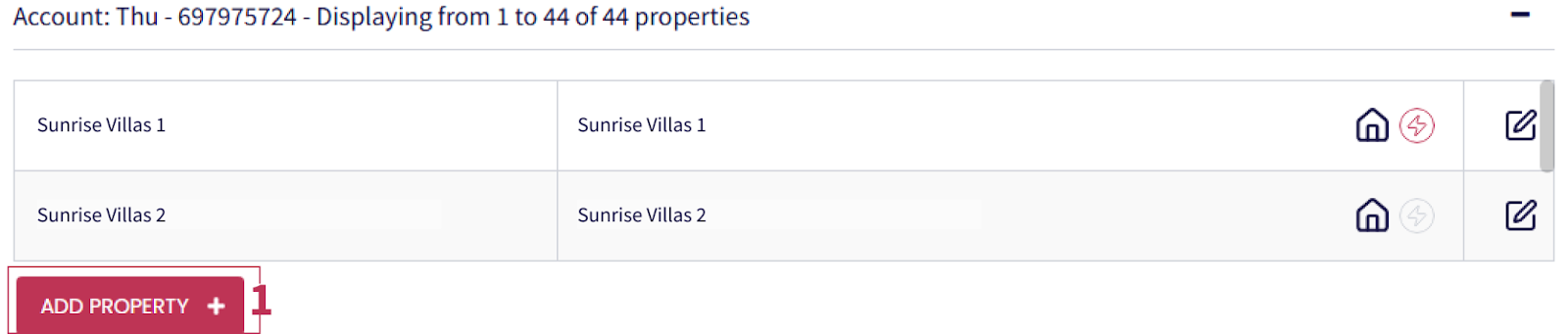
Under Channel Manager > Airbnb > Property Connections, click “+ Add Property”.
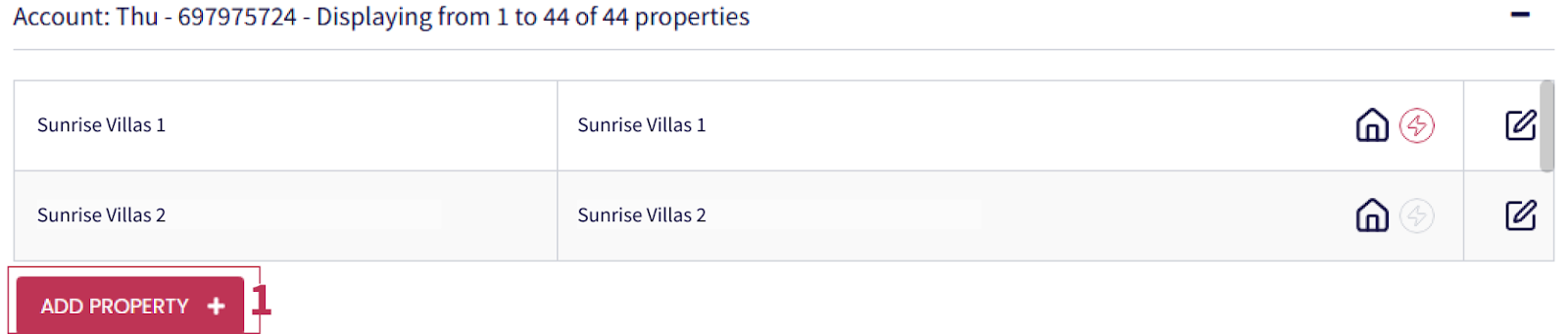
Choose “Yes” for the question “Is the property already published in Airbnb?”.

In the “Select your GuestWisely listings” dropdown, choose the list of all properties registered in GuestWisely.
Match it with the correct Airbnb listing under the “Sync with Airbnb property” dropdown.
Markup (optional): Adjust pricing to compensate for Airbnb’s commission fees.
Tip: Since Airbnb deducts a 15.5% host service fee from the reservation total, you may need to set your Airbnb markup higher than 15.5% to maintain the same net payout.Choose sync type:
Limited Sync: Syncs rates, availability, Services, Taxes, check-in policy, maximum and minimum stays from GuestWisely to Airbnb. All other settings including descriptions and Instant Booking are managed directly in Airbnb. Ideal if you prefer direct management on some aspects.
Sync All: Syncs all property details from GuestWiselyto Airbnb. Recommended for comprehensive management.
Click Link & Connect.

Instant Booking: The lightning bolt icon shows if instant booking is on or off. Click the icon to turn it on or off anytime as needed.


Pushing a New Property to Airbnb
“Pushing” means you’re publishing a brand-new Airbnb listing directly from a property you’ve already set up in GuestWisely. Here is how to do it:
Under Channel Manager > Airbnb > Property Connections, click “+Add Property”.
Choose “No” for the question “Is the property already published in Airbnb?”.
Select the desired property from GuestWisely and click on Save&Next.

Markup (optional): Adjust pricing to compensate for Airbnb’s commission fees.
Tip: Since Airbnb deducts a 15.5% host service fee from the reservation total, you may need to set your Airbnb markup higher than 15.5% to maintain the same net payout.Please note that when pushing a new property to Airbnb, the sync type will automatically be set to “Sync All”.


Import confirmed Airbnb Reservations
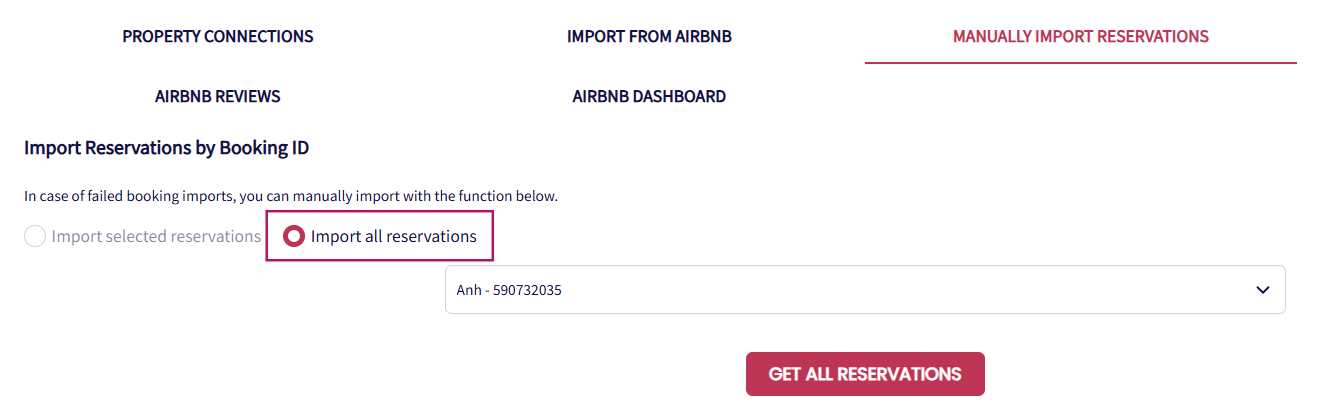
Once the properties are connected, you can import all confirmed reservations from the Manually Import Reservations section.
Only confirmed reservations for connected properties will be imported, starting from the 1st of the previous month. Blocked dates will not be imported.
After connecting the Airbnb property:
Go to Manually Import Reservations.
Select “Import All Reservations”.
Select the relevant user.
click “Get All Reservations”.
GuestWisely will import the confirmed Airbnb reservations for the connected property.
Import Selected Reservations
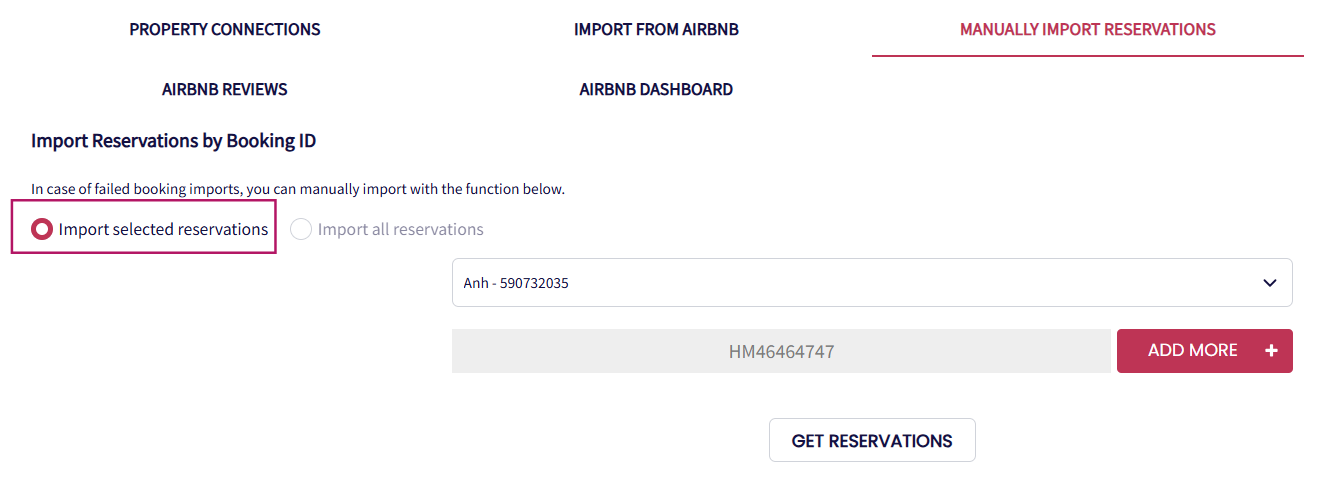
If you notice that an Airbnb reservation is missing from GuestWisely, or that the reservation status has not been synchronized correctly with Airbnb, you can manually import the specific reservation.
Go to Manually Import Reservations.
Select “Import Selected Reservations”.
Select the relevant user.
Enter the Airbnb Booking ID and click “Get reservations”.
The selected reservation will then be imported into GuestWisely.
Airbnb Photo Tour Integration
Airbnb offers a Photo Tour feature that groups listing photos by room to create a more immersive experience for guests. This can help improve engagement and booking conversion rates.
⚠️ Important: This feature is only available for Airbnb. Photos tagged with rooms will not affect other channels.
How to Tag Photos by Room
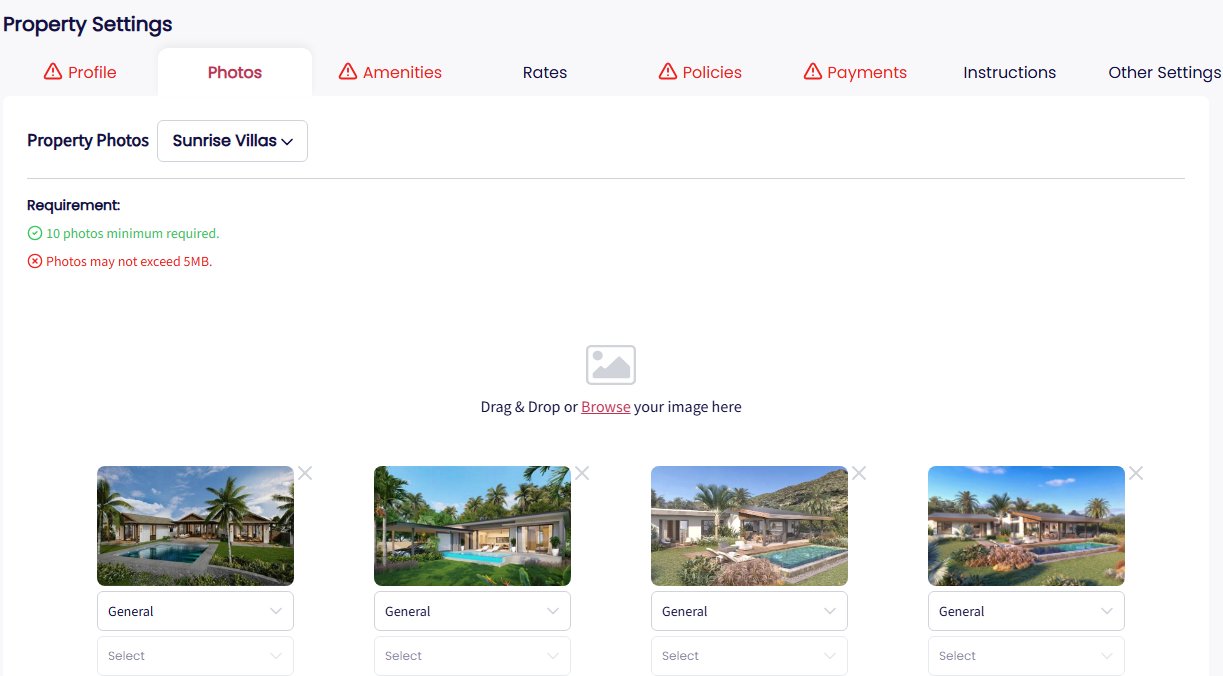
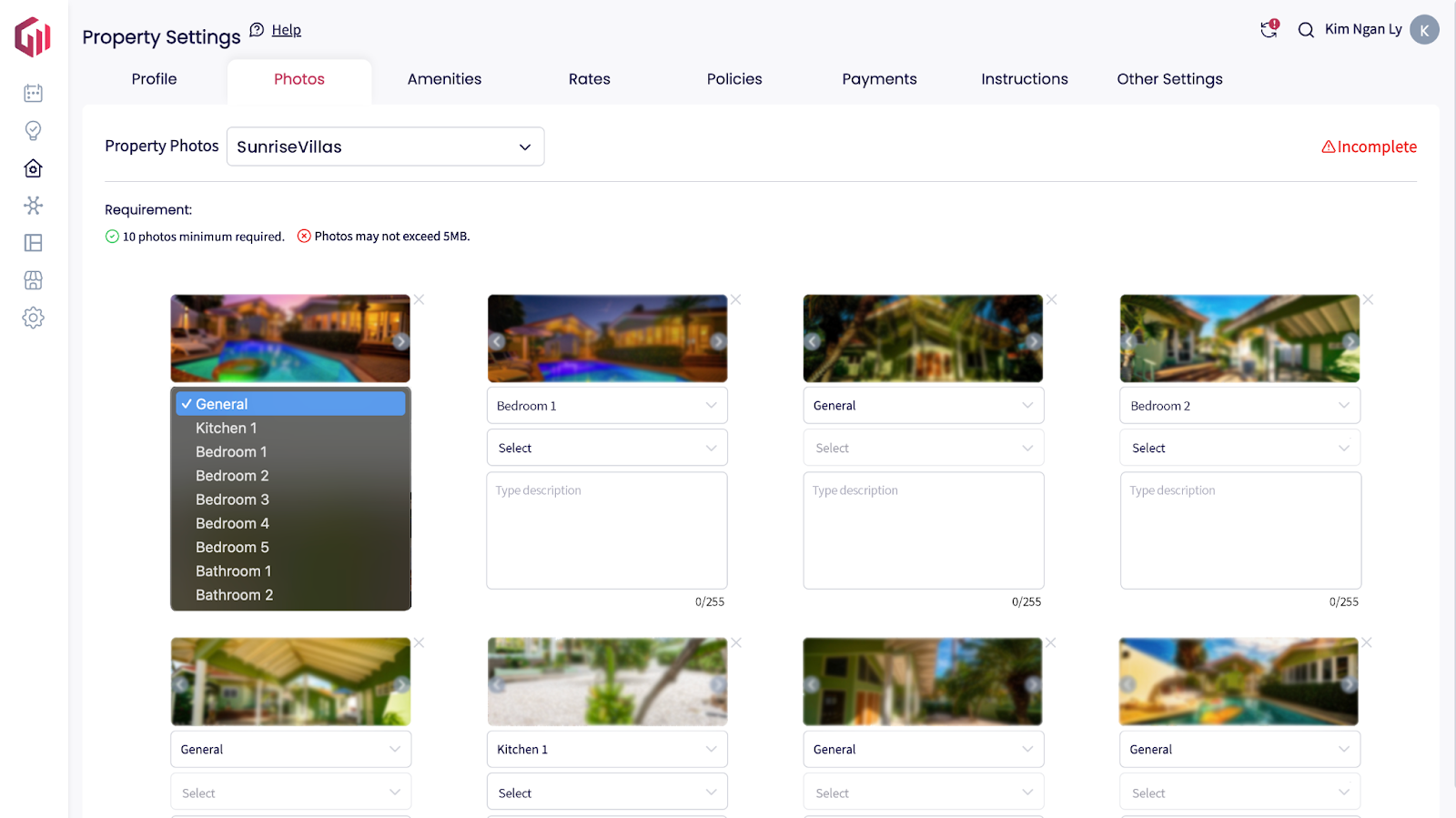
Go to Property Settings > Photos.
For each photo, select the room it corresponds to (or choose "General" for property-wide images).
Rooms can be: Living Room, Kitchen, Bedroom, Bathroom, Living Room, Dining Room, Pool.
If the property has multiple bathrooms or bedrooms, choose the appropriate one for each photo.
Save your changes.
Note: Users can also make changes directly from Airbnb if they wish to update or add anything else. However, to prevent Airbnb changes from being overwritten by GuestWisely, please make sure the listing is set to Limited Sync before you make the changes on Airbnb.
Limited sync allows to synchronise dynamic information such as availability, pricing (including taxes and services) and cancellation policies.
Full sync also pushes static information such as descriptions, pictures and photos and overrides any information previously added in Airbnb.
Accessibility Features
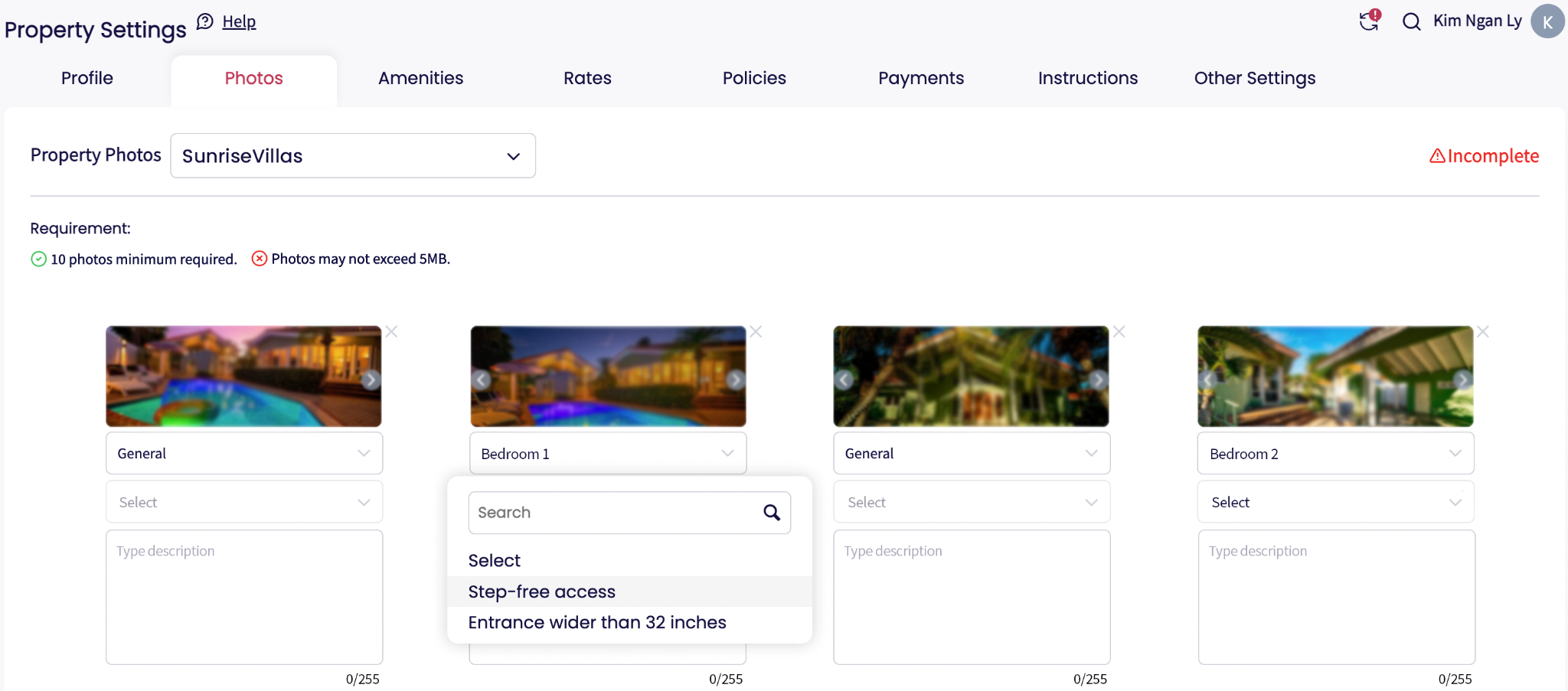
When adding photos for certain rooms, you can highlight available accessibility features:
Bedroom:
Step-free access
Entrance wider than 32 inches / 81 cm
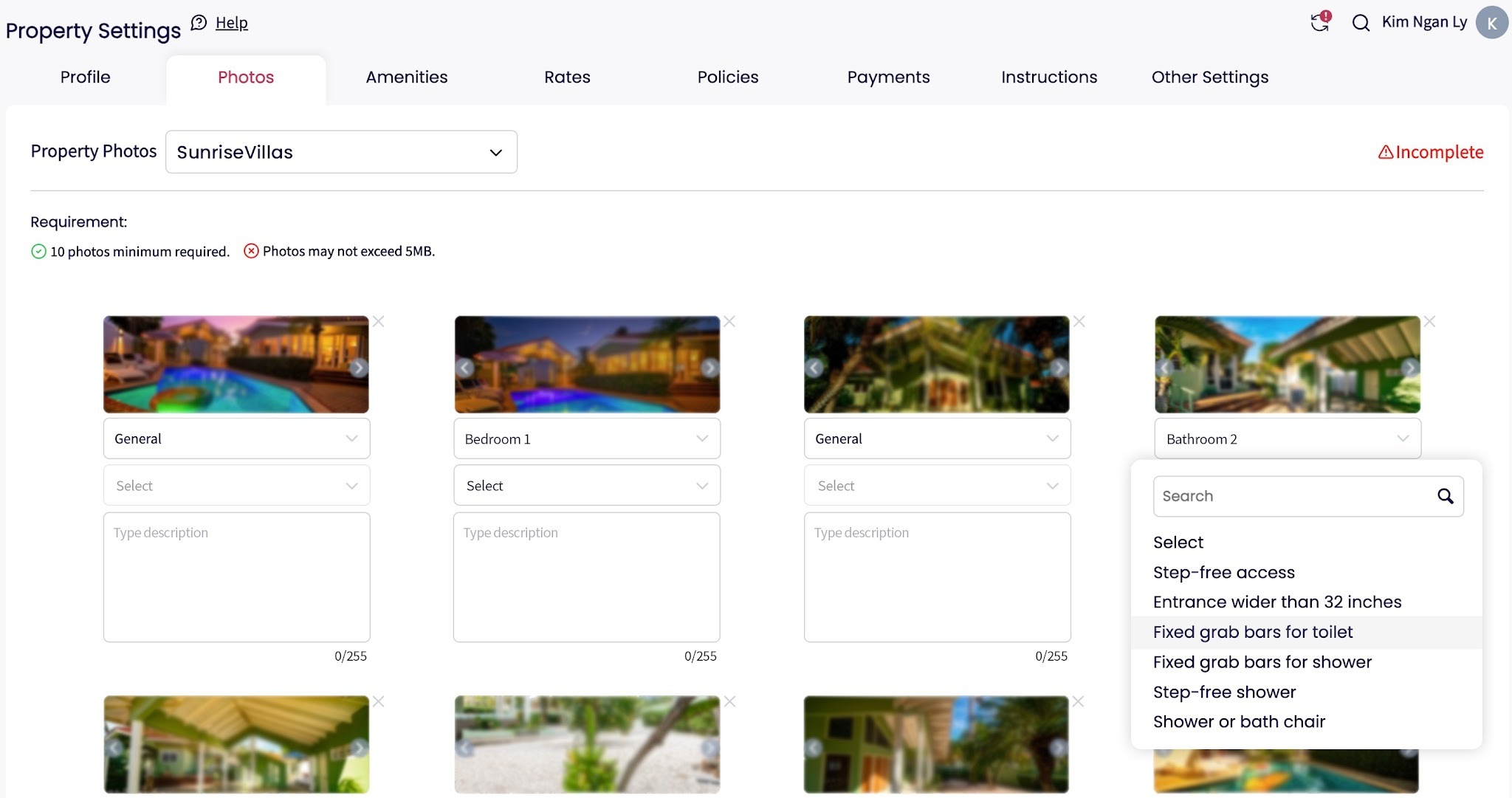
Bathroom:
Step-free access
Entrance wider than 32 inches / 81 cm
Fixed grab bars for toilet
Step-free shower
Shower or bath chair
How It Appears on Airbnb
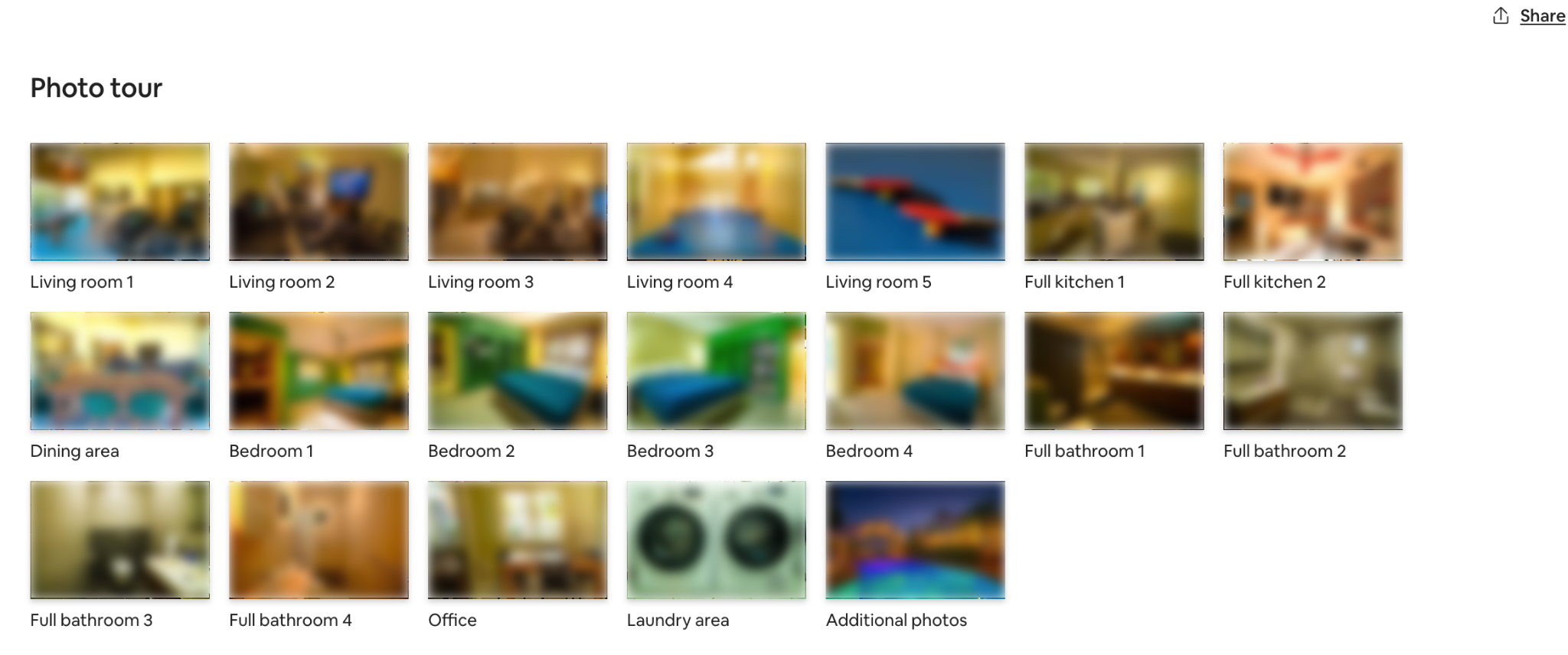
Each room will be shown as a separate section in the Photo Tour.
If a room has no photos, it will be skipped in the grouping.
Photos not assigned to a specific room will be tagged as “General” by default and will appear as additional photos in the general property view.
Users can make updates or add photos directly on Airbnb, and these changes will reflect in the Photo Tour.
Optional Use / Disabling Photo Tour
The Airbnb Photo Tour feature is optional.
By default, all photos will remain under the “General” category and will appear in the listing as standard property photos.
Users can enable the Photo Tour for each property by toggling the Photo Tour icon in the connection.
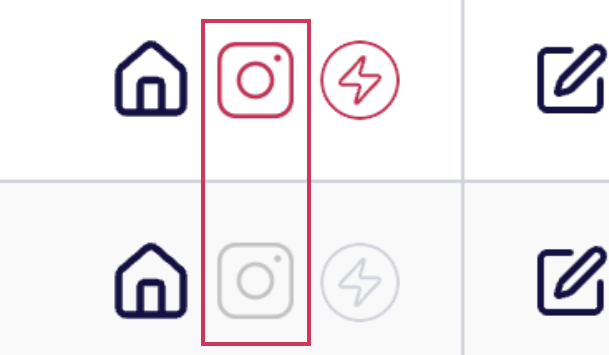
Important: Even if photos are tagged by room, if the Photo Tour is not activated, all photos will still be sent to Airbnb under “General”, without room-specific grouping.
Users can enable or use the Photo Tour at any time by tagging photos by room following the steps above.
Best Practices
Add at least one photo per room to ensure it appears in the Airbnb Photo Tour.
Use clear, high-quality images to highlight each space.
Review the listing on Airbnb after uploading photos to confirm the grouping.
Include accessibility features when relevant to improve guest experience and inclusivity.
Sync Error and Property Status
When connecting a property to Airbnb, if you are unable to connect the property or the listing does not appear under the Airbnb connection in GuestWisely, there may be a sync issue.
Please check Sync Error Notification to view the error details.
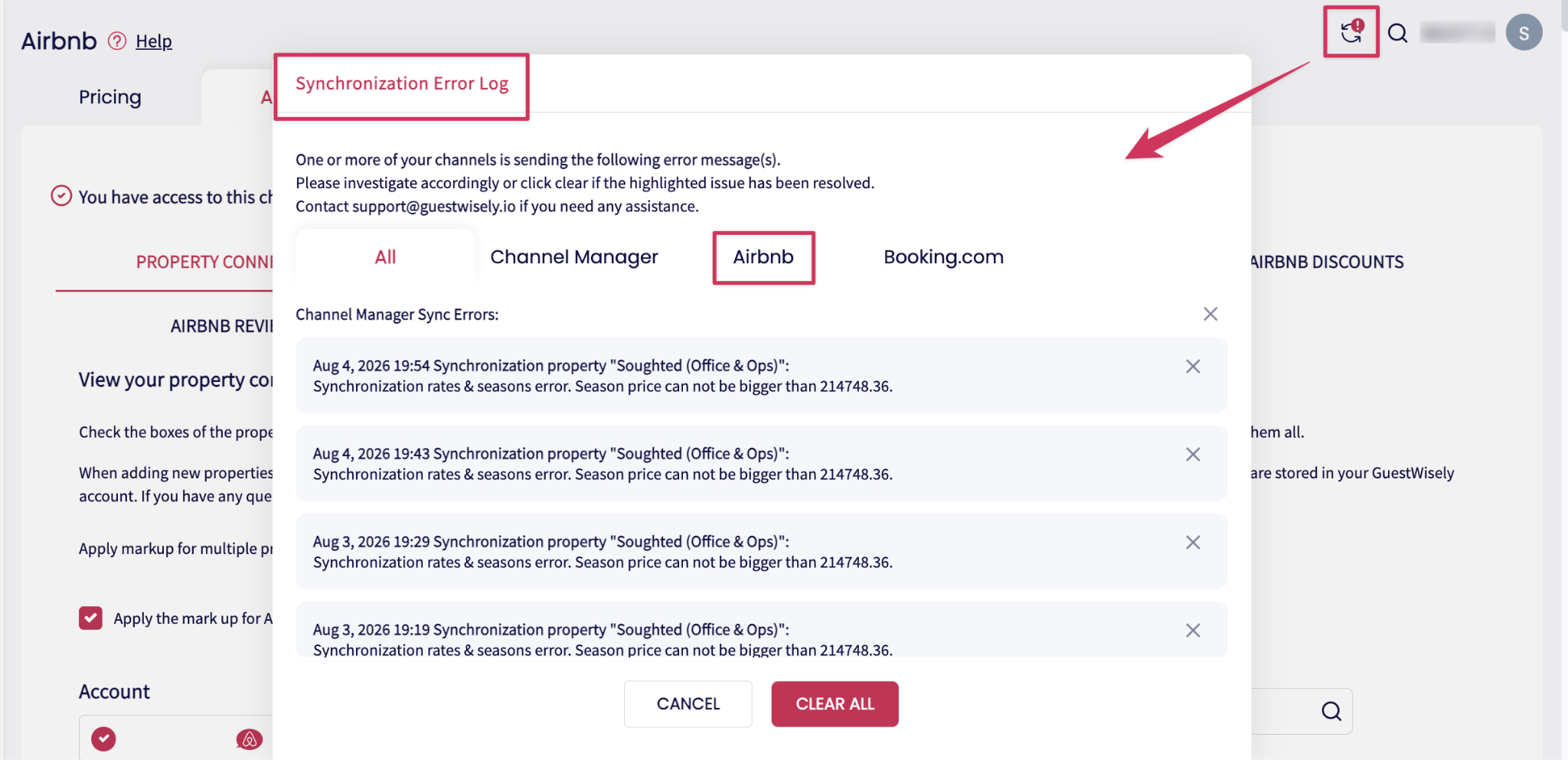
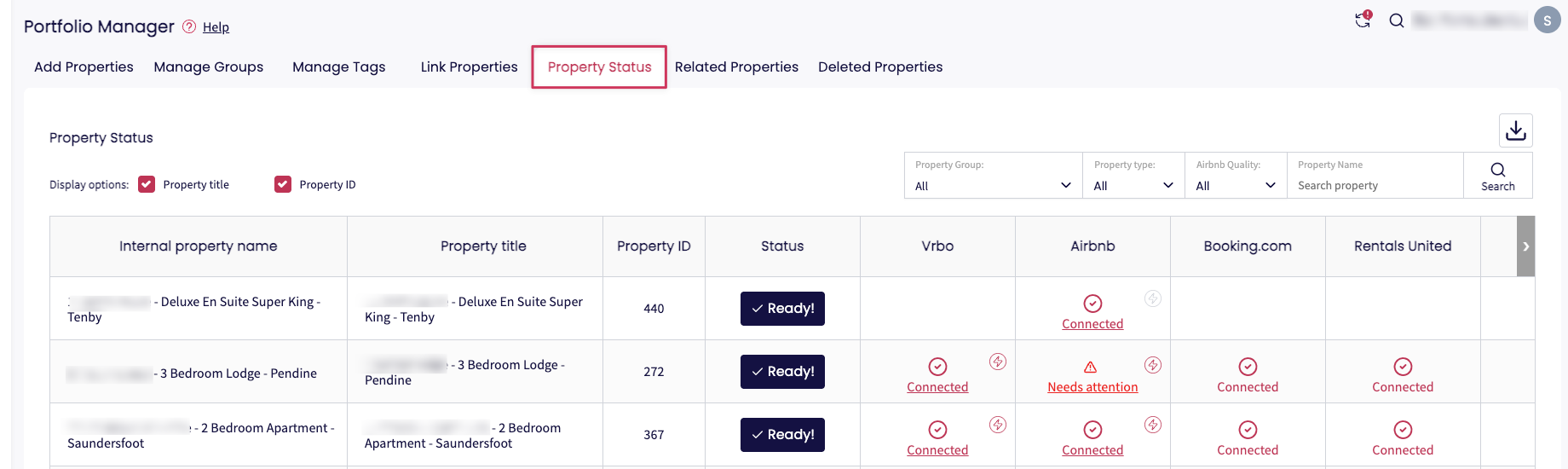
Additionally, you can verify the connection status in the Property Status section.
Apply Airbnb Markup to Multiple Properties
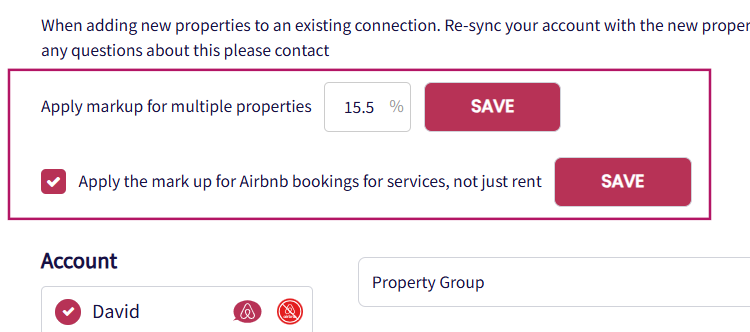
You can apply Airbnb markup to multiple properties at once by following these steps:
Enter the markup percentage (decimal values are supported, for example: 15.5%)
Click Save for Multiple Properties or All Properties
Additionally, if you would like the markup to apply not only to rent but also to services/fees, please enable:
“Apply the mark up for Airbnb bookings for services, not just rent”
Managing Payments for Airbnb Reservations
Airbnb bookings are always prepaid. Airbnb automatically collects guest details during booking, while payouts are managed through the Airbnb account based on the host’s agreement and bank details.
Airbnb will not send an API update to confirm when the funds have been transferred to the host. Once a booking is received, we consider it fully paid, even if the host has not yet received the funds from Airbnb.
Ensure your Airbnb agreement and bank details are correct to facilitate the commission payouts.
Check payout details in your Airbnb account for a clear view of the payments for each booking.
Airbnb Discounts
Manage custom discounts for Airbnb bookings by going to the Channel Manager > Airbnb > Airbnb Discounts tab within GuestWisely.
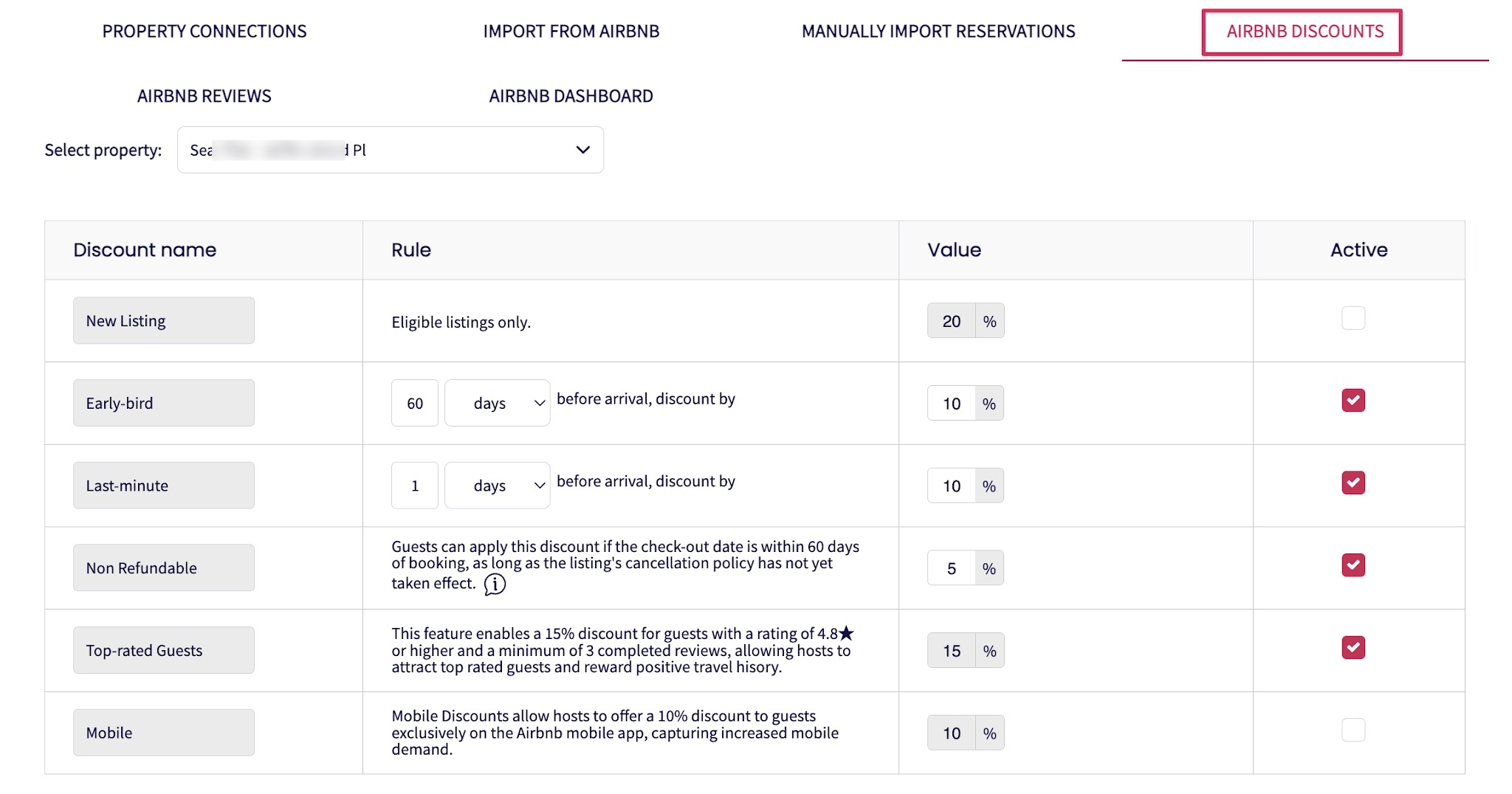
You can configure the following discount options:
New Listing Discount – Apply the discount to eligible listings.
Early Booking Discount – Apply the discount a specified number of days before arrival. For Airbnb, the number of days must be a multiple of 28 or 30 (e.g. 28, 30, 56, 60, 84, 90 days).
Last-Minute Discount – Apply the discount a specified number of days before arrival, with a maximum of 28 days.
Non-Refundable Discount – Guests can apply this discount if the check-out date is within 60 days of booking, as long as the listing's cancellation policy has not yet taken effect.
Top-Rated Guests - Offer a 15% discount to reliable guests with a strong travel history on Airbnb to capture qualified booking demand. Applicable to:
Guests with an Airbnb rating of 4.8 or higher, and
Guests who have received at least 3 reviews.
Guests must meet both conditions to be eligible for this discount.
Mobile Discount – Offer an exclusive 10% discount to guests booking through the Airbnb app to capture mobile-first demand.
After modifying the Rule and Value fields and updating the Active checkbox as needed, click Save to apply and record your changes.
The Competitive Edge:
Manage all Airbnb promotions within the GuestWisely PMS to centralize promotional workflows and keep track of all active offers.
Maintain control over your pricing strategy to optimize channel performance and maximize revenue potential.
Activate targeted offers to captivate high-intent guest segments and stimulate demand during strategic booking windows.
How discounts are prioritized:
When multiple discounts are set up for the same period, the highest-priority offer will apply and override the others.
Rule-sets always apply first when combining discounts, with any additional promotion calculated on the resulting price.
Non-refundable discounts are applied after all other discounts are calculated.
Please refer to this Airbnb article for more details.
Airbnb Chat connection
Given that you already have a connected Airbnb account through our direct connection, proceed to Channel Manager > Airbnb > Property connections tab, where you will find a grey Airbnb logo next to the account name. This indicates that Airbnb chat messaging still needs to be activated:
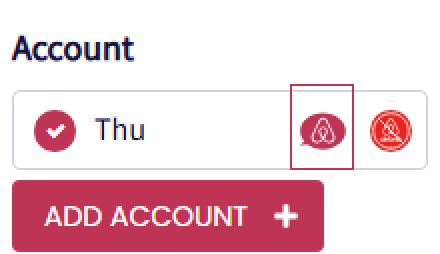
To activate it:
Click on the Airbnb chat icon.
If you're not logged in, you’ll be taken to the Airbnb login page.
If you’re already logged in, you’ll be automatically redirected to the Airbnb authorization page to allow GuestWisely to access and manage your messages.
Note: For more details about setting up automated messages, and sending/receiving messages via Airbnb chat, please refer to this section.
Manage Dynamic Pricing
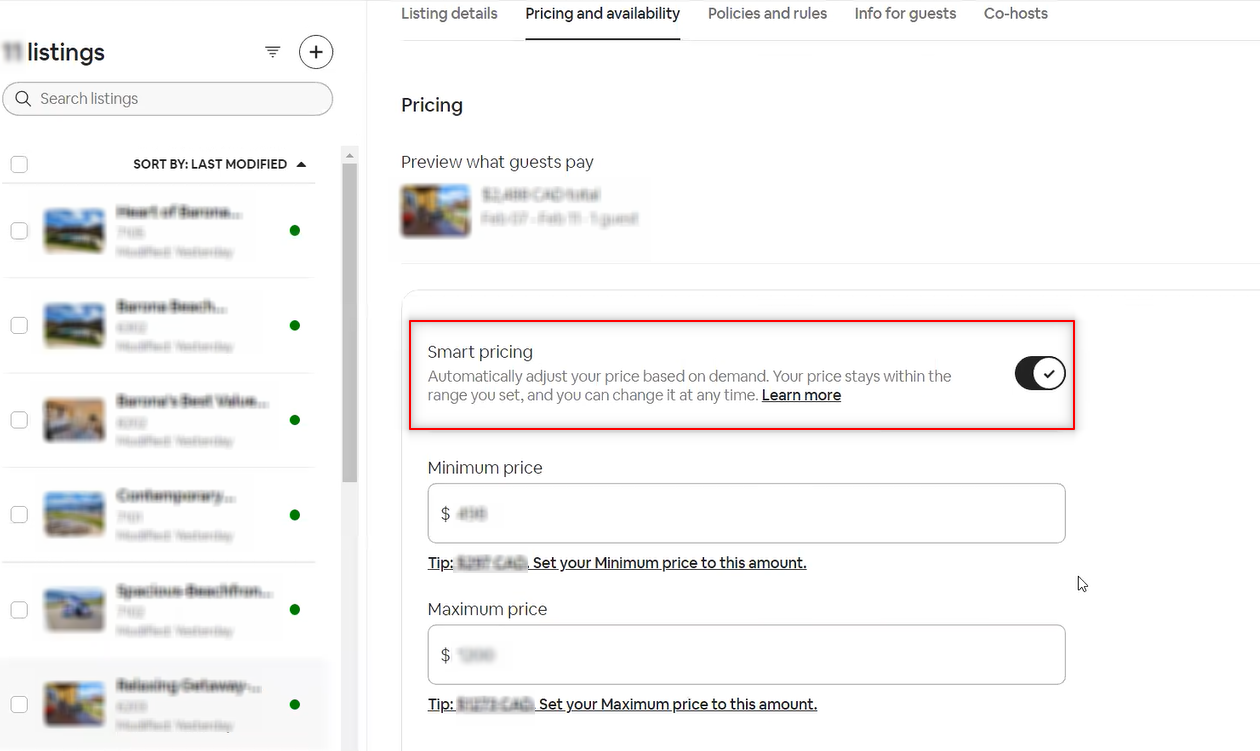
If you prefer to manage pricing directly within GuestWisely, consider disabling Airbnb Smart Pricing and explore GuestWisely’s built-in Dynamic Pricing options instead.
Airbnb Special Offer
When you send a Special Offer to your guests:
The total price you enter should include all nights, your cleaning fee and any standard fees in the listing’s currency.
Taxes and Airbnb offline service fees are not included in the amount you set, these will be added automatically on top of your offer when the guest views it.
Once sent, the Special Offer generates a quote in GuestWisely that will be expired in 24 hours. The quote does not block availability, so other guests can still book during this time. The guest has 24 hours to accept the offer in Airbnb.
This does not overwrite your dynamic pricing. It is a one-time custom price for that specific guest. Other guests will continue to see the rates set in your GuestWisely pricing settings unless you send them a separate Special Offer.
You can find more details in Airbnb’s Help Center here: Airbnb – Special Offers.
Airbnb Request to Book
When a guest submits a Request to Book through Airbnb:
Airbnb sends the booking request to GuestWisely.
GuestWisely creates the reservation as a Tentative Booking.
The requested dates are automatically blocked on the calendar.
How to Handle the Request
Accept or decline the request within 24 hours to keep your response rate high.
If you accept the request by clicking Approve on the Tentative Booking in GuestWisely, it will be converted into a Confirmed Booking, and the dates will remain blocked.
If you want the dates to become available again, please click the Decline button in GuestWisely. The request will then be cancelled on Airbnb and the dates will be released.
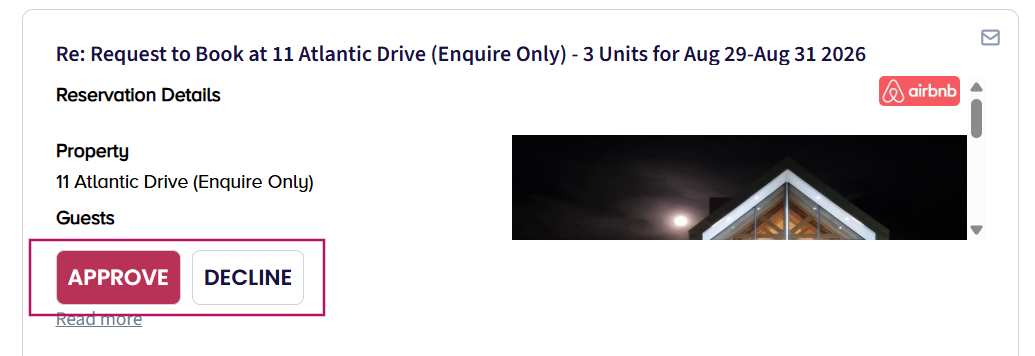
If you miss the 24-hour response window, the request will expire, and the dates may remain blocked until they are manually released.
You can find more details in Airbnb’s Help Center here: Airbnb – Request to Book.
Airbnb Inquiries
An Inquiry is a message from a guest who is interested in booking your property and would like more information about specific dates before submitting a booking request.
Unlike a Request to Book, an Inquiry does not block the calendar. The dates remain available until the guest proceeds with the booking process.
When a guest sends an Inquiry through Airbnb:
The guest sends an Inquiry through Airbnb.
Airbnb sends the inquiry message to GuestWisely.
Respond to inquiries within 24 hours to maintain a good response rate.
The host can choose one of the following actions:
Pre-approve the Inquiry: Invite the guest to complete the booking.
Send a Special Offer: Create a customized offer for the guest (if applicable).
Decline the Inquiry: Reject the inquiry if the host does not wish to proceed.
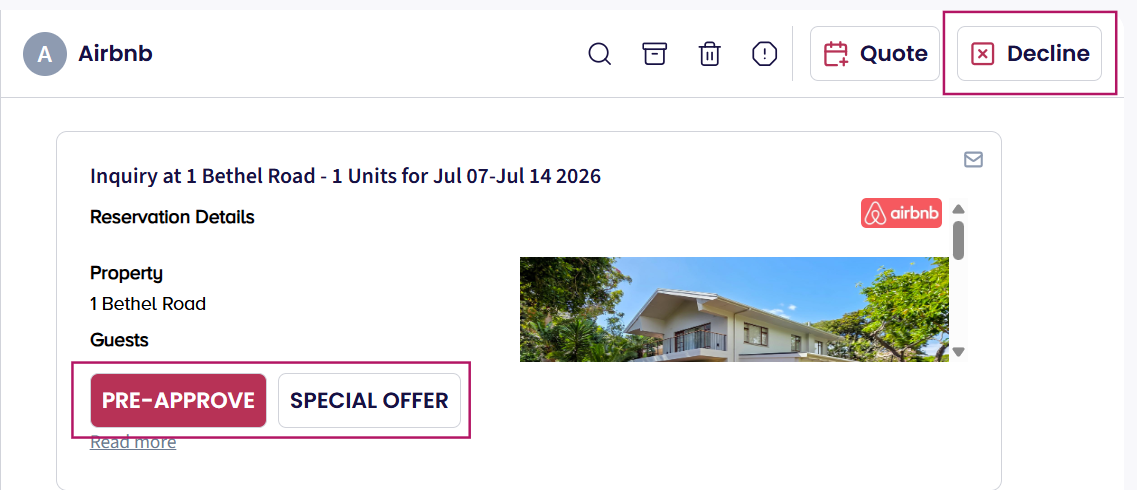
When the host clicks Pre-approve in GuestWisely:
A quote will be created in GuestWisely.
Airbnb sends the pre-approval notification to the guest.
If the guest accepts, they complete the booking on Airbnb
GuestWisely will then update the Quote to Confirmed Booking.
For more details, please refer to Airbnb Help Center: Airbnb Inquiries.
Unlisting or Disconnecting Properties
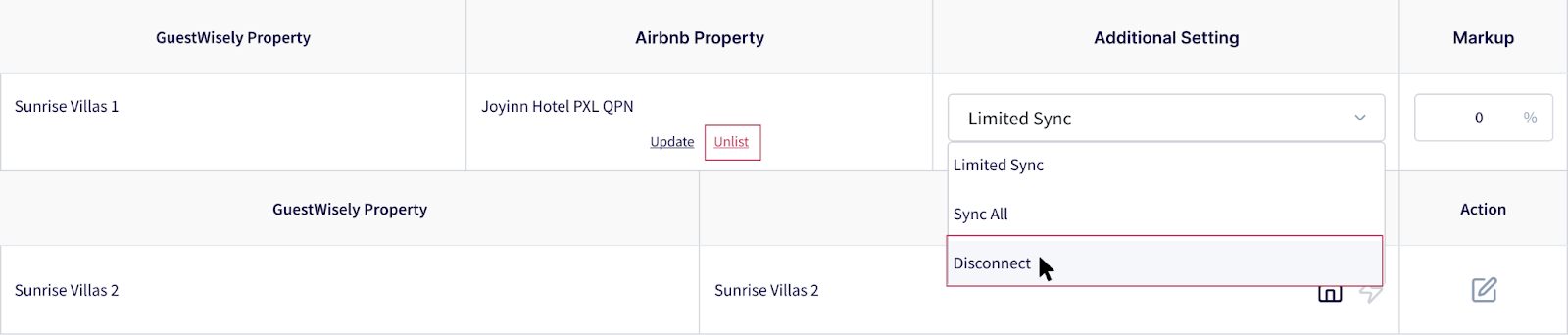
In GuestWisely, property statuses integrated with Airbnb fall into two categories:
Listing Status
Listed: Published and visible to guests on Airbnb.
Unlisted: Hidden from guests but remains in your Airbnb account.
Connection Status
Connected: Synced with GuestWisely. Changes made in GuestWisely will reflect on Airbnb.
Not Connected: Not synced with GuestWisely. Changes made in GuestWisely won’t reflect on Airbnb.
Note: Listing Status and Connection Status are independent. A property can be Listed but Not Connected, or Unlisted but still Connected.
Manage property statuses in GuestWisely as either Listed/Unlisted and Connected/Not Connected based on your operational needs.
Airbnb Listing Quality & Notifications in GuestWisely
Listing Quality Statuses & Meaning
Airbnb monitors the quality of your listings based on guest feedback, listing accuracy, and policy compliance. In GuestWisely, you can view these Airbnb Listing Quality Statuses on the Property Status page under the Airbnb column.
How to Respond to Airbnb Status in GuestWisely
When you see one of these statuses, you can still access your listing link for more details directly on Airbnb.
Once you resolve the issues, the status will be updated, though it may take some time for Airbnb to reflect the changes.
Airbnb provides guidelines and educational material related to these issues within their platform.
Airbnb Violation Notification
In addition to listing quality statuses, GuestWisely also displays important notifications from Airbnb related to your listings under the Property Status page:
Sync Errors & How to Fix Them
If your listing stops syncing with Airbnb, you’ll see a sync error notification on your GuestWisely dashboard.
Keeping your listings in good standing helps you stay visible, book more guests, and reduce the risk of deactivation. GuestWisely is here to help you manage everything smoothly in one place.
Airbnb Booking Update
Any updates such as date changes, property changes or cancellations must be processed from the original booking source (Airbnb). Once Airbnb updates the reservation, GuestWisely will sync and update accordingly.
Updating the booking directly in GuestWisely is not recommended because:
Changes made in GuestWisely will not sync back to the Airbnb dashboard.
Whenever Airbnb triggers a sync, the channel data may overwrite the updates made in GuestWisely.
Managing Airbnb Discounts with GuestWisely
GuestWisely’s direct integration with Airbnb allows hosts and operators to manage Airbnb’s native discount types from one central place - without repeatedly logging into Airbnb. Using the built-in Channel Manager, you can configure, activate, and fine-tune Airbnb discounts under Channel Manager > Airbnb > Airbnb Discounts:
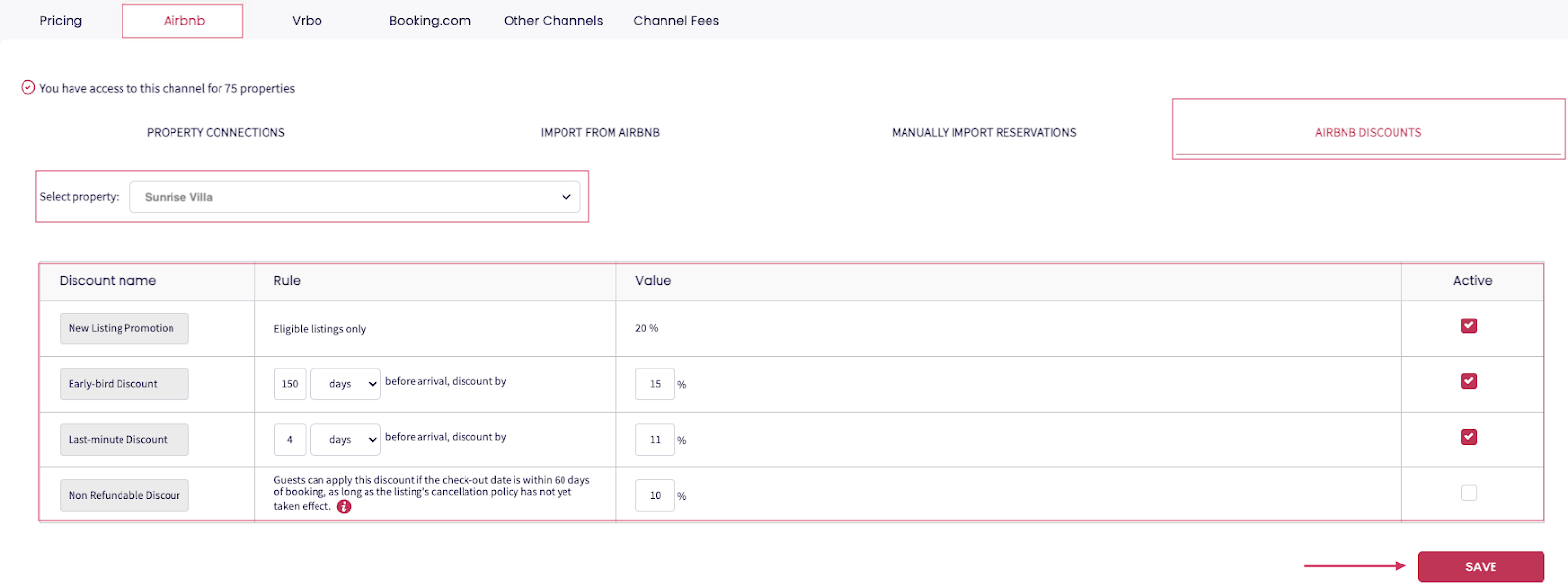
Once saved, all changes sync automatically and reliably to Airbnb, ensuring pricing rules remain consistent across your portfolio. This approach reduces manual work, minimizes sync errors, and gives you faster control over key revenue levers such as early demand capture, last-minute availability, and conversion-focused incentives.
In the Airbnb Discounts view, each row represents a native Airbnb discount type, while the columns define the rule that triggers the discount, the percentage value applied, and whether the promotion is currently active.
New Listing Promotion
The New Listing Promotion is Airbnb’s built-in incentive for brand-new listings and is designed to help properties gain momentum quickly. Airbnb automatically applies a fixed 20% discount to the first three completed bookings, increasing visibility in search results and signaling strong value to potential guests.
Because the discount value and duration are controlled by Airbnb, hosts cannot modify the percentage or extend the promotion beyond the first three bookings. While active, this promotion generally takes precedence over other discount types and is accompanied by a dedicated badge on the listing, helping new properties stand out and build early reviews.
In GuestWisely, activating this promotion requires no additional configuration: simply select the property, locate the New Listing Promotion row in the discounts table, check Active, and save. The integration pushes the promotion live on Airbnb almost immediately, making it an effective, low-effort way to launch new listings with impact.
Early Bird Discount
The Early Bird Discount incentivizes guests to book well in advance, allowing hosts to secure revenue earlier and improve long-term occupancy forecasting. For example, offering 15% off for bookings made 150 days or more before arrival encourages planners to commit sooner, which can be especially valuable during shoulder seasons or for high-demand dates.
This discount appears clearly in Airbnb’s listing details as an “Early Bird discount,” making your pricing advantage visible to guests who are comparing options far ahead of their travel dates. By rewarding early commitment, hosts can smooth demand curves and reduce reliance on last-minute pricing adjustments.
GuestWisely simplifies setup by allowing you to define the advance booking window and discount percentage directly within the Channel Manager. Once activated, the rule syncs automatically to Airbnb, and you can adjust or disable it at any time from the same centralized screen as market conditions change.
Last Minute Discount
The Last Minute Discount is designed to convert short-notice searches into confirmed bookings by lowering prices close to check-in. An example is offering 10% off for reservations made within 4 days of arrival, which appeals to spontaneous travelers and helps fill otherwise unsold nights.
On Airbnb, these discounts are often highlighted visually - sometimes with a crossed-out original price - making them especially effective at attracting attention in late-stage search results. This makes last-minute discounts a powerful tool for improving occupancy during slower periods or reacting quickly to unexpected gaps.
In GuestWisely, the process is quick and flexible: define how many days before arrival the discount should apply, set the percentage, activate the rule, and save. Thanks to the near real-time sync with Airbnb, you can respond to booking patterns without juggling multiple platforms.
Non-Refundable Discount
The Non-Refundable Discount gives guests a lower-priced alternative in exchange for committing to a booking that cannot be canceled. If set at around 10%, this discount targets price-sensitive travelers who are confident in their plans and willing to trade flexibility for savings.
Airbnb controls when this option is available by applying specific eligibility rules. The discounted rate only appears if the booking’s check-out date falls within a defined window, such as 60 days from booking, and only while the standard cancellation policy still applies. Guests must actively choose the non-refundable rate during checkout, and once selected, the booking is fully non-refundable under Airbnb’s terms.
In GuestWisely, enabling this option is as simple as entering the desired discount percentage, activating the rule, and saving. The integration ensures the non-refundable option appears on Airbnb exactly where guests expect to see it - side by side with the refundable rate - helping increase conversion while reducing cancellation risk.
Why Manage Airbnb Discounts in GuestWisely?
Managing Airbnb discounts through GuestWisely gives hosts a more efficient and controlled way to execute their pricing strategy at scale. Instead of switching between platforms, manually replicating settings, or worrying about inconsistencies, all Airbnb-native discounts can be reviewed, adjusted, and activated from a single dashboard. This centralized approach not only saves time but also reduces the risk of misconfigured rules that could impact revenue or guest expectations.
Because GuestWisely works directly with Airbnb’s official discount logic, everything configured in the Channel Manager behaves exactly as Airbnb intends - just with greater visibility and ease of management.
Airbnb Quality Dashboard
The Airbnb Quality Dashboard is a powerful analytics and management tool designed to help property managers monitor listing performance, understand guest feedback, and proactively improve quality across their portfolio.
By consolidating Airbnb review data into a single, visual interface, the dashboard enables you to:
Detect performance trends early
Identify operational issues
Improve guest satisfaction
Ultimately increase bookings and revenue
Accessing the Dashboard
There are 2 different dashboards that complete the Airbnb Quality Dashboard: The Airbnb Review Quality Dashboard analyzes the quality, consistency, and sentiment of guest reviews across the platform to identify issues like low-quality or biased feedback, enhancing trust and user experience, while the Airbnb Listings Quality Dashboard gives hosts a centralized view of key performance metrics for their own listings, helping them monitor ratings and improve listing performance.
You can access them by going to:
Channel Manager > Airbnb > Airbnb Reviews (Airbnb Review Quality Dashboard)
Channel Manager > Airbnb > Airbnb Dashboard (Airbnb Listings Quality Dashboard)
Airbnb Review Quality Dashboard
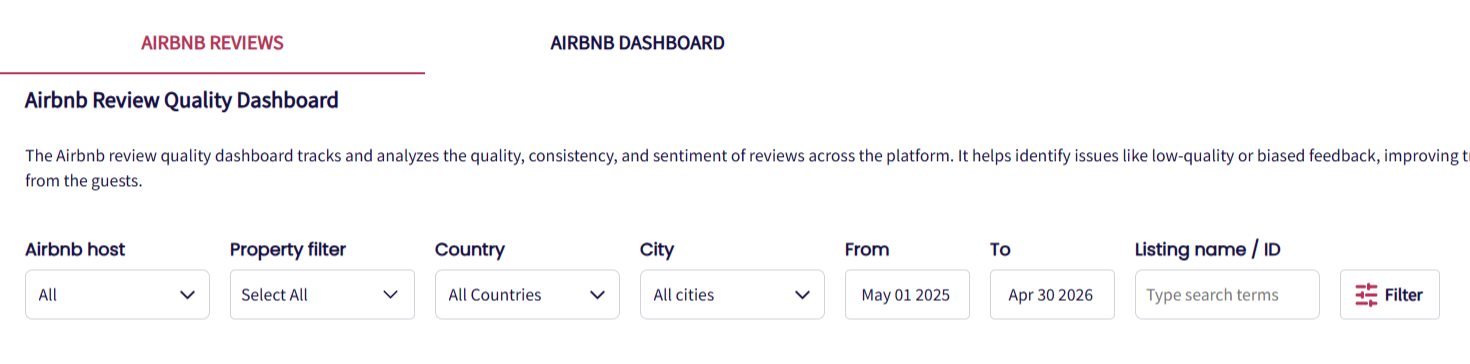
The Airbnb Review section provides a detailed, review-level view of all feedback received from your guests. This area is designed to give you a complete picture of how your listings are performing, allowing you to understand both the positive aspects of your operations and the areas that may need attention.
Filter reviews
The dashboard allows you to refine your view according to the specific level of detail you need. You can filter by an individual property if you want to focus on a single unit, by a property group if you want to evaluate a specific cluster of listings, or by the entire portfolio to get an overview of your overall performance. Additionally, you can select a custom date range - such as the current month, previous months, or even last quarter so you can analyze trends over time.
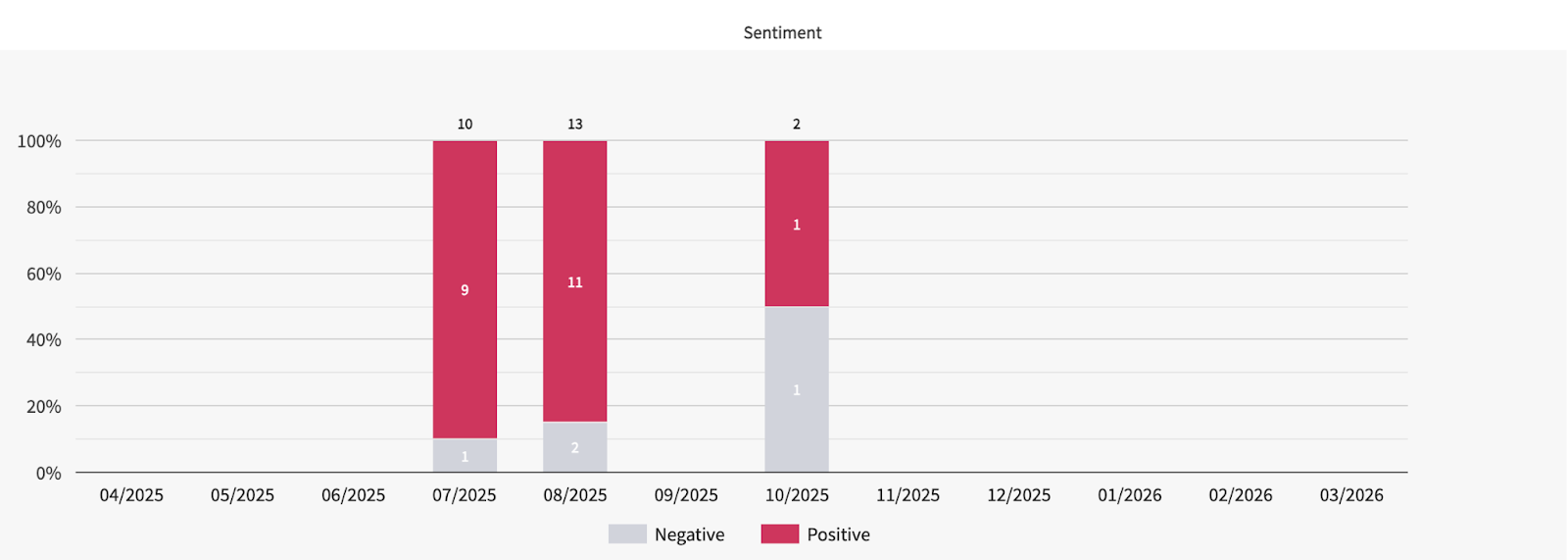
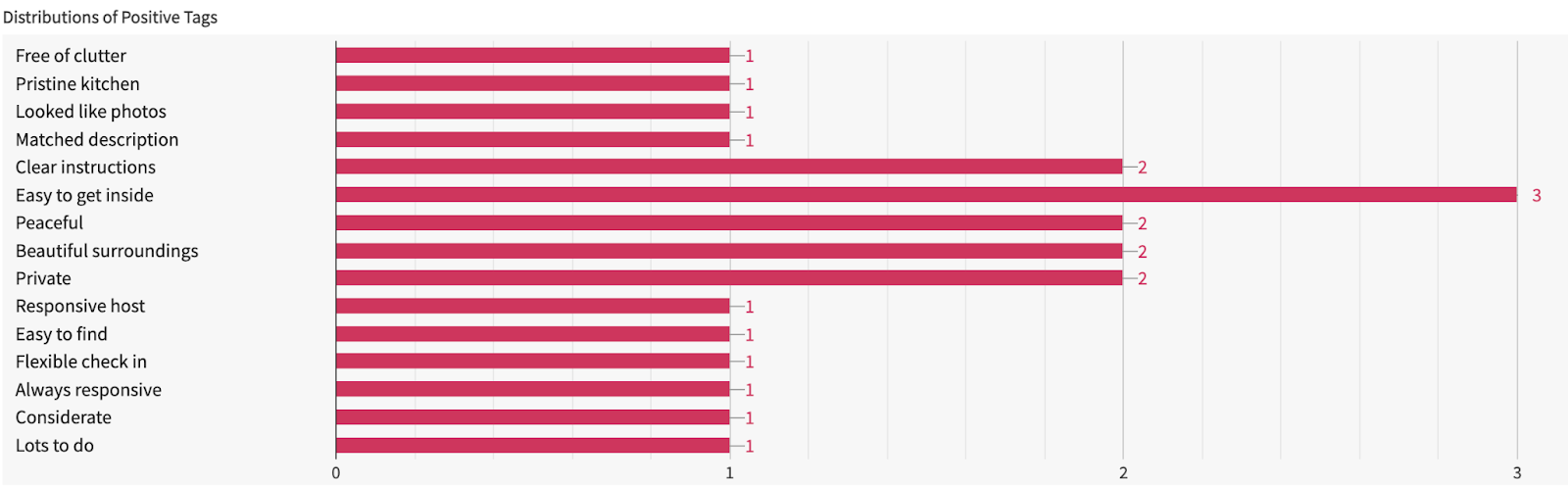
Review sentiment analysis
Airbnb assigns tags or sentiment categories to each review. These tags break down feedback into specific areas such as cleaning, communication, check-in processes, and accuracy of the listing.
The dashboard aggregates this information, showing the distribution of positive and negative sentiment across your properties. For instance, if 30% of your negative feedback relates to cleaning, it immediately highlights an area where operational improvements are needed. This feature turns raw review text into actionable insights, enabling you to focus resources efficiently and proactively address issues before they escalate.

Property-level breakdown
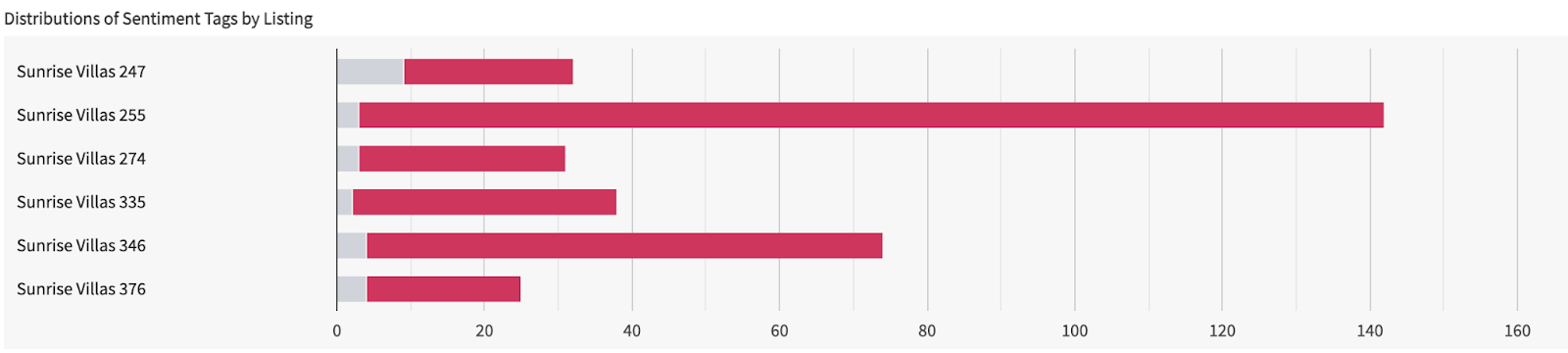
When selecting all or groups of properties, at the bottom of the page, the dashboard presents a property-by-property breakdown of all reviews. This view allows you to quickly scan each listing’s performance, compare them to other properties, and identify which listings are excelling and which require attention.
By combining high-level trend data with detailed, property-specific insights, this section ensures you have a complete understanding of your portfolio’s performance and are equipped to make informed decisions that improve guest satisfaction and boost overall listing quality.
Airbnb Listings Quality Dashboard
The Airbnb Listings Quality Dashboard is the central hub for analyzing and monitoring the overall performance of your Airbnb listings. Unlike the review-level view, which focuses on individual guest feedback, this section aggregates review data across your portfolio, presenting it in an easy-to-read, visual format. The dashboard is designed to give you insights into long-term trends, identify recurring issues, and help you make informed decisions to improve your listings and operations.
Please note that the data in this dashboard is available starting from April 2026 (or from the date your Airbnb account was connected), and does not include historical data prior to that.
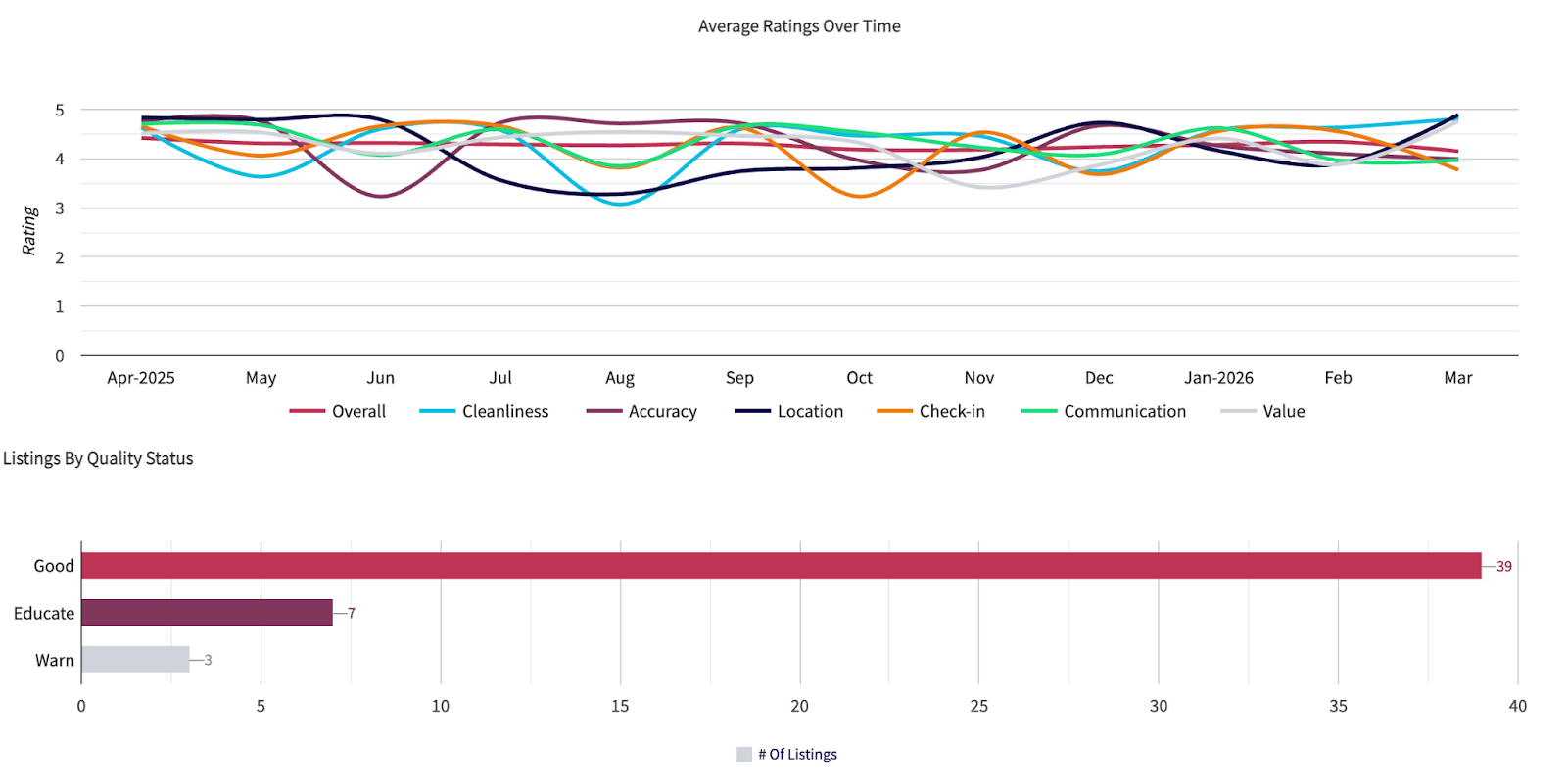
Category breakdown
A major advantage of the Quality Dashboard is its detailed category breakdown, where Airbnb organizes guest feedback into specific categories, each rated on a scale of up to 5, such as:
Overall
Cleanliness
Accuracy
Location
Check-in
Communication
Value

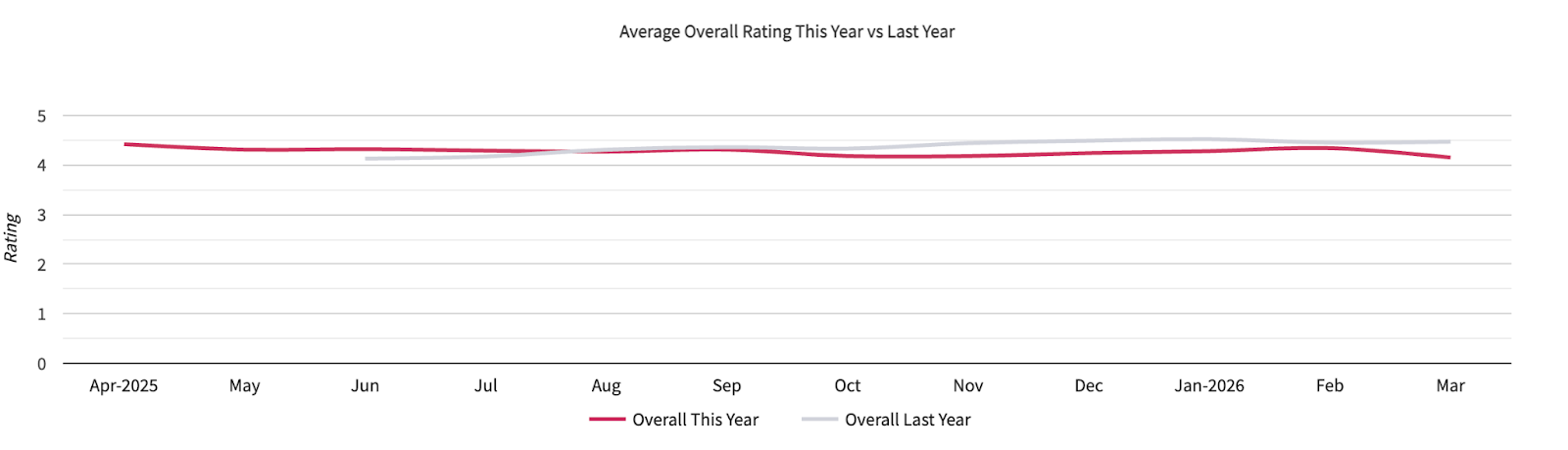
Overall ratings comparison
You will also find a comparison of overall ratings between the current year and the previous year. These ratings are displayed as color-coded graphs, making it simple to visualize improvements or declines over time. For example, last year’s ratings may be shown in gray while the current year’s data is highlighted in magenta, giving you a quick, visual comparison at a glance.
Trend analysis
Beyond category-specific scores, the dashboard also helps you detect patterns and trends. You can view data by month, enabling you to monitor seasonal variations, the effect of operational changes, or the impact of special promotions.
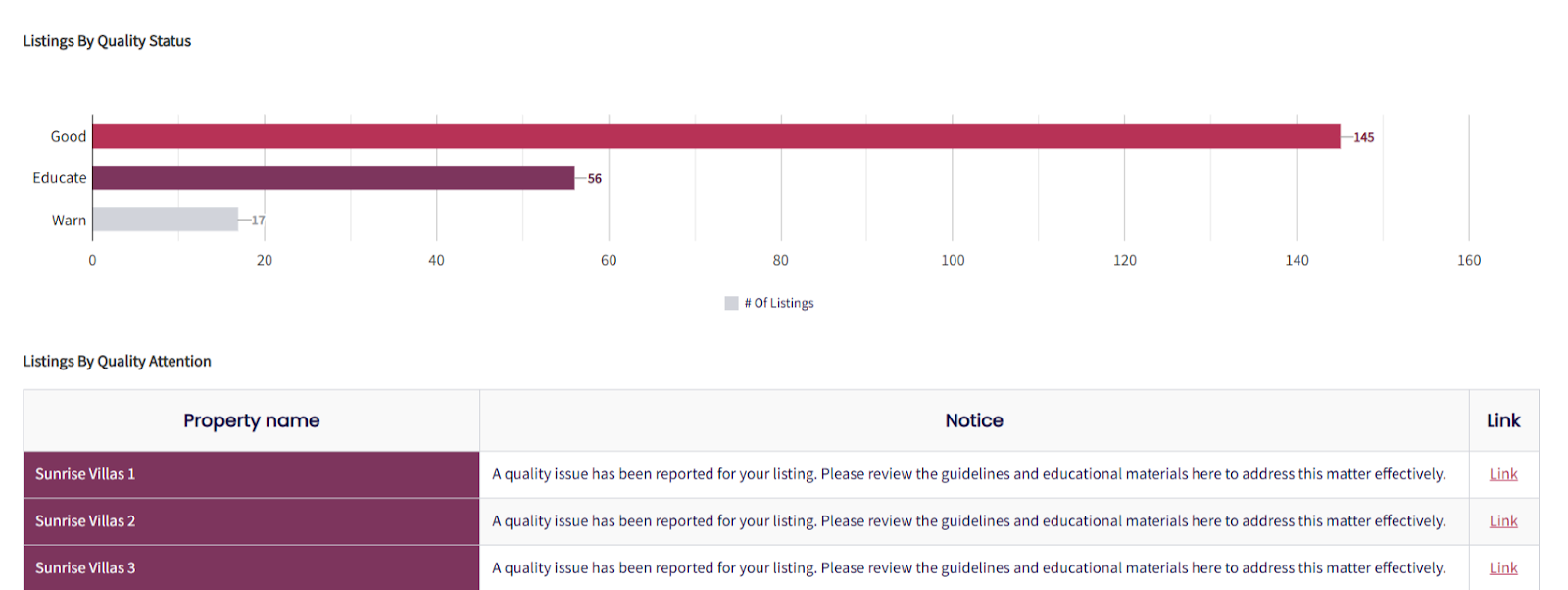
Listings By Quality Status
These statuses are based on Airbnb’s ongoing monitoring of listing performance and guest experience and are important for maintaining the overall quality of your listings.
For more detailed insights at the individual listing level, please refer to Listings By Quality Attention.
Listings By Checkout Tasks
This section shows how many properties have checkout tasks configured.

Host Notifications
These notifications help hosts stay informed when any action is required for their listings. Hosts are encouraged to review and address issues promptly to maintain the performance of their listings.

Actionable insights
The Quality Dashboard is designed to be more than just a reporting tool, it provides actionable insights that you can use to improve your listings.
For example, if the dashboard shows declining communication scores, you can review guest messages, identify common complaints and implement new templates or automated responses. Similarly, if accuracy ratings are low, it may indicate that listing descriptions are inconsistent with the property’s actual features, prompting a review and update of your listings.
You might notice that check-in ratings drop during high-occupancy periods. By spotting this trend early, you can adjust staffing, improve guest instructions or add additional support during busy seasons.
Example workflow:
Spot a decline in cleaning ratings for a specific property.
Drill down to individual reviews to see the exact complaints.
Update cleaning procedures or retrain housekeeping staff.
Track subsequent improvements in the dashboard over the next month.
Together, the Reviews and Listings Quality Dashboards give you full visibility into guest feedback and property performance, empowering you to make data-driven decisions that enhance both quality and bookings.
Airbnb Attribute locking
Learn how Airbnb attribute locking affects synced listing content, which fields may be controlled by Airbnb, and what to expect when updates from GuestWisely do not apply.
What is Airbnb Attribute locking?
This feature blocks certain fields from being updated via the Airbnb API. It allows you to manage the information directly on the channel and prevents them from being overridden by partners (any partner, including GuestWisely, regardless of the listing's sync settings).
How does it work?
When you change one of the impacted fields directly on Airbnb, this attribute will be considered "locked" (there is no need to explicitly mark the field as "locked", Airbnb will do this automatically).
Any user with access to editing listings in Airbnb can lock and unlock fields (property owners, main hosts, and co-hosts).
What happens when one or more fields are locked?
Any attempts to update a locked field via API will be ignored by Airbnb and the field will not be updated, meaning that you might update the listing on GuestWisely, export the changes to Airbnb, but some of the changes might not be updated on the channel.
How to unlock fields so you can be managed by GuestWisely via API again?
Log in to the Airbnb account
Click on "Listings"
Select the listing
Select "Edit preferences"
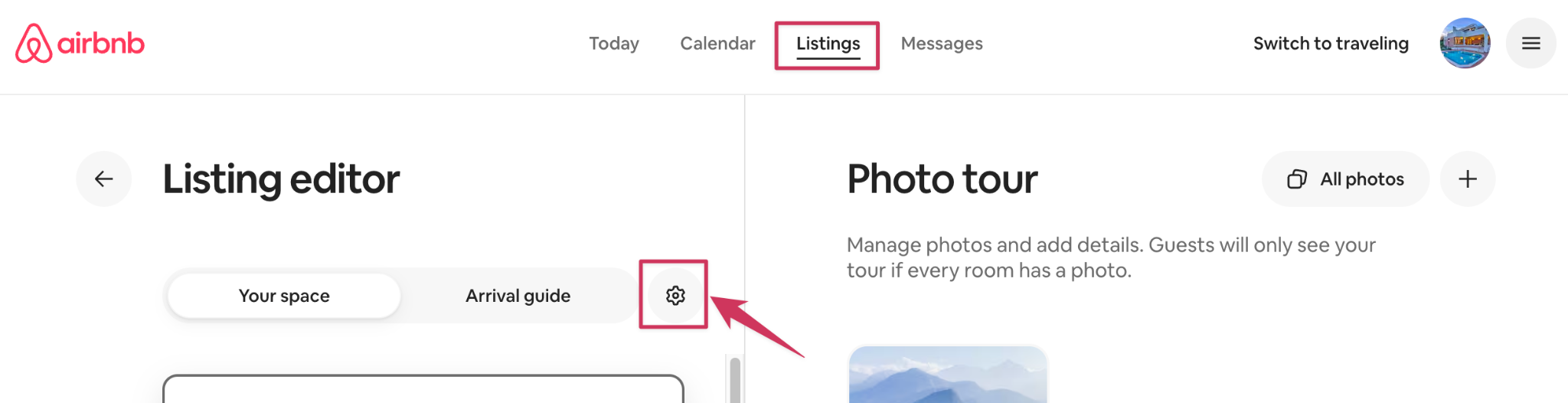
Select "Property management software"
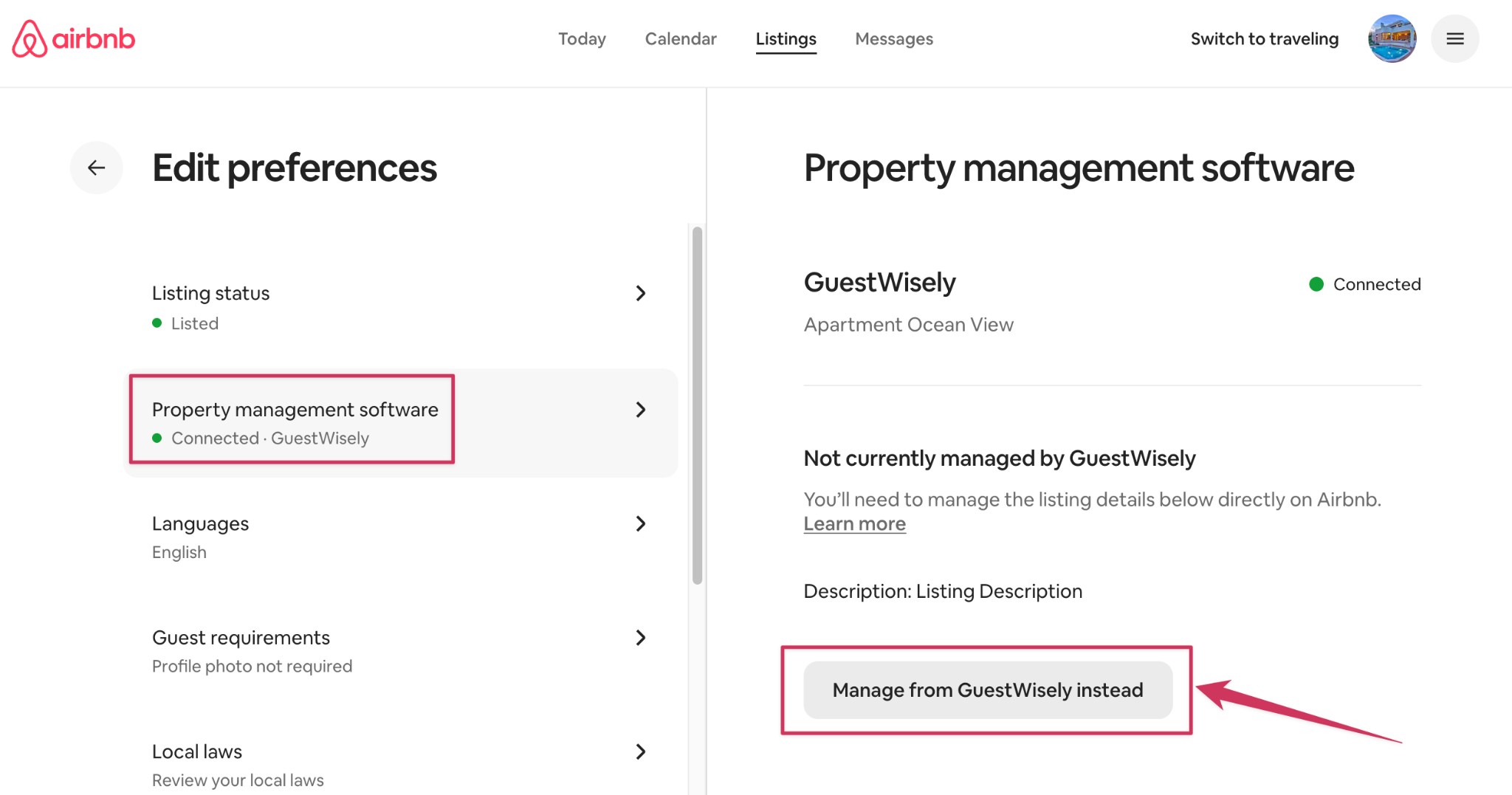
Under "Not currently managed by GuestWisely", a list of locked attributes will be shown
Select "Manage from GuestWisely instead", a confirmation pop-up will appear
Select "yes, allow" > Done
Which fields are impacted?
Not all fields will be automatically locked by Airbnb when changes are made directly on the channel;
Below is the list of the eligible fields supported by GuestWisely sync that can be locked:
Listing title & description fields (name, summary, the space, access, interaction with guests)
Amenities
Coordinates and Address (apartment, street, city, state, zip code, country code)
Check-in & check-out instructions
House rules
Airbnb Integration is a key component of the Channel Manager. Learn more about the Channel Manager here.
Was this article helpful?
That’s Great!
Thank you for your feedback
Sorry! We couldn't be helpful
Thank you for your feedback
Feedback sent
We appreciate your effort and will try to fix the article