Introduction
After connecting your Booking.com account to the GuestWisely Channel Manager, you can map new or existing listings (individual rooms/units) and fully synchronize availability, pricing, cancellation policies, photos and guest messaging or limit the sync to only availability, pricing, cancellation policies. Each Booking.com room/unit is handled as a separate property, so the connection process is repeated for every listing you want to manage centrally in GuestWisely.
This guide walks you through the complete setup: assigning GuestWisely as your connectivity provider, retrieving the necessary IDs, adding and configuring each property, handling existing bookings (especially important when switching from another channel manager) and final best practices to avoid issues like double bookings.
Quick checklist before connecting
Active access to both Booking.com extranet and GuestWisely
Cancellation policies already set in GuestWisely (they will sync automatically)
Optional: Decide on a markup % (e.g. 10–22%) if you want higher prices on Booking.com
If switching from another channel manager or iCal: existing bookings will need support to run a mapping script afterwards.
If you have never used Booking.com before, please start by creating an account using the following link: https://join.booking.com/ .
Please note that the connection to this channel is exclusive to enable the instant bookings feature.
Follow the steps below carefully - once finished, GuestWisely becomes your single source of truth for Booking.com.
Complete these steps to prevent common sync problems
Log into both your Booking.com extranet and GuestWisely account (keep both tabs/windows open during the process).
Go to GuestWisely > Payment Policies and confirm / configure the exact cancellation policy you want pushed to Booking.com.
Decide on your markup percentage (commonly 10–22%) - this makes the price shown on Booking.com higher than your base rate in GuestWisely (you can change it later).
If switching from another channel manager (e.g. Rentals United) or from iCal sync only: after the connection is done, you must contact GuestWisely support to run a booking mapping script (takes just a few minutes).
If you currently have an active iCal export link in Booking.com, please plan to remove it once the direct channel connection is live, as keeping both may cause sync conflicts.
Now proceed with the connection steps below.
Assign GuestWisely as the Connectivity Provider in Booking.com (per property)
This step tells Booking.com that GuestWisely is allowed to manage your listing - it must be done individually for each unit.
Log in to the Booking.com extranet.
Select the specific property/unit you want to connect.
In the top-right corner, click Account > Connectivity provider > Search.
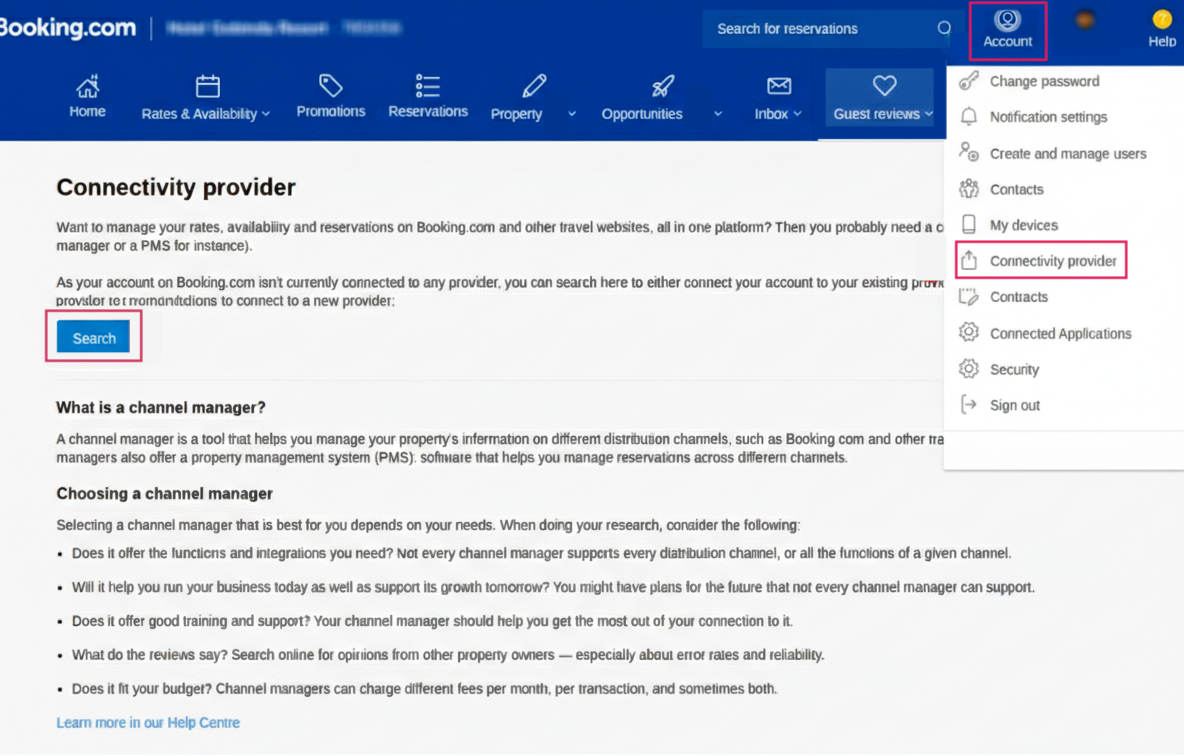
Search for and select GuestWisely.
Review the proposed connections, then click Confirm / Confirm Connections. This only authorizes the connection; actual data syncing happens in later phases.
Retrieve Required IDs from Booking.com
Booking.com uses two key identifiers - one for the overall account and one for each individual room/unit - that you will enter into GuestWisely.
A. Legal Entity ID (account-level, needed only once)
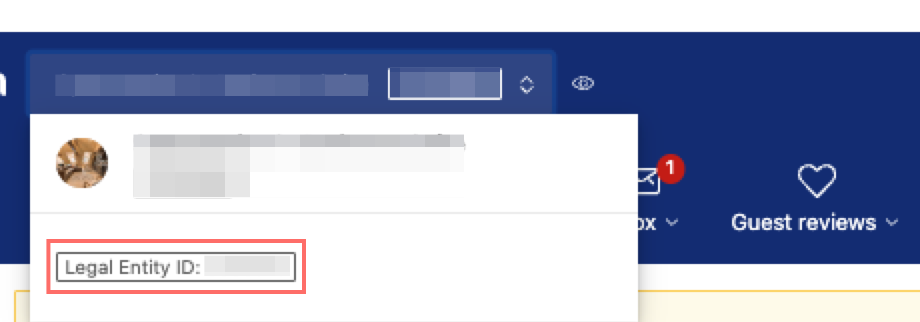
At the top of any Booking.com page, click the property name in the top-left dropdown menu.
Look at the bottom of the property overview section and copy the Legal Entity ID (typically a number starting with 9, e.g., 9701234…). Use the copy icon if available.
B. Room ID and Hotel ID (required for each unit)
From the property menu, navigate to Property → Room details.
Find the Room ID for the specific unit (a longer number, e.g., 135884502). Copy it.
Calculate the Hotel ID by removing the last two digits from the Room ID (e.g., 135884502 → 1358845).
Connect the Account and Property in GuestWisely
Here you link the overall Booking.com account once, then add and configure each individual property/unit.
In GuestWisely, open the Channel Manager section (usually found in the left sidebar) and select Booking.com.
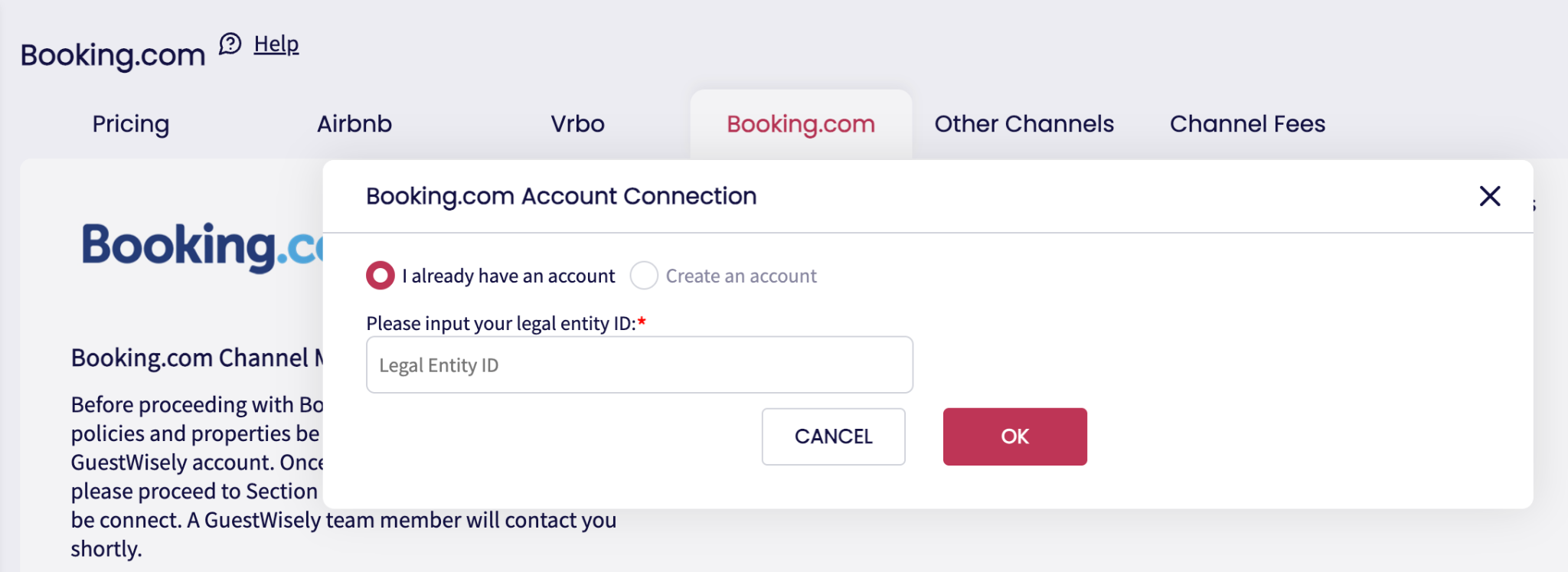
Click the Connect to Booking.com button.
Paste the Legal Entity ID and confirm the account-level connection. This step is performed only once per Booking.com account.
Mapping Properties
Click Add Property+. When prompted “Is the property already on Booking.com?”, choose Yes.
Complete the required fields:

Booking.com Hotel ID: Paste the derived Hotel ID (Room ID minus last two digits).
Room ID: Paste the full Room ID you copied.
Select the matching internal property/unit from your GuestWisely inventory.
Currency: Select the correct currency (critical - Booking.com often pays only in the property’s backend currency).
Markup % (optional): Enter your desired percentage (e.g., 15%) if you want GuestWisely prices increased on Booking.com.
Sync type: Select Limited Sync (strongly recommended - updates only prices, availability and policies). Avoid Full Sync unless required, as it temporarily hides availability and takes longer.
Click Save.
The property will display “processing” for several minutes (especially while photos upload - Booking.com requires images before going live). Wait until it changes to Connected. Repeat steps 5–8 for every unit/property.
Pushing Properties
Click Add Property+. When prompted “Is the property already on Booking.com?”, choose No.
Complete the required fields:
Booking.com Hotel ID: Paste the derived Hotel ID (Room ID minus last two digits).
Select the internal property/unit (room) from your GuestWisely inventory that you would like to connect to that hotel.
Currency: Select the correct currency (critical - Booking.com often pays only in the property’s backend currency).
Markup % (optional): Enter your desired percentage (e.g., 15%) if you want GuestWisely prices increased on Booking.com.
Sync type: Select Limited Sync (strongly recommended - updates only prices, availability and policies). Avoid Full Sync unless required, as it temporarily hides availability and takes longer.
Click Save.
Handling Existing / Future Bookings
New bookings will sync automatically after connection, but older bookings from before the switch need special handling to avoid issues with cancellations or messaging.
If switching from another channel manager or iCal setup:
Future bookings received after the connection will import automatically into GuestWisely and trigger automated guest messages.
Pre-existing bookings will not be recognized automatically and require mapping.
After all properties are successfully connected:
Contact your GuestWisely representative or support team and request that they run the booking mapping script for the switched properties.
This quick process (usually a few minutes) ensures:
Cancellations of old bookings are handled correctly.
New guest messages import properly (note: message history from before the switch will not be imported).
Manual import option (useful for recent or future bookings)
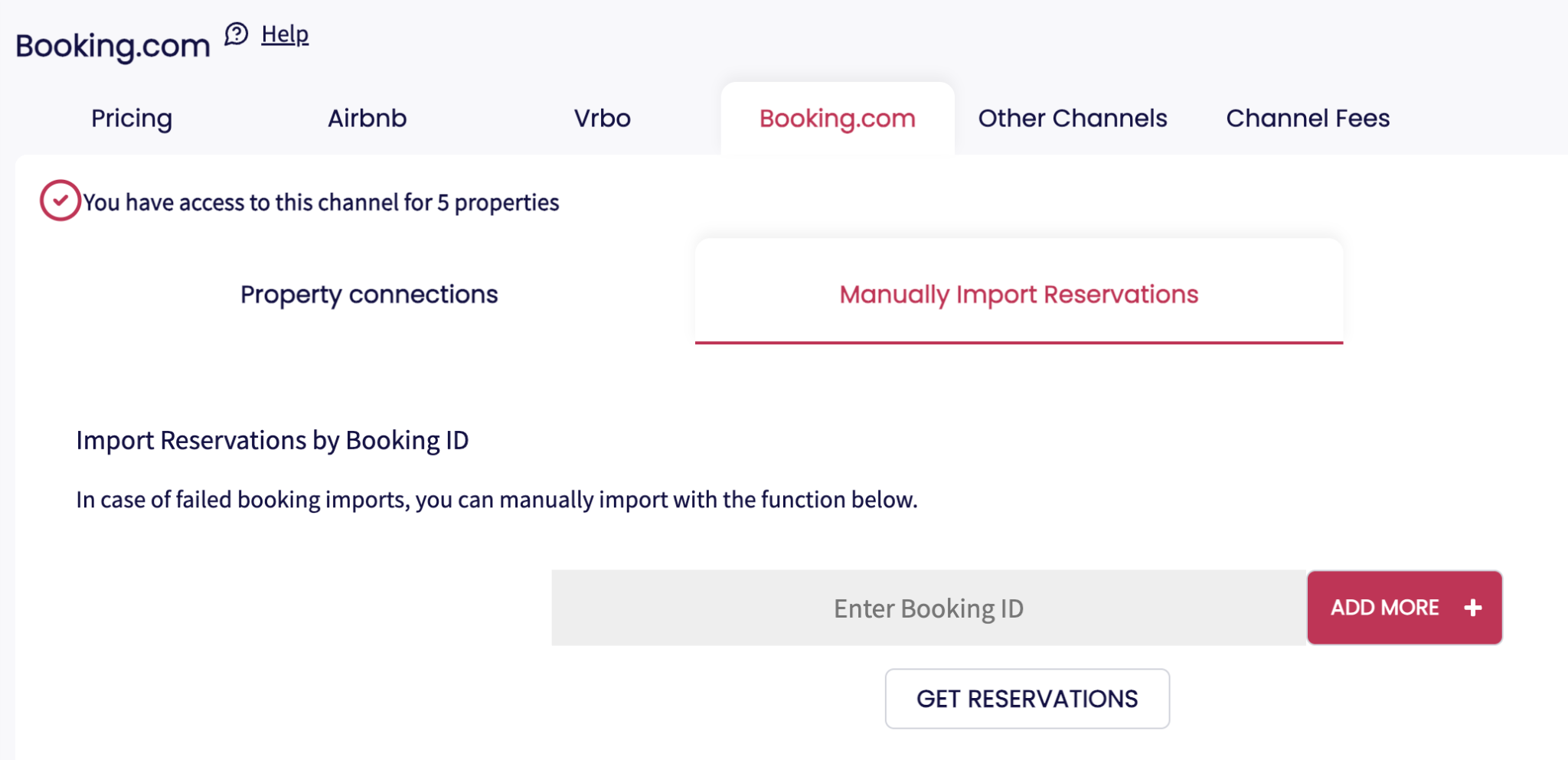
In GuestWisely > Booking.com channel > select Manually Import Reservations.
Paste individual Booking.com reservation IDs (found in your Booking.com reservation list).
Click Get reservations / Import: Best for bookings in the near future or roughly the last 15 days.
If the import fails or conflicts appear, manually block the corresponding dates in the GuestWisely calendar and add a note (e.g., the reservation number) to prevent double bookings.
Important Post-Connection notes
A few final checks and best practices help ensure everything runs smoothly long-term.
Remove the iCal link from your Booking.com property settings so GuestWisely becomes the single, authoritative source for availability and pricing.
Photo upload delay - The “processing” status is normal during initial sync and prevents misleading “not connected” alerts while images are transferred.
Property type issues - If Booking.com displays an incorrect subtype dropdown after connection, contact GuestWisely support; they can correct the main category mapping.
Payments - Booking.com’s payment facilitation (virtual credit card) is currently available only in the US and Canada. Elsewhere, payments are handled directly via guest credit card or virtual card to the property owner.
Cancellation policies - Always manage and update these in GuestWisely - avoid editing them directly in Booking.com after the connection is live.
Once these steps are complete, GuestWisely will fully manage pricing updates, availability, incoming bookings and guest communication for your connected Booking.com properties - just like it does for your other channels.
If you run into persistent issues (e.g., status stuck on “processing”, mapping failures, or mismatched property types), reach out to GuestWisely support for assistance.
Booking.com Booking Update
Any updates such as date changes, property changes or cancellations must be processed from the original booking source (Booking.com). Once Booking.com updates the reservation, GuestWisely will sync and update accordingly.
Updating the booking directly in GuestWisely is not recommended because:
- Changes made in GuestWisely will not sync back to the Booking.com dashboard.
- Whenever Booking.com triggers a sync, the channel data may overwrite the updates made in GuestWisely.
Booking.com Payment Handling
Understanding Booking.com Payment
Payment handling for Booking.com reservations depends on the payment method defined in your agreement with Booking.com, as this determines whether Booking.com will send card details to GuestWisely or collect the payment themselves.
If payment for a Booking.com reservation has not yet been received, we first recommend reviewing the initial Booking.com notification email to confirm whether Booking.com provided any card details (Guest CC or VCC).
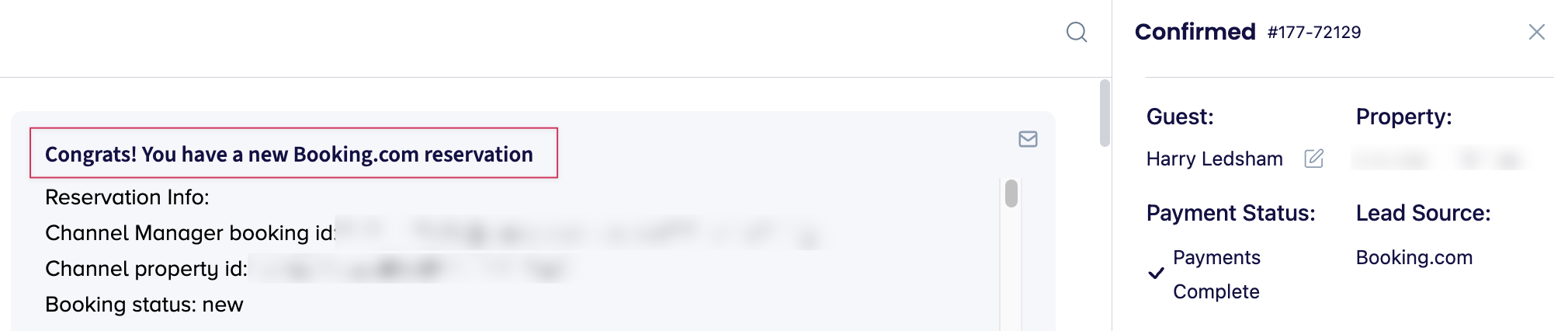
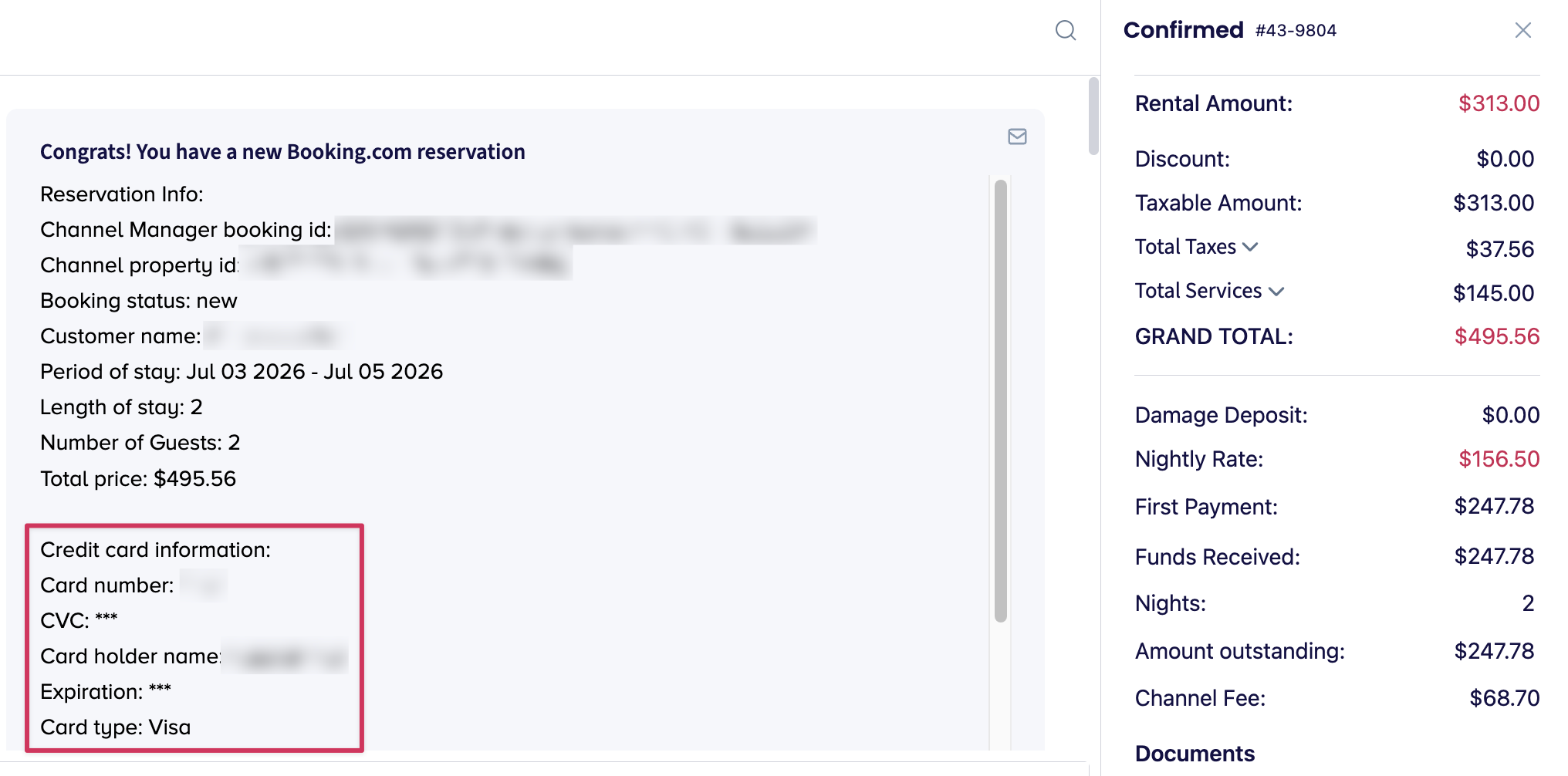
1. Guest Credit Card Details Sent
For bookings where Booking.com sends the guest’s credit card details, you are responsible for collecting payment from the guest.
If Advanced Payment is NOT activated:
GuestWisely will not process payments automatically, even if card details are available, payment must be collected manually.
If Advanced Payment is activated:
GuestWisely will attempt to automatically charge the guest’s card based on your configured payment rules in GuestWisely.
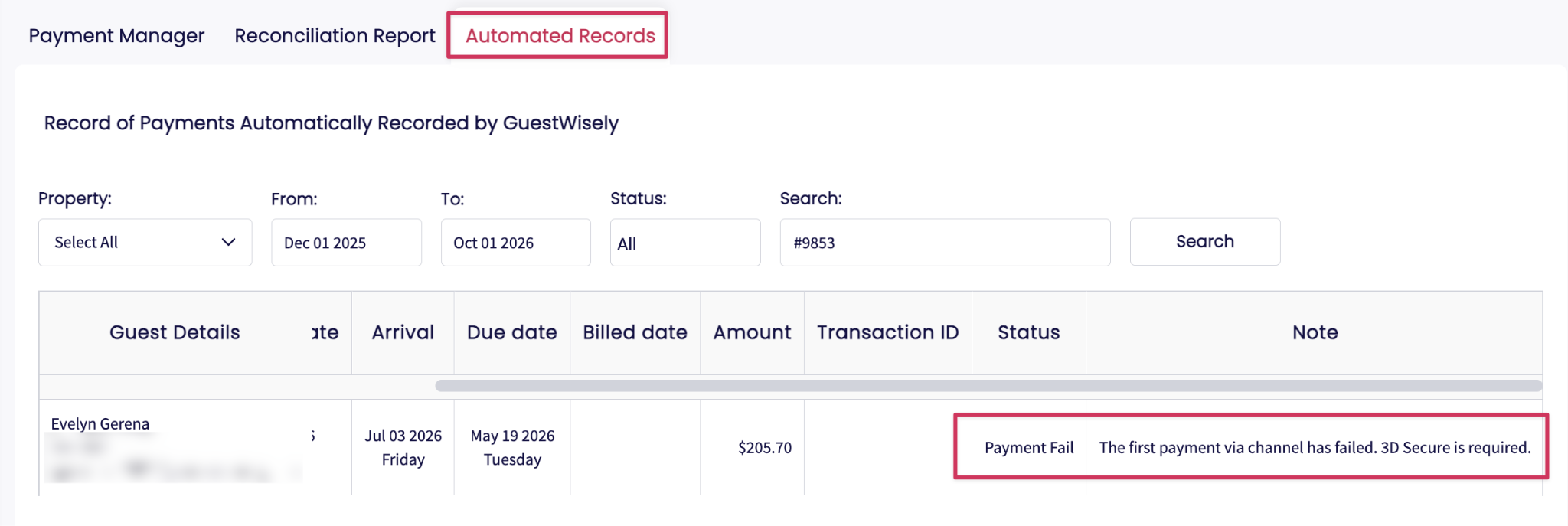
Please note that automated payment attempts may still fail due to reasons outside GuestWisely’s control, such as insufficient funds, declined cards, bank authorization requirements (for example: 3D Secure).
Please note that Booking.com only verifies whether the card is valid. They do not verify whether sufficient funds are available.
If the payment attempt is unsuccessful:
Review the reason in the Automated Records
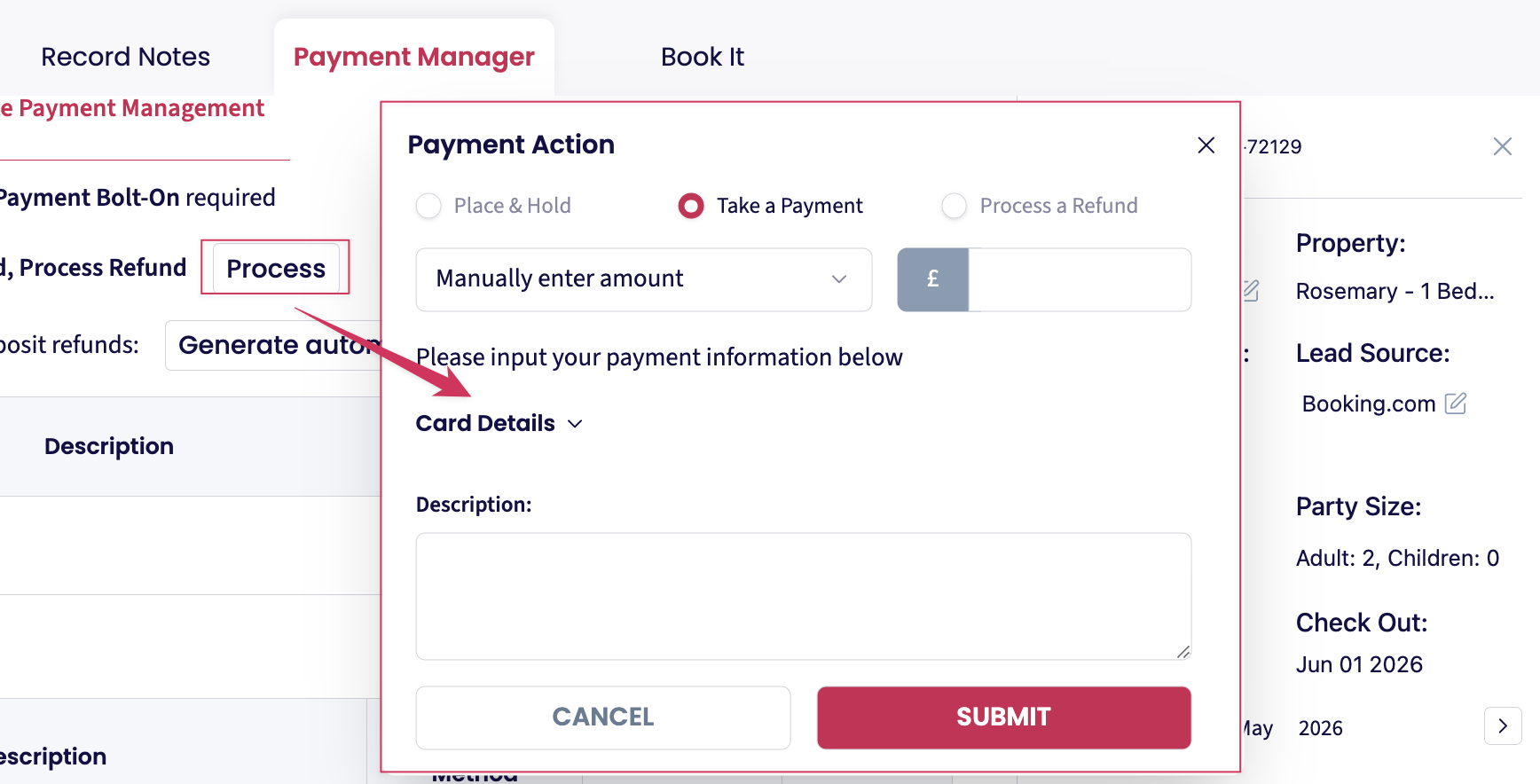
Proceed with manual payment processing using the VCC provided:
If the payment still fails, send a payment link to the guest or contact the guest directly to arrange an alternative payment method.
2. Virtual Credit Card Details Sent
For bookings where Booking.com sends a Virtual Credit Card (VCC), you are also responsible for collecting payment.
The VCC valid date is usually mentioned by Booking.com in the initial Booking.com reservation notification email.
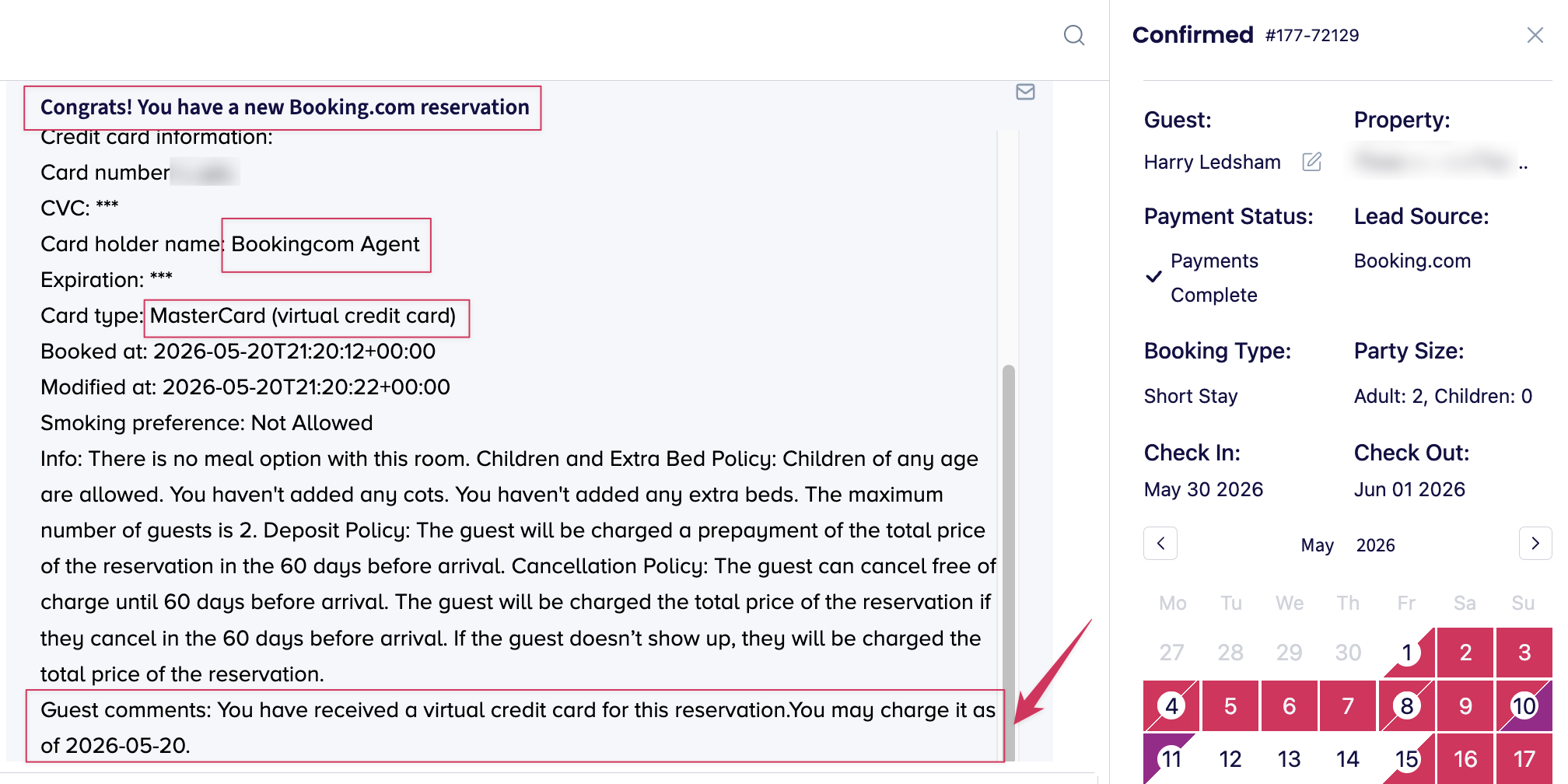
If Advanced Payment is NOT activated:
GuestWisely will not process payments automatically, even if card details are available, payment must be collected manually.
If Advanced Payment is activated:
GuestWisely will create a scheduled automatic payment and attempt to automatically charge the VCC on the check-in date.
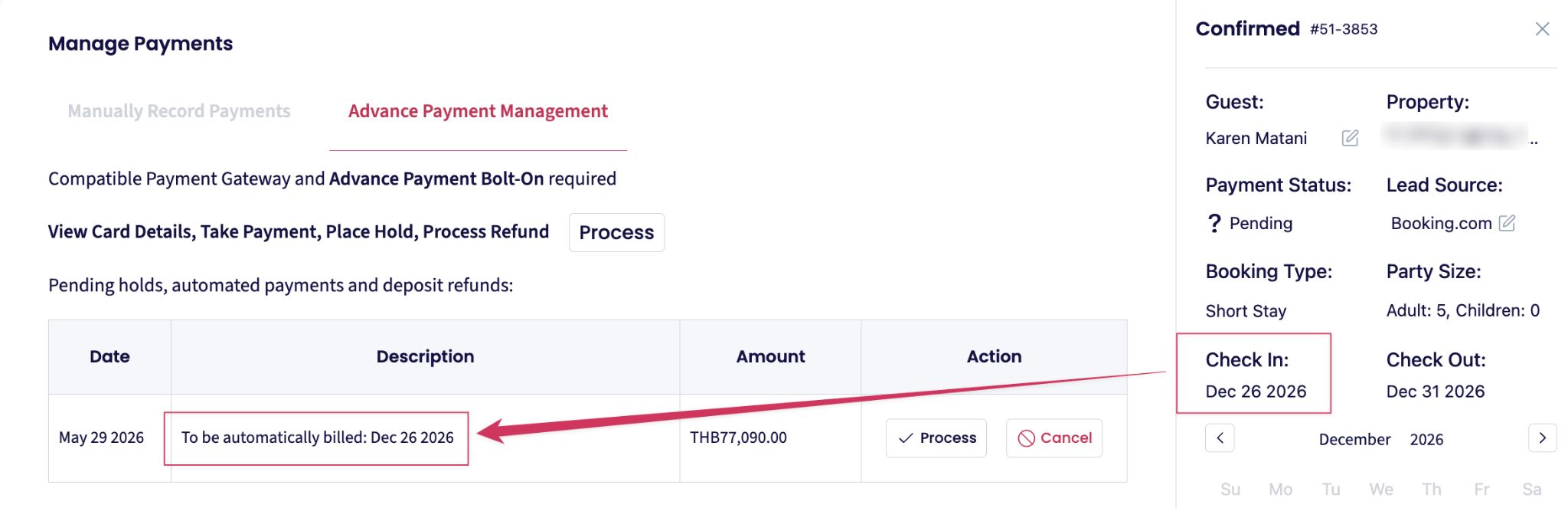
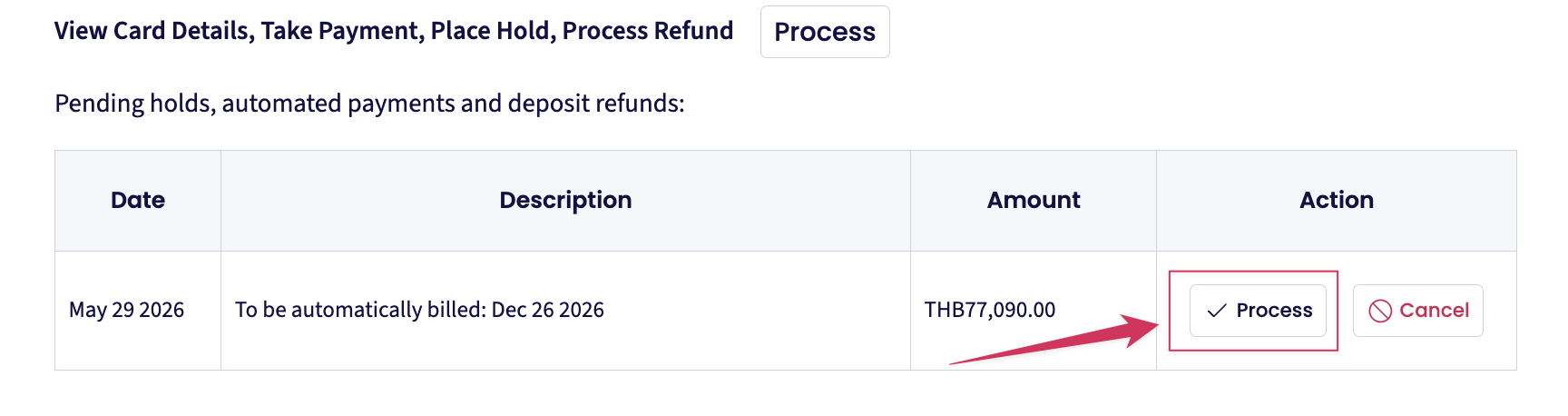
You can also trigger the payment by clicking the “Process” button once the VCC becomes valid.
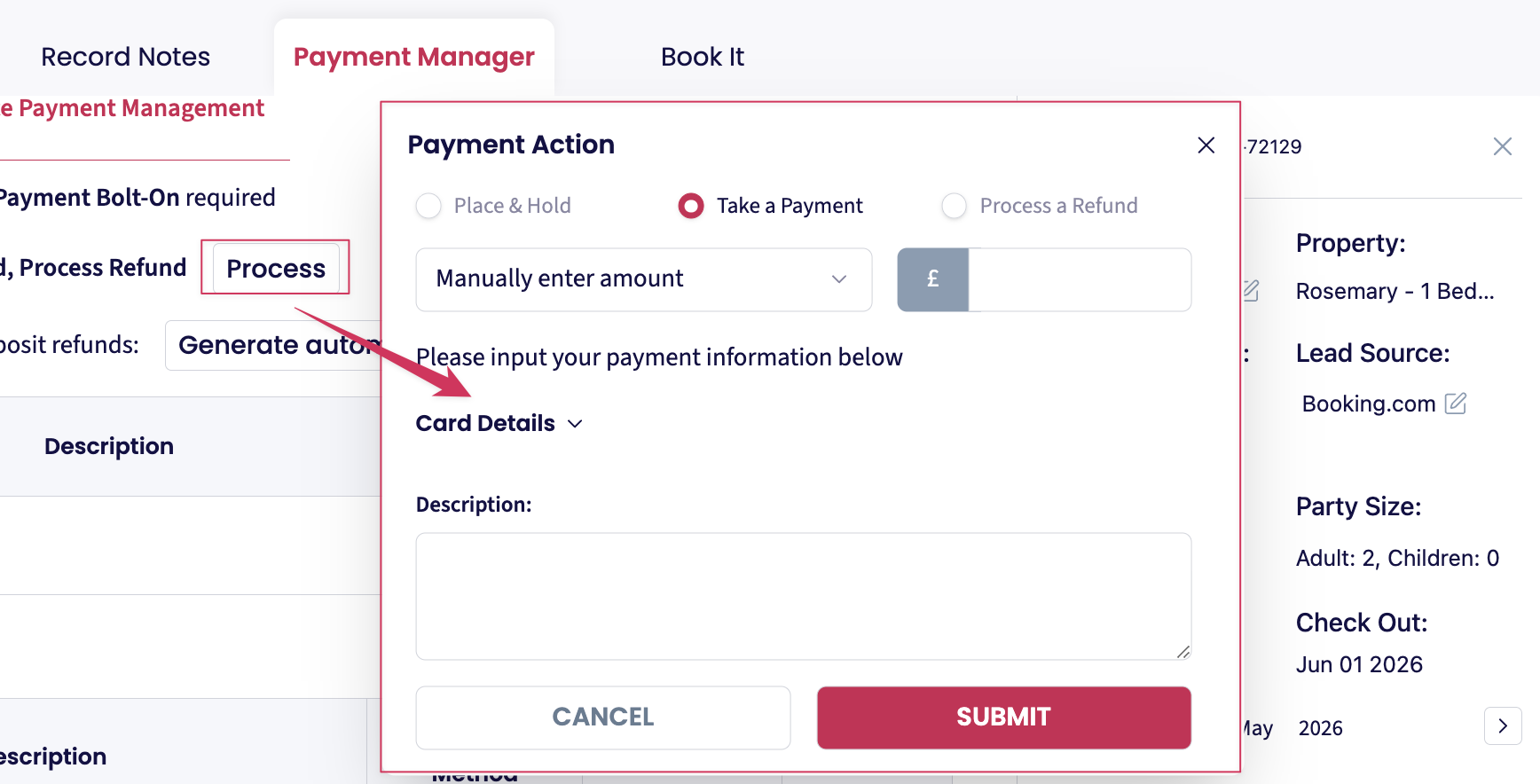
Even when automated payments are enabled, charges may still fail due to payment gateway authorization requirements (for example: 3DS Secure).
If the payment attempt is unsuccessful:
Review the reason in the Automated Records
Proceed with manual payment processing using the VCC provided:
Important notes:
Booking.com reservations using VCC do NOT follow the payment policy configured in your PMS. Instead, the system will attempt to charge the full booking amount.
VCC cards can not be used to charge damage deposits.
If you need to collect a damage deposit, you must send the guest an email containing the deposit payment shortcode: [DEPOSIT_LINK].
3. No Card Details Sent
For bookings where Booking.com does NOT send CC/VCC details:
The guest may pay via bank transfer. If so, this is usually mentioned in the initial Booking.com notification email.
If no card details are provided and there is no mention of bank transfer, GuestWisely automatically assumes that Booking.com is responsible for collecting payment from the guest.
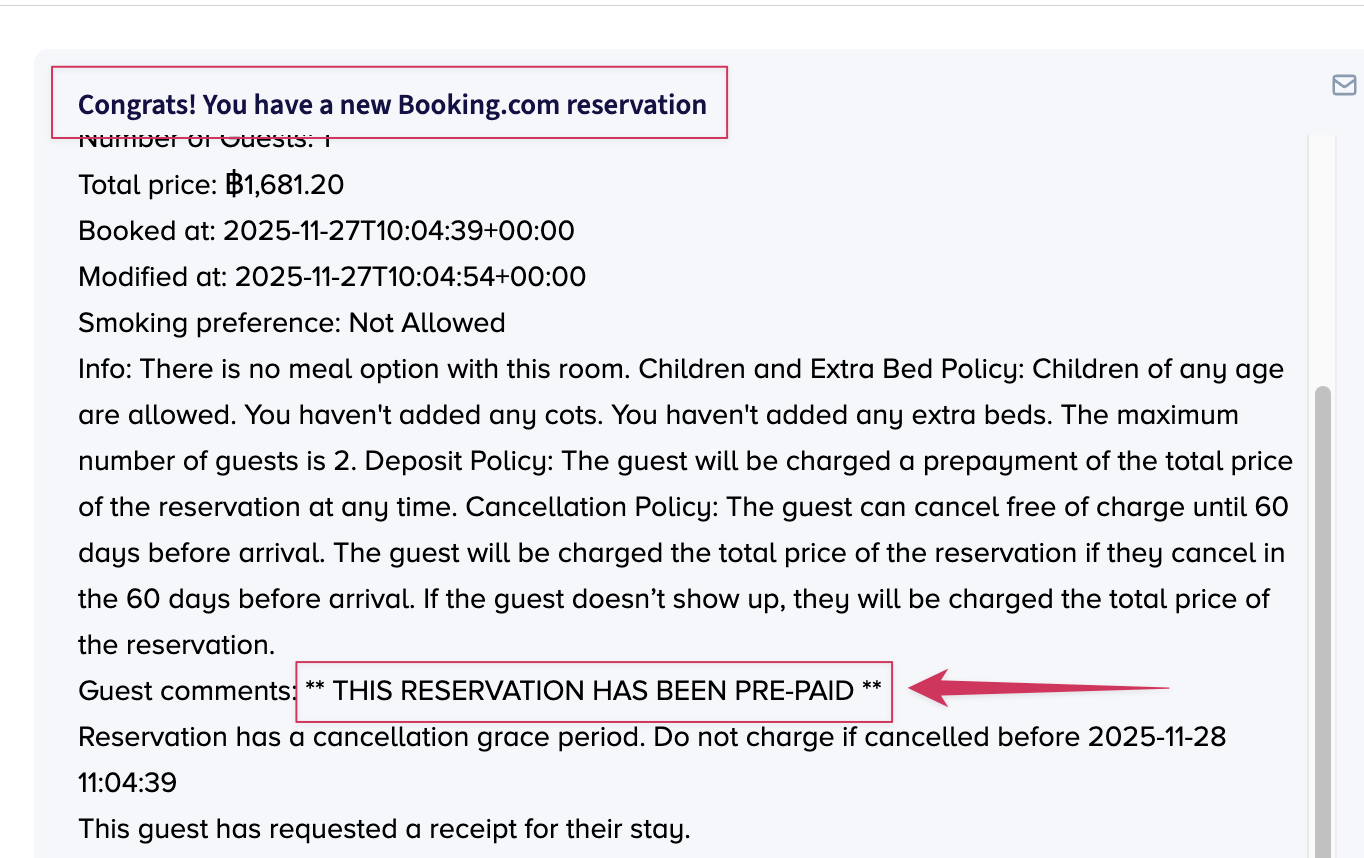
In these cases, GuestWisely will:
Automatically create a payment record for the full booking amount and set the payment date to Check-in + 1 day with a description “Channel Manager Payment”. This payment record is for reference purposes only and does NOT represent an actual confirmed payment.
Mark the payment status as “Complete”
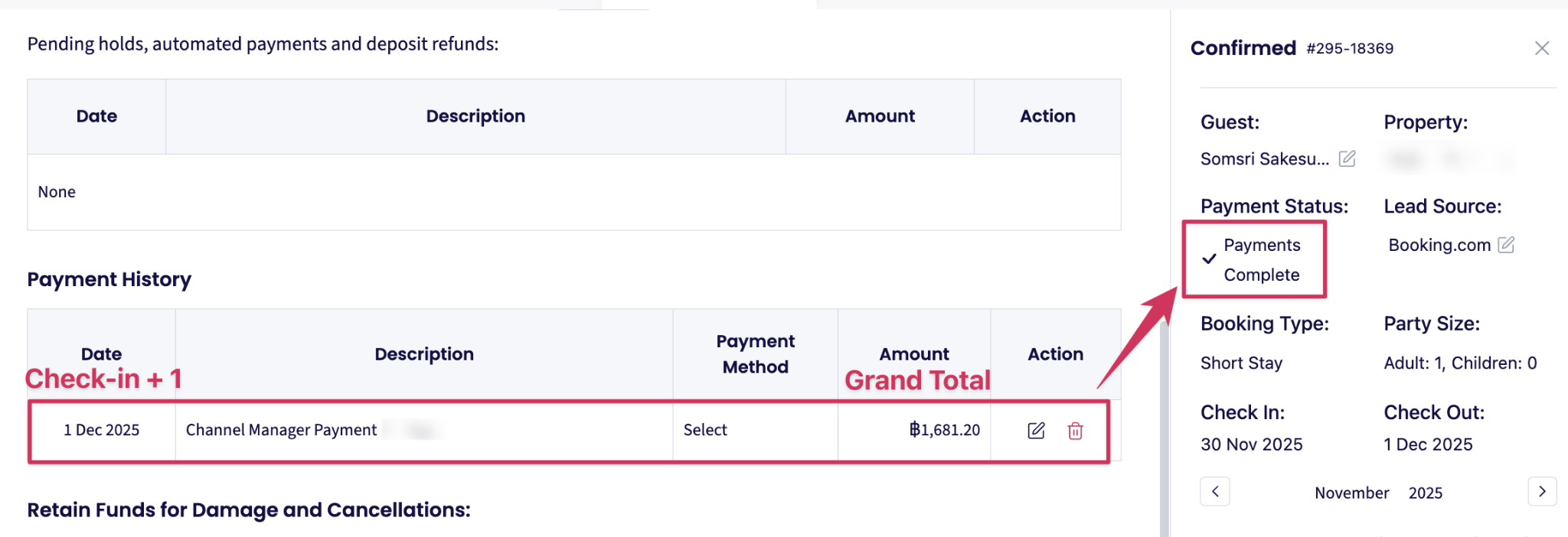
If the payment responsibility is unclear, please double-check the payment status in the Booking.com Extranet or contact Booking.com support directly if needed, as this depends on the agreement and payment setup between you and Booking.com.
Important Reminder
We strongly recommend regularly monitoring the payment status of your Booking.com reservations so you can take timely action if a payment is unsuccessful or missing.
Please note that Card details (CC/VCC) are automatically deleted 14 days after check-out. If payment collection is still pending, action should be taken before the card information expires.
Please reach out to our Support Team at support@guestwisely.io if you need further assistance.
Was this article helpful?
That’s Great!
Thank you for your feedback
Sorry! We couldn't be helpful
Thank you for your feedback
Feedback sent
We appreciate your effort and will try to fix the article